1. Okwu mmalite
This manual provides detailed instructions for the Delton 10X Bluetooth Computer Headset. This wireless headset is designed for clear communication and extended use, featuring Bluetooth 5.0 connectivity, a noise-canceling microphone, and a USB dongle for versatile compatibility. Please read this manual thoroughly to ensure proper setup and operation of your device.

Foto nke 1.1: The Delton 10X Bluetooth Computer Headset and its accompanying USB dongle. This image displays the headset's over-the-head design, single ear cup, adjustable microphone boom, and the compact USB dongle.
2. Ihe ngwugwu
Chọpụta na ihe niile dị na ngwugwu gị:
- Delton 10X Bluetooth Headset
- USB Dongle
- Ịchaji eriri
- Akwụkwọ ntuziaka (akwụkwọ a)
3. Akụrụngwa Ngwaahịa
The Delton 10X headset offers a range of features designed for optimal performance and user comfort:
- Njikọ Bluetooth 5.0: Ensures stable and efficient wireless connection up to 30 feet.
- Igwe okwu na-akagbu mkpọtụ: Na-ebelata mkpọtụ ndabere maka mgbasa ozi olu doro anya.
- 270° Rotatable Microphone: Allows for flexible positioning and use on either ear.
- Ndụ batrị agbatịkwuru: Up to 15 hours talk time, 18 hours play time, and 160 hours standby time.
- Nchaji ngwa ngwa: Na-akwụ ụgwọ n'ụzọ zuru ezu n'ime ihe dịka awa 1.5.
- Adjustable Headband & Plush Ear Cushion: Provides comfort for prolonged wear.
- Ear Gripper T-Pad: Ensures secure fit during movement.
- Ndakọrịta Universal: Works with smartphones, tablets, desktop PCs, laptops, and supports iOS and Windows platforms.

Foto nke 3.1: A visual summary of the Delton 10X headset's key features, including 15 hours talk time, Bluetooth 5.0, adjustable headband, high fidelity sound, noise-canceling mic, rotatable mic, long battery backup, voice assistant support, and plush cushions.
3.1 Batrị arụmọrụ
The Delton 10X headset is equipped with a long-lasting battery to support your daily communication needs.
- Oge okwu: Ruo awa iri abụọ
- Oge egwuregwu: Ruo awa iri abụọ
- Oge njikere: Ruo awa iri abụọ
- Oge nchaji: Ihe dị ka awa 1.5
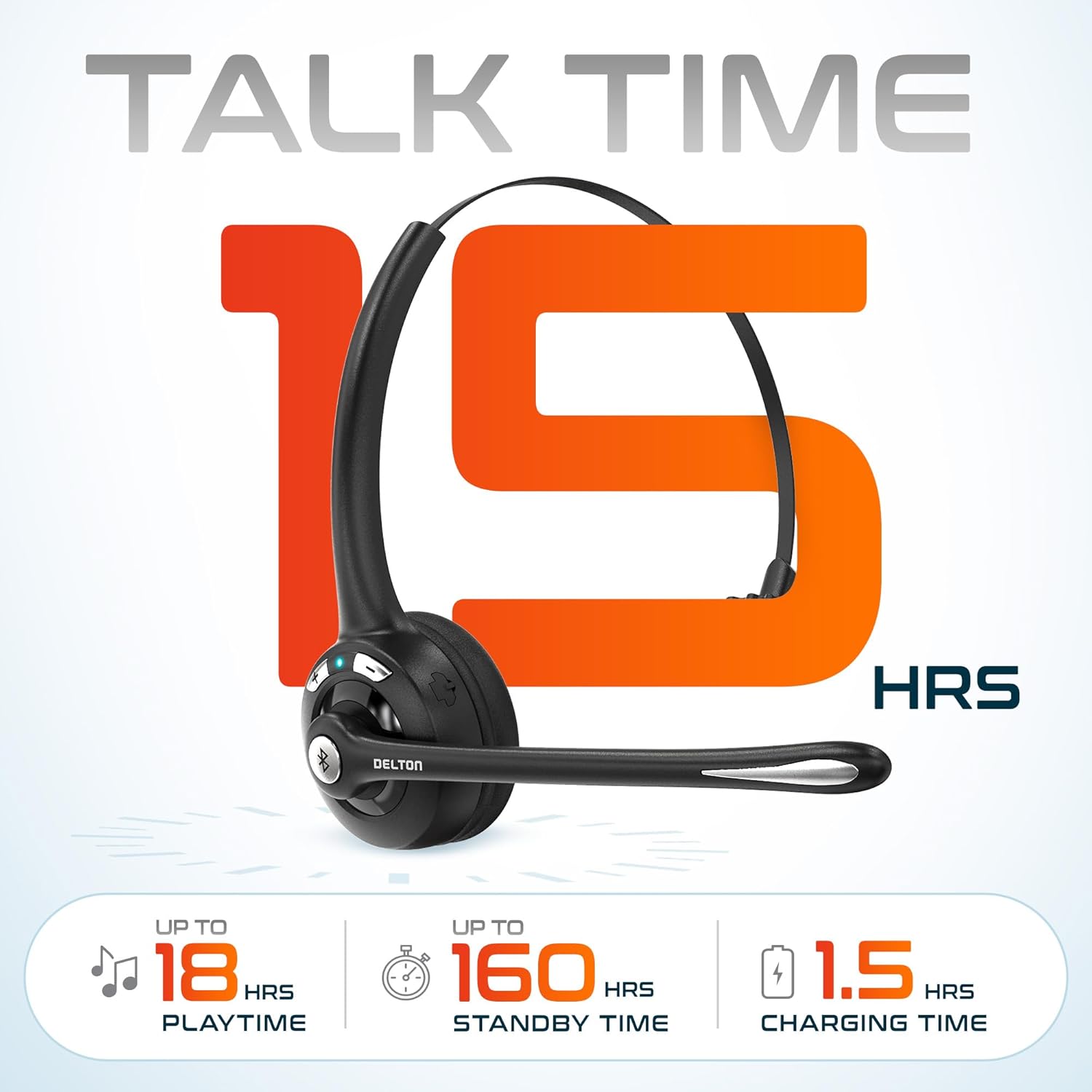
Foto nke 3.2: An infographic detailing the battery performance of the Delton 10X headset, highlighting 15 hours of talk time, 18 hours of play time, 160 hours of standby time, and a 1.5-hour charging time.
3.2 Advanced Technology
The headset incorporates an advanced chipset for seamless connectivity and improved power efficiency.

Foto nke 3.3: A nso-elu view of the headset's internal components, illustrating the advanced Bluetooth 5.0 chipset. This image emphasizes the technology that reduces outside noise, improves power efficiency, and provides seamless connectivity up to 30 feet.
4. Nhazi
4.1 Ịchaji ekweisi
- Connect the provided charging cable to the charging port on the headset.
- Plug the other end of the cable into a USB power source (e.g., computer USB port, wall adapter).
- Ihe ngosi LED ga-egosi ọkwa nchaji. Ụgwọ zuru ezu na-ewe ihe dị ka awa 1.5.
4.2 Gbanyụọ ma ọ bụ gbanyụọ
- Iji gbanye: Press and hold the Multi-Function Button (MFB) until the LED indicator flashes blue.
- Iji gbanyụọ: Press and hold the MFB until the LED indicator flashes red and then turns off.
4.3 Bluetooth Pairing (Direct)
To connect the headset directly to a Bluetooth-enabled device (e.g., smartphone, tablet):
- Gbaa mbọ hụ na agbanyụrụ ekweisi.
- Press and hold the MFB for approximately 5-7 seconds until the LED indicator flashes red and blue alternately, indicating pairing mode.
- Na ngwaọrụ gị, gbanye Bluetooth ma chọọ ngwaọrụ dịnụ.
- Select "Delton 10X" from the list of found devices.
- Once connected, the LED indicator on the headset will flash blue slowly.
4.4 USB Dongle Connection
For computers without native Bluetooth or for a more stable connection, use the included USB dongle. The dongle provides instant auto-pairing.
- Plug the USB dongle into an available USB port on your computer. The dongle's LED will blink.
- Power on your Delton 10X headset.
- The headset and dongle will automatically pair. The dongle's LED will turn solid blue, and the headset's LED will flash blue slowly once connected.
- Ensure the Delton 10X is selected as the audio input and output device in your computer's sound settings.

Foto nke 4.1: A visual representation of the USB dongle being inserted into a laptop's USB port. The image highlights the 'Auto-Pair USB Dongle' feature and 'Plug & Play' functionality, indicating no driver installation is required.
4.5 ndakọrịta
The Delton 10X headset is designed for broad compatibility:
- Ngwaọrụ: Smartphones, Tablets, Desktop PCs, Laptops.
- Sistemu eji arụ ọrụ: iOS, Windows, Linux, Mac.
- Ngwa: MS Teams, Zoom, Google Meet, Slack, Skype.

Foto nke 4.2: Ihe ngosi ihe atụasing the wide compatibility of the Delton 10X headset with various devices, including phones, tablets, iOS & Windows laptops, and desktop computers/iMacs. This emphasizes its versatility across different platforms.
5. Ntuziaka ọrụ
5.1 Njikwa ekweisi
The headset features intuitive controls for managing calls and audio playback:
- Bọtịnụ ọtụtụ ọrụ (MFB):
- Press once to Answer/End Call.
- Press and hold for 2 seconds to Redial.
- Pịa otu ugboro iji kpọọ/kwụsịtụ egwu.
- Bọtịnụ olu elu (+)
- Pịa otu ugboro ka iwelie olu.
- Press and hold for 2 seconds for Next Track.
- Bọtịnụ ụda ala (-)
- Pịa otu ugboro ka ibelata olu.
- Press and hold for 2 seconds for Previous Track.

Foto nke 5.1: A detailed diagram of the Delton 10X headset's controls, showing the Volume Down (-), Volume Up (+), and Multi-Function Button (MFB) with their respective functions for call management, track control, and power.
5.2 Igwe okwu
The microphone is designed for clear voice pickup and can be adjusted for optimal positioning.
- Na-edozi igwe okwu: The microphone boom can rotate 270 degrees. Position the microphone approximately 1-2 inches from your mouth for best voice clarity.
- Ịkagbu mkpọtụ: The integrated noise-canceling technology helps filter out ambient sounds, ensuring your voice is heard clearly by others.
5.3 Yi ekweisi
The Delton 10X headset is designed for comfort and can be worn on either ear.
- Ihe mkpuchi isi nwere ike idozi: Extend or retract the headband to fit your head size comfortably.
- Ear Gripper T-Pad: This feature helps secure the headset in place.
- Left or Right Ear: Rotate the microphone boom to position the ear cup on your preferred ear.

Foto nke 5.2: An image illustrating the comfort and adjustability features of the Delton 10X headset. It shows the adjustable headband, the Ear Gripper T-Pad, the plush ear cushion, and the 270° rotation of the flexible microphone, demonstrating its usability on both left and right ears.
6. Nlekọta
Proper maintenance ensures the longevity and optimal performance of your headset.
- Nhicha: Use a soft, dry cloth to clean the headset. For ear cushions, a slightly damp Enwere ike iji akwa mee ihe, ma hụ na ha akpọnwụwo kpamkpam tupu ejiri ya. Zere kemịkalụ siri ike ma ọ bụ ihe na-emebi emebi.
- Nchekwa: Chekwaa ekweisi n'ebe dị jụụ, kpọrọ nkụ na-adịghị na ìhè anyanwụ kpọmkwem na oke okpomọkụ.
- Nlekọta batrị: Ka ịgbatị ndụ batrị ogologo, zere ịchaji ekweisi ugboro ugboro. Na-ana ya ụgwọ oge niile, ọbụlagodi ma ọ bụrụ na ejighị ya ogologo oge.
- Zenarị mmiri: The headset is not water-resistant. Avoid exposure to liquids.
7. Nchọpụta nsogbu
If you encounter issues with your Delton 10X headset, refer to the following common solutions:
| Nsogbu | Ihe nwere ike ime | Ngwọta |
|---|---|---|
| Igweisi anaghị agba ọkụ. | Batrị dị ala ma ọ bụ enweghị chaji. | Chajie ekweisi ahụ ma ọ dịkarịa ala awa abụọ. |
| Enweghị ike ijikọ na ngwaọrụ. | Headset not in pairing mode; Bluetooth off on device; device too far. | Ensure headset is in pairing mode (flashing red/blue). Turn on device Bluetooth. Move headset closer to device (within 30 feet). Try using the USB dongle. |
| Poor microphone audio quality (others cannot hear me clearly). | Microphone position; computer audio settings; environmental noise. | Adjust the microphone closer to your mouth (1-2 inches). Check your computer's sound settings to ensure the Delton 10X is selected as the input device and microphone volume is adequate. Ensure the noise-canceling mic is facing the correct direction. |
| No sound or low sound from headset. | Headset volume too low; device volume too low; incorrect audio output device. | Increase headset volume using the '+' button. Increase volume on your connected device. Verify that the Delton 10X is selected as the audio output device in your computer's sound settings. |
| Connection drops frequently. | Out of range; interference. | Ensure you are within 30 feet of the connected device or USB dongle. Minimize obstacles between the headset and device. |
8. Nkọwapụta
Detailed technical specifications for the Delton 10X Bluetooth Computer Headset:
| Njirimara | Nkọwapụta |
|---|---|
| Aha Nlereanya | 10X Monoaural Headset + Dongle |
| Teknụzụ Njikọta | Ikuku (Bluetooth 5.0) |
| Oke Bluetooth | Ruo 30 ụkwụ |
| Njikwa mkpọtụ | Sound Isolation (Noise-Canceling Mic) |
| Nzaghachi ugboro ugboro | 20 Hz - 20,000 Hz |
| Ndụ Batrị (Oge Okwu) | Ruo awa 15 |
| Battery Life (Play Time) | Ruo awa 18 |
| Ndụ batrị (Njikere) | Ruo awa 160 |
| Oge Nchaji | Awa 1.5 |
| Jack ekweisi | USB (maka ịchaji) |
| Ụdị njikwa | Call Control, Volume Control, Track Control |
| Ibu Ibu | 1.5 ounces |
| Akụkụ ngwaahịa | 6 x 6 x 2 sentimita asatọ |
| Ihe onwunwe | Plastic |
| Ntinye ntị | Over Ear (Monoaural) |
9. Akwụkwọ ikike na nkwado
For warranty information or technical assistance, please contact Delton customer support. Details can typically be found on the official Delton website or through your purchase documentation. Please retain your proof of purchase for warranty claims.


