Okwu mmalite
This user manual provides comprehensive instructions for the setup, operation, maintenance, and troubleshooting of your Trust Ozaa Rechargeable Wireless Mouse. Please read this manual carefully before using the product to ensure optimal performance and longevity.

Image: The Trust Ozaa Rechargeable Wireless Mouse shown with its USB receiver and micro-USB charging cable. This image illustrates the main components included with the mouse.
Ihe ngwugwu
Chọpụta na ihe niile dị na ngwugwu:
- Trust Ozaa Rechargeable Wireless Mouse
- USB nnata
- Micro-USB eriri USB
- Ntuziaka maka ojiji (akwụkwọ ntuziaka a)

Image: The retail packaging for the Trust Ozaa Rechargeable Wireless Mouse, highlighting its key features such as 10m wireless range, comfortable design, and silent click buttons.
Melite
- Chajịa òké: Before first use, connect the supplied micro-USB charging cable to the mouse's charging port and to a USB power source (e.g., computer USB port, USB wall adapter). The charging indicator light will illuminate. Allow the mouse to fully charge.
- Fanye eriri USB: Locate the USB receiver, typically stored in a compartment on the underside of the mouse. Remove it and plug it into an available USB-A port on your computer (PC or Mac).
- Ike Na: Turn on the mouse using the on/off switch located on the underside.
- Njikọ akpaaka: The mouse should automatically connect to your computer. No additional drivers are typically required for basic functionality (Plug and Play).

Image: A user operating the Trust Ozaa mouse wirelessly next to a laptop, demonstrating its plug-and-play functionality and 10-meter wireless range.
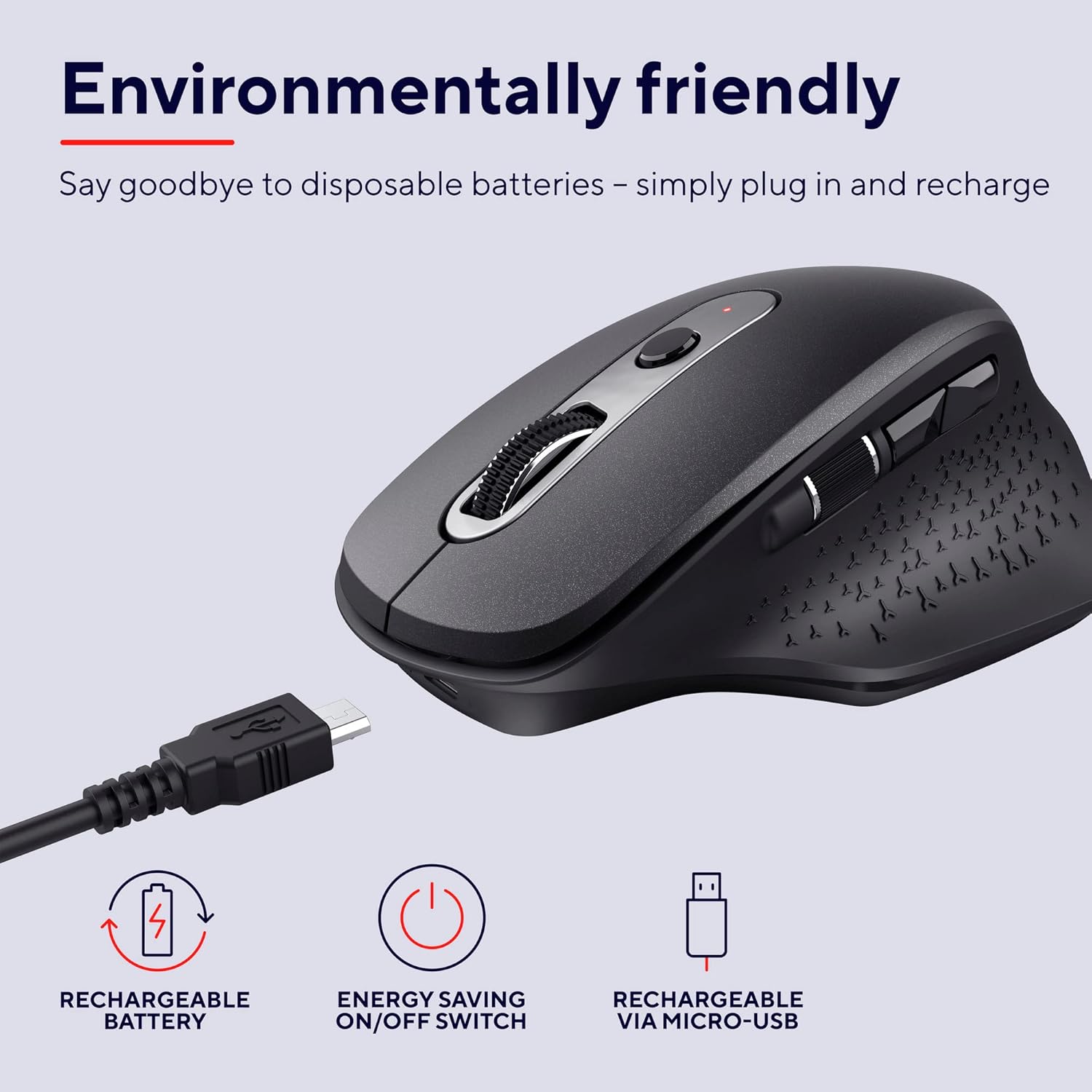
Image: The Trust Ozaa mouse being charged via its micro-USB cable, highlighting its rechargeable battery and energy-saving features.
Ntuziaka ọrụ
Ọrụ bọtịnụ
- Bọtịnụ Pịa aka ekpe: Standard primary click. Designed for silent operation.
- Pịa aka nri bọtịnụ: Standard secondary click. Designed for silent operation.
- Scroll Wheel (Middle Button): Pịgharịa na kwụ ọtọ site na dọkụmentị na web pages. Press down for middle-click functionality.
- Bọtịnụ mmezi DPI: Located behind the scroll wheel. Press to cycle through different cursor speeds (DPI settings: 800, 1200, 1600, 2400 DPI).
- Side Scroll Wheel: Located on the left side. Allows for horizontal scrolling.
- Bọtịnụ n'ihu/Azu: Located above the side scroll wheel. Used for navigating forward and backward in web ihe nchọgharị ma ọ bụ file ndị na-eme nchọpụta.

Foto: Otu n'elu view of the Trust Ozaa mouse, visually indicating the DPI adjustment, silent buttons, and convenient side scroll wheel.
Mmezi DPI
The mouse features an adjustable cursor speed (DPI) ranging from 800 to 2400 DPI. To change the DPI, press the dedicated DPI button located behind the main scroll wheel. Each press will cycle through the available settings, allowing you to select the sensitivity that best suits your task or preference.
Ịchekwa ike
To conserve battery life, the mouse is equipped with an on/off switch on its underside. It also features an automatic sleep mode that activates after a period of inactivity. To wake the mouse, simply move it or click any button.
Nlekọta
- Nhicha: Jiri akwa dị nro dị nro hichaa òké. Maka unyi isi ike, ntakịrị damp Enwere ike iji akwa mee ihe, ma hụ na ọ dịghị mmiri na-abanye n'ime ihe ndị dị n'ime. Ejila kemịkalụ siri ike ma ọ bụ ihe mkpocha abrasive.
- Ịchaji: Recharge the mouse when the battery indicator light signals low power or when performance degrades. Use only the provided charging cable or a compatible micro-USB cable.
- Nchekwa: When not in use for extended periods, turn off the mouse to preserve battery life. Store it in a cool, dry place.
Nchọpụta nsogbu
| Nsogbu | Ihe nwere ike ime | Ngwọta |
|---|---|---|
| Òké anaghị aza. |
|
|
| Ntugharị cursor na-adịghị agbanwe agbanwe ma ọ bụ na-awụlikwa elu. |
|
|
| Bọtịnụ anaghị arụ ọrụ. |
|
|
Nkọwapụta
| Ụdị | Ntụkwasị obi |
| Nọmba nlereanya | 23812 |
| Teknụzụ Njikọta | Radio Frequency (Wireless) |
| Ikuku iche | Ruo mita 10 |
| Ntọala DPI | 800, 1200, 1600, 2400 DPI (Adjustable) |
| Ọnụọgụ bọtịnụ | 6 (Left, Right, Scroll Wheel Click, DPI, Forward, Backward) + Side Scroll Wheel |
| Isi bọtịnụ | Silent Left and Right Buttons |
| Isi Iyi Ike | Rechargeable Battery (1 AAA battery included, contained in equipment) |
| Nchaji ọdụ ụgbọ mmiri | Micro-USB |
| Akụkụ ngwaahịa (L x W x H) | 7.7 x 11.8 x 4.6 cm |
| Ibu Ibu | 122 g |
| Ndakọrịta n'ikpo okwu ngwaike | PC, Mac |
| Ndakọrịta sistemụ arụmọrụ | Chrome OS, Windows, Mac OS |
| Atụmatụ pụrụ iche | Wireless, Rechargeable, Quiet, Ergonomic Design, Energy-saving On/Off Switch |
Akwụkwọ ikike na nkwado
Maka ozi akwụkwọ ikike na nkwado teknụzụ, biko rụtụ aka na ntụkwasị obi gọọmentị websaịtị ma ọ bụ kpọtụrụ ndị ahịa ha ozugbo. Debe ihe akaebe nke ịzụrụ ihe maka akwụkwọ ikike.
Onye ọrụ ntụkwasị obi Websaịtị: www.trust.com
Enweghị vidiyo ngwaahịa gọọmentị sitere n'aka onye na-ere ahịa dị maka itinye na akwụkwọ ntuziaka a.


