Okwu mmalite
The Meross Smart Dimmer Switch (MSS560) is designed to provide intelligent control over your lighting. This single-pole dimmer switch allows you to remotely control, dim, and schedule your lights using the Meross app, Apple HomeKit, Amazon Alexa, or Google Assistant. It requires a neutral wire for installation and operates on a 2.4GHz Wi-Fi network.
Ozi nchekwa
- Achọrọ waya na-anọpụ iche: Ensure your electrical box has a neutral wire (typically white) before installation. If unsure, consult a qualified electrician.
- Gbanyụọ tupu echichi: Always turn off power at the circuit breaker before installing or servicing the switch to prevent electrical shock.
- Single Pole Setup Only: This switch is designed for single pole configurations only. It is not compatible with 3-way or multi-way switch setups.
- Ndakọrịta bọlbụ: Works with non-smart dimming bulbs. Maximum wattage: 400W for incandescent (INC), 150W for CFL & LED bulbs. Do not use with smart bulbs.
- Achọrọ Wi-Fi: Supports 2.4GHz Wi-Fi networks only. 5GHz Wi-Fi is not supported. No hub is required.
- Ihe na-egbochi ọkụ: The switch housing is made of PC+ABS fire-retardant material for safety.
- Nchekwa ibu ibu: Certified by FCC/ETL, the device includes protection against electrical overload.
Kedu ihe dị na Igbe ahụ
- Meross Smart Dimmer Switch (MSS560)
- Ntuziaka nwụnye ngwa ngwa
- Mkpụrụ Mkpụrụ
- Ịkwanye kposara
- Faceplate (standard size)
Melite
Ndepụta ndenye nwụnye
- Verify your electrical box has a neutral wire (white).
- Ensure you have a 2.4GHz Wi-Fi network.
- Confirm your setup is single pole (not 3-way).
- Check bulb compatibility (non-smart dimmable LED/CFL/INC).

Image: Diagram illustrating the necessity of a neutral wire and compatible bulb types (LED, CFL, INC) with wattage limits, and incompatibility with smart bulbs.

Image: Important notes on switch compatibility, including single pole setup, 2.4GHz Wi-Fi, neutral wire, and non-smart dimming bulb support.
Nwụnye ngwaike
- Gbanyụọ ike: Locate your circuit breaker and turn off the power to the switch you are replacing. Verify power is off using a voltagọ bụ onye nyocha.
- Wepu Mgbanwe Ochie: Carefully remove the faceplate and unscrew the existing switch from the electrical box. Pull the switch outward without touching any wires.
- Chọpụta waya: Identify the Live (black/red), Load (brown/black), Neutral (white), and Ground (green/bare copper) wires. Label them if necessary.
- Jikọọ Switch ọhụrụ: Use the provided wire nuts to connect the corresponding wires of the Meross Smart Dimmer Switch to your home's electrical wires. Ensure all connections are secure.
- Secure Switch: Carefully push the wires and the new switch into the electrical box. Screw the switch to the box and attach the faceplate.
- Weghachi ike: Turn on the power at your circuit breaker.
Video: Official Meross guide on how to install the HomeKit smart dimmer switch, demonstrating the wiring process and safety precautions.
Ntọlite ngwà & Njikọta
- Download Meross App: Download the Meross app from the App Store or Google Play.
- Tinye ngwaọrụ: Open the Meross app, tap the '+' icon to add a new device, and select the Smart Dimmer Switch. Follow the in-app instructions.
- Jikọọ na Wi-Fi: Connect the switch to your 2.4GHz Wi-Fi network.
- HomeKit Setup (Optional): If using Apple HomeKit, scan the HomeKit setup code located on the device or its packaging. You may need to manually enter the 8-digit code.
- Calibrate Dimming Range: Use the app to set the maximum and minimum light levels for optimal dimming performance with your specific bulbs.
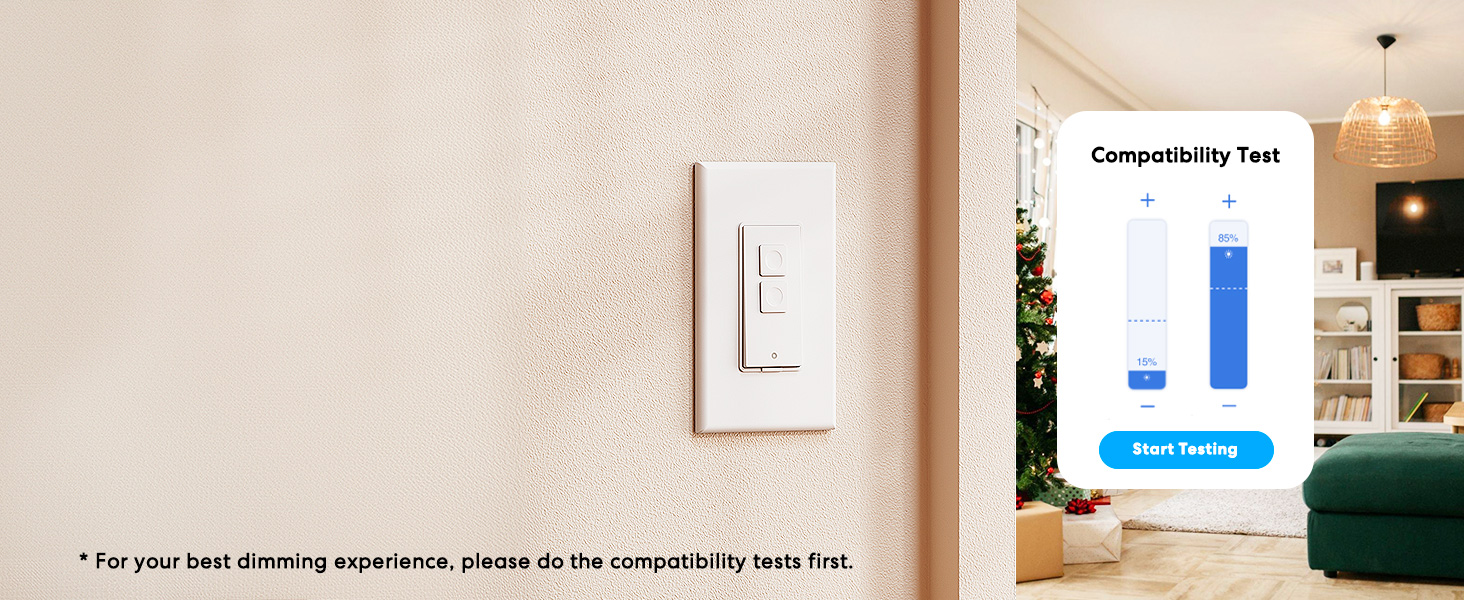
Image: Meross app interface demonstrating the dimming compatibility test to optimize light levels.
Ntuziaka ọrụ
Njikwa akwụkwọ ntuziaka
The Meross Smart Dimmer Switch features physical buttons for direct control:
- Bọtịnụ ngbanwu/ gbanyụọ: Press the main button to turn lights on or off.
- Dimming Buttons: Use the smaller up/down buttons to adjust brightness levels.
Njikwa ngwa
Control your lights from anywhere with internet access using the Meross app:
- Gbanyụọ/ gbanyụọ: Tap the switch icon in the app to toggle lights.
- Igha: Use the slider in the app to precisely adjust brightness from 0% to 100%.

Image: A user controlling lights remotely via the Meross app on a smartphone.
Njikwa olu
The Meross Smart Dimmer Switch is compatible with leading voice assistants:
- Apple HomeKit/Siri: Say "Hey Siri, turn on the light" or "Hey Siri, dim the light to 50%".
- Amazon Alexa: Say "Alexa, turn on the light" or "Alexa, dim the light to 20%".
- Onye enyemaka Google: Say "Hey Google, turn on the light" or "Hey Google, dim the light to 90%".

Image: Visual representation of voice commands for Siri, Alexa, and Google Assistant to control light brightness.
Scheduling & Scenes
Automate your lighting to suit your lifestyle:
- Usoro: Set specific times for lights to turn on/off or dim automatically. Supports sunrise and sunset settings.
- Ihe nkiri: Create custom scenes for different moods or activities (e.g., "Movie Night" with dimmed lights).

Image: Meross app interface displaying options for setting scenes, timers, and schedules for automated lighting control.
Nlekọta
- Nhicha: Wipe the switch and faceplate with a soft, dry cloth. Do not use liquid cleaners or aerosols.
- Mmelite femụwe: Regularly check the Meross app for firmware updates to ensure optimal performance and security.
Nchọpụta nsogbu
- Mgbanwe Anaghị azaghachi: If the switch is unresponsive or the indicator light is red, try pressing the small power reset button located at the bottom of the switch.
- Okwu njikọ Wi-Fi: Ensure your smartphone is connected to a 2.4GHz Wi-Fi network during setup. If the switch loses connection, verify your router is functioning correctly and the switch is within range.
- Nsogbu Mbelata: If lights flicker or do not dim correctly, re-calibrate the dimming range in the Meross app. Ensure you are using compatible non-smart dimmable bulbs.
- HomeKit Remote Control: For remote control via HomeKit, an additional networked Apple device (HomePod, Apple TV 4K/HD, or iPad) must be set up as a HomeKit bridge and remain online.
Nkọwapụta
| Njirimara | Nkọwapụta |
|---|---|
| Ụdị ọrụ | ON-Gbanyụọ |
| Ogo dị ugbu a | 4 Amps |
| Nrụ ọrụ Voltage | 120 volts |
| Ụdị kọntaktị | Na-emepe emepe |
| Ụdị njikọ | Clamp |
| Ọnụ | Agụba |
| Akụkụ ihe (L x W x H) | 4.7 x 2.8 x 1.5 sentimita asatọ |
| Circuit .dị | Ụzọ nke 1 (Ogwe Otu) |
| Ụdị Actuator | Pịa bọtịnụ |
| Ngwa kọntaktị | Ọla kọpa |
| Ogo nchekwa mba ụwa | IP00 |
| Ọnụọgụ nke ọkwa | 1 |
| Nleba okpomọkụ | 40 Ogo Celsius |
| Ụdị njikwa | Amazon Alexa, Apple HomeKit, Google Assistant |
| Usoro njikwa | Olu, Ngwa |
| Protocol Njikọta | Wi-Fi (naanị 2.4GHz) |
| Agba | Ọcha |
| Wattage | 400 watts (INC), 150 watts (CFL & LED) |
| Ihe onwunwe | Plastic (PC+ABS fire-retardant) |
Akwụkwọ ikike na nkwado
Akwụkwọ ikike
The Meross Smart Dimmer Switch typically comes with a 1-year warranty. Please refer to your product packaging or the Meross websaịtị maka usoro na ọnọdụ akwụkwọ ikike akọwapụtara.
Nkwado
If you have any questions regarding your switch type, installation, or Wi-Fi connections, please contact Meross customer support. You can usually find contact information within the Meross app or on the official Meross websaịtị.
Ozi Mgbakwunye
Vidiyo: Efereview of Meross smart home products, showcasing various features and benefits of integrating smart devices into your home.


