1. Okwu mmalite
The Yottamaster DF5U3 is a 5-bay external hard drive enclosure designed for both 2.5-inch and 3.5-inch SATA HDD/SSDs. It supports a total capacity of up to 90TB (5 x 18TB drives) and features a USB 3.0 interface for data transfer speeds up to 6Gbps. This enclosure is built with an aluminum alloy frame and includes an 80mm RGB silent fan for efficient cooling. This manual provides detailed instructions for the proper setup, operation, and maintenance of your Yottamaster DF5U3 enclosure.
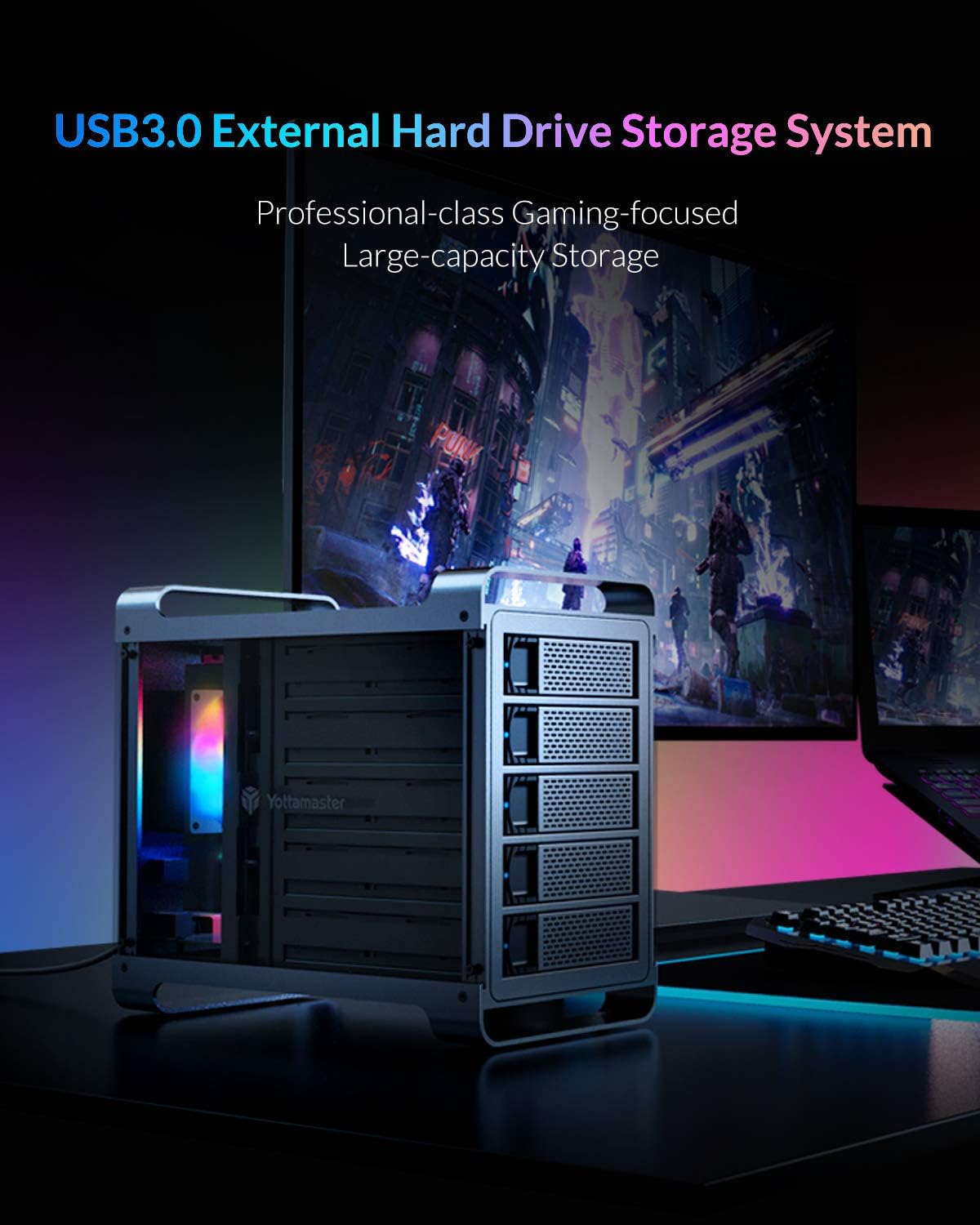
Figure 1: Yottamaster 5-Bay USB 3.0 Hard Drive Enclosure (DF5U3)
2. Ihe ngwugwu
Biko chọpụta na ihe niile dị na ngwugwu gị:
- Yottamaster 5-Bay USB 3.0 Hard Drive Enclosure (DF5U3)
- USB 3.0 Type-B Data Cable
- Ihe nkwụnye ọkụ (150W)
- Screws for Drive Installation
- Screwdriver
- Akwụkwọ ntuziaka onye ọrụ
3. Atụmatụ igodo
- Ike dị elu: Supports up to 90TB total storage (5 x 18TB drives).
- Ndakọrịta draịva: Designed for both 2.5-inch and 3.5-inch SATA I/II/III HDD/SSDs.
- Fast Transfer Speed: USB 3.0 interface provides data transfer rates up to 6Gbps.
- Ịjụ oyi nke ọma: Features an 80mm RGB silent fan to maintain optimal drive temperatures.
- Ihe owuwu na-adịgide adịgide: Built with a robust aluminum alloy frame.
- Nkwụnye na-egwu: Driverless installation for ease of use.
- Non-RAID Version: This model does not support hardware RAID. Software RAID can be configured using your operating system's tools.
4. Ntuziaka Nhazi
4.1 Ntinye draịva
- Gently pull the lever on the front of an empty drive bay to release and slide out the drive tray.
- Place your 2.5-inch or 3.5-inch SATA HDD/SSD onto the drive tray. Align the screw holes on the drive with those on the tray.
- Secure the drive to the tray using the provided screws and screwdriver.
- Slide the loaded drive tray back into the enclosure until it clicks securely into place.
- Repeat for all desired drives.

Figure 2: Inserting a drive into the tray

Figure 3: Drive trays ready for installation
4.2 Ijikọ Ihe Mkpuchi ahụ
- Connect the power adapter to the AC-in port on the rear of the enclosure and then to a power outlet.
- Connect one end of the USB 3.0 Type-B data cable to the USB 3.0 port on the rear of the enclosure.
- Connect the other end of the USB 3.0 data cable to an available USB 3.0 port on your computer.
- Press the power switch on the rear of the enclosure to the "ON" position. The enclosure will power on, and the RGB fan will illuminate.

Ọgụgụ 4: Njikọ azụ azụ
5. Ntuziaka ọrụ
5.1 Initializing and Formatting Drives
For new hard drives, or if you wish to erase existing data, you will need to initialize and format them. This process creates partitions and prepares the drives for use with your operating system.
Video 1: Guide on how to format a hard drive partition in Windows or Mac OS. This video demonstrates the steps to initialize and format your drives for first-time use.
5.2 Adjusting/Disabling Sleep Mode
The enclosure may enter a sleep mode after a period of inactivity to conserve power and reduce wear on the drives. You can adjust or disable this feature if needed.
Video 2: Instructions on how to cancel the sleep mode for Yottamaster multi-bay HDD enclosures.
Video 3: A step-by-step guide to adjust or disable the sleep mode on the enclosure, providing detailed visual instructions.
6. Nlekọta
To ensure the longevity and optimal performance of your Yottamaster DF5U3 enclosure, follow these maintenance guidelines:
- Nhicha: Regularly clean the exterior of the enclosure with a soft, dry cloth. Ensure the fan vents are free from dust accumulation to maintain proper airflow.
- gburugburu: Operate the enclosure in a well-ventilated area, away from direct sunlight, heat sources, and excessive moisture.
- Mwepụ nke ọma: Always safely eject the enclosure from your operating system before disconnecting the USB cable or power to prevent data corruption.
- Mmelite femụwe: Check the Yottamaster official website periodically for any available firmware updates that may improve performance or address issues.
7. Nchọpụta nsogbu
If you encounter issues with your Yottamaster DF5U3 enclosure, please refer to the following common solutions:
- Drives Not Recognized:
- Ensure all cables (USB and power) are securely connected.
- Verify that the enclosure is powered on.
- Check Disk Management (Windows) or Disk Utility (Mac) to see if the drives are detected but uninitialized/unformatted. Refer to the formatting video in Section 5.1.
- Try connecting the enclosure to a different USB port or computer.
- Ensure the drives are properly seated in their trays and secured with screws.
- Enclosure Goes to Sleep Unexpectedly:
- Refer to the videos in Section 5.2 for instructions on how to adjust or disable the sleep timer function.
- Check your operating system's power management settings, as they can also influence drive sleep behavior.
- Ọsọ mbufe nwayọ:
- Ensure you are using a USB 3.0 port on your computer. Connecting to a USB 2.0 port will result in slower speeds.
- Verify the quality of your USB 3.0 cable.
- Performance can be affected by the speed of the installed hard drives themselves.
- Oke mkpọtụ mkpọtụ
- Ensure the enclosure is placed on a stable, flat surface to prevent vibrations.
- Check for any obstructions in the fan or vents.
If these steps do not resolve your issue, please contact Yottamaster customer support.
8. Nkọwapụta
| Njirimara | Nkọwa |
|---|---|
| Nọmba nlereanya | DF5U3 |
| Ụdị | Yottamaster |
| Ụgbọ okporo ígwè | 5 |
| Oke ike | 90 TB (5 x 18TB) |
| Ụgbọ ala dakọtara | 2.5" & 3.5" SATA I/II/III HDD/SSD |
| Interface | USB 3.0 Ụdị-B |
| Ọnụego mbufe data | Ruo 6Gbps |
| Na-ajụ oyi | 80mm RGB Silent Fan |
| Ihe onwunwe | Aluminom Alloy |
| OS dakọtara | Windows, Mac, Linux |
| Ịnye ọkụ | 150W External Power Adapter |
9. Akwụkwọ ikike & Nkwado
9.1 Ozi akwụkwọ ikike
Yottamaster products come with a standard manufacturer's warranty. Please refer to the warranty card included in your package or visit the official Yottamaster websaịtị maka nkọwa zuru oke usoro na ọnọdụ nke akọwapụtara mpaghara gị.
9.2 Nkwado ndị ahịa
For technical assistance, troubleshooting, or any product-related inquiries, please contact Yottamaster customer support through their official channels:
- Ndị ọchịchị Websaịtị: www.yottamaster.com
- Ibe nkwado: Visit the 'Support' or 'Downloads' section on the official website for FAQs, drivers, and firmware updates.


