1. Okwu mmalite
The HARFO K1 Fingerprint Door Lock offers advanced security and convenience for your home or office. This smart lock provides multiple entry methods including fingerprint, password, IC cards, and traditional mechanical keys. Designed for ease of use and robust protection, the K1 ensures your property remains secure while offering flexible access solutions.
This manual provides detailed instructions for installation, operation, maintenance, and troubleshooting to help you get the most out of your HARFO K1 lock.
2. Ngwaahịa gafereview na akụrụngwa
The HARFO K1 lock system includes all necessary components for a complete installation and operation. Familiarize yourself with the parts before beginning the installation process.
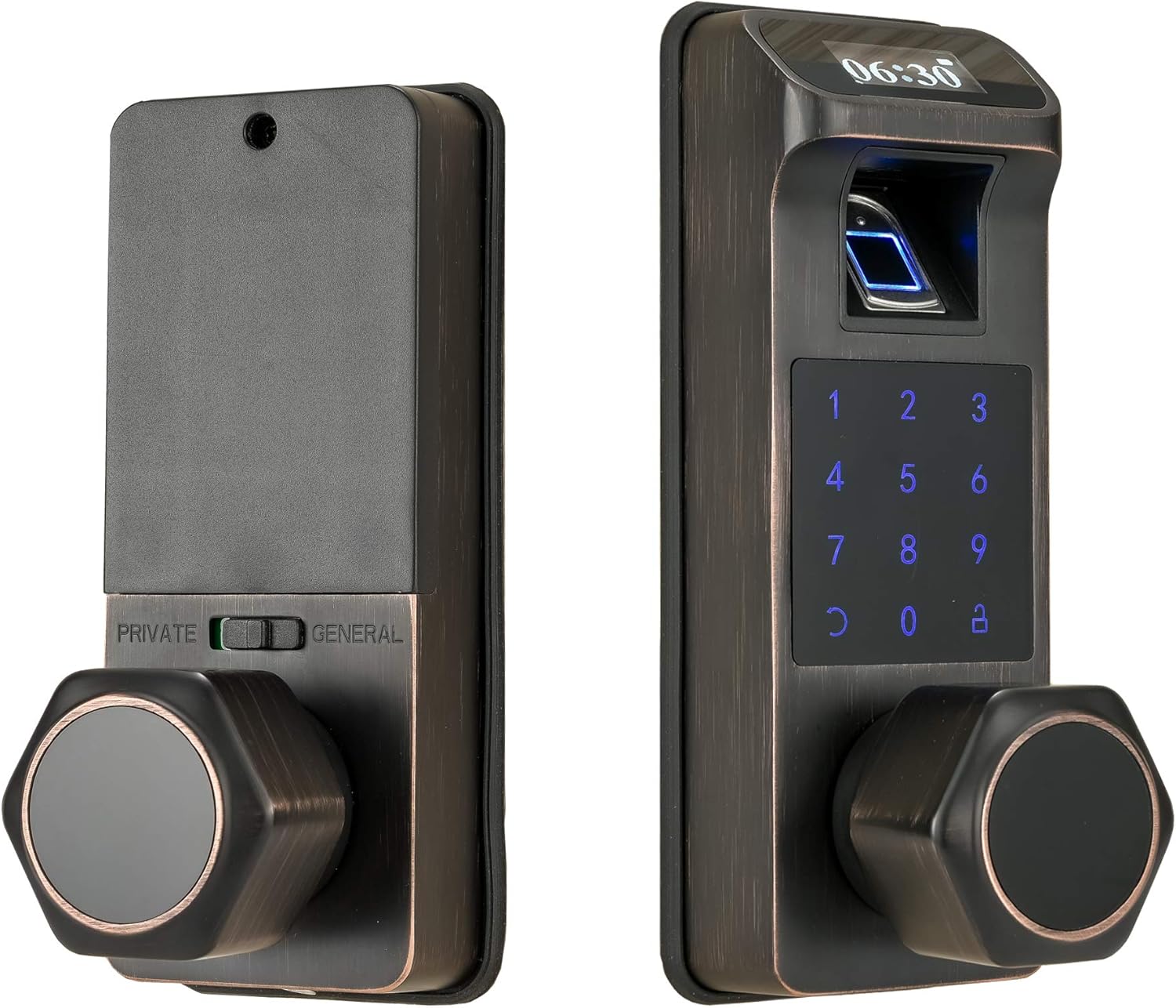
Foto: ihu na azụ view of the HARFO K1 Fingerprint Door Lock.
Ngwa gụnyere:
- Door lock assembly (interior and exterior units)
- Mkpọchi ọnụ ụzọ
- Kwuo ntakịrị
- Door cover plate
- Akwụkwọ ntuziaka
- IC Cards (3 included)
- Igodo igwe
Akụkụ ndị bụ isi:
- Ụzọ Mkpọghe Ọtụtụ: Fingerprint, Password, IC Cards, Mechanical Key.
- Mkpọchi akpaaka: Built-in sensor detects when the door is closed and locks automatically.
- Ụdị nkeonwe: Enhanced security feature that restricts access to only admin users from the outside when enabled from the inside.
- New 3D Fingerprint Sensor: Recognizes fingerprints in 0.3 seconds, unlocking the door in 1 second.
- Ihuenyo aka mgbochi-peep: Allows adding random digits before or after the true password to prevent unauthorized viewing.
- Nnyenye ike mberede: Micro USB port for temporary power in case of battery depletion.
- Ogologo ndụ batrị: Up to 1 year of battery life with 4x 1.5V AA dry batteries.
- High User Capacity: Supports up to 300 users.
- Unlock Records: Stores up to 2000 unlock records for review.
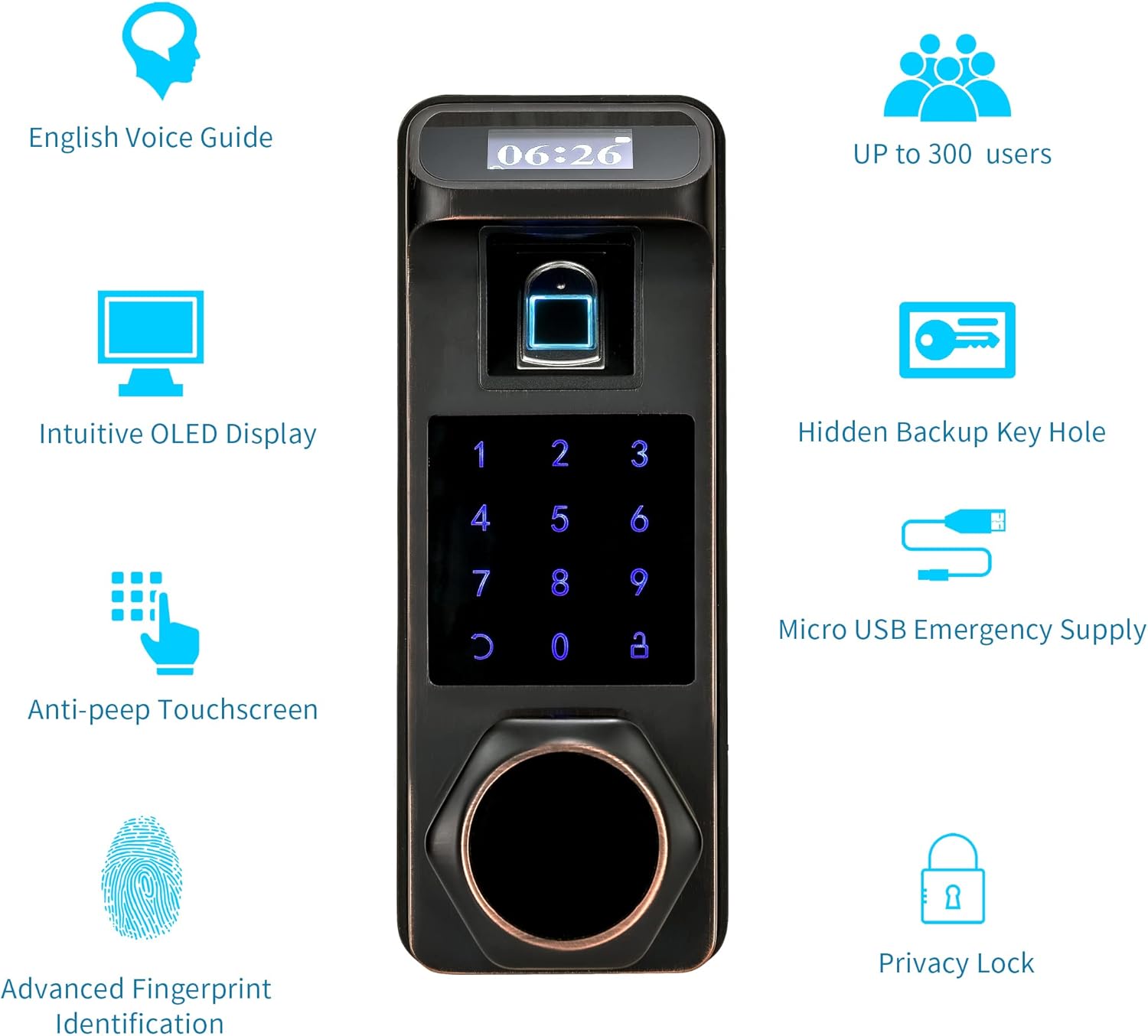
Foto: Ofeview of HARFO K1 features including English voice guide, intuitive OLED display, anti-peep touchscreen, advanced fingerprint identification, hidden backup key hole, micro USB emergency supply, privacy lock, and capacity for up to 300 users.
3. Ntọala na nwụnye
The HARFO K1 lock is designed to replace most standard deadbolt locks. Ensure your door meets the required specifications for proper installation.
Ndakọrịta ọnụ ụzọ:
- Ogologo ọnụ ụzọ: 1 3/8 inch to 2 3/16 inch (35mm-55mm).
- Suitable for both left-handed and right-handed doors.

Image: Detailed dimensions of the HARFO K1 lock and the compatible door thickness range (35mm-55mm).
Nzọụkwụ Nwụnye (General Overview):
- Prepare the door by ensuring the existing boreholes and backset are compatible. Use the provided drill bit if new holes are required.
- Wụnye eriri n'ime ọnụ ụzọ.
- Mount the exterior unit of the lock, feeding the cable through the door.
- Connect the cable to the interior unit and secure it to the door.
- Install the batteries (4x AA dry batteries, not included).
- Test the lock's functionality and calibrate if necessary according to the detailed instructions in the included manual.

Image: Illustration of replacing an existing deadbolt lock with the HARFO K1 Fingerprint Door Lock.
4. Ntuziaka ọrụ
The HARFO K1 offers multiple convenient ways to unlock your door. Follow these steps to set up and use the various access methods.

Image: Multi-function Fingerprint Lock showing Passage Mode, Auto Lock, Unlock via Physical Key, Unlock via Passcode, and Unlock via Fingerprint.
4.1. Initial Setup and Admin User:
Upon first use, you will need to set up an administrator user. This user has full control over lock settings, including adding/deleting other users and changing modes. Refer to the detailed manual for specific steps on setting up the admin user.
4.2. Adding Fingerprints:
The 3D fingerprint sensor allows quick and secure access. To add a fingerprint:
- Access the user management menu via the admin user.
- Select the option to add a new fingerprint.
- Follow the voice prompts and place your finger on the sensor multiple times until successfully registered.
4.3. Setting Passcodes:
You can set up multiple user passcodes. The anti-peep feature enhances security.

Image: Increase Privacy Protection with Anti-Peep Password, showing how to add random digits before or after the true password.
- Navigate to the password management section in the menu.
- Choose to add a new password and enter your desired code.
- When unlocking, you can enter any random digits before or after your actual password to obscure it from onlookers.
4.4. Using IC Cards:
The lock comes with three IC cards for convenient tap-to-unlock access.
- Register the IC cards through the user management menu.
- To unlock, simply tap the registered IC card against the designated area on the lock.
4.5. Mechanical Key Access:
A traditional mechanical key is provided as a backup in case of electronic failure or battery depletion.

Image: Unlocking the HARFO K1 using the mechanical key, which is hidden for security.
- Locate the hidden keyhole on the lock.
- Insert the mechanical key and turn to unlock the door.
4.6. Private Mode:
Activate private mode from the inside to prevent any external access, even by registered users, except for the admin user.

Image: Activating Private Mode from the interior side of the lock for enhanced security.
4.7. Automatic Locking:
The lock features a built-in sensor that automatically locks the door once it is closed, ensuring continuous security.

Image: The Auto-Lock feature automatically secures the door when closed.
5. Nlekọta
Proper maintenance ensures the longevity and optimal performance of your HARFO K1 lock.
5.1. Ngbanwe batrị:
The lock requires 4x 1.5V AA dry batteries. Rechargeable batteries are not recommended as their voltage (typically 1.2V) may not be sufficient for consistent operation.

Image: The HARFO K1 lock offers up to 1 year of battery life.
Replace batteries when the low battery indicator appears or when the lock's response time decreases. Ensure correct polarity when inserting new batteries.
5.2. Emergency Power Supply:
In case the batteries completely deplete, you can use a Micro USB cable to provide temporary power from an external power bank (not included) to unlock the door.

Image: Connecting a Micro USB cable for emergency power supply to the lock.
5.3. Nhicha:
Clean the lock's exterior and fingerprint sensor with a soft, dry cloth. Avoid using abrasive cleaners or solvents that could damage the finish or electronic components.
6. Nchọpụta nsogbu
If you encounter issues with your HARFO K1 lock, refer to the following common problems and solutions.
- Lock is not responding or powering on:
Check if the batteries are correctly installed and have sufficient charge. Replace with new 1.5V AA dry batteries if needed. Use the Micro USB emergency power supply if batteries are completely dead. - Amataghị akara mkpịsị aka:
Ensure your finger is clean and dry. Try re-registering your fingerprint. Ensure you are placing your finger correctly on the sensor. - Igwe igodo anaghị aza:
Check battery level. Ensure the touchscreen is clean and free from debris. If the issue persists, try a factory reset (refer to the full manual for instructions). - Lock does not unlock after successful entry:
Verify that the lock mechanism is not obstructed. Check if Private Mode is accidentally enabled. Ensure the lock is properly aligned with the door frame. - Automatic locking is not working:
Check the sensor for any obstructions. Ensure the door closes completely and smoothly. - Lost or forgotten password/IC card:
Use a registered fingerprint or mechanical key to access the lock. An admin user can reset or add new passwords/IC cards.
For more complex issues or if troubleshooting steps do not resolve the problem, please contact HARFO customer support.
7. Nkọwapụta
| Njirimara | Nkọwa |
|---|---|
| Onye nrụpụta | HARFO |
| Akụkụ ngwaahịa | 20.57 x 6.86 x 7.87 cm |
| Nọmba Nlereanya ihe | K1 |
| Agba | Bronze mere agadi |
| Ụdị | Fingerprint+Keypad |
| Mechaa | Achachapụrụ |
| Ihe onwunwe | Zinc |
| Ụkpụrụ | Ọnụ ụzọ akpịrị |
| Usoro ntinye | Self-Adhesive (Note: This may refer to template, actual installation is mechanical) |
| Ọnụ ngwungwu ihe | 1 |
| Ọnụọgụ nke Iberibe | 4 (main lock components) |
| Ejikwa ihe | Ọla |
| Atụmatụ pụrụ iche | Fingerprint, Fob Unlock (IC Card), Rechargeable (via Micro USB for emergency power) |
| Agụnyere batrị? | Mba |
| Achọrọ batrị? | Yes (4x 1.5V AA dry batteries) |
| Ibu Ibu | 2.39 n'arọ |
| Ụdị mkpọchi | Biometric, Keypad |
| Eji akwadoro | Securing doors in homes and offices |
8. Akwụkwọ ikike na nkwado
For warranty information and customer support, please refer to the contact details provided with your product packaging or visit the official HARFO websaịtị. Debe akwụkwọ nnata ịzụrụ maka akwụkwọ ikike.
HARFO is committed to providing reliable products and support. If you have any questions or require assistance, do not hesitate to reach out to their customer service team.


