1. Okwu mmalite
This manual provides detailed instructions for the safe and effective use of your Phomemo D30 Bluetooth Mini Label Maker. Please read this manual thoroughly before operating the device to ensure proper function and longevity.

Image 1.1: The Phomemo D30 Label Maker, a compact thermal printer designed for various labeling needs.
2. Ihe ngwugwu
Chọpụta na ihe niile dị na ngwugwu gị:
- 1 x Phomemo D30 Label Maker
- 1 x Akwụkwọ ntuziaka onye ọrụ
- 1 x eriri USB
- 80-PCS Label Tape 12x40mm (1 roll)

Image 2.1: Visual representation of the items included in the Phomemo D30 package.
3. Ngwaahịa gafereview
3.1 Atụmatụ
- Kọmpat na ibugharị: Half the weight and size of traditional label makers.
- Teknụzụ ibipụta okpomọkụ: Inkless printing, eliminating the need for ink, toner, or ribbons.
- High Print Clarity: Equipped with a German thermal print head, offering 25% increased DPI for clear and smooth printing.
- Ikuku Njikọ: Bluetooth connection for printing from mobile devices.
- Versatile Label Support: Compatible with continuous and fixed-length label tapes, supporting sizes from 0.24 to 0.47 inches (6mm to 12mm).
- Ngwa ejirikwa: Utilizes a dedicated mobile application for label design with various templates, symbols, frames, and fonts.
3.2 Akụkụ
The Phomemo D30 Label Maker consists of the following main components:
- Bọtịnụ ike: Used to turn the device on/off and initiate certain functions.
- Ìhè ihe ngosi: Displays device status (e.g., charging, connected, printing).
- Label Output Slot: Ebe akara e biri ebi pụtara.
- Label Compartment: Houses the label roll.
- USB Nchaji Port: For connecting the USB cable to charge the device.
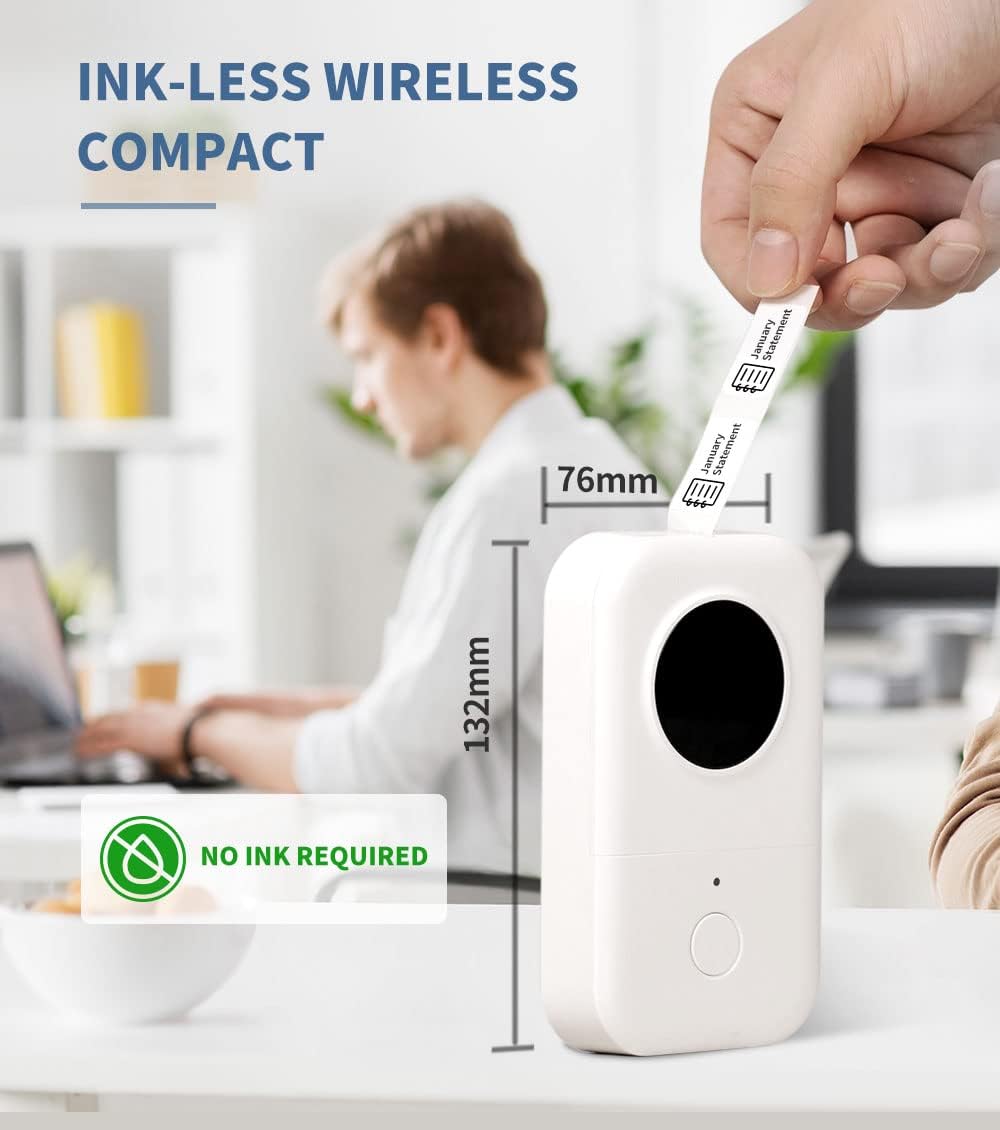
Image 3.1: The compact design of the Phomemo D30, highlighting its ink-less thermal printing technology.

Image 3.2: The Phomemo D30 supports multiple label widths, including 6mm, 12mm, 14mm, and 15mm.
4. Nhazi
4.1 Ịchaji ngwaọrụ
- Connect the provided USB cable to the charging port on the label maker.
- Tinye nsọtụ nke ọzọ nke eriri USB ahụ n'ime ihe nkwụnye ike USB dakọtara (anaghị etinye ya) ma ọ bụ ọdụ USB nke kọmputa.
- The indicator light will show charging status. A full charge typically takes 2-3 hours.
4.2 Loading Label Paper
- Mepee mkpuchi nke ngalaba akara ahụ.
- Insert the label roll with the printing surface facing upwards, ensuring it aligns correctly within the compartment.
- Pull a small portion of the label tape out through the output slot.
- Mechie mkpuchi nkebi akara ahụ nke ọma.
4.3 Ngwa nwụnye na njikọ Bluetooth
- Download the "Print Master" app from your device's app store (iOS or Android).
- Turn on the Phomemo D30 Label Maker by pressing and holding the power button. The indicator light will illuminate.
- Kwado Bluetooth na ekwentị mkpanaaka gị.
- Open the "Print Master" app and follow the on-screen instructions to connect to your D30 device. The app will typically detect nearby Phomemo devices automatically.

Image 4.1: The Phomemo D30 connects wirelessly via Bluetooth to a smartphone running the "Print Master" app.
5. Ntuziaka ọrụ
5.1 Creating Labels with the App
- Open the "Print Master" app on your connected mobile device.
- Select a template or start a new label design.
- Utilize the app's features to add text, icons, borders, and adjust fonts. The app offers a wide variety of customization options.
- Tupuview your label design to ensure accuracy before printing.

Image 5.1: The "Print Master" app provides extensive customization options for label creation, including fonts, icons, and borders.

Image 5.2: The app supports a variety of label styles and patterns for diverse applications.
5.2 Mbipụta Aha
- Once your label design is complete, tap the print button within the app.
- The label maker will feed and print the label.
- Carefully tear off the printed label from the output slot.

Image 5.3: The D30 supports high-quality batch printing for pre-cut paper, ensuring clear and consistent results.
5.3 Label Types and Applications
The D30 supports both pre-cut and continuous label tapes, suitable for various uses:
- Pre-cut Labels: Ideal for individual items, such as food date marking, price tags, or personal item identification.
- Continuous Labels: Suitable for longer labels like cable identification, file classification, or gift labels.

Image 5.4: The Phomemo D30 supports both pre-cut labels for individual items and continuous labels for longer applications.

Image 5.5: The Phomemo D30 is a versatile tool for organizing files, labeling food, marking items, and creating gift labels.

Image 5.6: The D30 label maker is suitable for a wide range of applications, from personal organization to small business use.
6. Nlekọta
6.1 Na-ehicha isi mbipụta
To maintain print quality, regularly clean the print head:
- Turn off the label maker and disconnect it from any power source.
- Mepee ngalaba akara.
- Gently wipe the print head with a cotton swab lightly dampetinyere ya na mmanya isopropyl.
- Allow the print head to dry completely before closing the compartment and using the device.
6.2 Nlekọta batrị
- Charge the device regularly, even if not in frequent use, to prolong battery life.
- Zere ikpughe ngwaọrụ na oke okpomọkụ.
- If the device will not be used for an extended period, charge it to approximately 50% before storage.
6.3 Nchekwa
Store the label maker in a cool, dry place away from direct sunlight and excessive dust. Ensure the label compartment is closed to protect the print head and internal mechanisms.

Image 6.1: Phomemo label tapes are designed for durability, offering resistance to water, abrasion, and oil, and can be removed without leaving residue.
7. Nchọpụta nsogbu
7.1 Okwu nkịtị na Ngwọta
| Okwu | Ihe nwere ike ime | Ngwọta |
|---|---|---|
| Ngwaọrụ anaghị agbanwu | Batrị dị ala ma ọ bụ nsogbu ike. | Charge the device using the provided USB cable. Ensure the power button is pressed and held correctly. |
| Enweghị ike ijikọ site na Bluetooth | Bluetooth is off, device is out of range, or app issue. | Ensure Bluetooth is enabled on your phone and the label maker is on. Move the devices closer. Restart the app and the label maker. |
| Ọdịmma ebipụta na-adịghị mma | Dirty print head, incorrect label roll insertion, or low battery. | Clean the print head (refer to Section 6.1). Re-insert the label roll correctly. Charge the device. |
| Labels not feeding | Label roll jammed or incorrectly loaded. | Open the compartment and check for any jams. Re-load the label roll, ensuring it is properly aligned. |
| Ngwa daa ma ọ bụ friza | Software glitch or outdated app version. | Restart the app. Check for app updates in your device's app store. Restart your mobile device. |
8. Nkọwapụta
- Akara: Phomemo
- Ụdị: D30
- Teknụzụ mbipụta: Thermal
- Teknụzụ Njikọta: Bluetooth
- Nha mgbasa ozi kacha: 15mm
- Mkpebi mbipụta ojii na ọcha kacha: 203 dpi
- Monochrome Ọsọ Mbipụta kachasị: 40 ppm
- Ngwa dakọtara: Smartphones (iOS, Android)
- Ike: 1 batrị lithium polymer (gụnyere)
- Ibu ihe: 6.3 ounce (gram 180)
- Akụkụ ngwaahịa: 4.72 x 3.15 x 1.97 sentimita (12 x 8 x 5 cm)
- UPC: 789371387780
9. Akwụkwọ ikike na nkwado
The Phomemo D30 Label Maker comes with a limited warranty. For specific details regarding warranty coverage and duration, please refer to the warranty card included in your product packaging or contact Phomemo customer support.
For technical support, troubleshooting assistance, or inquiries about replacement parts and accessories, please visit the official Phomemo website or contact their customer service department. Contact information can typically be found on the product packaging or the Phomemo brand store online.


