Okwu mmalite
This manual provides instructions for the Mars Gaming MCPTKLES RGB Combo, which includes a gaming keyboard and mouse. This combo is designed for optimal desktop space utilization and is compatible with multiple platforms, including Windows, Mac, PlayStation 4, Xbox One, and Nintendo Switch. The keyboard features RGB Breathing and RGB Flow lighting, H-Mech technology, and anti-ghosting capabilities. The mouse is equipped with a 3200 DPI optical sensor, RGB Flow lighting, and durable HUANO mechanical buttons.
Ihe ngwugwu
- Mars Gaming MCPTKLES TKL RGB Keyboard
- Mars Gaming MCPTKLES RGB Mouse
- Akwụkwọ ntuziaka (akwụkwọ a)
Melite
Connecting the Combo
The Mars Gaming MCPTKLES combo uses a standard USB connection for both the keyboard and mouse. No additional drivers are typically required for basic functionality on supported operating systems.
- Chọta ọdụ ụgbọ USB dị na kọmputa gị ma ọ bụ njikwa egwuregwu gị.
- Plug the USB connector from the keyboard into the USB port.
- Plug the USB connector from the mouse into another available USB port.
- Sistemụ arụmọrụ gị kwesịrị ịchọpụta ma wụnye draịva dị mkpa na akpaghị aka.
- The RGB lighting on both devices should illuminate upon successful connection.
Ndakọrịta Multi-platform
This combo is designed to work with:
- Sistemụ arụmọrụ Windows
- Mac operating systems
- PlayStation 4
- Xbox One
- Nintendo Switch
Note: Specific game or console settings may be required for full functionality on gaming consoles. Refer to your console's user manual for peripheral setup.
Ntuziaka ọrụ
Keyboard Functions (TKL Design)
The TKL (Tenkeyless) design of the keyboard omits the numeric keypad, offering a more compact form factor. It features H-Mech technology for a smooth and precise typing experience.
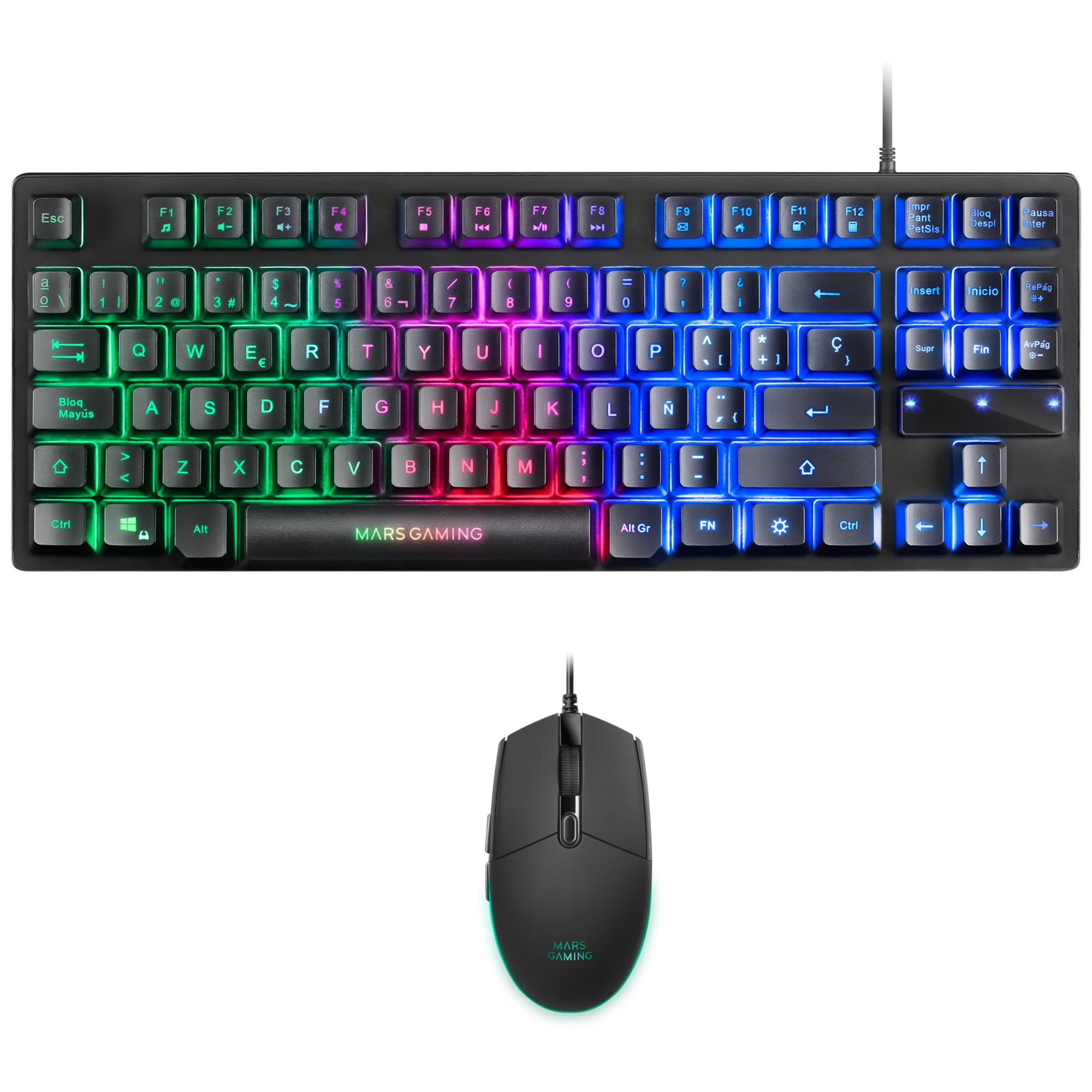
Image: Mars Gaming MCPTKLES TKL RGB Keyboard. This image shows the compact tenkeyless design of the keyboard with its RGB backlighting.
Njikwa ọkụ RGB
The keyboard features RGB Control lighting. Specific key combinations allow you to cycle through different lighting modes and effects. Refer to the keyboard's function keys (Fn) combined with other keys for lighting adjustments. Common controls include:
- Fn + [Igodo]: To change lighting modes (e.g., static, breathing, wave).
- Fn + [Arrow Keys]: To adjust brightness or speed of effects.

Image: Close-up of Mars Gaming MCPTKLES Keyboard RGB Keys. This image highlights the individual keys and their vibrant RGB backlighting.
Mgbochi mmụọ
The keyboard is equipped with anti-ghosting technology, which ensures that multiple key presses are registered simultaneously without conflict, crucial for fast-paced gaming.
Arụ Ọrụ
The lightweight mouse features an optical sensor with adjustable sensitivity up to 3200 DPI, RGB Flow lighting, and 6 programmable buttons with high-quality HUANO mechanical switches.

Image: Mars Gaming MCPTKLES RGB Mouse Top View. This image displays the top of the mouse, showing the scroll wheel and main buttons.
DPI Adjustment (On-the-fly)
Use the dedicated DPI button (often located near the scroll wheel) to cycle through different sensitivity levels (DPI - Dots Per Inch). This allows for quick adjustments to mouse speed without interrupting gameplay.

Image: Mars Gaming MCPTKLES RGB Mouse Side View. This image shows the ergonomic shape and side buttons of the mouse.
Bọtịnụ enwere ike ime
The mouse features 6 buttons. While basic functionality is plug-and-play, advanced customization and macro programming may require specific software from Mars Gaming, if available. Visit the official Mars Gaming websaịtị maka nbudata ngwanrọ.

Image: Mars Gaming MCPTKLES RGB Mouse with RGB Flow Lighting. This image illustrates the dynamic RGB lighting effects on the mouse.
Nlekọta
Nhicha
- Disconnect the keyboard and mouse from your computer before cleaning.
- Jiri ákwà dị nro, kpọrọ nkụ, nke na-enweghị lint hichaa elu ya.
- Maka unyi isi ike, ntakịrị dampen akwa na mmiri ma ọ bụ a nwayọọ ihicha ngwọta. Zere oke mmiri mmiri.
- Ejila kemịkalụ siri ike, ihe nhicha ihe na-eme ka ihe dị nro, ma ọ bụ ihe mgbaze.
- For the keyboard, use compressed air to remove dust and debris from between the keys.
Nchekwa
Store the devices in a cool, dry place away from direct sunlight and extreme temperatures when not in use for extended periods.
Nchọpụta nsogbu
Ahụigodo ma ọ bụ òké Anaghị aza
- Ensure both USB cables are securely plugged into the computer or console.
- Gbalịa itinye ngwaọrụ ndị a n'ọdụ ụgbọ mmiri USB dị iche iche.
- Malitegharịa ekwentị gị ma ọ bụ console.
- Test the devices on another computer to determine if the issue is with the combo or your system.
Igwe ọkụ RGB anaghị arụ ọrụ
- Verify the devices are properly connected and powered.
- Check if the lighting has been turned off via keyboard shortcuts (Fn + lighting control keys).
- Ensure no software conflicts are present if you are using third-party lighting control applications.
Mouse Cursor Jumps or is Inaccurate
- Clean the mouse sensor area on the underside of the mouse.
- Ensure you are using the mouse on a clean, uniform surface (a mouse pad is recommended).
- Adjust the DPI settings using the mouse's DPI button.
Nkọwapụta
| Njirimara | Nkọwa |
|---|---|
| Ụdị | Ịgba egwu Mars |
| Nọmba nlereanya | MCPTKLES |
| Teknụzụ Njikọta | USB (Ejikere) |
| Nhazi ahụigodo | Spanish (TKL - Tenkeyless) |
| Atụmatụ ahụigodo | H-Mech Technology, RGB Control Lighting, Anti-Ghosting |
| Ihe mmetụta òké | Ngwa anya |
| Igwe DPI | Up to 3200 DPI (On-the-fly adjustable) |
| bọtịnụ òké | 6 (with HUANO mechanical switches) |
| Igwe ọkụ ọkụ | Usoro RGB |
| Ngwa dakọtara | Linux, Mac, PS4, Windows, XBOX ONE |
| Akụkụ ngwaahịa | 44 x 15.9 x 4.4 cm (Keyboard) |
| Ibu Ibu | 400 g |
| Agba | Nwa |
Akwụkwọ ikike na nkwado
For warranty information and technical support, please refer to the official Mars Gaming websaịtị ma ọ bụ kpọtụrụ ndị ahịa ha ọrụ. Debe ihe akaebe nke ịzụrụ ihe maka akwụkwọ ikike.
Official Mars Gaming Websaịtị: www.marsgaming.eu


