Macally Wireless Bluetooth Mouse User Manual
Model: BTTOPBAT
Okwu mmalite
This manual provides comprehensive instructions for the setup, operation, maintenance, and troubleshooting of your Macally Wireless Bluetooth Mouse. Designed for comfort and efficiency, this rechargeable mouse offers a strong Bluetooth connection, quiet clicks, and broad compatibility with various devices.
Biko gụọ akwụkwọ ntuziaka a nke ọma tupu i jiri ngwaahịa a iji hụ na arụmọrụ ya kacha mma ma dịgide ogologo oge.
Ihe ngwugwu
- Macally Wireless Bluetooth Mouse (White)
- Igwe nchaji USB
- Akwụkwọ ntuziaka onye ọrụ
Melite
1. Ịchaji òké
Before first use, fully charge the mouse. Connect the provided USB charging cable to the charging port on the front of the mouse and to a USB power source (e.g., computer USB port, USB wall adapter).

The mouse charging via its front port, indicating battery replenishment.
The LED indicator on the mouse will show charging status. A full charge typically provides up to two months of average use (8 hours per day).
2. Ijikọ na ngwaọrụ gị
The Macally Wireless Bluetooth Mouse connects wirelessly via Bluetooth, eliminating the need for a USB receiver.
- Ensure the mouse is charged and powered on using the On/Off switch located on the bottom of the mouse.
- Activate Bluetooth on your computer, tablet, or smartphone.
- On your device, search for new Bluetooth devices. The mouse should appear as "Macally Mouse" or similar.
- Select the mouse to initiate pairing.
- For macOS Ventura users: If prompted for a code to pair the mouse, leave the field blank and press Enter.

The mouse is compatible with Mac, PC, iOS, and Android devices, offering versatile connectivity.
Once paired, the mouse will automatically connect to your device when powered on and within range (up to 30 feet).
Na-arụ ọrụ òké
Ọrụ ndị bụ isi
- Pịa aka ekpe: Bọtịnụ isi maka ịhọrọ ihe, imeghe files, wdg.
- Pịa aka nri: Bọtịnụ nke abụọ maka nchịkọta nhọrọ na nhọrọ ndị ọzọ.
- Mpempe akwụkwọ mpịakọta: Roll up or down to navigate through documents and web ibe. Wheel mpịakọta na-arụkwa ọrụ dị ka bọtịnụ ọpịpị etiti.
Na-emezi Mmetụta DPI
The mouse features a DPI (Dots Per Inch) switch to adjust cursor sensitivity, allowing you to fine-tune tracking speed to your preference. The available DPI settings are 800, 1200, and 1600.

The DPI switch is located near the scroll wheel, allowing for quick adjustments to cursor speed.
To change the DPI setting, press the small button located behind the scroll wheel. Each press will cycle through the available DPI modes.
Quiet Click Feature
The Macally Wireless Bluetooth Mouse is equipped with silent silicone membrane buttons that significantly reduce click noise by up to 90% compared to traditional mice. This feature provides a quieter working environment, ideal for shared spaces or late-night use.
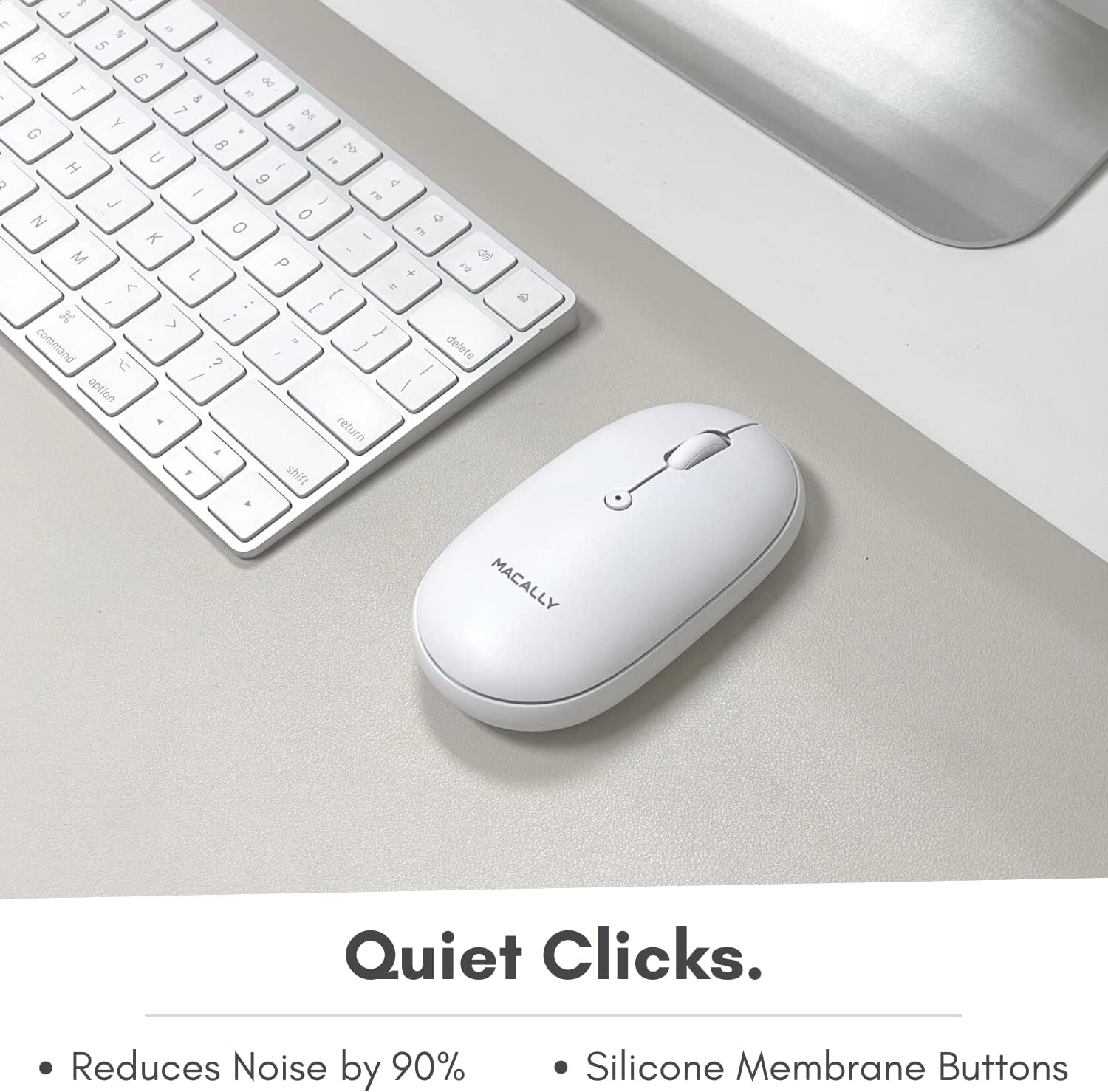
The mouse features quiet clicking buttons, minimizing disturbance during use.
Nlekọta
Nhicha
To maintain the mouse's performance and appearance, clean it regularly with a soft, dry cloth. For stubborn dirt, slightly dampJiri mmiri ma ọ bụ ihe nhicha dị nro, nke na-anaghị afụ ụfụ kpuchie ákwà ahụ. Zere iji kemịkalụ siri ike ma ọ bụ ihe ndị na-eme ka ọ dị nro.
Njikwa batrị
To maximize battery life, remember to switch off the mouse using the On/Off switch on the bottom when not in use for extended periods, such as overnight or when traveling. Recharge the mouse when the LED indicator signals low battery.
Nchọpụta nsogbu
Okwu njikọ
- Òké anaghị ejikọ: Ensure Bluetooth is enabled on your device and the mouse is powered on. Try turning both off and on again.
- Njikọ na-adịte aka: Ensure the mouse is within the 30-foot operating range and there are no significant obstructions or sources of interference (e.g., Wi-Fi routers, other Bluetooth devices).
- Mouse not appearing in Bluetooth list: Try unpairing and re-pairing the mouse from your device's Bluetooth settings.
Cursor Not Moving Smoothly
- Check the surface: Ensure you are using the mouse on a clean, non-reflective surface. Optical mice perform best on opaque, uniform surfaces.
- Adjust DPI: Experiment with the DPI settings (800/1200/1600) to find the sensitivity that works best for your usage.
- Clean the optical sensor: Gently clean the optical sensor on the bottom of the mouse with a soft, dry cloth to remove any dust or debris.
Batrị na-agbapụ ngwa ngwa
- Ensure full charge: Make sure the mouse is fully charged before use.
- Power off when not in use: Always use the On/Off switch to power down the mouse when not actively using it to conserve battery.
- Check charging cable: Ensure the charging cable is not damaged and is properly connected during charging.
Nkọwapụta
| Ụdị | Macally |
| Nọmba nlereanya | BTTOPBAT |
| Teknụzụ Njikọta | Bluetooth |
| Teknụzụ nchọpụta ngagharị | Ngwa anya |
| Ntọala DPI | 800 / 1200 / 1600 |
| Batrị | Lithium Ion 300 mAh (A na-eji ike emeghachi ya) |
| Akụkụ | 4.3 x 2.4 x 1.45 inch (ihe dị ka) |
| Ibu Ibu | 4.5 ounces |
| Agba | Ọcha |
Akwụkwọ ikike na nkwado
Macally values your satisfaction. This product comes with a 2-afọ akwụkwọ ikike site na ụbọchị ịzụrụ. Akwụkwọ ikike a na-ekpuchi ntụpọ dị na ngwa na arụ ọrụ n'okpuru ojiji nkịtị.
For technical support, warranty claims, or any questions regarding your Macally Wireless Bluetooth Mouse, please refer to the contact information provided on the Macally official website or the product packaging. Our support team is ready to assist you.


