Okwu mmalite
This manual provides detailed instructions for the Rapoo E9100M Multimode Wireless Keyboard. Designed for versatility and portability, this ultra-slim keyboard features a durable aluminum base and offers seamless connectivity across multiple devices using 2.4 GHz wireless, Bluetooth 3.0, and Bluetooth 4.0 (Smart) technologies. Its energy-saving features ensure a battery life of up to 12 months, minimizing the need for frequent battery replacement.
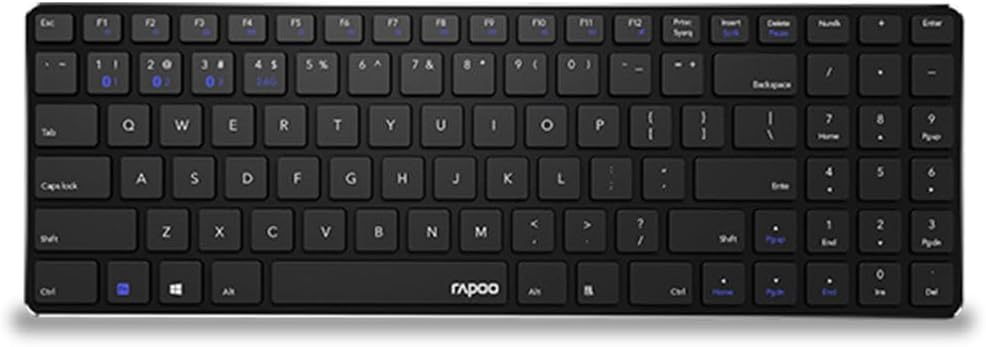
Image: Rapoo E9100M Multimode Wireless Keyboard, showcasing its full QWERTY US layout and slim profile.
Ihe ngwugwu
- Rapoo E9100M Multimode Wireless Keyboard
- USB nnata
- Ntuziaka mmalite ngwa ngwa
Njirimara ngwaahịa
- Multimode Wireless Connectivity: Connect via Bluetooth 3.0, 4.0, and 2.4 GHz.
- Oke arụ ọrụ: Up to 10 meters with 360-degree coverage.
- Njikọ ọtụtụ ngwaọrụ: Connect to multiple devices simultaneously.
- Nhazi Ultra-Slim: Compact 4.9 mm profile.
- Igwe ọkụ mgbasa ozi: Fn shortcuts for quick access to media functions.

Foto: Zuru ezu view of the keyboard's key mechanism, highlighting its slim design and key structure.
Melite
1. Ntinye batrị
The keyboard requires 2 Lithium-ion batteries. Open the battery compartment on the underside of the keyboard and insert the batteries, ensuring correct polarity.
2. Connecting via 2.4 GHz Wireless
- Locate the USB receiver, usually stored in the battery compartment or a dedicated slot on the keyboard.
- Tinye eriri USB n'ọdụ ụgbọ mmiri dị na kọmputa gị.
- Turn on the keyboard using the power switch. The keyboard should automatically connect to the receiver.
- The 2.4G indicator light (often labeled '1' or '2' on the keyboard) will illuminate briefly to confirm connection.
3. Ijikọ site na Bluetooth
The E9100M supports Bluetooth 3.0 and 4.0 (Smart) for connecting to multiple devices.
- Gbanwuo ahụigodo.
- Pịa ma jide Fn key and one of the Bluetooth keys (e.g., F1, F2, ma ọ bụ F3, indicated by Bluetooth icons) for 3-5 seconds until the corresponding indicator light starts blinking rapidly. This indicates the keyboard is in pairing mode.
- Na ngwaọrụ gị (kọmputa, mbadamba, ama ama), gaa na ntọala Bluetooth wee chọọ ngwaọrụ ọhụrụ.
- Select "Rapoo E9100M" from the list of available devices.
- Follow any on-screen prompts to complete the pairing process. The indicator light will stop blinking and remain solid for a few seconds once connected.
- Repeat for additional Bluetooth devices, assigning each to a different Bluetooth channel (e.g., F1 for device 1, F2 for device 2).
Ntuziaka ọrụ
Ịgbanwe n'etiti ngwaọrụ ejikọrọ
To switch between connected devices (2.4 GHz, Bluetooth 1, Bluetooth 2, etc.), simply press the corresponding Fn key in combination with the designated F-key (e.g., Fn + F1 for Bluetooth 1, Fn + F2 for Bluetooth 2, or a dedicated 2.4G key).
Multimedia Hotkeys (Fn Functions)
The keyboard features multimedia hotkeys accessible by pressing the Fn key in combination with the F-keys (F1-F12). Refer to the key legends for specific functions such as volume control, media playback, and more.
Ụdị Nchekwa Ike
The keyboard automatically enters power-saving mode after a period of inactivity. Press any key to wake it up.
Nlekọta
Nhicha
To clean the keyboard, use a soft, lint-free cloth slightly dampened with water or a mild cleaning solution. Avoid excessive moisture. Do not use abrasive cleaners or solvents.
Nlekọta batrị
If the keyboard will not be used for an extended period, it is recommended to remove the batteries to prevent leakage.
Nchọpụta nsogbu
Ahụigodo Anaghị aza
- Gbaa mbọ hụ na agbanyere ahụigodo.
- Lelee ọkwa batrị wee dochie ma ọ dị mkpa.
- For 2.4 GHz connection, ensure the USB receiver is securely plugged in and try a different USB port.
- For Bluetooth connection, ensure Bluetooth is enabled on your device and the keyboard is paired correctly. Try re-pairing the keyboard.
- Bugharịa ahụigodo ahụ nso na onye nnata/ngwaọrụ iji wepụ nsogbu dị na oke.
Nkwụsị ma ọ bụ Nkwụsị
- Ensure there are no strong electromagnetic interferences nearby (e.g., Wi-Fi routers, other wireless devices).
- Try switching to a different wireless channel if available (for Bluetooth, try re-pairing).
Nkọwapụta
| Njirimara | Nkọwa |
|---|---|
| Ụdị | Rapoo |
| Nọmba nlereanya | RP E9100M UI-B |
| Teknụzụ Njikọta | Bluetooth 3.0, Bluetooth 4.0 (Smart), 2.4 GHz Wireless |
| Ndakọrịta sistemụ arụmọrụ | Windows 10, Windows 7, Windows 8, Windows Vista, Windows XP |
| Ngwa dakọtara | Laptop, PC, Tablet, Smartphone |
| Nkọwa ahụigodo | QWERTY |
| Ọnụọgụ igodo | 104 |
| Agba | Nwa |
| Njirimara Pụrụ Iche | Multimedia Hotkeys, Ultra-slim Design |
| Isi Iyi Ike | 2 x Lithium-ion Batteries (required) |
| Akụkụ (L x W x H) | Approximately 10L x 10W x 10H millimeters (Note: Dimensions provided in source may be generic) |
Akwụkwọ ikike na nkwado
For warranty information and technical support, please refer to the warranty card included with your product or visit the official Rapoo websaịtị. Debe ihe akaebe nke ịzụrụ maka akwụkwọ ikike.
Official Rapoo Websaịtị: www.rapoo.com