1. Okwu mmalite
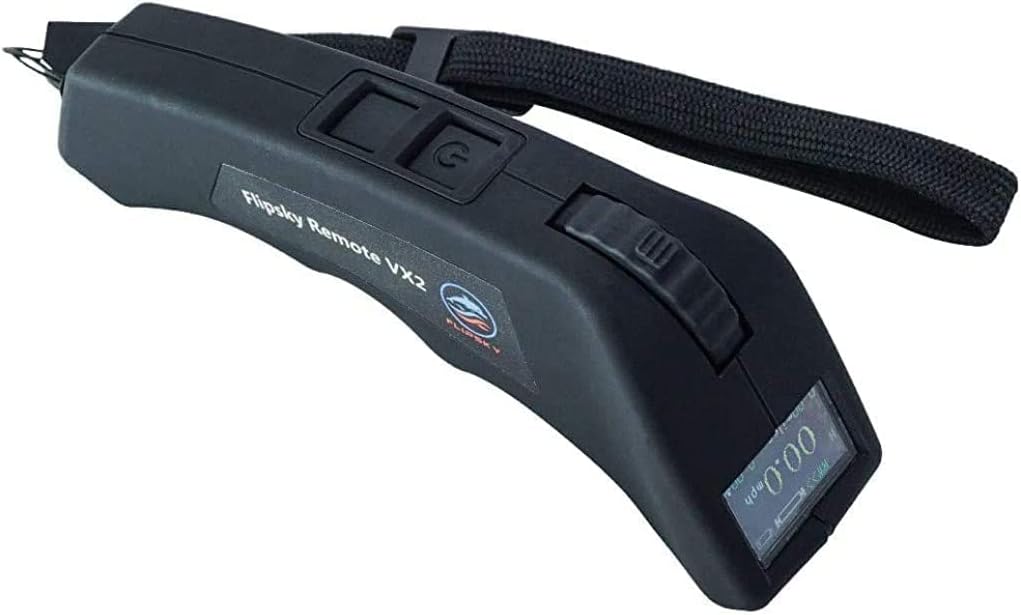
This manual provides detailed instructions for the proper use and maintenance of your FLIPSKY VX2 Pro V6 Version Skateboard Remote Control. Please read this manual thoroughly before operating the device to ensure safe and correct usage.
2. Ihe ngwugwu
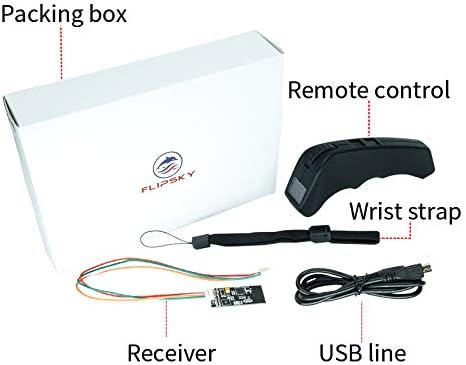
Nyochaa na etinyere ihe niile edepụtara n'okpuru na ngwugwu gị:
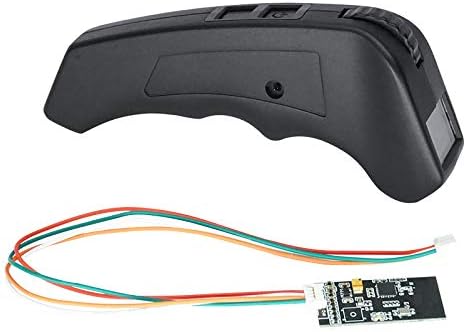
- Remote Control (VX2 Pro V6 Version)
- Onye nnata
- Eriri aka
- Igwe nchaji USB
3. Ngwaahịa gafereview
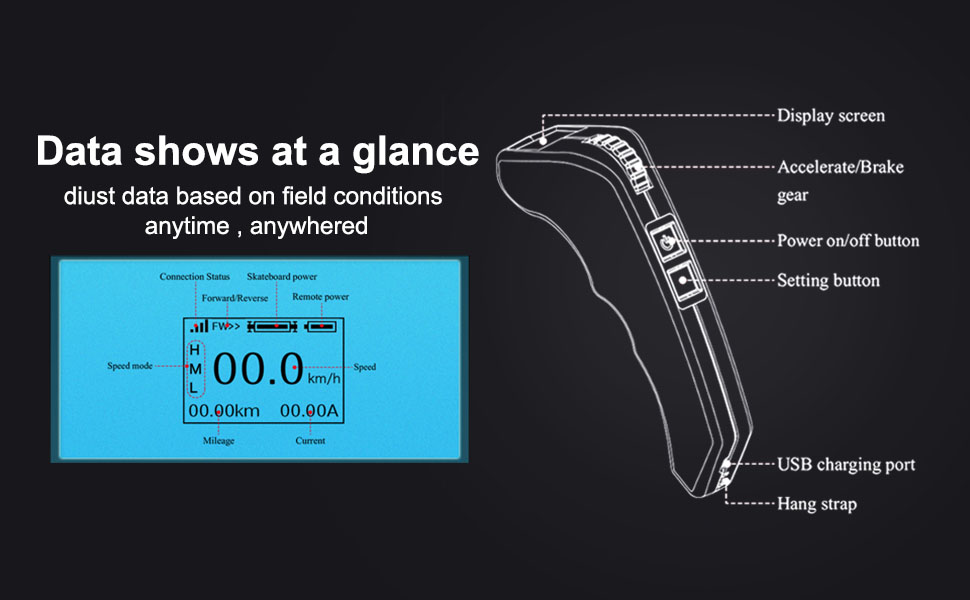
The FLIPSKY VX2 Pro remote control features a color screen and an ergonomic design for comfortable handling. Key components are identified below:
Display Screen Content:
The 0.95" OLED display provides real-time data. The screen typically shows:
- Ọnọdụ njikọ: Indicates if the remote is connected to the receiver.
- Skateboard Power: Battery level of the skateboard.
- Ike ime anya: Battery level of the remote.
- Forward/Reverse Indicator: Shows current direction.
- Ụdị Ọsọ: Displays current speed setting (H, M, L for High, Medium, Low).
- Ọsọ: Current speed in km/h or miles/h.
- Ogologo: Total distance traveled.
- Ugbu a: Real-time current draw (in Amperes).
4. Nhazi
4.1 eserese waya
Connect the receiver to your Electronic Speed Controller (ESC) according to the diagram below. Ensure correct polarity and pin assignment.
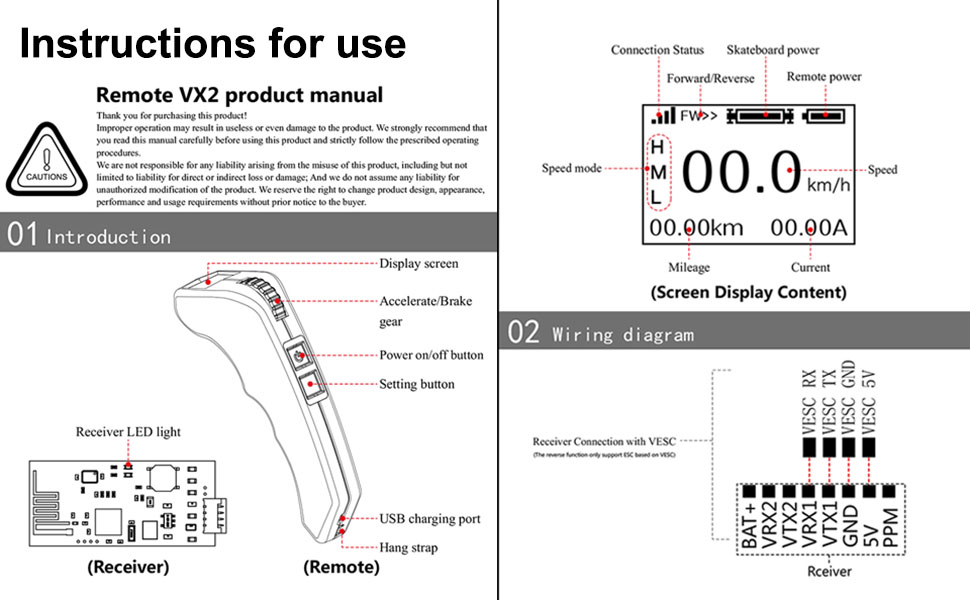
The receiver has pins for VESC RX, VESC TX, VESC GND, and VESC 5V. Connect these to the corresponding pins on your ESC. The receiver also has a LED light to indicate status.
4.2 Ntuziaka ijikọ
The remote will not function until it is successfully paired with the receiver. Follow these steps to pair your remote:
- Nzọụkwụ 1: Power on the remote and press the Setting button for 3 seconds. The remote will enter parameter setting mode.
- Nzọụkwụ 2: Briefly press the Setting button and shift options to "Pairing". Then press the Setting button again until "Pairing" begins blinking. Release the button. The remote is now in Pairing Mode.
- Nzọụkwụ 3: Power on the receiver. The remote and receiver will attempt to pair. If the screen shows "Pairing succeed", pairing is successful.
Ihe ncheta:
- If the receiver LED light does not illuminate within 10 seconds and then blinks, and the screen shows "Pairing failure" or "Pairing succeed" with a blinking status, it indicates a pairing failure. Re-power the receiver and try pairing again.
- If the signal light is blinking during pairing, retry all steps from the beginning.
5. Ọrụ
5.1 Gbanyụọ ma ọ bụ gbanyụọ
- Ike Na: Press the power on/off button for 1 second. The screen will display "FLIPSKY".
- Gbanyụọ: Press the power on/off button for 2 seconds. The remote will shut down.
- Gbanyụọ ike akpaaka: The remote will power off in 10 minutes without any operation, except when in cruise control mode.
5.2 Acceleration and Braking
The remote features an accelerate/brake gear (throttle wheel) for controlling speed.
- Ọsọ ọsọ: Push the accelerate/brake gear forward to increase speed.
- breeki: Pull the accelerate/brake gear backward to apply brakes.
5.3 Ụdị ọsọ
The remote supports three speed modes: Low (L), Medium (M), and High (H).
- To change speed mode: Keep the accelerate/brake gear in its default or original status (neutral position). Briefly press the Setting button to switch between speed modes.
- The remote is set to High speed mode by default after powering on.
5.4 Ọnọdụ ụgbọ mmiri
Cruise mode allows you to maintain a constant speed without continuously holding the throttle.
- Engage Cruise Mode: Push the accelerate gear to the desired speed. While maintaining that speed, briefly press the power button once. Your electric skateboard is now in cruise mode.
- Exit Cruise Mode: Push the accelerate gear or pull the brake gear to exit cruise mode.
5.5 Ntọala paramita
To access and adjust parameters:
- Press the Setting button for 3 seconds to enter remote setting mode.
- Briefly press the Setting button to shift through the setting options.
- To revise a data setting option: Shift to the option you want to revise. Then press the Setting button for 3 seconds until the option begins blinking.
- While the option is blinking, adjust the accelerate/brake gear to increase or decrease the data.
- Once the revised data is confirmed, briefly press the Power button to confirm the revision and exit the parameter setting menu.
Supported Parameter Settings:
- Setting and saving of Battery Cells
- Osisi abụọ
- Ụdị Wheel
- Ụgbọ ala Pulley
- Wheel Pulley
- Dayameta Wheel
- Ndozi trotul
Remark: For Wheel Type, Motor Pulley, and Wheel Pulley, settings can only be adjusted if the "Pulley option" is selected.
6. Nlekọta
To ensure the longevity and optimal performance of your FLIPSKY VX2 Pro remote control, follow these maintenance guidelines:
- Nhicha: Wipe the remote with a soft, dry cloth. Avoid using harsh chemicals or abrasive cleaners.
- Nchekwa: Debe ihe eji emechi ihe n'ebe dị jụụ ma kpọọ nkụ, ebe anwụ na-anaghị anwụ kpọmkwem na oke okpomọkụ dị oke njọ.
- Nlekọta batrị: The remote uses a rechargeable Li-ion battery. Charge the battery regularly, even if not in use, to maintain its health. Avoid fully discharging the battery for extended periods.
- Nchekwa mmetụta: Avoid dropping the remote or subjecting it to strong impacts, as this can damage internal components or the display screen.
7. Nchọpụta nsogbu
If you encounter issues with your FLIPSKY VX2 Pro remote, refer to the following common problems and solutions:
| Nsogbu | Ihe nwere ike ime | Ngwọta |
|---|---|---|
| Remote does not power on. | Enweghị ike ịpị bọtịnụ batrị ma ọ bụ bọtịnụ ike nke ọma. | Charge the remote's battery. Press and hold the power button for 1 second. |
| Remote does not pair with receiver. | Incorrect pairing procedure, receiver not powered, or interference. | Ensure receiver is powered. Re-attempt pairing following Section 4.2. Check for obstructions or other 2.4GHz devices. |
| Loss of signal connection during use. | Interference, distance from receiver, or receiver malfunction. | Ensure clear line of sight between remote and receiver. Reduce distance. Check receiver wiring. If persistent, re-pair the devices. |
| Telemetry data (speed, distance) is inaccurate. | Incorrect parameter settings (e.g., wheel diameter, pulley ratio). | Access Parameter Setting (Section 5.5) and verify that Wheel Diameter, Motor Pulley, and Wheel Pulley settings are correctly configured for your skateboard. |
| Remote screen is blank or unresponsive. | Remote battery depleted, software issue, or hardware damage. | Charge the remote. Try a hard reset by holding the power button for an extended period (e.g., 10 seconds). If the issue persists, contact support. |
8. Nkọwapụta
| Njirimara | Nkọwa |
|---|---|
| Nlereanya | VX2 Pro V6 Version |
| Ngosipụta | Colorful Screen, 0.95" OLED |
| Njikọta | 2.4GHz Radio Frequency |
| Ụdị ọsọ | 3 (Ọ dị ala, Ọkara, Elu) |
| Batrị | Batrị Li-ion na-akwụ ụgwọ maka gị |
| Data oge | Speed, Mileage, Current, Battery Levels |
| Nhọrọ nkeji | km/h and miles/h |
| Ndakọrịta | FSESC and other ESCs (e.g., FOCBOX), Electric Skateboard, Boat |
| Ibu Ibu | 6.5 ounces (ihe dị ka gram 184) |
9. Akwụkwọ ikike na nkwado
Information regarding product warranty and customer support was not available in the provided product data. For warranty details or technical assistance, please refer to the official FLIPSKY websaịtị ma ọ bụ kpọtụrụ onye na-ere ahịa ebe azụrụ ngwaahịa ahụ.
For further inquiries, you may also refer to the seller's information:
- Onye na-ere ahịa: Shenzhen Flipsky Technology Company Limited
- ID nke Onye Na-ere Ahịa: A3QK84HB8OFPD6


