1. Ngwaahịa gafereview
The Phomemo M110 is a versatile thermal label printer designed for both smartphone and PC use. It supports various label types for applications such as mailing addresses, price tags, food labeling, package shipping, DIY projects, and organization. This compact and portable device offers efficient printing for both personal and business needs.
Ihe ngwugwu 1.1
Biko chọpụta na ihe niile dị na ngwugwu gị:
- Phomemo M110 Printer Unit
- 40*30mm Sample Label Roll
- -Dị-C Nchaji USB
- Akwụkwọ ntuziaka (akwụkwọ a)

Image: Phomemo M110 printer, sample label roll, and charging cable.
1.2 Ngwa ngwaahịa
Familiarize yourself with the different parts of your Phomemo M110 printer:
- Ihe mkpuchi kachasị: Protects the label compartment.
- Ngosipụta: Shows printer status and information.
- Bọtịnụ Ike/NchNhr: Turns the printer on/off and navigates menus.
- Paper Feed/Select Button: Feeds labels or confirms selections.
- Label Output Slot: Where printed labels exit.
- Type-C Cable Connection Port: For charging and PC connection.
- Tọgharia oghere: For factory reset (use a pin).

Foto: Zuru ezu view of the Phomemo M110 printer with labels indicating its various parts.
2. Nhazi
2.1 Nkwadebe mbụ
- Remove any protective films from the printer.
- Press and hold the Power button for 3 seconds until the display lights up.
- Ihe nbipute adịla njikere maka ojiji.
2.2 Ndekọ Ibugo
The M110 printer supports die-cut labels with widths ranging from 20mm to 50mm. Ensure the labels are thermal-sensitive and have a protective coating for water, oil, and durability.
- Mepee mkpuchi elu nke ngwa nbipute.
- Place the label roll into the paper cassette, ensuring the printing side faces upwards.
- Mechie mkpuchi elu.
- Press the paper feed button to automatically position the label.

Image: The Phomemo M110 printer with the top cover open, showing how to insert a label roll.
2.3 Mobile App Installation (Print Master)
The 'Print Master' app is required for smartphone and tablet operation. It offers various frames, fonts, templates, and icons for label customization.
- Chọọ maka 'Print Master' on the App Store (iOS) or Google Play (Android).
- Budata ma wụnye ngwa ahụ.
- Open the 'Print Master' app.
- Tap 'Auto Connect' and allow necessary permissions. The app will automatically search for and connect to your M110 printer.
Video: Phomemo M110 Quick Start Guide, demonstrating initial setup and mobile app connection.
2.4 PC Software Installation (Labelife)
For PC connectivity, the M110 supports Mac OS and Windows 10 via USB. (Note: Linux and Chromebook systems are not supported).
- Visit the official Phomemo website, navigate to 'Support' -> 'Download Center', and select M110 to download the driver. Alternatively, visit labelife.net.
- Download the appropriate 'Labelife' software for your operating system (Windows or Mac).
- Wụnye ngwanro site na isoro ntuziaka na ihuenyo.
Video: Guide on downloading and installing the PC application for the Phomemo M110 printer.
3. Ntuziaka ọrụ
3.1 Connecting to a Smartphone/Tablet (Bluetooth)
- Gbaa mbọ hụ na agbanyere Bluetooth na ama ma ọ bụ mbadamba gị.
- Open the 'Print Master' app.
- The app will automatically detect and connect to your M110 printer. If not, tap 'Auto Connect' or manually select your printer from the device list.

Image: Visual guide for connecting the M110 printer to a smartphone or tablet via Bluetooth.
3.2 Connecting to a PC (USB)
- Connect the M110 printer to your PC using the provided Type-C USB cable.
- Open the 'Labelife' software on your PC.
- The software should automatically detect and connect to the printer. If not, follow the software's prompts to add a printer.

Image: Visual guide for connecting the M110 printer to a PC via USB cable.
3.3 Ịmepụta na ibipụta aha
Both the 'Print Master' app and 'Labelife' software offer extensive customization options for your labels, including text, QR codes, barcodes, images, and various templates.
- Select your desired label size within the app/software.
- Design your label using the available tools (text, icons, barcodes, etc.).
- Tupuview your label to ensure accuracy.
- Click the 'Print' button to send the label to the printer.
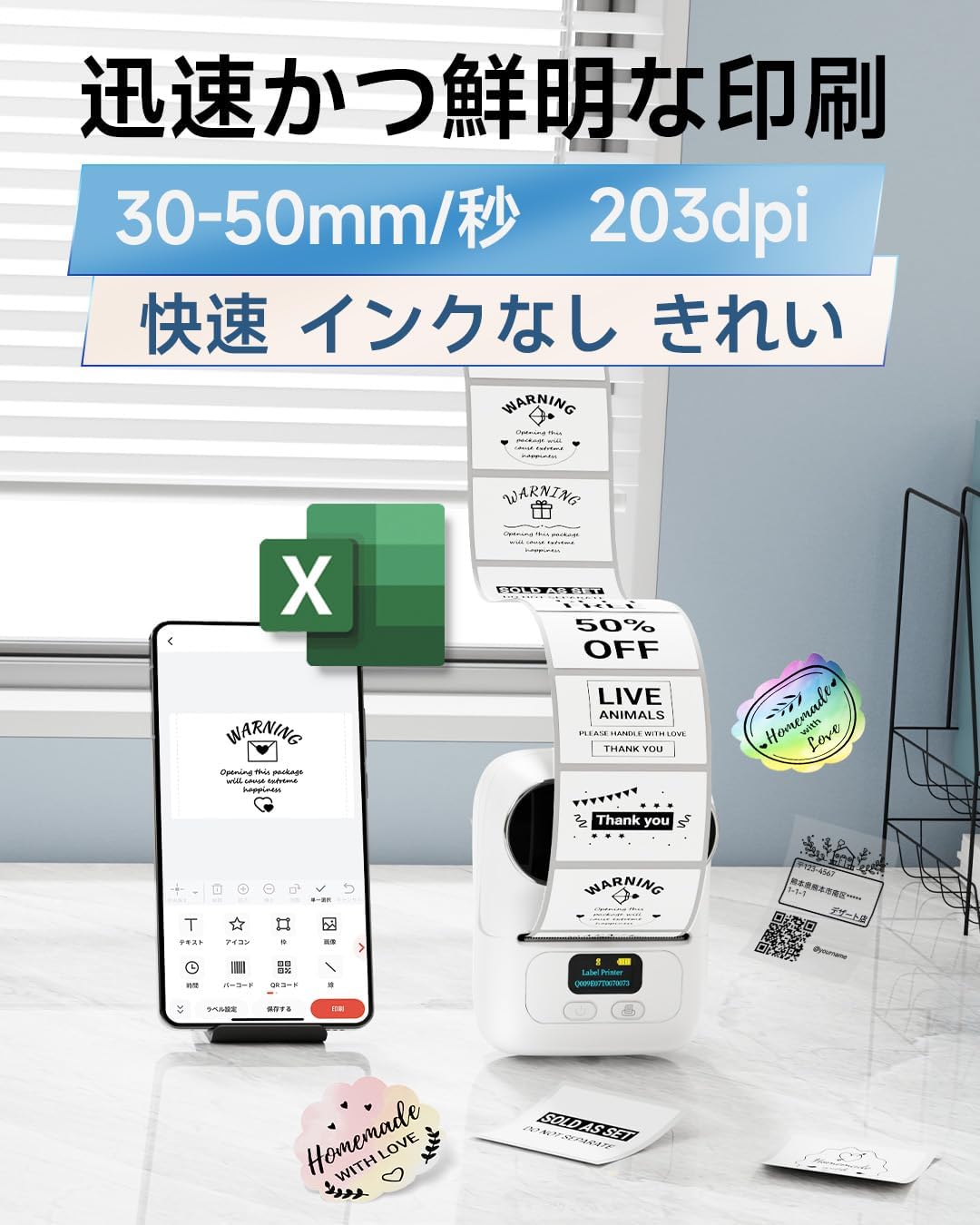
Image: A smartphone displaying the 'Print Master' app interface for designing labels.

Foto: Ofeview of additional app functions including voice-to-text, barcode/QR code recognition, OCR, and PDF/Excel printing.
4. Nlekọta
To ensure optimal performance and longevity of your Phomemo M110 printer, regular maintenance is recommended.
- Na-ehicha isi mbipụta: Jiri akwa dị nro na nke enweghị mmiri ọkụ dampened with isopropyl alcohol to gently wipe the print head. Ensure the printer is off and cool before cleaning.
- Na-ehicha Mpụga: Wipe the exterior of the printer with a soft, dry cloth. Avoid using harsh chemicals or abrasive materials.
- Nchekwa: Store the printer in a cool, dry place away from direct sunlight and extreme temperatures. Remove the label roll if storing for an extended period.
- Nlekọta batrị: For optimal battery life, avoid fully discharging the battery frequently. Charge the printer regularly, even if not in use, to maintain battery health.
5. Nchọpụta nsogbu
If you encounter issues with your Phomemo M110 printer, refer to the following common troubleshooting steps:
| Nsogbu | Ihe nwere ike ime | Ngwọta |
|---|---|---|
| Igwe nbipute anaghị agbanwu | Batrị dị ala; bọtịnụ ike anaghị emetụ ogologo oge zuru oke | Charge the printer; Press and hold the Power button for 3 seconds. |
| Enweghị ike ijikọ site na Bluetooth | Bluetooth off on device; Printer not discoverable; App permissions denied | Ensure Bluetooth is on; Restart printer; Grant app location/Bluetooth permissions. |
| Ọdịmma ebipụta na-adịghị mma | Isi mbipụta ruru unyi; Ụdị akara na-ezighi ezi; Batrị dị ala | Clean print head; Use genuine Phomemo thermal labels; Charge printer. |
| Akara aha anaghị enye nri nke ọma | Label roll incorrectly inserted; Labels jammed | Re-insert label roll correctly; Clear any jammed labels. |
If the issue persists after trying these steps, please contact Phomemo customer support.
6. Nkọwapụta
| Njirimara | Nkọwapụta |
|---|---|
| Akụkụ ngwaahịa | 11.4 x 6.3 x 8.7 cm (Omimi x Obosara x Ogologo) |
| Oke Mgbasa ozi (Akwụkwọ). | 50mm |
| Ngwa gụnyere | 40*30mm Sample Label Roll, Type-C Charging Cable, M110 Printer Unit, User Manual |
| Mgbasa ozi bipute | Akara aha |
| Ụdị nyocha | Enwere ike ibugharị |
| Ikike mpempe akwụkwọ kacha | 100 |
| Oke oyiri ọsọ (B&W) | 45 ibe / nkeji |
| Ngwa dakọtara | Smartphones, Tablets, Desktop PCs, Laptops |
| Nha mpempe akwụkwọ | 20 ~ 50mm |
| Mkpebi Mbipụta kacha (Monochrome) | 300 dpi |
| Duplex Printing | Mba |
| Batrị | 1 batrị lithium ion (gụnyere) |
| Agba | Ọcha |
| Ụdị Ihe | Ihe nbipute |
| Teknụzụ Njikọta | Bluetooth, USB |
| OS | Android, iOS |
| Ọdịnaya ike batrị Lithium | 8.88 Watt awa |
| Nkwakọ ngwaahịa batrị lithium | Batrị ndị dị na akụrụngwa |
| Lithium Ion Cell Count | 2 |
| Ibu Ibu | 228 g |
7. Akwụkwọ ikike na nkwado
Phomemo products are designed for reliability and performance. For warranty information and customer support, please refer to the following:
- Akwụkwọ ikike: Please consult the warranty card included in your product packaging for specific terms and conditions.
- Nkwado ndị ahịa: For technical assistance, troubleshooting, or any product-related inquiries, please visit the official Phomemo websaịtị na www.phomemo.com ma ọ bụ kpọtụrụ ndị otu ọrụ nlekọta ndị ahịa ha ozugbo.


