Ngwaahịa gafereview
Expand Wi-Fi range beyond your router's reach and eliminate dead spots in any room. D-Link Wi-Fi Mesh makes it easy to mix-and-match this extender with compatible D-Link routers for your own customized mesh network at home. Roam around while staying connected when watching videos, browsing the internet, and more. The extender sets up in minutes using the QRS mobile app (Android, iOS) or the one-touch WPS button. It works with any router, access point, or ISP wireless gateway to expand WiFi to any room and connect your laptops, smartphones, speakers, cameras, tablets, and smart home devices.
Atụmatụ igodo
- Extend your Wi-Fi with AC750 speeds: Dual-Band WiFi with combined WiFi speeds of up to 733 Mbps (300 Mbps + 433 Mbps) - Strengthens and extends the range of your existing Wi-Fi network coverage by up to 1300 sq. ft / 25 devices and is ideal for work-from-home or office applications. Wi-Fi performance is maximized by MU-MIMO technology enabling simultaneous transmission to more devices.
- Mesh Smart roaming: Works with any brand of Wi-Fi router or Internet Provider Wi-Fi router/gateway. Supports the 802.11k/v standard for mesh smart roaming and creates a single whole-home mesh network that auto-connects mobile devices to the strongest Wi-Fi signal as you move around your home.
- Greater coverage and performance: Eliminates Wi-Fi dead zones or weak spots in wireless coverage. Uses high-gain internal antennas for better, stronger, reliable Wi-Fi. Adds coverage up to 1300 sq. ft. Push-button for easy setup.
- Ụdị ọtụtụ: Can be used as a Wi-Fi Extender, Wi-Fi Access Point, or Wireless Bridge. Includes an Ethernet port for Access Point/Bridge Mode or to connect a wired device to your network.
- Simple setup and management: Download the free D-Link QRS app for simple setup. The onboard LED smart signal indicator helps you place your extender in the best location for optimal connectivity. The sleek and discreet wall-plug design blends well into any home environment.
- Universally compatible: Works with any Wi-Fi router, access point, or wireless ISP gateway.
Kedu ihe dị na Igbe ahụ
- DAP-1530 Wi-Fi Range Extender
- Kaadị nhazi Wi-Fi
- Ntuziaka nwụnye ngwa ngwa
Ntuziaka nhazi
1. Ike Na
Plug the D-Link DAP-1530-US extender into a power outlet. Wait for the Power LED to turn solid green.
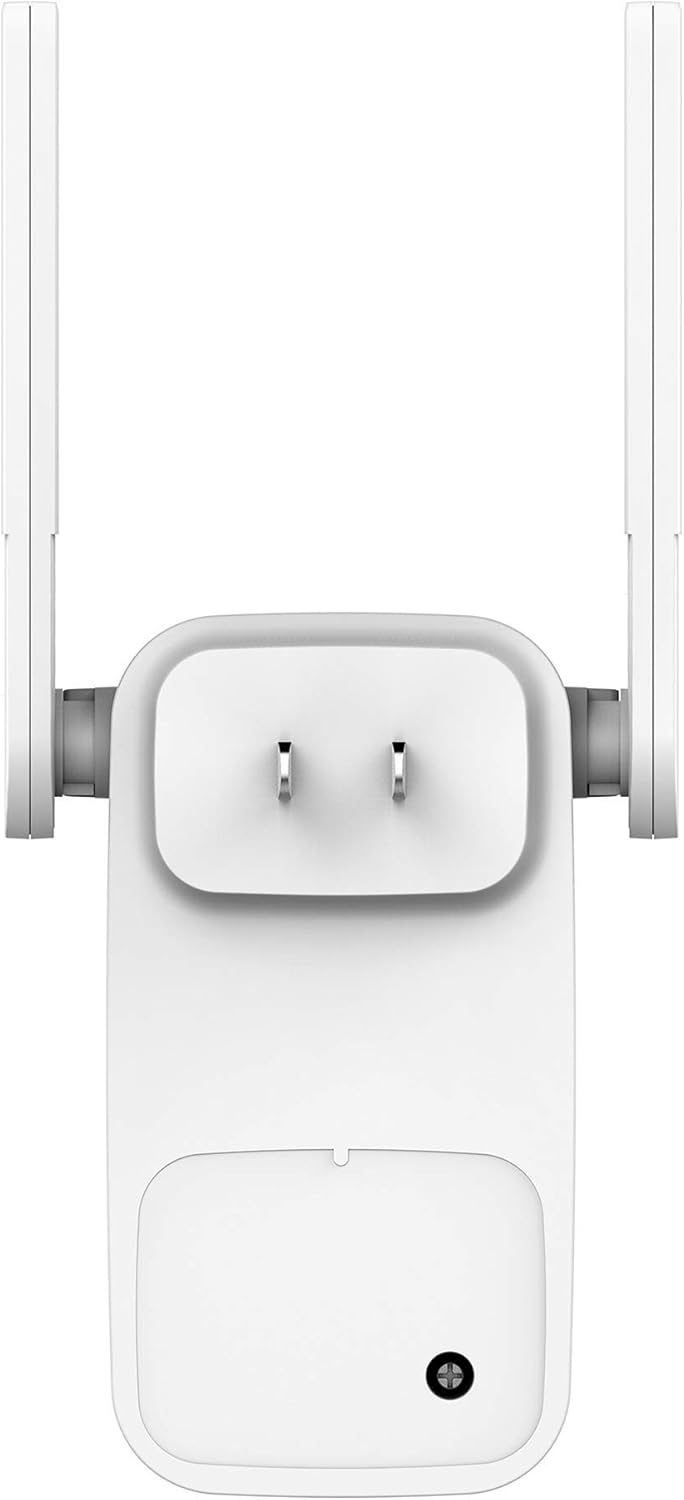
Image: D-Link DAP-1530-US Wi-Fi Range Extender plugged into a wall outlet, showing the power indicator light illuminated.
2. Connect to the Extender
There are multiple ways to connect and configure your extender:
- Using the D-Link QRS Mobile App: Download the free D-Link QRS app from the App Store (iOS) or Google Play Store (Android). Follow the on-screen instructions to set up your extender. This method is recommended for ease of use.
- Using the WPS Button (Wi-Fi Protected Setup): Press the WPS button on your D-Link DAP-1530-US extender. Within two minutes, press the WPS button on your existing Wi-Fi router. The extender will automatically connect to your router.
- Iji a Web Ihe nchọgharị: Connect your computer or mobile device to the extender's Wi-Fi network (e.g., "dlink_extender"). Open a web browser and enter "dlinkap.local" or the extender's IP address (refer to your Quick Installation Guide for default IP). Follow the on-screen setup wizard.

Image: Screenshot of the D-Link QRS Mobile App interface, illustrating the step-by-step setup process for the Wi-Fi extender.
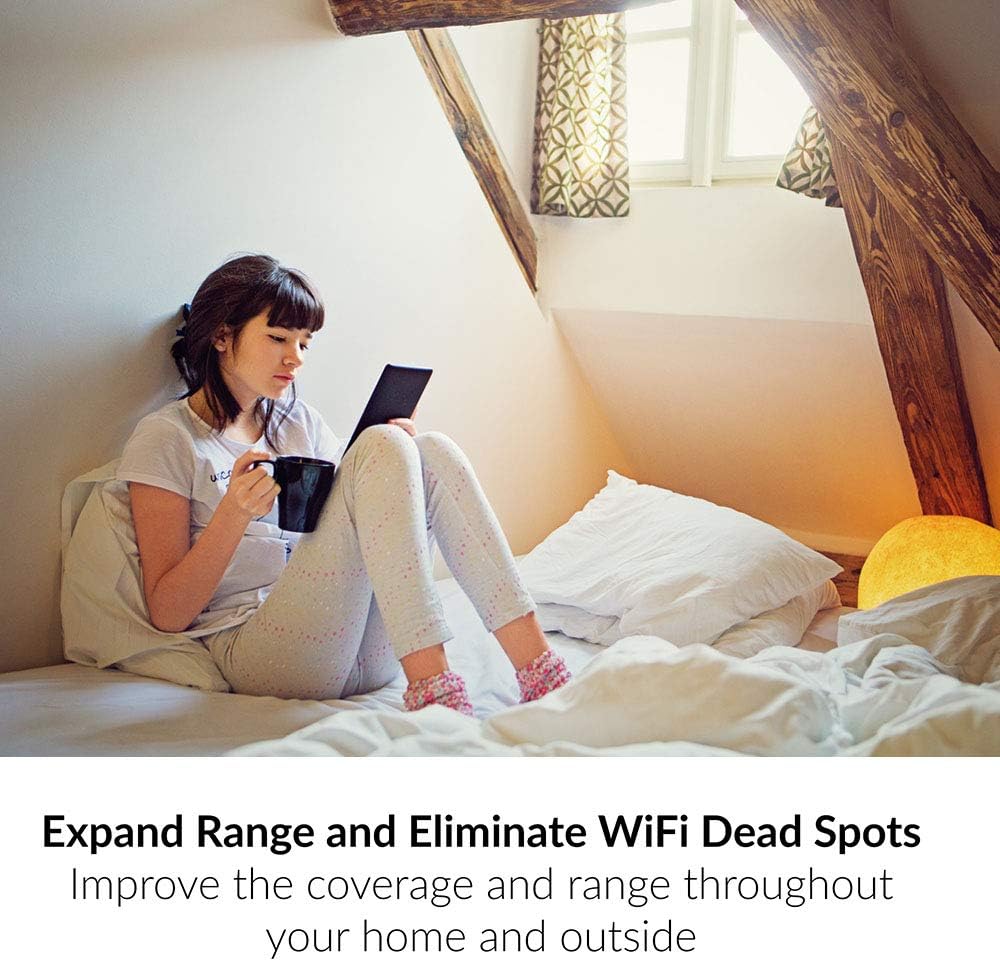
Image: Close-up of the D-Link DAP-1530-US Wi-Fi Range Extender, with the WPS button clearly visible for one-touch setup.
Ụdị arụ ọrụ
The D-Link DAP-1530-US offers multiple operating modes to suit your networking needs:
- Ụdị ihe ndọtị Wi-Fi: Extends the range of your existing Wi-Fi network, eliminating dead zones.
- Wi-Fi Access Point Mode: Connects to your wired network via an Ethernet cable and broadcasts a new Wi-Fi signal.
- Ụdị akwa ikuku ikuku: Connects a wired device (e.g., smart TV, gaming console) to your Wi-Fi network.

Image: The D-Link DAP-1530-US Wi-Fi Range Extender showing its Ethernet port connected to a gaming console, illustrating its wired connectivity capabilities for multiple devices.
Mesh Smart Roaming
When paired with compatible D-Link Mesh routers, the DAP-1530-US supports 802.11k/v standard for mesh smart roaming. This creates a single whole-home mesh network, ensuring your mobile devices automatically connect to the strongest Wi-Fi signal as you move around your home, without manual switching.

Image: A diagram comparing Wi-Fi coverage with and without Mesh Smart Roaming, highlighting seamless connectivity with Mesh.
Nlekọta
- Mmelite femụwe: Regularly check for and install firmware updates via the D-Link QRS app or web interface iji hụ na arụmọrụ na nchekwa kacha mma.
- Nhicha: Debe ngwaọrụ ahụ ọcha ma ghara ịta uzuzu. Jiri ákwà dị nro ma kpọọ nkụ. Ejila ihe nhicha mmiri.
- Nkwanye: Ensure the extender is placed in an open area, away from obstructions and sources of interference (e.g., microwaves, cordless phones). The LED signal indicator helps find the best location.
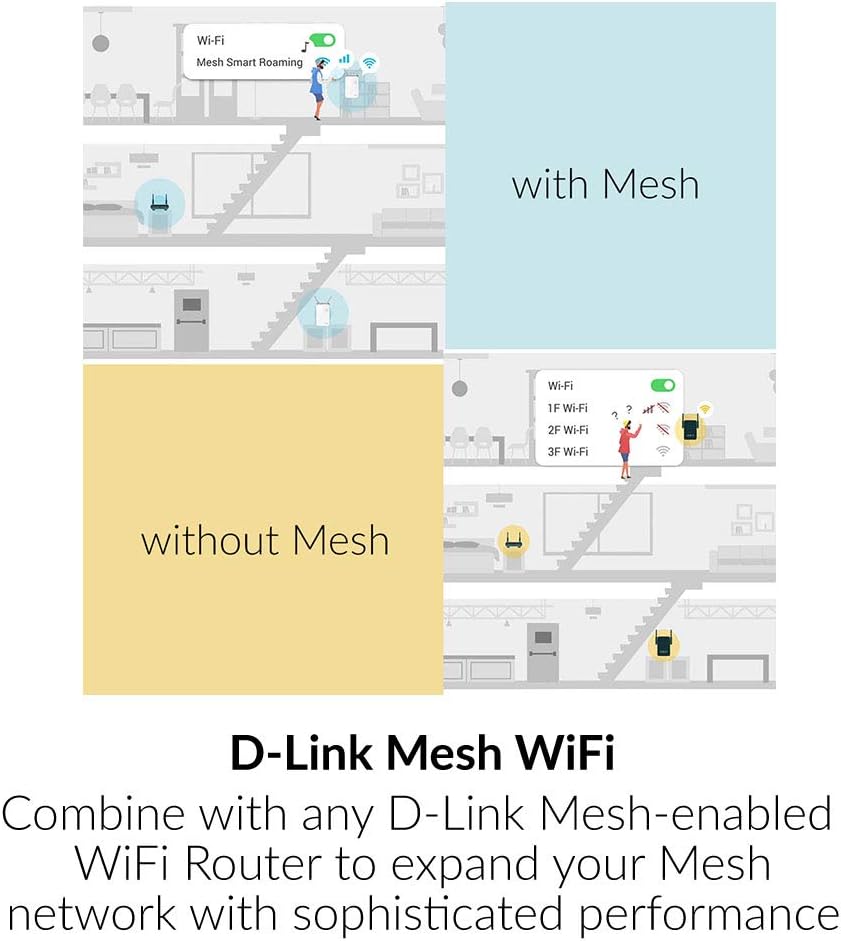
Image: The D-Link DAP-1530-US Wi-Fi Range Extender's signal strength indicator, showing how to identify optimal placement for a strong Wi-Fi signal.
Nchọpụta nsogbu
- Enweghị ike LED: Gbaa mbọ hụ na etinyere ihe ndọtị ahụ nke ọma na oghere ọkụ na-arụ ọrụ.
- Akara ngosi adịghị ike: Relocate the extender closer to your main router. Use the LED signal indicator to find a spot where the signal is strong (green).
- Enweghị ike ijikọ na Wi-Fi Extender: Ensure your device is within range of the extender. Try restarting both the extender and your device.
- Nsogbu Ịnweta Ịntanetị: Verify that your main router has internet access. Restart your router and then the extender.
- Ịtọgharịa Extender: If issues persist, use a paperclip to press and hold the reset button on the extender for 5-10 seconds until the Power LED blinks. This will restore factory default settings.
Nkọwapụta
| Njirimara | Nkọwa |
|---|---|
| Nọmba nlereanya | DAP-1530-US |
| Ụdị | D-njikọ |
| Ikuku Communication Standard | 802.11ac, 802.11g, 802.11n |
| Ọnụego mbufe data | 733 Megabits kwa nkeji |
| Klaasị ugboro ugboro | Abụọ-Band |
| Atụmatụ pụrụ iche | 1-Tap Setup, Access Point Mode, LED Indicator, MU-MIMO, Mesh Smart Roaming, Multi-Mode |
| Akụkụ ngwaahịa | 1.13 x 2 x 3.88 sentimita asatọ |
| Ibu Ibu | 4.2 ounces |
Nkwado & Akwụkwọ ikike
For technical support, warranty information, or to download the full user manual, please visit the official D-Link website or contact D-Link customer service.
The product includes a Quick Installation Guide and a Wi-Fi Configuration Card for easy setup.


