Okwu mmalite
The Insta360 GPS Smart Remote is designed to provide seamless remote control for your Insta360 ONE R, ONE RS, ONE X, and ONE X2 cameras. Beyond basic camera control, it records and tracks essential GPS data, including speed, altitude, and direction, enhancing your captured footage with valuable telemetry. This manual provides detailed instructions for setup, operation, maintenance, and troubleshooting to ensure optimal performance of your device.
Kedu ihe dị na Igbe ahụ
Nyochaa na agụnyere ihe niile ndị a na ngwugwu gị:
- 1x GPS Smart Remote
- 1 x eriri aka
- 1x Silicone Case
- 1 x eriri USB
- 1x Akwụkwọ ntuziaka onye ọrụ
- 1x EVO Gimbals cleaning cloth

Image: All components included in the Insta360 GPS Smart Remote package.
Melite
1. Charging the Remote
Before first use, fully charge the GPS Smart Remote. Connect the included USB Charge Cable to the Micro USB port on the remote and to a 5V/1A charging station. A full charge typically takes approximately 2 hours. The display will indicate charging status.
2. Pairing with Your Camera
To pair the remote with your Insta360 camera (ONE R/RS or ONE X/X2):
- Ensure your camera is powered on and in pairing mode.
- Power on the GPS Smart Remote.
- Navigate to the Bluetooth pairing settings on both devices and initiate the connection.
- Ihe ndetu dị mkpa: If you experience difficulty pairing, ensure that your camera is ọ bụghị simultaneously connected to the Insta360 mobile application. Disconnect from the app before attempting to pair with the remote.
3. Acquiring GPS Signal
For accurate GPS data recording, the remote needs to acquire a satellite signal. For best performance:
- Operate in an open outdoor area with a clear view nke elu-igwe.
- Keep the GPS Smart Remote away from significant electrical interference, large buildings, and tall objects.
- Remain stationary for a short period until the GPS icon on the remote's display indicates a stable signal.
Na-arụ ọrụ Remote
Njikwa ntọala
The remote features a simple interface for controlling your camera:
- Bọtịnụ ndekọ: Pịa ka ịmalite/kwụsị ndekọ vidiyo.
- Bọtịnụ mkpuchi: Pịa ka ịse foto.
- The 1-inch display provides real-time information such as recording status, battery level, and GPS signal strength.
GPS Data Tracking
Once connected and a GPS signal is acquired, the remote will automatically record GPS data during your video recordings. This data can be overlaid onto your footage using the Insta360 mobile app or desktop software, displaying metrics like speed, altitude, and direction.
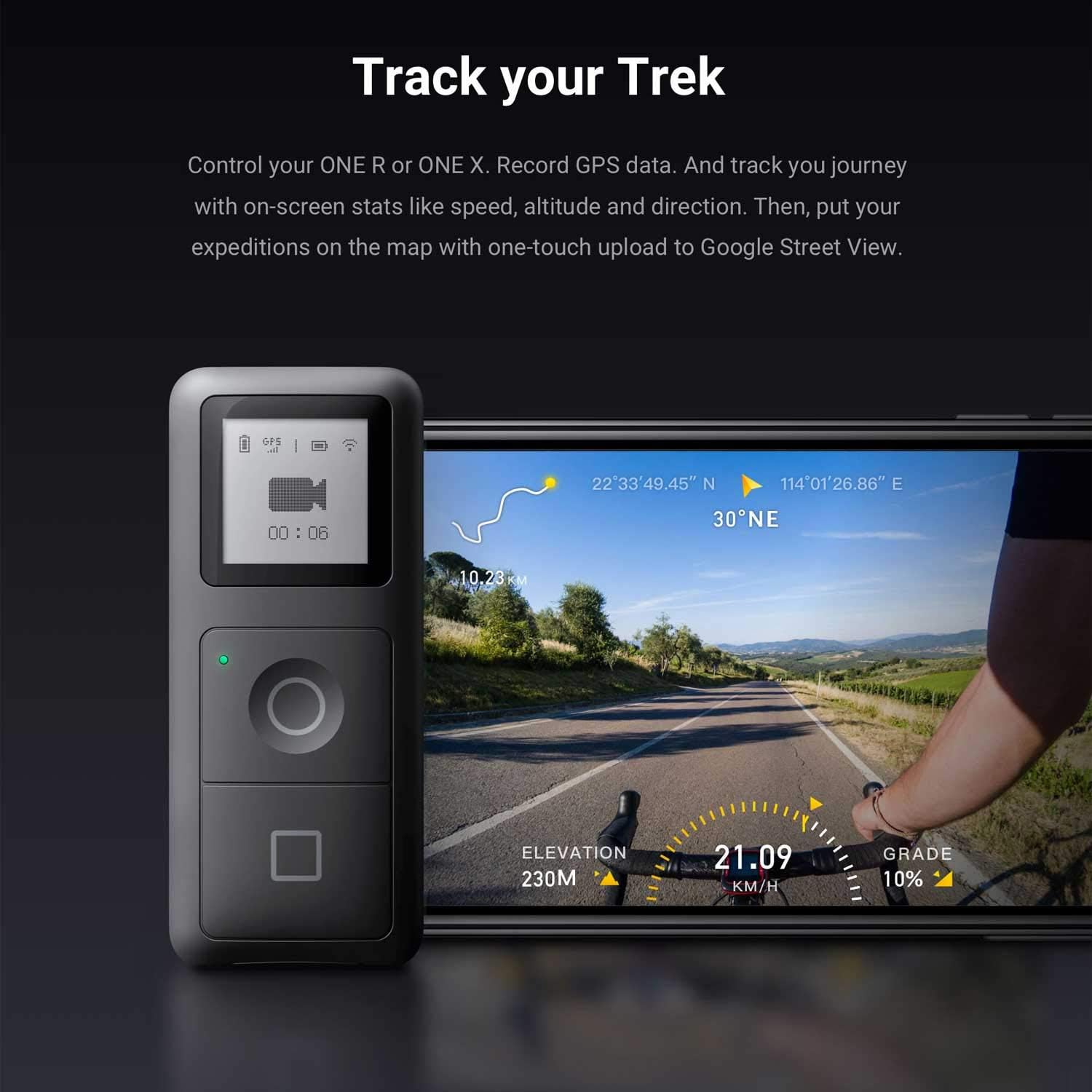
Image: The remote's display showing recording time and GPS status, with a visual representation of GPS data overlay on a map.
Google Street View Njikọta
The GPS Smart Remote integrates with Google Street View, allowing for one-touch uploads of your expeditions. This functionality is primarily accessed and managed within the Insta360 mobile application.
Nhọrọ nkwụnye
The GPS Smart Remote offers versatile mounting options:
- Selfie Stick Mount: Use the included 25mm mounting clip to secure the remote onto an invisible selfie stick (sold separately).
- Wrist Strap & Silicone Case: For on-the-go action sports use, the included wrist strap and silicone case allow you to secure the remote to your wrist, backpack straps, ski poles, bike frames, and more.

Image: Diagram for selfie stick mounting.
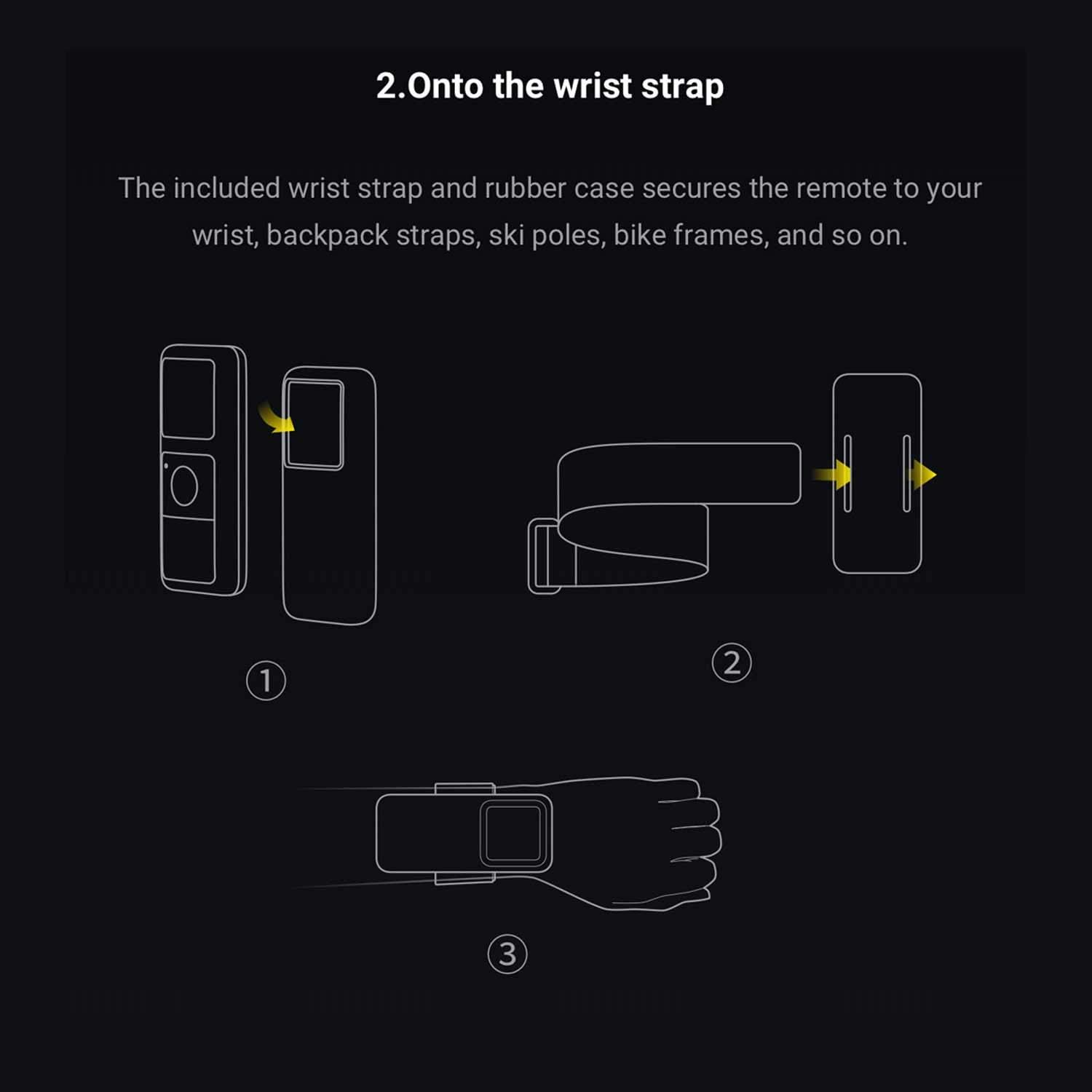
Image: Remote mounted on a selfie stick.
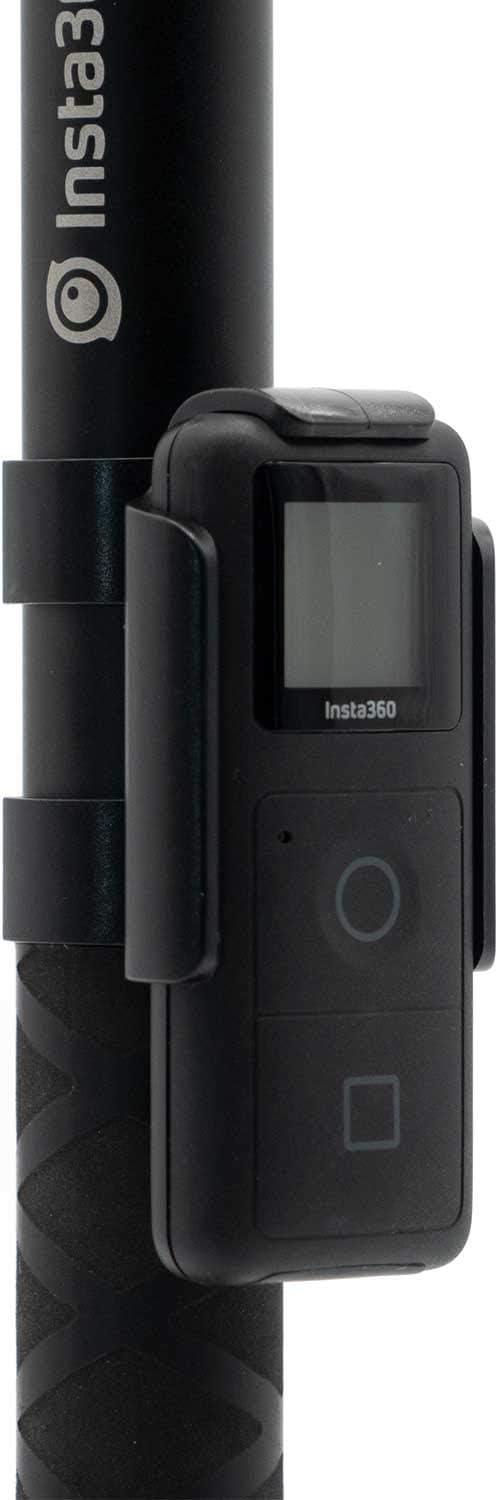
Image: Diagram for wrist strap mounting.
Nlekọta
Nhicha
Wipe the remote with a soft, dry cloth. For stubborn dirt, a slightly damp cloth can be used, ensuring no moisture enters the charging port or buttons. Do not use harsh chemicals or abrasive cleaners.
Nlekọta batrị
Ka ịgbatị ndụ batrị:
- Zere ịchaji batrị ugboro ugboro.
- Store the remote in a cool, dry place when not in use for extended periods.
- Charge the device periodically if stored for a long time to prevent deep discharge.
Ihe gbasara gburugburu ebe obibi
The operating temperature range for the remote is -10°C to 40°C. Avoid exposing the device to extreme temperatures, direct sunlight for prolonged periods, or high humidity.
Nchọpụta nsogbu
| Nsogbu | Ngwọta |
|---|---|
| Remote won't pair with camera. | Ensure the camera is not connected to the Insta360 app. Disconnect from the app, then attempt pairing. Power cycle both devices if necessary. |
| Poor or no GPS signal. | Move to an open outdoor area. Avoid tall buildings or dense foliage. Ensure no strong electrical interference nearby. Remain stationary for a few minutes to allow signal acquisition. |
| Battery drains quickly or doesn't hold charge. | Ensure the remote is fully charged (approx. 2 hours). If issues persist, contact Insta360 support. Avoid leaving the remote in extreme temperatures. |
| Camera locks up when taking pictures via remote. | Ensure both the camera and remote have the latest firmware updates. If the issue persists, try restarting both devices. |
| Display text is difficult to read. | The display is a 1-inch monochrome screen. Ensure adequate lighting for readability. There are no user-adjustable font size settings. |
| Remote does not power on/off with camera. | The remote is designed to power off when the camera powers down, but it does not automatically power on the camera or vice-versa. Manual power on/off is required for the remote. |
Nkọwapụta
| Njirimara | Nkọwa |
|---|---|
| Ibu | 43g |
| Ngosipụta nha | 1 inch |
| Njikọ chaja | Micro USB |
| Ụdị batrị | Lithium Ion (non-removable) |
| Ike batrị | 800mAh |
| Oge ịgba ọsọ | Ihe dị ka awa 16 |
| Oge nchaji | Approximately 2 hours (with 5V/1A charging station) |
| Okpomọkụ na-arụ ọrụ | -10°C ruo 40°C |
| Wireless Control Range | Approximately 10 meters (without interference or obstructions) |
| Teknụzụ Njikọta | Bluetooth |
| Ngwa dakọtara | Insta360 ONE R/RS, ONE X/X2 Cameras |
| Ngwaọrụ akwadoro kacha | 1 (one camera at a time) |
Akwụkwọ ikike na nkwado
Ozi akwụkwọ ikike
For detailed warranty information regarding your Insta360 GPS Smart Remote, please refer to the official Insta360 webebe nrụọrụ weebụ ma ọ bụ kaadị akwụkwọ ikike dị na ngwaahịa gị. Usoro na ọnọdụ akwụkwọ ikike nwere ike ịdị iche site na mpaghara.
Nkwado ndị ahịa
If you encounter any issues not covered in this manual or require further assistance, please contact Insta360 customer support through their official website. You can find contact details and additional resources at www.insta360.com/support.


