1. Okwu mmalite
The TC-Helicon SWITCH-6 is a robust 6-switch accessory pedal designed to expand control over compatible TC Helicon vocal and guitar processors. It provides additional footswitches for hands-free operation of various effects, looping functions, and preset changes, enhancing live performance and studio workflow.

Foto 1: Top view of the TC-Helicon SWITCH-6 foot controller, illustrating the layout of the six footswitches and the TC Helicon branding.
2. Nhazi
2.1 Nwepu
Carefully remove the SWITCH-6 from its packaging. Inspect the unit for any signs of damage that may have occurred during transit. Retain the packaging for future storage or transport.
2.2 Njikọ
The SWITCH-6 connects to your compatible TC Helicon device via a standard 1/4-inch TRS (Tip-Ring-Sleeve) audio cable. Ensure your TC Helicon processor supports external footswitch control and has a dedicated input for such an accessory.
- Locate the 1/4-inch footswitch input on your TC Helicon processor.
- Connect one end of a 1/4-inch TRS cable to the input jack on the side of the SWITCH-6.
- Connect the other end of the 1/4-inch TRS cable to the corresponding input on your TC Helicon processor.
- Gbaa mbọ hụ na njikọ niile echekwara.

Foto 2: Akụkụ view of the SWITCH-6, highlighting the 1/4-inch audio connector type for connecting to a compatible device.
3. Operating the SWITCH-6
The SWITCH-6 functions as an extension of your TC Helicon processor, providing dedicated physical controls for various parameters. The specific functions assigned to each of the six switches are determined by the settings within your connected TC Helicon device.
3.1 Ọrụ ndị bụ isi
Upon connection, the SWITCH-6 will typically be recognized by your TC Helicon processor. Refer to your processor's manual for detailed instructions on how to assign functions to external footswitches. Common assignments may include:
- Looping Control: Switches labeled 'PLAY/REC', 'STOP/CLR', and 'LOOP INC' are often used for recording, playing, stopping, clearing, and incrementing loops.
- Effect Toggle: Activating or deactivating specific effects (e.g., reverb, delay, harmony).
- Preset Navigation: Moving up or down through presets or banks of presets.
- HIT Function: Engaging a 'HIT' function for momentary effect changes or boosts.
Pressing a footswitch will send a control signal to the connected processor, triggering the assigned function. The responsiveness and behavior of the switches are dependent on the configuration of your main TC Helicon unit.
4. Nlekọta
4.1 Nhicha
To clean the SWITCH-6, use a soft, dry cloth. For stubborn dirt, a slightly damp cloth can be used, followed immediately by a dry cloth. Avoid using abrasive cleaners, solvents, or harsh chemicals, as these can damage the finish and internal components.
4.2 Nchekwa
When not in use, store the SWITCH-6 in a dry, cool environment, away from direct sunlight and extreme temperatures. Protect it from dust and moisture. Disconnect all cables before storing.
5. Nchọpụta nsogbu
5.1 No Response from SWITCH-6
- Lelee njikọ USB: Ensure the 1/4-inch TRS cable is securely connected to both the SWITCH-6 and your TC Helicon processor.
- Verify Processor Settings: Confirm that your TC Helicon processor is configured to recognize and respond to an external footswitch. Consult your processor's manual for specific setup instructions.
- Eriri nnwale: If possible, try a different 1/4-inch TRS cable to rule out a faulty cable.
- ndakọrịta: Ensure your TC Helicon processor is compatible with the SWITCH-6.
5.2 Intermittent Functionality
- Njikọ echekwara Re-check all cable connections for looseness.
- Ịdị n'ezi nke eriri USB: Inspect the 1/4-inch TRS cable for any visible damage or wear. Replace if necessary.
- Ihe na-akpata gburugburu: Ensure the unit is not exposed to excessive moisture or extreme temperatures, which can affect performance.
6. Nkọwapụta
| Njirimara | Nkọwa |
|---|---|
| Nọmba nlereanya | 000-DG300-00010 |
| Ibu Ibu | 2.65 pound (gram 1200) |
| Akụkụ ngwaahịa | 42.8 x 10.6 x 6.8 sentimita asatọ |
| Ngwaọrụ Akụrụngwa | 1/4-anụ ọhịa Audio |
| Ụdị njikọ | Clamp |
| Ụdị ihe | Plastic |
| Ụbọchị mbụ dị | Mee 20, 2020 |
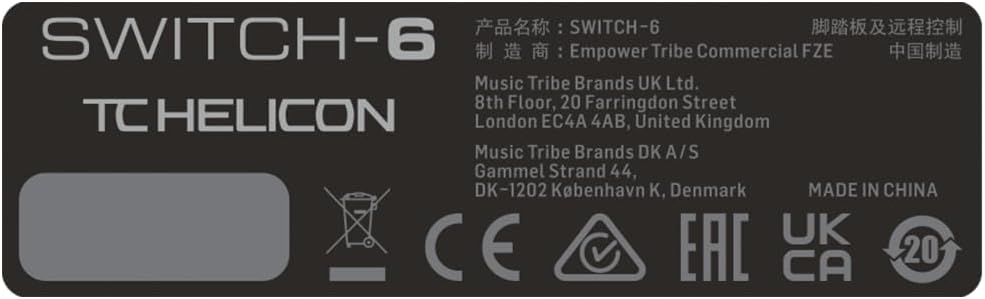
Figure 3: Bottom label of the SWITCH-6, displaying essential product information including the model number and manufacturer details.
7. Akwụkwọ ikike na nkwado
For detailed warranty information and technical support, please refer to the official TC Helicon websaịtị ma ọ bụ kpọtụrụ ndị ahịa ha ozugbo. Debe ihe akaebe nke ịzụrụ ihe maka akwụkwọ ikike ọ bụla.
Official TC Helicon Websaịtị: www.tc-helicon.com


