1. Okwu mmalite
This manual provides instructions for the proper setup, operation, and maintenance of your IPD IPH-160 Monaural Wired Headset. The IPH-160 is designed for clear communication in various environments, featuring a noise-cancelling microphone and a 3.5mm jack for broad compatibility.
2. Ihe ngwugwu
Biko chọpụta na ihe niile dị na ngwugwu gị:
- IPD IPH-160 Monaural Headset
- Quick Disconnect (QD) to 3.5mm Jack Cable (4-pole)
- Ear Cushions (pre-installed or spare)
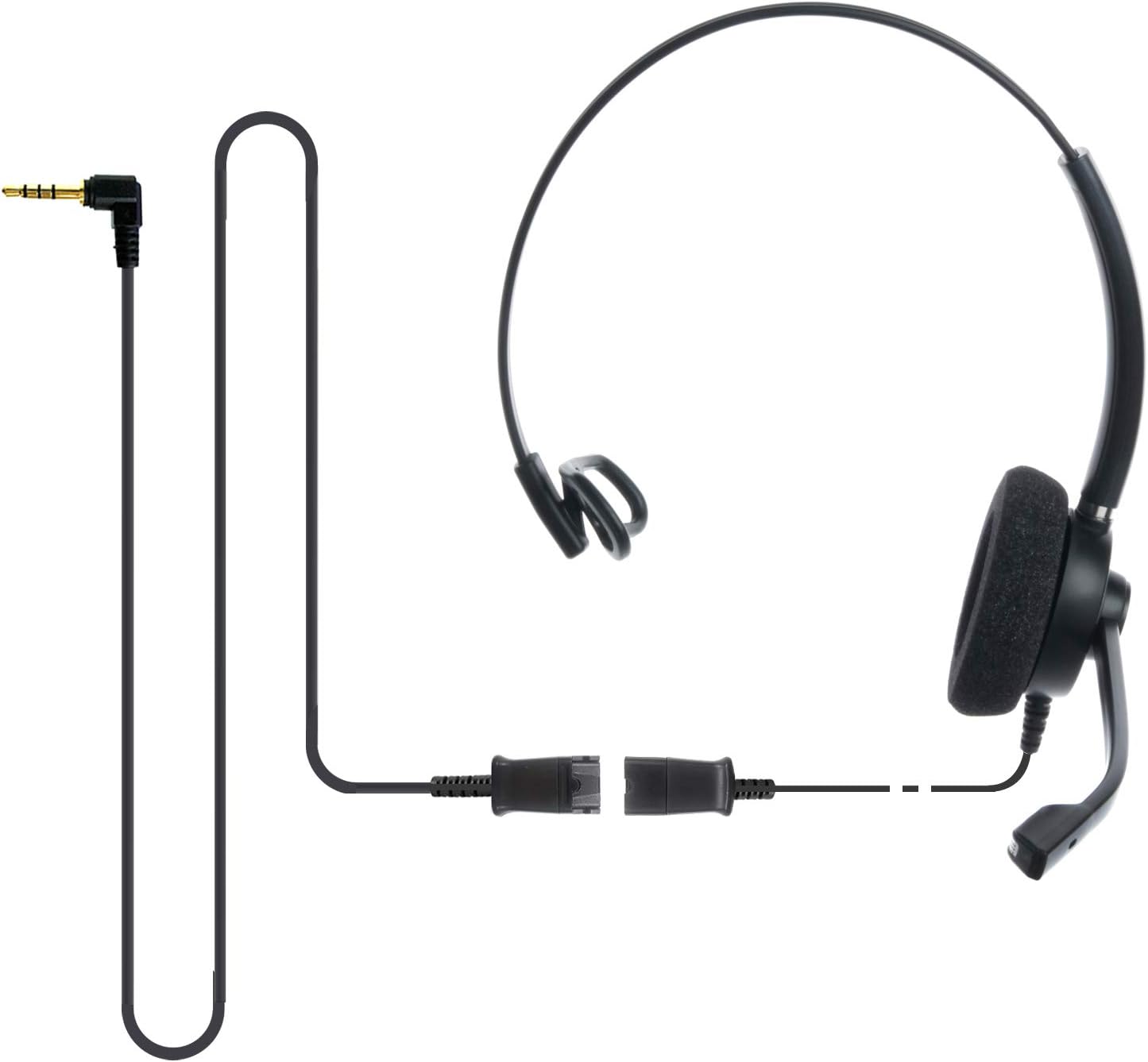
Image: The IPD IPH-160 headset with its detachable Quick Disconnect cable and 3.5mm jack connector.
3. Nhazi
3.1 Ijikọ ekweisi
- Connect the Quick Disconnect (QD) cable to the headset. Ensure a secure connection.
- Insert the 3.5mm jack of the cable into the corresponding port on your device (Android cell phone, laptop, tablet, Apple MacBook, or other smart device).

Foto: A nso nso view of the 3.5mm jack connector, illustrating its connection to a mobile device and laptop.
3.2 Ngwa ndakọrịta
The 3.5mm jack (4 poles) is compatible with a wide range of devices including:
- Android cell phones (e.g., Samsung, Huawei, HTC, ZTE)
- Laptọọpụ
- Mbadamba ụrọ
- Apple MacBooks with a single 3.5mm headset port
Mara:
- iPhone 7/7S and later models may require an additional Lightning to 3.5mm adapter (not included).
- If your specific phone model is not listed or you encounter compatibility issues, please contact IPD support for assistance.

Image: The IPD headset shown with various connection options for desk phones, PCs/softphones, and mobile phones, highlighting the versatility of Quick Disconnect cables.
4. Na-arụ ọrụ ekweisi
4.1 Wearing and Adjusting
The IPH-160 headset is designed for all-day comfort. Adjust the headband for a secure yet comfortable fit. The microphone boom is flexible; position it approximately 1-2 inches from your mouth for optimal voice pickup.
4.2 mkpọtụ na-akagbu igwe okwu
The headset features a passive noise-cancelling microphone to reduce background noise, ensuring clearer conversations. Proper microphone positioning is crucial for effective noise cancellation.

Image: A user wearing the headset, demonstrating the microphone's position and illustrating the effect of noise cancellation on audio waveforms.
4.3 Acoustic Shock Protection (ASP)
The headset incorporates an Acoustic Shock Protection (ASP) circuit on the speaker. This feature protects your hearing from sudden, unwanted loud noises by cutting sounds over 105dB and maintaining levels below 105dB.
4.4 Wideband Audio
The HD Wideband speaker delivers clear sound, enhancing the quality of your calls and audio monitoring.

Image: A close-up of the headset's ear cushion, visually representing the distinction between acoustic noise and clear sound for high-quality voice communication.
5. Nlekọta
5.1 Nhicha
To maintain hygiene and performance, regularly clean the ear cushions and other surfaces of the headset with a soft, dry cloth. Avoid using harsh chemicals or abrasive materials.
5.2 Nchekwa
When not in use, store the headset in a clean, dry place away from direct sunlight and extreme temperatures. Avoid tangling the cable to prevent damage.
6. Nchọpụta nsogbu
6.1 Enweghị ụda ma ọ bụ olu dị ala
- Gbaa mbọ hụ na etinyere jakị 3.5mm nke ọma na ngwaọrụ gị.
- Lelee ntọala olu ngwaọrụ gị.
- Verify that the headset is selected as the audio output device in your computer's sound settings.
- Confirm the Quick Disconnect (QD) cable is securely connected to the headset.
6.2 Igwe okwu anaghị arụ ọrụ
- Hụ na e tinyere ụda igwe okwu ahụ nke ọma n'akụkụ ọnụ gị.
- Check your device's microphone input settings and ensure the headset is selected as the input device.
- Test the headset with another compatible device to rule out a device-specific issue.
6.3 Okwu ndakọrịta
If you experience compatibility problems with your device, especially if it's not explicitly listed as compatible, please contact IPD customer support for guidance.
7. Nkọwapụta
| Njirimara | Nkọwapụta |
|---|---|
| Aha Nlereanya | IPH-160-35 |
| Teknụzụ Njikọta | Ekwenyere |
| Jack ekweisi | 3.5 mm Jack (4-pole) |
| Njikwa mkpọtụ | Nkagbu mkpọtụ mkpọtụ |
| Nzaghachi ugboro ugboro | 10 kHz |
| Mmetụta | 58 dB |
| Mgbochi | 150 ohms |
| Ibu Ibu | 198 grams (7 ounces) |
| Ihe onwunwe | Plastic |
| Ntinye ntị | N'elu Ntị |
| Njirimara Pụrụ Iche | Nkagbu mkpọtụ |
| Ngwa gụnyere | Nkịta ntị |
8. Akwụkwọ ikike Ozi
The IPD IPH-160 Headset comes with a 3-afọ akwụkwọ ikike site na ụbọchị ịzụrụ. Akwụkwọ ikike a na-ekpuchi ntụpọ nrụpụta n'okpuru ojiji nkịtị. Biko dowe ihe akaebe nke ịzụrụ ihe maka akwụkwọ ikike.
9. Nkwado
For technical assistance, warranty claims, or any questions regarding your IPD IPH-160 Headset, please contact IPD customer support. You can find contact information on the official IPD websaịtị ma ọ bụ site na onye na-ere ahịa gị.
Gaa leta IPD Store maka ozi ndị ọzọ na ngwaahịa.


