1. Ngwaahịa gafereview
The Symcode G3300W-2D is an omnidirectional, hands-free automatic barcode scanner designed for efficient and versatile scanning. It features dual-engine imaging technology, allowing it to capture both 1D and 2D barcodes from various surfaces, including LCD and OLED mobile phone screens. Its desktop design frees up your hands, enhancing operational efficiency in various environments.

Figure 1: Symcode G3300W-2D Omnidirectional Barcode Scanner with connectivity cables.
Video 1: Demonstration of the Symcode Omnidirectional Barcode Scanner, showcasing its physical features, unboxing, and scanning capabilities for both 1D and 2D barcodes from various items.
2. Atụmatụ igodo
- Omnidirectional Hands-Free Scanning: Allows for quick and convenient scanning without needing to hold the device.
- Superior Decoding Ability: Capable of reading common 1D and 2D codes, including QR Code, Data Matrix, PDF417, UPC/EAN, Code39, Code 128, and more.
- Screen Scanning: Efficiently captures barcodes from mobile phone and computer screens.
- Arụmọrụ siri ike: Decodes blurring, damaged, distorted, colorful, or reflective barcodes at high speeds.
- Nkwụnye ma kpọọ: No software or drivers required for most operating systems; connects via a single USB cable.
- Ndakọrịta sara mbara: Works with Windows XP/7/8/10, Mac OS, Linux, and common software like Word and Excel.
- Nhazi enwere ike imeghari: The scanner head can be adjusted for optimal scanning angles.

Figure 2: The scanner's advanced decoding capabilities for various barcode types, including damaged and blurred codes.
3. Ihe ngwugwu
Biko chọpụta na ihe niile dị na ngwugwu gị:
- Symcode G3300W-2D Barcode Scanner Unit
- USB Connection Cable (1.8m/5.9ft)
- Akwụkwọ ntuziaka onye ọrụ

Figure 3: Contents included in the Symcode barcode scanner package.
4. Nhazi ntuziaka
4.1 Ijikọ ihe nyocha
- Locate the USB connection port on the back of the scanner unit.
- Connect the smaller end of the provided USB cable to the scanner's port.
- Connect the larger USB-A end of the cable to an available USB port on your computer (PC, laptop, etc.).
- The scanner is designed for plug-and-play operation and should be automatically recognized by your operating system (Windows, Mac OS, Linux) without requiring additional driver installation.
- Once connected, the scanner will emit a short beep and the indicator light will turn on, signifying it is ready for use.
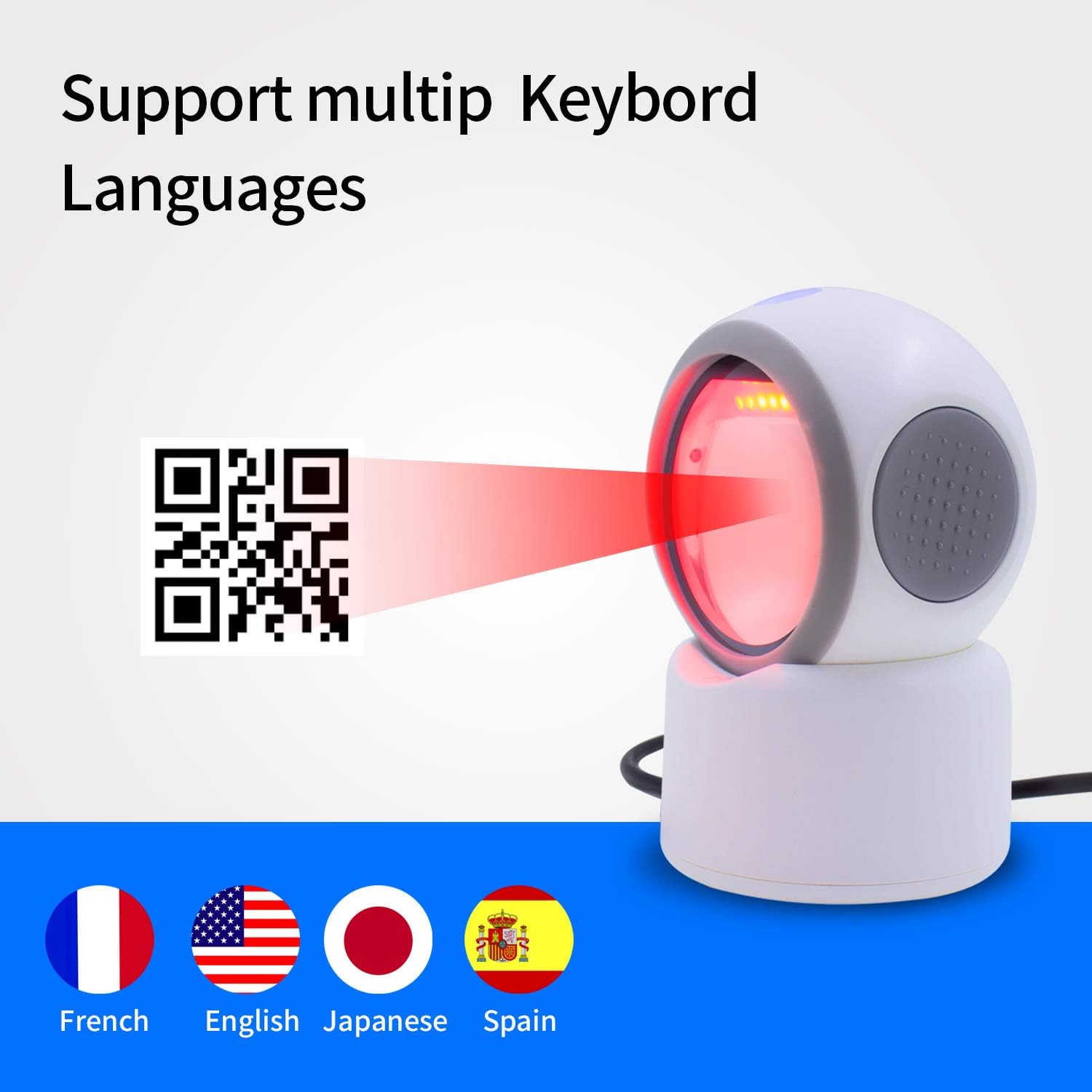
Figure 4: The scanner's broad compatibility with various devices and operating systems.
5. Ntuziaka ọrụ
The Symcode G3300W-2D scanner operates in an automatic, hands-free mode. Simply place the item with the barcode in front of the scanner's window.
5.1 1D Barcode Scanning
To scan a 1D barcode:
- Ensure the scanner is connected and powered on.
- Position the 1D barcode within the scanner's field of view. The scanner will automatically detect and read the barcode.
- A successful scan will be indicated by a beep and the data appearing in your active application (e.g., text editor, POS software).
5.2 2D Barcode Scanning (QR, Data Matrix, PDF417)
To scan a 2D barcode:
- Ensure the scanner is connected and powered on.
- Place the 2D barcode (e.g., QR code on a package or screen) in front of the scanner's window.
- The scanner's advanced imaging technology will quickly capture and decode the information.
- Confirm the successful scan by the audible beep and the data output.
5.3 Scanning from Mobile Phone and Computer Screens
The G3300W-2D is optimized to read barcodes directly from digital displays. For best results, ensure the screen brightness is adequate and avoid excessive glare.
6. Configuration and Customization
The scanner can be configured using special programming barcodes found in the full instruction manual. These barcodes allow you to adjust settings such as:
- Volume of the beep sound
- Keyboard language (e.g., English, French, Japanese, Spanish)
- Ụdị nyocha
- Ntọala nnyefe data
Refer to the detailed programming guide in your physical user manual for a complete list of configurable options and their corresponding barcodes.

Figure 5: The scanner supports various keyboard layouts for international use.

Figure 6: Design features including LED lighting and a non-slip base for stability.
7. Nlekọta
To ensure optimal performance and longevity of your Symcode barcode scanner, follow these maintenance guidelines:
- Nhicha: Regularly wipe the scanner's window and exterior with a soft, dry, lint-free cloth. For stubborn smudges, a slightly dampened cloth with water or a mild, non-abrasive cleaner can be used. Avoid harsh chemicals or abrasive materials.
- Nchekwa: Debe ihe nyocha ahụ n'ebe dị jụụ ma kpọọ nkụ, ebe anwụ na-anaghị apụta kpọmkwem na oke okpomọkụ.
- Ijikwa: Handle the scanner with care to prevent drops or impacts that could damage internal components or the scanning window.
8. Ịchọpụta nsogbu nkịtị
Ọ bụrụ na ị hụ nsogbu na nyocha gị, lee nsogbu na ngwọta ndị a na-ahụkarị:
- Kọmputa anaghị amata ihe nyocha:
- Gbaa mbọ hụ na ejikọrọ eriri USB na nchekwa na nyocha ma kọmputa.
- Gbalịa ijikọ nyocha na ọdụ ụgbọ USB dị iche na kọmputa gị.
- Malitegharịa ekwentị gị na kọmputa.
- If the scanner becomes unresponsive after the computer idles or sleeps, unplug and re-plug the USB cable to re-establish the connection.
- Unable to Scan Barcodes:
- Verify that the scanner is powered on (indicator light is active).
- Ensure the barcode is clean, undamaged, and within the scanner's optimal reading range.
- Check for excessive glare on the barcode, especially when scanning from screens. Adjust the angle or lighting.
- Confirm that the barcode type is supported by the scanner (refer to Section 2: Key Features).
- Mmepụta data ezighi ezi:
- Check the keyboard language settings of your computer and ensure they match the scanner's configuration (refer to Section 6: Configuration and Customization).
- Ensure no other applications are interfering with the input.
- Scanner is Too Sensitive/Scans Multiple Times:
- Refer to the full user manual for programming barcodes that can adjust scanning sensitivity or trigger modes.
9. Nka na ụzụ nkọwa
| Nkọwapụta | Nkọwa |
|---|---|
| Nọmba nlereanya | G3300W-2D |
| Akụkụ ngwaahịa | 5.43 x 4.13 x 2.36 sentimita asatọ |
| Ibu Ibu | 1.06 pound |
| Teknụzụ Njikọta | USB 2.0 |
| Ngwa dakọtara | Desktop, Laptọọpụ |
| Isi Iyi Ike | Kwadoro USB |
| Barcode Types (1D) | UPC/EAN, Code39, Interleaved 2 of 5, Code93, Code 128, Codabar, Industry25, Matrix25, etc. |
| Barcode Types (2D) | PDF417, QR Code, Data Matrix, etc. |
10. Akwụkwọ ikike Ozi
Symcode products are manufactured to high-quality standards. This product typically comes with a standard manufacturer's warranty covering defects in materials and workmanship under normal use. For specific warranty terms, duration, and conditions, please refer to the warranty card included in your product packaging or contact Symcode customer support directly.
11. Nkwado ndị ahịa
If you require further assistance, have questions about your product, or need technical support, please contact Symcode customer service through the following channels:
- Online: Visit the official Symcode websaịtị maka FAQs, akụrụngwa nkwado, na fọm kọntaktị.
- Email: Rụtụ aka na nkwakọ ngwaahịa gị ma ọ bụ onye ọrụ gọọmentị webebe nrụọrụ weebụ maka adreesị ozi-e nkwado ndị ahịa.
- Ekwentị: Contact numbers may be available on the official Symcode websaịtị ma ọ bụ n'ime akwụkwọ ngwaahịa gị.
When contacting support, please have your product model number (G3300W-2D) and purchase information ready.


