Okwu mmalite
The Cooler Master SickleFlow 120 is a versatile cooling solution designed for both CPU coolers and case intake/exhaust applications. This fan features an optimized blade design for improved airflow and pressure, a reinforced frame for reduced turbulence and noise, and a sealed bearing for enhanced durability. This manual provides instructions for the proper installation, operation, and maintenance of your SickleFlow 120 fan.
Ihe ngwugwu
Biko chọpụta na ihe niile dị na ngwugwu gị:
- 1 x Cooler Master SickleFlow 120 Fan
Nkọwapụta
| Njirimara | Nkọwa |
|---|---|
| Nọmba nlereanya | MFX-B2NN-18NPK-R1 |
| Akụkụ (L x W x H) | 4.72" x 4.72" x 0.98" (120mm x 120mm x 25mm) |
| Ọsọ fan | 650 - 1800 RPM (PWM) ± 10% |
| Ofufe ikuku | 62 CFM ± 10% |
| Nrụgide ikuku | 2.5 mmH2O ± 10% |
| Ọkwa mkpọtụ | 8-27 dBA |
| Ụdị ibu | Ebu egbe |
| MTTF | awa 160,000 |
| Ogo Voltage | 12 VDC |
| Enyere aha ugbu a | 0.15A |
| Njikọ ọkụ | 4-PWM nkwụnye |
| Oriri ike | 1.8W |
| Ihe onwunwe | Plastic, metal |
| Ibu | 5.5 ounces (156g) |
Ntọala na nwụnye
Follow these steps to properly install your Cooler Master SickleFlow 120 fan:
- Kwadebe sistemu gị: Ensure your computer is powered off and unplugged from the wall outlet before beginning installation.
- Identify mounting location: Determine the desired location for the fan within your PC case or on your CPU cooler/radiator. Common locations include front, rear, top, or bottom of the case, or directly on a heatsink.
- Mount the fan: Align the fan with the screw holes on your case or cooler. Use the provided mounting screws to secure the fan firmly. Ensure the fan is oriented correctly for desired airflow (intake or exhaust).
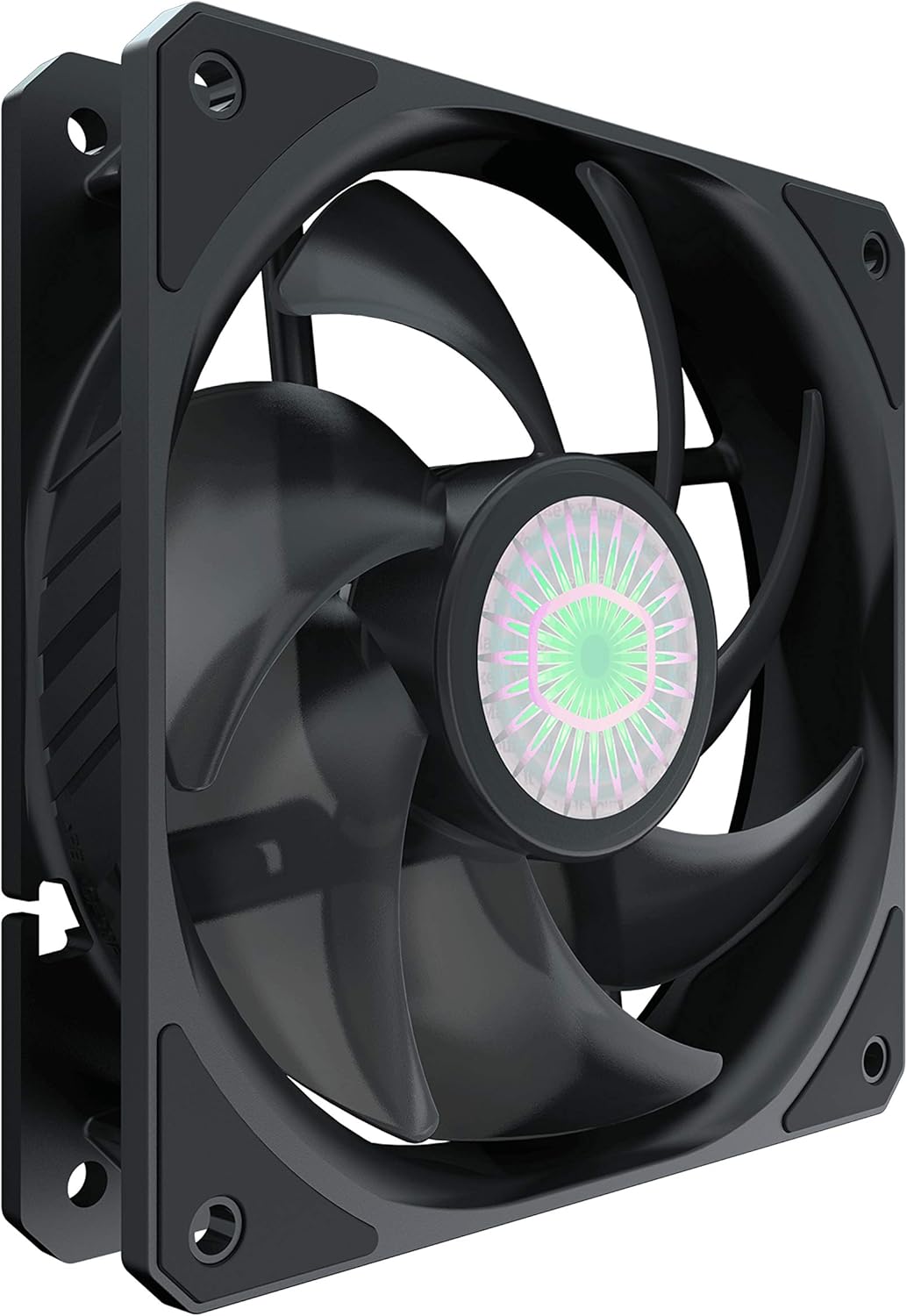
Foto: Angle view of the SickleFlow 120 fan, illustrating its frame and mounting points for installation.
- Jikọọ ike: Locate the 4-pin PWM fan header on your motherboard. Connect the fan's 4-pin connector to this header. Ensure the connector is fully seated.
- Ijikwa eriri USB: Route the fan cable neatly to avoid interference with other components or airflow.
- Ike na: Once the fan is securely mounted and connected, close your PC case, plug in the power, and turn on your computer. The fan should begin to spin.
Ntuziaka ọrụ
The Cooler Master SickleFlow 120 fan operates automatically once connected to a compatible 4-pin PWM fan header on your motherboard. The fan speed is controlled by your motherboard's BIOS/UEFI settings or through fan control software provided by your motherboard manufacturer or Cooler Master.
- Njikwa PWM: The 4-pin PWM connector allows for precise control over the fan's rotational speed, enabling it to adjust based on system temperature for optimal cooling and noise levels.
- Ntuziaka ikuku: The fan typically has an arrow indicating the direction of airflow and blade rotation. Ensure it is set to either draw air into the case (intake) or push air out (exhaust) as needed for your system's cooling configuration.

Foto: N'elu-ala view of the SickleFlow 120 fan, highlighting the blade design responsible for airflow.
Nlekọta
Regular maintenance helps ensure optimal performance and longevity of your fan:
- Nhicha uzuzu: Periodically inspect the fan blades and frame for dust accumulation. Use compressed air or a soft brush to gently remove dust. Ensure the fan is powered off and unplugged before cleaning.
- Bearing Care: The SickleFlow 120 features a sealed rifle bearing designed to prevent dust and lubricating oil leakage, requiring no user maintenance or lubrication.
- Lelee maka ihe mgbochi: Ensure no cables or other components are obstructing the fan blades, which can cause noise or damage.
Nchọpụta nsogbu
If you encounter issues with your SickleFlow 120 fan, refer to the following common problems and solutions:
- Fan is not spinning:
- Check that the 4-pin PWM connector is securely plugged into the motherboard's fan header.
- Verify that the fan header on the motherboard is enabled in the BIOS/UEFI settings.
- Test the fan on a different fan header or with a fan controller if available, to rule out a faulty header.
- Fan is making excessive noise:
- Ensure the fan is securely mounted and not vibrating against the case or other components.
- Check for any cables or debris obstructing the fan blades.
- Adjust fan speed settings in your motherboard's BIOS/UEFI or software to a lower RPM if noise is a concern at high speeds.
- Arụmọrụ jụrụ oyi na-adịghị mma:
- Verify the fan's airflow direction is appropriate for its location (e.g., intake for front, exhaust for rear).
- Clean any dust accumulation on the fan blades or surrounding components (e.g., heatsink fins, case filters).
- Ensure there is adequate space around the fan for unrestricted airflow.
Akwụkwọ ikike na nkwado
For detailed warranty information and technical support, please visit the official Cooler Master website. You can find product registration, FAQs, and contact information for customer service there.
Onye isi nchịkwa cooler Websaịtị: www.coolermaster.com


