1. Okwu mmalite
This manual provides detailed instructions for the memzuoix 2.4G Portable Wireless Mouse, Model WM-697. Please read this manual carefully before using the product to ensure proper operation and to maximize its lifespan.
Ihe ngwugwu
- 1 x memzuoix 2.4G Portable Wireless Mouse (Model WM-697)
- 1 x USB Nano nnata
- Akwụkwọ ntuziaka onye ọrụ 1 x (akwụkwọ a)

Image 1.1: The memzuoix wireless mouse and its USB nano receiver.
2. Nkọwapụta
| Njirimara | Nkọwa |
|---|---|
| Nlereanya | AGB-697 |
| Njikọta | Ikuku 2.4GHz (USB nnata) |
| DPI | 1400 DPI |
| Bọtịnụ | 5 (Left, Right, Scroll Wheel, Forward, Backward) |
| Nchọpụta mmegharị | Ngwa anya |
| Oke arụ ọrụ | Ruo 43 ụkwụ (mita 13) |
| Isi Iyi Ike | Batrị 2 x AAA (anaghị etinye ya) |
| Ụdị ụra | Automatic after 7 minutes of inactivity |
| Akụkụ (L x W x H) | 4.19 x 2.63 x 1.50 sentimita asatọ |
| Ibu | 2.22 ounces |
| Ndakọrịta | Windows 7/8/10/XP, Vista 7/8, Mac OS, Linux |

Image 2.1: Physical dimensions of the mouse.
3. Ntuziaka Nhazi
3.1 Ntinye batrị
- Chọta mkpuchi nke ebe batrị ahụ n'okpuru òké ahụ.
- Gently slide the cover open.
- Fanye batrị AAA abụọ (anaghị etinye ya) n'ime ụlọ ahụ, na-ahụ polarity ziri ezi (+/-).
- Mechie mkpuchi nke ebe batrị ahụ ruo mgbe ọ pịara nke ọma n'ebe ahụ.
3.2 USB Receiver Connection
- Locate the USB nano receiver, which is typically stored in a slot within the battery compartment for safekeeping during transport.
- Wepụ ihe nnata USB ahụ n'ebe nchekwa ya.
- Plug the USB nano receiver into an available USB port on your computer (laptop, PC, desktop, MacBook, etc.).
- Gbanye òké ahụ site na iji mgba ọkụ ON/OFF dị n'okpuru.
- Your computer should automatically detect and install the necessary drivers. No manual driver installation is required.

Image 3.1: Underside of the mouse, illustrating battery compartment, USB receiver slot, and power switch.

Image 3.2: Wireless connection setup with a laptop.
4. Ntuziaka ọrụ
4.1 Ọrụ ndị bụ isi
- Pịa aka ekpe: Nhọrọ na ntinye nke izizi.
- Pịa aka nri: Na-enweta menu ndị dị n'ọnọdụ.
- Mpempe akwụkwọ mpịakọta: Scrolls content vertically. Can also be clicked for middle-click functionality (application dependent).
4.2 Advanced Functions (5-Button Mouse)
- Bọtịnụ mbugharị: Na-aga n'ihu web ihe nchọgharị ma ọ bụ file explorers. (Located on the side of the mouse)
- Bọtịnụ azụ: Na-agagharị azụ n'ime web ihe nchọgharị ma ọ bụ file explorers. (Located on the side of the mouse)
Mara: The side buttons (Forward/Backward) are not available for Mac OS. Other functions operate normally.
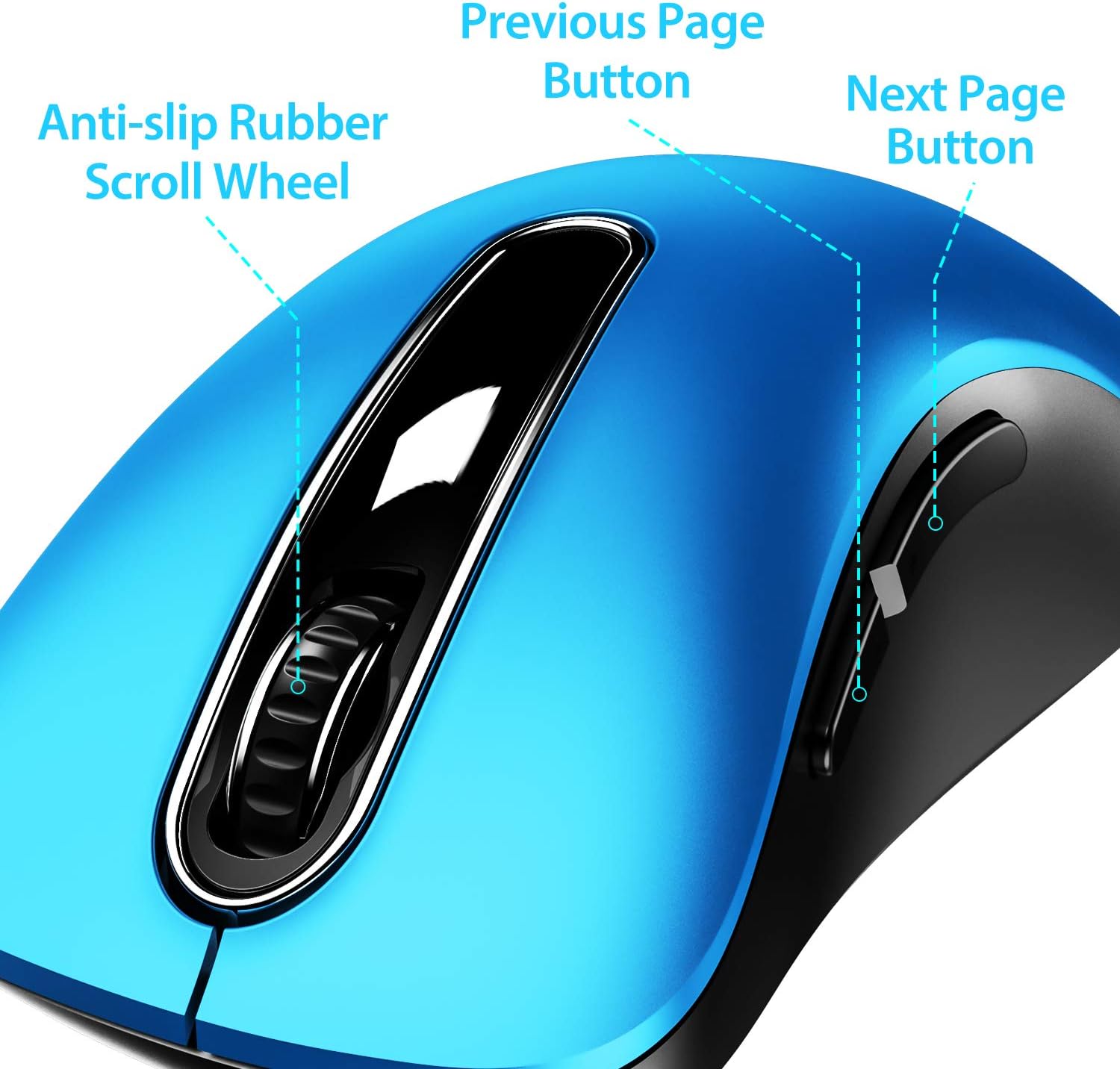
Foto 4.1: Ofeview of mouse buttons, including the scroll wheel and side navigation buttons.
4.3 Ọnọdụ nchekwa ike
The mouse features an automatic power-saving sleep mode. If inactive for 7 minutes, the mouse will enter sleep mode to conserve battery life. To reactivate the mouse, simply click any button.
5. Nlekọta na nlekọta
- Nhicha: Jiri akwa dị nro dị nro hichaa òké. Maka unyi isi ike, ntakịrị damp cloth can be used, but ensure no moisture enters the internal components.
- Ngbanwe batrị: Replace batteries when the mouse performance degrades or stops responding. Always use fresh AAA batteries.
- Nchekwa: When not in use for extended periods, turn off the mouse using the ON/OFF switch and store the USB receiver in its dedicated slot on the mouse's underside to prevent loss.
- Zere Oke Ọnọdụ: Ekwela ka òké ahụ nọrọ n'ọnọdụ okpomọkụ dị oke njọ, anwụ kpọmkwem, ma ọ bụ oke mmiri mmiri.
6. Nchọpụta nsogbu
| Nsogbu | Ngwọta enwere ike |
|---|---|
| Òké anaghị aza |
|
| Mmegharị cursor adịghị agbanwe agbanwe ma ọ bụ dị nwayọ |
|
| Side buttons not working on Mac OS | This is a known compatibility limitation. The side buttons are not supported on Mac OS. Other mouse functions should work normally. |
| Òké na-abanye n'ụdị ụra ngwa ngwa | The mouse is designed to enter sleep mode after 7 minutes of inactivity to conserve power. This is normal operation. Click any button to wake it up. |
7. Akwụkwọ ikike na nkwado
The memzuoix 2.4G Portable Wireless Mouse (Model WM-697) comes with a 365-day worry-free warranty from the date of purchase. This warranty covers manufacturing defects and malfunctions under normal use.
For warranty claims, technical support, or any inquiries, please contact memzuoix customer service through the retailer where the product was purchased or visit the official memzuoix websaịtị maka ozi kọntaktị.
Biko dowe ihe akaebe nke ịzụrụ ihe maka nkwado akwụkwọ ikike.


