Okwu mmalite
The Hyperkin Armor3 NuWave Controller is designed to provide accurate and fluid motion control for your Nintendo Wii U and Wii consoles. Featuring built-in Nu+ technology, this controller enhances your gaming experience by offering a wider range of motion in compatible titles. This manual provides essential information on setting up, operating, maintaining, and troubleshooting your NuWave Controller.
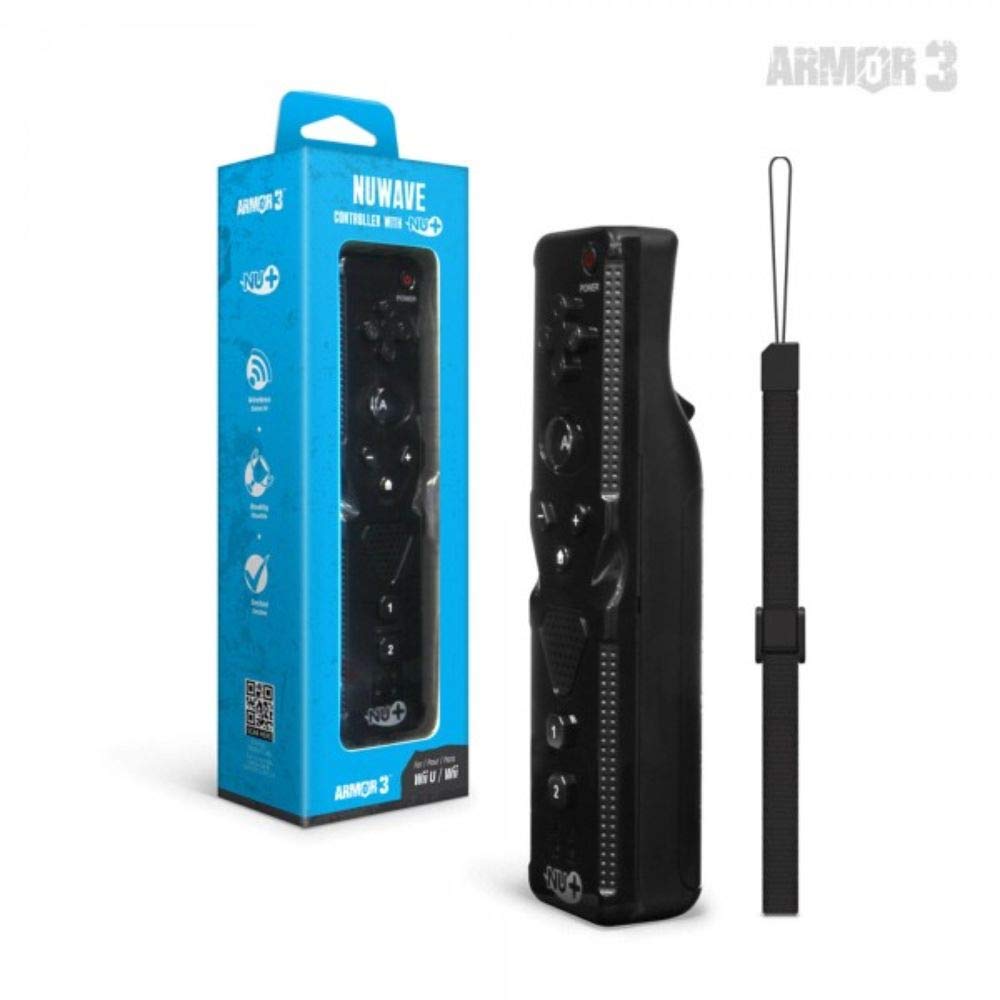
Foto 1: Hyperkin Armor3 NuWave Controller and its packaging. The controller is black with a wrist strap, and the packaging highlights its Nu+ technology and compatibility with Wii U and Wii.
Ngwaahịa gafereview
The Armor3 NuWave Controller is a motion-sensing controller compatible with both Wii U and Wii systems. It integrates advanced Nu+ technology for enhanced motion detection and precision in supported games.
Akụkụ ndị bụ isi:
- ndakọrịta: Fully compatible with Nintendo Wii U and Nintendo Wii consoles.
- Nu+ Technology: Built-in technology for a wider range of motion and improved accuracy in compatible titles.
- Nhazi Ergonomic: Designed for comfortable grip and extended gameplay sessions.
- Isi mmalite ike: Chọrọ batrị 2 AA (anaghị etinye ya).
Melite
1. Ntinye batrị
- Chọta ebe batrị dị n'azụ ihe njikwa ahụ.
- Madaa mkpuchi batrị ala ka imepe ya.
- Tinye batrị AA abụọ (2), hụ na polarity ziri ezi (+/-) dịka egosiri n'ime ngalaba ahụ.
- Replace the battery cover by sliding it upwards until it clicks into place.
2. Connecting to Your Console
To connect the NuWave Controller to your Wii U or Wii console, follow these steps:
- Ensure your console is powered on.
- On your Wii U or Wii console, press the SYNC button (usually located near the SD card slot or battery compartment).
- On the NuWave Controller, open the battery cover and locate the small red SYNC button inside the battery compartment.
- Press and release the SYNC button on the controller.
- The player indicator lights on the bottom of the controller will flash. Once a single light remains lit, the controller is successfully connected.
- If connection fails, repeat steps 2-5. Ensure the controller is within range of the console.
Ntuziaka ọrụ
Njikwa ndị bụ isi:
- Mpempe akwụkwọ ntuziaka (D-Pad): Used for menu navigation and character movement.
- Bọtịnụ: Primary action button, often used for selection or interaction.
- B Button (Trigger): Located on the underside, typically used for grabbing or firing.
- 1 & 2 Buttons: Auxiliary action buttons, functions vary by game.
- Bọtịnụ ụlọ: Returns to the console's Home Menu.
- Plus (+) & Minus (-) Buttons: Often used for zooming, adjusting settings, or specific in-game actions.
- Bọtịnụ ike: Turns the controller on/off.
Motion Sensing with Nu+ Technology:
The built-in Nu+ technology provides enhanced motion tracking. For games that support it, you will experience more precise and responsive movements. Hold the controller firmly and ensure clear line of sight to the sensor bar for optimal performance.
- Nhazi Some games may require initial calibration. Follow on-screen prompts.
- eriri aka: Always use the included wrist strap to prevent accidental drops during active gameplay.
Nlekọta
Nhicha:
- Jiri ákwà dị nro ma kpọọ nkụ hichaa ihe njikwa ahụ.
- Maka unyi isi ike, ntakịrị dampen akwa na mmiri. Ejila kemịkalụ siri ike ma ọ bụ ihe mkpocha abrasive.
- Ensure no liquid enters the controller's openings.
Nchekwa:
- Chekwaa onye njikwa ahụ n'ebe dị jụụ, kpọrọ nkụ na-adịghị na ìhè anyanwụ kpọmkwem na oke okpomọkụ.
- Ọ bụrụ na ị na-echekwa ruo ogologo oge, wepụ batrị ahụ ka ọ ghara ịwụpụ.
Nlekọta batrị:
- Always use new, high-quality AA batteries.
- Ejikọtala batrị ochie na nke ọhụrụ, ma ọ bụ ụdị batrị dị iche iche.
- Tụfuo batrị eji arụ ọrụ dịka iwu obodo siri dị.
Nchọpụta nsogbu
| Nsogbu | Ihe nwere ike ime | Ngwọta |
|---|---|---|
| Onye njikwa anaghị agbanwu. | Ịtinye batrị nwụrụ anwụ ma ọ bụ na-ezighi ezi. | Dochie batrị na batrị AA ọhụrụ, na-ahụ na polarity ziri ezi. |
| Controller does not sync with console. | Incorrect syncing procedure; out of range; console interference. | Ensure console is on. Repeat syncing steps (press SYNC on console, then on controller). Move closer to console. Check for other wireless device interference. |
| Buttons are unresponsive or delayed. | Low battery; connection issue; physical obstruction. | Replace batteries. Re-sync the controller. Ensure buttons are not stuck. |
| Motion control is inaccurate. | Sensor bar obstruction; improper calibration; environmental factors. | Ensure clear line of sight to the sensor bar. Re-calibrate in-game if prompted. Avoid strong light sources directly facing the sensor bar. |
Nkọwapụta
- Ụdị: M07399-bk
- Akara: Hyperkin
- ndakọrịta: Nintendo Wii U, Nintendo Wii
- Isi mmalite ike: Batrị 2 x AA (anaghị etinye ya)
- Akụkụ: 2.8 x 1.8 x 8 sentimita (ihe dị ka)
- Arọ: 3.88 ounces (approximate, without batteries)
- Teknụzụ: Built-in Nu+ motion technology
- Agba: Nwa
Akwụkwọ ikike na nkwado
For specific warranty information and terms, please refer to the documentation included with your purchase or visit the official Hyperkin website. Hyperkin provides customer support for their products.
Nkwado n'ịntanetị: Visit the official Hyperkin websaịtị maka FAQ, ntuziaka nchọpụta nsogbu, na ozi kọntaktị. www.hyperkin.com
Kpọtụrụ: Refer to the Hyperkin website for the most current customer service contact methods (phone, email, etc.).


