1. Okwu mmalite
This manual provides detailed instructions for the Amazon Basics Aluminum Type-C Docking Station. This device expands the connectivity of your USB-C enabled laptop or tablet, offering a wide range of ports for various peripherals and external displays. Please read this manual thoroughly before use to ensure proper operation and to maximize the product's functionality.
2. Akụrụngwa Ngwaahịa
- 11-in-1 Multi-Port Design: Integrates Mini DisplayPort, HDMI, VGA, 3 USB-A ports, Ethernet, SD/TF card reader, 3.5mm audio jack, and a Type-C charging port (PD 100W).
- Mmepụta vidiyo dị elu: Supports Ultra HD 4K output via Mini DisplayPort/HDMI and Full HD 1080P via VGA, allowing for mirroring or extending your display to HDTVs, monitors, or projectors. Note: 4K resolution is supported at 30Hz refresh rate.
- Nyefee data ngwa ngwa: Three USB 3.0 A ports provide data transfer speeds up to 5Gbps, backward compatible with USB 2.0/1.0.
- Stable Network Connection: 1000Mbps RJ45 Ethernet port ensures a fast and reliable wired network connection.
- Universal Card Reader: Integrated SD and TF slots allow simultaneous reading of universal SD and Micro SD memory cards.
- Nnyefe ike: Type-C charging port supports Power Delivery (PD) up to 100 watts for charging your host device.
- Njikọ ọdịyo: 3.5mm audio jack for headphones or speakers.
- Ihe owuwu na-adịgide adịgide: Features an aluminum pedestal-style housing for enhanced durability and heat dissipation.
3. Ihe ngwugwu
- Amazon Basics Aluminum Type-C Docking Station
- Akwụkwọ ntuziaka onye ọrụ
4. Ngwaahịa gafereview and Port Layout
Familiarize yourself with the various ports and their functions on your docking station.

Foto: nso nso view of the Amazon Basics Type-C Docking Station's ports, including Ethernet, Mini DisplayPort, HDMI, VGA, and USB-C.
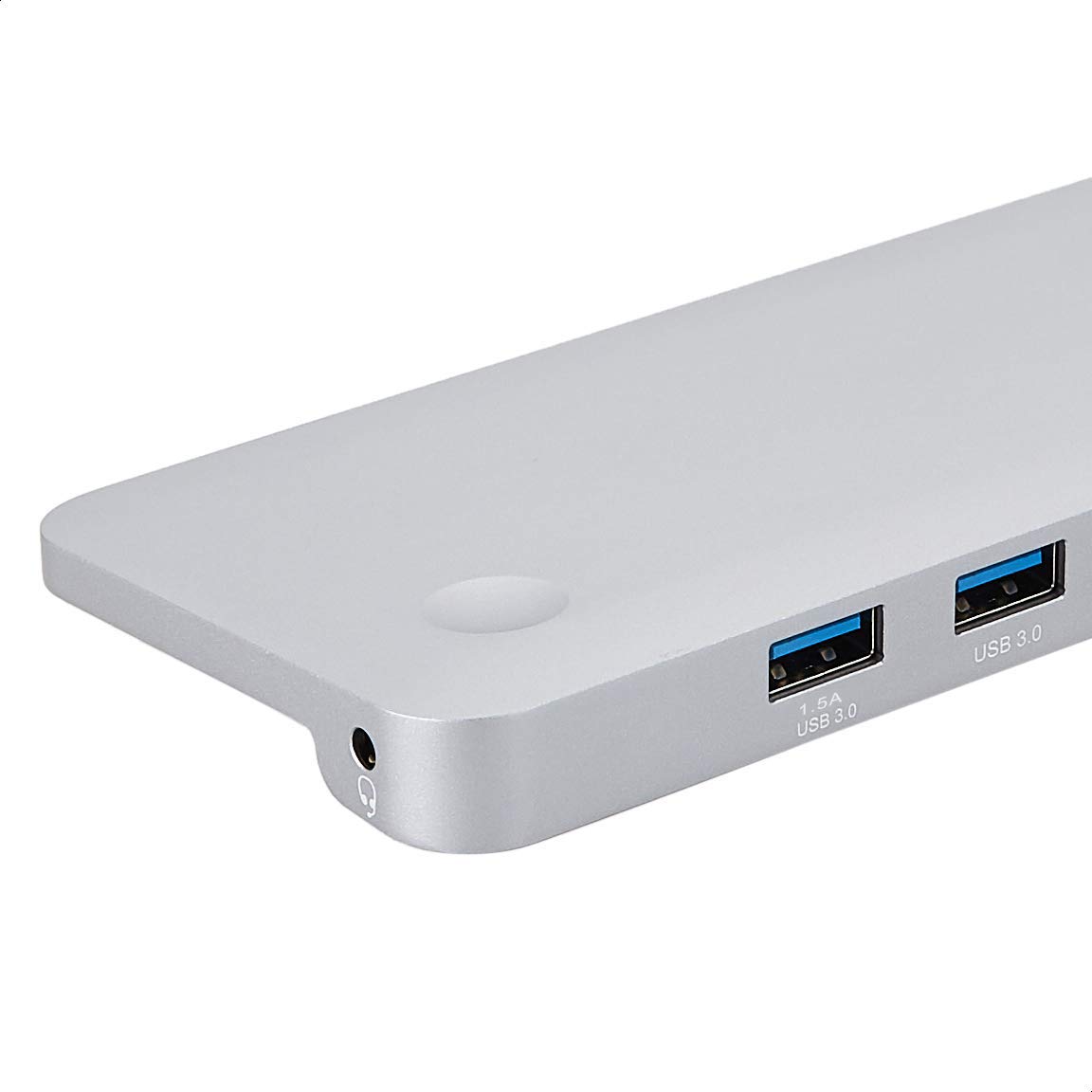
Foto: Zuru ezu view of the USB 3.0 ports and 3.5mm audio jack on the Amazon Basics Type-C Docking Station.
- USB-C Host Connector: Connects to your laptop or tablet's USB-C port.
- ọdụ ụgbọ mmiri USB 3.0 (x3): For connecting USB devices such as external hard drives, keyboards, mice, or USB flash drives.
- Oghere kaadị SD: For reading standard SD memory cards.
- Oghere Kaadị TF (Micro SD): For reading Micro SD memory cards.
- Ọdụ ụgbọ mmiri RJ45: Maka njikọ netwọk ikuku.
- Obere DisplayPort: For connecting to an external display.
- Ọdụ ụgbọ mmiri HDMI: For connecting to an external display.
- VGA ọdụ ụgbọ mmiri: For connecting to an external display.
- Jack Audio: 3.5mm Maka ijikọ ekweisi ma ọ bụ igwe okwu.
- Ọdụ ụgbọ mmiri USB-C PD: For connecting a USB-C power adapter to charge your host device and power the docking station.
5. Nhazi ntuziaka
Soro usoro ndị a iji melite ọdụ docking gị:
- Jikọọ na ngwaọrụ nnabata: Plug the integrated USB-C host connector cable from the docking station into an available USB-C port on your laptop or tablet. Ensure your host device's USB-C port supports DisplayPort Alt Mode (DP Alt Mode) for video output functionality.
- Jikọọ Ike (Nhọrọ mana akwadoro): If your host device requires charging or if you are connecting power-intensive peripherals, connect your USB-C power adapter (up to 100W) to the USB-C PD Charging Port on the docking station. This will charge your host device and provide stable power to the docking station and connected peripherals.
- Ngwa njikọ: Connect your desired peripherals (e.g., external monitors, USB devices, Ethernet cable, SD/TF cards, audio devices) to the corresponding ports on the docking station.

Image: Amazon Basics Type-C Docking Station connected to a laptop, with multiple peripherals like a USB drive and external display cables plugged in.
6. Ntuziaka ọrụ
6.1. Mmepụta vidiyo
- Connect your monitor or projector to the HDMI, Mini DisplayPort, or VGA port.
- Your operating system should automatically detect the external display. You may need to adjust display settings (e.g., extend, duplicate) in your computer's display preferences.
- The docking station supports 4K resolution at 30Hz refresh rate via HDMI and Mini DisplayPort. For optimal performance, ensure your display and cables support the desired resolution and refresh rate.
- Dual video display is supported, allowing you to mirror or expand your screen across multiple monitors.
6.2. USB Data Transfer
- Plug your USB devices into the USB 3.0 ports.
- The ports support data transfer speeds up to 5Gbps.
6.3. Njikọ Ethernet
- Connect an Ethernet cable from your router or modem to the RJ45 Ethernet port on the docking station.
- Your computer should automatically establish a wired network connection.
6.4. SD/TF Card Reader
- Insert your SD or TF (Micro SD) card into the corresponding slot.
- The cards will appear as removable drives on your computer, allowing you to access and transfer files. Both slots can be used simultaneously.
6.5. Mmepụta ọdịyo
- Connect your headphones or speakers to the 3.5mm audio jack.
- You may need to select the docking station as the default audio output device in your computer's sound settings.
6.6. Nnyefe ike (PD)
- Connect your laptop's USB-C power adapter to the USB-C PD Charging Port on the docking station.
- This port supports up to 100W power delivery to charge your host device while using the docking station.
7. Ndakọrịta
This docking station is compatible with a wide range of USB-C enabled devices, including but not limited to:
- MacBook Pro 2018/2017/2016
- iPad Pro 2018
- Mac mini 2018
- MacBook Ikuku
- iMac 2017
- Samsung Note9
- HUAWEI MateBook X
- Dell XPS 13
- ThinkPad
- Chromebook
Ihe dị mkpa: This product functions only with computers that support DisplayPort Alt Mode (DP Alt Mode) via their USB-C port. Please verify your computer's specifications for compatibility before use.
8. Nchọpụta nsogbu
- Enweghị mmepụta ihe ngosi:
- Ensure your host device's USB-C port supports DisplayPort Alt Mode.
- Check all cable connections (USB-C to host, video cable to monitor).
- Verify the external monitor is powered on and set to the correct input source.
- Gbalịa ịmalitegharị kọmputa gị.
- 4K Resolution Not Working at 60Hz:
- This docking station supports 4K resolution at a maximum refresh rate of 30Hz. If your monitor is set to 4K@60Hz, it will not display correctly. Adjust your display settings to 4K@30Hz or a lower resolution with a higher refresh rate if desired.
- USB Devices Not Recognized or Disconnecting:
- Ensure the docking station is receiving sufficient power. Connect a USB-C power adapter to the PD port if you are using multiple power-intensive USB devices.
- Try connecting the USB device directly to your computer to confirm it is functional.
- Reconnect the docking station to your computer.
- No Network Connection via Ethernet:
- Check the Ethernet cable connection to both the docking station and your router/modem.
- Verify your network settings on your computer.
- Gbaa mbọ hụ na rawụta/modem gị na-arụ ọrụ nke ọma.
- Enweghị mmepụta ọdịyo:
- Ensure your headphones or speakers are properly connected to the 3.5mm audio jack.
- Check your computer's sound settings and select the docking station as the default audio output device.
- Host Device Not Charging:
- Ensure a compatible USB-C power adapter is connected to the docking station's USB-C PD Charging Port.
- Verify that your host device supports USB-C Power Delivery.
- Check the power adapter and cable for damage.
9. Nkọwapụta
| Njirimara | Nkọwapụta |
|---|---|
| Ụdị | Amazon Basics |
| Nọmba nlereanya | UTC-DOCK01-PRO |
| Agba | Agba ntụ |
| Akụkụ (LxWxH) | 28 x 7.5 x 1.4 Centimeters (11.02 x 2.95 x 0.55 Inches) |
| Ibu Ibu | 317 g (0.32 Kilogram) |
| Mgbakọta ọdụ ụgbọ mmiri | 11 |
| ọdụ ụgbọ mmiri USB | 3 x USB 3.0 Ụdị-A |
| Ọdụ ụgbọ mmiri mmepụta vidiyo | 1 x HDMI, 1 x Mini DisplayPort, 1 x VGA |
| Mkpebi HDMI | Ruo 4K@30Hz |
| Mini DisplayPort Resolution | Ruo 4K@30Hz |
| Ọdụ ụgbọ mmiri Ethernet | RJ45 Gigabit Ethernet (10/100/1000Mbps) |
| Onye na-agụ kaadị | SD and TF (Micro SD) slots, simultaneous read |
| Ọdụ ọdịyo | 3.5mm Jack Jack |
| Ọdụ ụgbọ mmiri USB-C PD | Ihe dị ka 100 watts |
| Ngwaọrụ Akụrụngwa | Ethernet, HDMI, Mini DisplayPort, VGA, USB-A, USB-C, SD/TF, Audio |
10. Nlekọta
- Nhicha: Use a soft, dry cloth to clean the docking station. Avoid using liquid cleaners or aerosols.
- Nchekwa: Chekwaa ngwaọrụ ahụ n'ebe dị jụụ, kpọrọ nkụ na-adịghị na ìhè anyanwụ kpọmkwem na oke okpomọkụ.
- Ijikwa: Avoid dropping or subjecting the device to strong impacts. Do not attempt to disassemble or modify the docking station.
11. Ozi nchekwa
- Keep the device away from water, fire, and high humidity environments.
- Ewepụla ngwaọrụ ahụ na oke okpomọkụ.
- Use only compatible power adapters and cables.
- Debe ebe ụmụaka na-apụghị iru.
- If the device is damaged or malfunctions, discontinue use immediately and contact customer support.
12. Akwụkwọ ikike na nkwado
This Amazon Basics product comes with a Akwụkwọ ikike nke afọ 1 from the date of purchase. This warranty covers manufacturing defects and workmanship under normal use. It does not cover damage caused by misuse, accident, modification, or unauthorized repair.
For warranty claims, technical support, or further assistance, please contact Amazon Basics customer service through your Amazon purchase history or the official Amazon Basics support channels.


