Okwu mmalite
This manual provides detailed instructions for the safe and effective use of your OneOdio A70 Wireless Bluetooth Headphones. Please read this manual thoroughly before using the product and retain it for future reference.

Image: OneOdio A70 Wireless Bluetooth Headphones in red and black, shown with 3.5mm and 6.35mm audio cables.
Ihe ngwugwu
Gbaa mbọ hụ na ihe niile dị na ngwugwu:
- OneOdio A70 Fusion Headphones
- 3.5mm to 3.5mm Jack Cable with Microphone (1.2 M)
- 3.5mm to 6.35mm Jack Cable with Spring Wire (2-3 M)
- Micro-USB Charging Cable (0.6 M)
- Akpa nchekwa
- Akwụkwọ ntuziaka (akwụkwọ a)

Foto: Ofeview of the OneOdio A70 package contents, including the headphones, various cables, and a carrying pouch.
Ngwaahịa gafereview
The OneOdio A70 headphones feature a versatile design for both wireless and wired use, offering high-quality audio and comfortable wear.
- Ndị ọkwọ ụgbọala ọdịyo: Equipped with 40mm drivers for powerful bass and clear treble.
- Njikọta: Bluetooth 5.2 for wireless connection, and multiple wired options (3.5mm, 6.35mm).
- Ndụ batrị: Up to 72 hours of playback on a single charge (at 50% volume).
- Igwe okwu: Integrated CVC 8.0 noise-cancelling microphone for clear calls.
- Share Port: Allows two headphones to connect to one audio source for shared listening.
- Nkasi obi: Thick foam ear pads and a foldable, adjustable headband for extended wear comfort.
- Jack Lock: Secure locking mechanism for the auxiliary stereo cable.
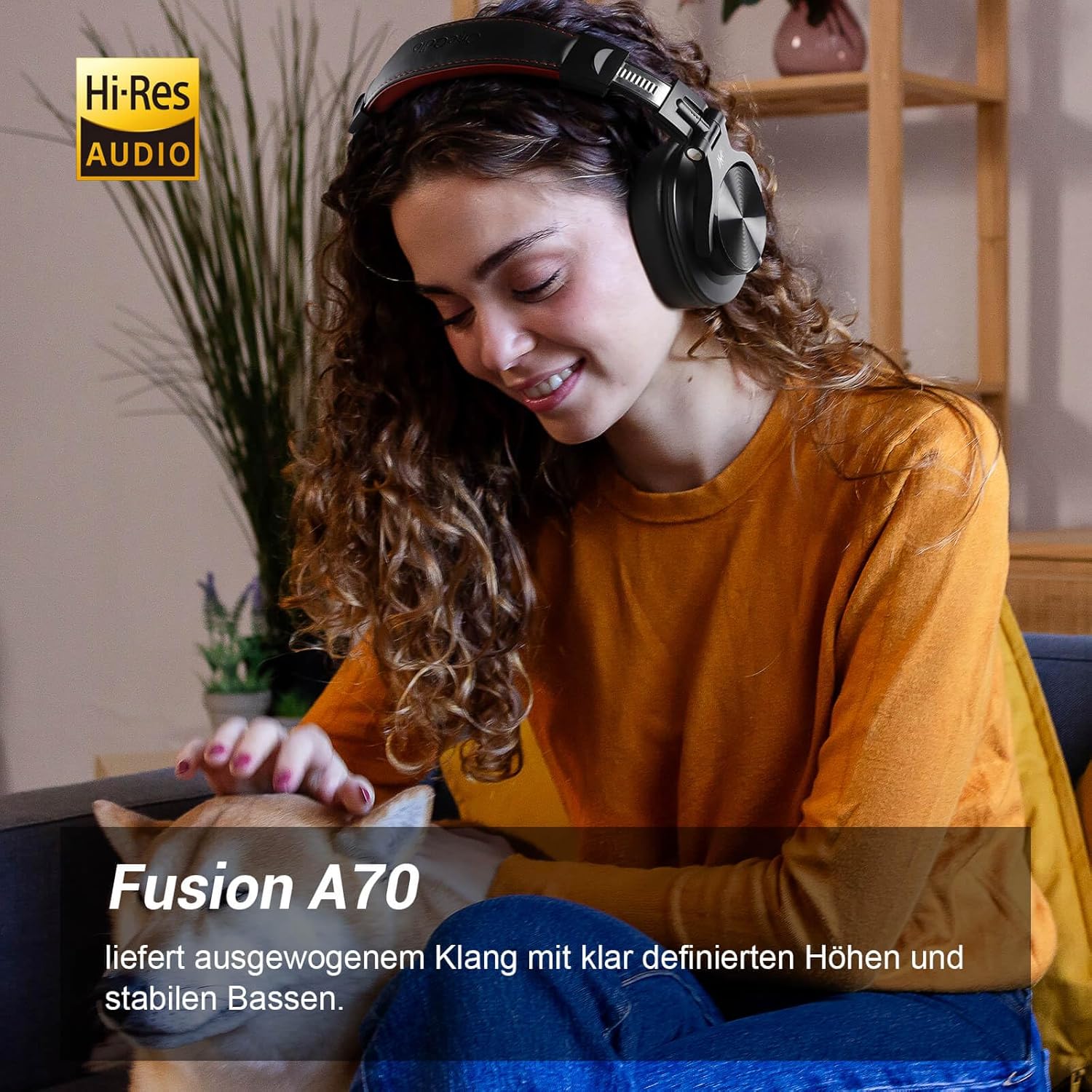
Image: A woman wearing the OneOdio A70 headphones, emphasizing the Hi-Res Audio capability.
Melite
Ịchaji ekweisi
Before first use, fully charge the headphones. Use the provided Micro-USB charging cable.
- Connect the Micro-USB end of the charging cable to the charging port on the headphone.
- Connect the USB-A end to a USB power adapter (not included) or a computer's USB port.
- Ihe ngosi LED ga-egosi ọkwa nchaji (dịka ọmụmaatụ, ọbara ọbara maka ịchaji, acha anụnụ anụnụ maka chaja zuru oke).

Foto: nkọwa zuru ezu view of the headphone's side, showing the Micro-USB charging port and control buttons.
Njikọ Bluetooth
Iji jikọọ ekweisi gị n'enweghị eriri:
- Gbaa mbọ hụ na agbanyụrụ ekweisi ma gbanyụọ ya.
- Press and hold the Multi-function button (usually the power button) for approximately 5 seconds until the LED indicator flashes red and blue alternately, indicating pairing mode.
- Na ngwaọrụ gị (smartphone, tabletị, PC), gbanye Bluetooth wee chọọ ngwaọrụ dị.
- Select "OneOdio A70" from the list of devices.
- Once connected, the LED indicator will turn solid blue or flash blue slowly.
Njikọ Ahịrị
The A70 headphones support two types of wired connections:
- 3.5mm to 3.5mm Cable: For connecting to smartphones, tablets, laptops, and other devices with a 3.5mm audio jack. This cable includes an in-line microphone for calls.
- 3.5mm to 6.35mm Cable: For connecting to professional audio equipment like DJ mixers, amplifiers, and guitars.
To use a wired connection, simply plug the appropriate cable into the headphone's corresponding port and the other end into your audio source. The headphones will automatically switch to wired mode when a cable is inserted.

Image: A visual guide illustrating the wide compatibility of the OneOdio A70 headphones with different devices using 3.5mm and 6.35mm cables.
Ntuziaka ọrụ
Basic Controls (Bluetooth Mode)
| Ọrụ | Omume |
|---|---|
| Gbanyụọ/ Gbanyụọ | Press and hold Multi-function button for 3 seconds. |
| Gwuo/kwụsịtụ | Press Multi-function button once. |
| Elu elu | Press '+' button. |
| Mpịakọta ọnụ | Press '-' button. |
| Track na-esote | Press and hold '+' button. |
| Egwu gara aga | Press and hold '-' button. |
| Zaa/Kwụsị Oku | Press Multi-function button once. |
| Jụ oku | Press and hold Multi-function button for 2 seconds. |
| Mee ka onye enyemaka olu rụọ ọrụ | Double-press Multi-function button. |

Image: Controls for the in-line microphone on the 3.5mm cable, detailing functions like play, pause, answer, and end calls.
Share Port Function
The OneOdio A70 headphones feature a unique Share Port, allowing two headphones to share audio from one source.
- Connect the 3.5mm to 3.5mm cable to the 3.5mm input port on your A70 headphones.
- Connect the other end of this cable to the 3.5mm output port of another headphone (e.g., another A70 or compatible headphone).
- Ensure the primary A70 headphone is connected to your audio source (via Bluetooth or 6.35mm cable).
- Both headphones will now receive audio from the same source.

Image: Two individuals sharing audio from a single device using the Share Port technology of the OneOdio A70 headphones.
Nlekọta na nlekọta
- Clean the headphones regularly with a soft, dry cloth. Do not use abrasive cleaners or solvents.
- Store the headphones in the provided protective pouch when not in use to prevent scratches and damage.
- Zere ikpughe ekweisi na oke okpomọkụ, iru mmiri, ma ọ bụ ìhè anyanwụ kpọmkwem.
- Anwala ịkwasa ma ọ bụ gbanwee ekweisi, n'ihi na nke a ga-emebi akwụkwọ ikike.
- The headphones are not waterproof. Avoid contact with liquids.

Image: The OneOdio A70 headphones in their folded configuration, ready for storage in the protective pouch.
Nchọpụta nsogbu
| Nsogbu | Ihe nwere ike ime | Ngwọta |
|---|---|---|
| No sound (Bluetooth) | Headphones not paired or connected. Low battery. Volume too low. | Ensure headphones are in pairing mode and connected. Recharge headphones. Increase volume on headphones and device. |
| No sound (Wired) | Cable not fully inserted. Incorrect cable used. Device volume too low. | Ensure cables are securely plugged in. Use the correct cable for your device. Increase volume on device. |
| Ogo ụda adịghị mma | Interference (Bluetooth). Damaged cable. Low quality audio source. | Move closer to the Bluetooth device. Try a different cable. Test with a different audio source. |
| Igwe okwu anaghị arụ ọrụ | Using wrong cable (only 3.5mm to 3.5mm has mic). Mic muted on device. | Ensure you are using the 3.5mm cable with the in-line microphone. Check microphone settings on your device. |
| Igwe ekweisi agaghị agbanwu | Akwụsịla batrị kpamkpam. | Charge the headphones for at least 30 minutes before attempting to power on. |
Nkọwapụta
| Njirimara | Nkọwa |
|---|---|
| Aha Nlereanya | OneOdio A70 Fusion |
| Teknụzụ Njikọta | Bluetooth 5.2, Wired (3.5mm, 6.35mm) |
| Nha ọkwọ ụgbọ ala | 40mm |
| Oke ugboro ugboro | 20 Hz - 20,000 Hz |
| Mgbochi | 32 ohm |
| Mmetụta | 110 dB |
| Ngwakọta batrị | Lithium-polymer |
| Ndụ batrị | Ruo awa 72 (na olu 50%) |
| Ibu | 250 grams |
| Ihe onwunwe | Leather (earpads/headband) |
| Atụmatụ pụrụ iche | Volume Control, Noise Isolation, Built-in Microphone (CVC 8.0), Foldable Design, Share Port, Jack Lock |
Akwụkwọ ikike na nkwado
OneOdio products are designed and manufactured to the highest quality standards. For warranty information and customer support, please refer to the official OneOdio websaịtị ma ọ bụ kpọtụrụ ndị ahịa ha ozugbo.
Onye nrụpụta: OneOdio
Onye na-ere ahịa: OneOdio EU (via Amazon.com.be)
Maka enyemaka ọzọ, gaa na OneOdio Store on Amazon.