Microsoft Surface Pro Keyboard User Manual
Model: QJW-00001
Okwu mmalite
This manual provides essential information for the setup, operation, maintenance, and troubleshooting of your Microsoft Surface Pro Keyboard. Designed for seamless integration with Surface Pro X and Surface Pro 8 devices, this keyboard offers a full mechanical keyset, backlit keys, and a large trackpad for an optimal typing experience.
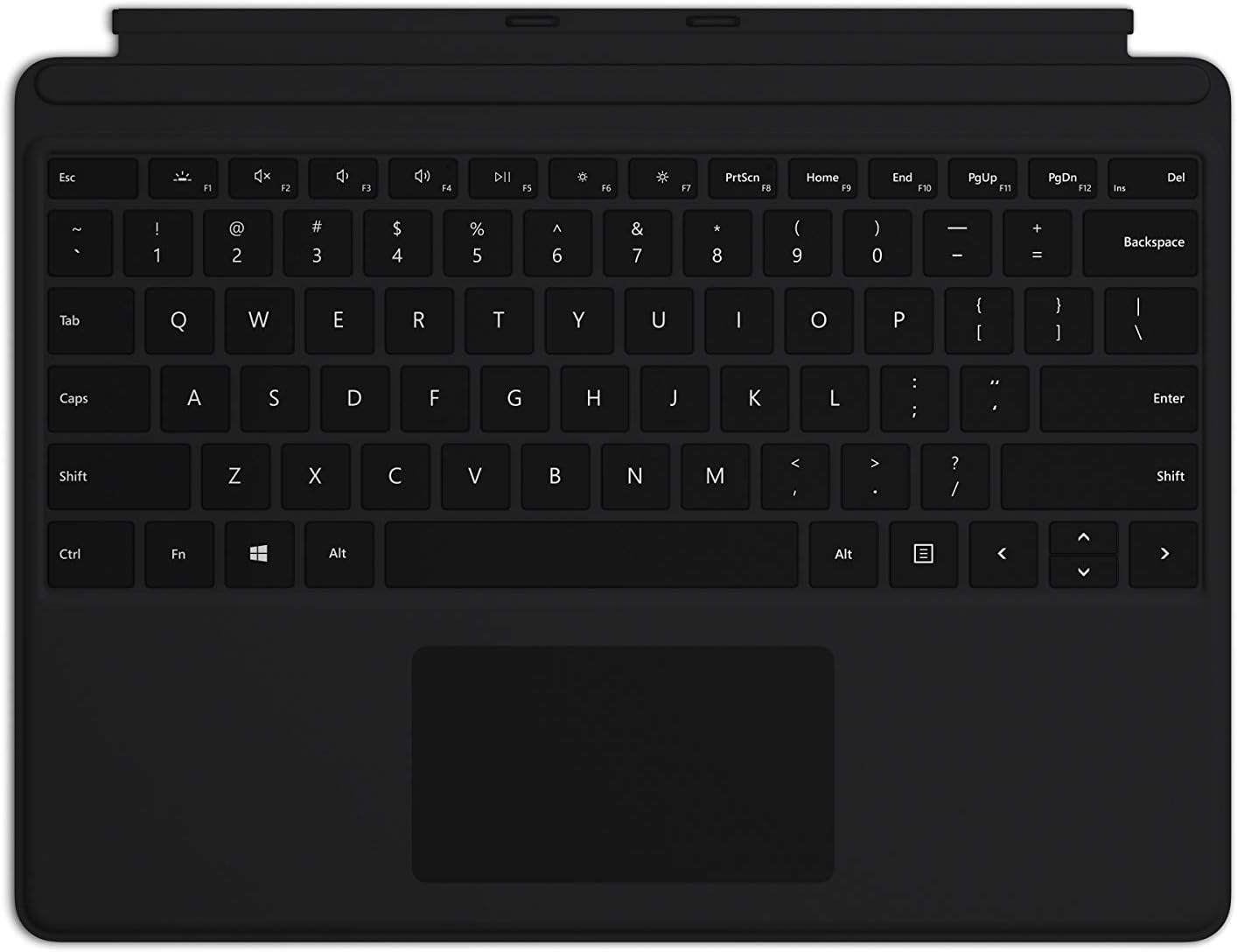
Image: The Microsoft Surface Pro Keyboard in black, showcasing its full QWERTY layout and integrated trackpad.
Melite
Ihe ngwugwu
- Ahụigodo Pro Surface
Jikọọ ahụigodo
The Microsoft Surface Pro Keyboard connects instantly to your compatible Surface device via magnetic stability. Ensure your Surface Pro X or Surface Pro 8 device is powered on.
- Align the magnetic connector edge of the keyboard with the corresponding port at the bottom edge of your Surface Pro X or Surface Pro 8 device.
- Gently push the keyboard towards the device until it clicks securely into place. The magnetic connection will guide it.
- Once connected, the keyboard will be recognized automatically by your Surface device.
The keyboard is designed to adjust to almost any angle, providing a stable typing experience. It also serves as a protective cover for your screen when closed, helping to conserve battery life.

Foto: A n'elu-ala view of the Microsoft Surface Pro Keyboard, illustrating its compact design and how it integrates with a Surface device.
Na-arụ ọrụ ahụigodo
Typing and Navigation
The keyboard features a full mechanical keyset with optimal key spacing for fast and fluid typing. The large trackpad provides precise navigation and control, supporting multi-touch gestures as configured in your Surface device's settings.
Igodo ndabere
The keys are backlit, allowing for comfortable use in low-light conditions. The backlight intensity can typically be adjusted through your Surface device's display settings or via dedicated function keys (if present on your specific model).
Protective and Power Saving Features
When not in use, fold the keyboard over the screen of your Surface device. This action protects the screen from scratches and helps conserve battery power by putting the device into a low-power state. To use your Surface as a tablet, fold the keyboard completely back behind the device.
Nlekọta
Nhicha
To maintain the appearance and functionality of your keyboard, clean it regularly:
- Jiri akwa dị nro na-enweghị ntụpọ dampened with water or a mild cleaning solution (e.g., isopropyl alcohol diluted with water) to wipe the surface of the keys and trackpad.
- Zenarị ịfesa mmiri mmiri ozugbo na ahụigodo.
- Maka uzuzu na irighiri ihe n'etiti igodo, jiri ikuku abịakọrọ.
- Ensure the keyboard is completely dry before reattaching it to your Surface device.
Nchekwa
When storing the keyboard separately from your Surface device, keep it in a clean, dry environment away from extreme temperatures and direct sunlight.
Nchọpụta nsogbu
Ahụigodo Anaghị aza
- Lelee njikọ: Ensure the keyboard is securely attached to your Surface device. Detach and reattach it firmly.
- Malitegharịa ngwaọrụ: Restart your Surface Pro X or Surface Pro 8. This can often resolve minor software glitches.
- Lelee maka mmelite: Ensure your Surface device's operating system and drivers are up to date. Go to Windows Update settings.
- Nwalee na ngwaọrụ ọzọ: If possible, test the keyboard with another compatible Surface device to determine if the issue is with the keyboard or the device.
Ìhè azụ anaghị arụ ọrụ
- Gbanwee ihie: Try adjusting the backlight brightness using the function keys or through Windows display settings.
- Ọnọdụ Nchekwa Ike: Ensure your device is not in a power-saving mode that might disable the backlight.
Trackpad Issues
- Clean Trackpad: Ensure the trackpad surface is clean and free of debris.
- Lelee ntọala: Verify trackpad settings in Windows (Settings > Devices > Touchpad).
- Ntinyegharị draịva: In Device Manager, try uninstalling and reinstalling the trackpad driver.
Nkọwapụta
| Njirimara | Nkọwa |
|---|---|
| Ụdị | Microsoft |
| Nọmba nlereanya | QJW-00001 |
| Ngwa dakọtara | Surface Pro X, Surface Pro 8 |
| Teknụzụ Njikọta | Magnetic (Physical Connection) |
| Nkọwa ahụigodo | Full mechanical keyset, backlit keys, large trackpad |
| Agba | Nwa |
| Ibu Ibu | 11.8 ounces (ihe dị ka gram 334.5) |
| Akụkụ ngwaahịa (LxWxH) | 11.38 x 8.71 x 0.2 sentimita (ihe dịka 28.9 x 22.1 x 0.5 cm) |
| Ọnụọgụ igodo | 79 |
| Ahụigodo azụ azụ | Otu agba LED |
Akwụkwọ ikike na nkwado
For warranty information and technical support, please refer to the documentation included with your Surface Pro X or Surface Pro 8 device, or visit the official Microsoft Support websaịtị ahụ. Ị nwere ike ịchọta akụrụngwa nkwado, ajụjụ ndị a na-ajụkarị, na nhọrọ kọntaktị na nkwado.microsoft.com.
Biko dowe ihe akaebe nke ịzụrụ ihe maka akwụkwọ ikike.


