1. Okwu mmalite
The Makeblock mBot is an educational programmable robot designed to introduce users to robotics, engineering, and programming in an engaging way. This manual provides essential information for assembly, operation, and maintenance of your mBot.
The mBot features various modes of operation, including obstacle avoidance and line following, and can be controlled via remote control or a smartphone application. It supports block-based programming (Scratch) and Arduino, making it suitable for beginners and those looking to advance their coding skills.
2. Ihe ngwugwu
Before starting, ensure all components are present in your mBot kit:

Image: All components included in the Makeblock mBot kit, including the main robot chassis, mCore main control board, ultrasonic sensor, line follower sensor, wheels, motors, remote control, cables, and assembly tools.
- mCore Main Control Board
- Robot Chassis (blue aluminum frame)
- Wheels and Motors
- Ihe mmetụta Ultrasonic
- Line Follower Sensor
- Modul Bluetooth
- Remote Control (IRDA)
- eriri USB
- Screwdriver na skru
- Akwụkwọ ntuziaka
- Other small parts for assembly
3. Ntọala na Mgbakọ
The mBot is designed for quick and easy assembly, typically within 15 minutes, using a single screwdriver.
3.1 Nzọụkwụ Mgbakọ
- Wepu akụrụngwa: Jiri nlezianya wepụ akụkụ niile na nkwakọ ngwaahịa.
- Attach Motors: Secure the motors to the robot chassis using the provided screws.
- Mount Wheels: Attach the wheels to the motor shafts.
- Install mCore Board: Place the mCore main control board onto the chassis and secure it.
- Ihe mmetụta njikọ: Connect the ultrasonic sensor and line follower sensor to the designated ports on the mCore board.
- Isi mmalite ike: Insert 4 AA batteries (not included) into the battery holder and connect it to the mCore board.
- Nyocha ikpeazụ: Ensure all connections are secure and components are firmly attached.
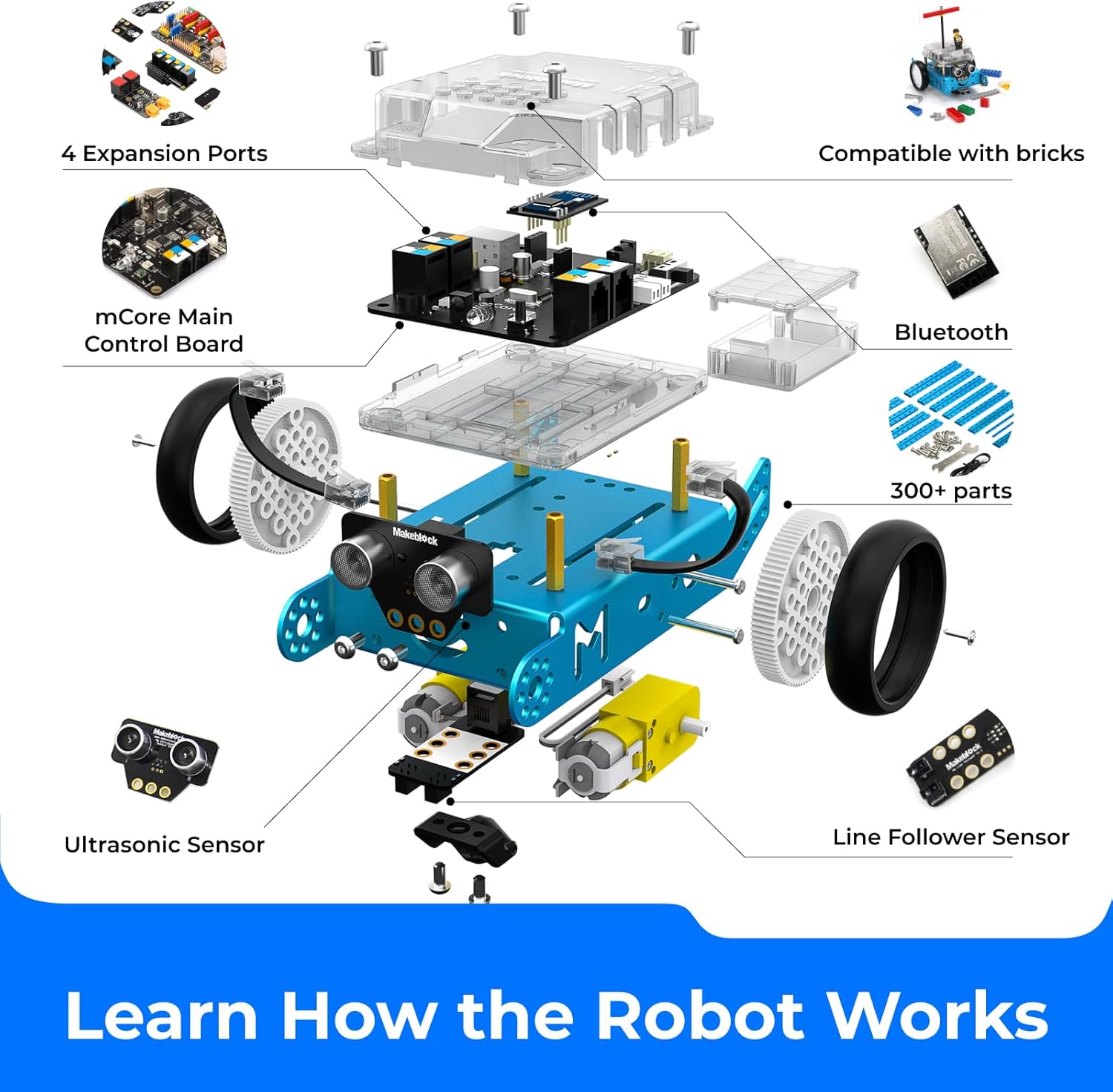
Image: A visual guide showing the process of assembling the mBot, from unpacking components to the final build, highlighting the ease of construction.
3.2 Nwụnye ngwanrọ
To program and control your mBot, download the Makeblock App or mBlock software:
- Makeblock App: Dị maka iOS na gam akporo ngwaọrụ. Chọọ maka "Makeblock" in your device's app store.
- mBlock Software: Desktop software compatible with Scratch and Arduino programming. Download from the official Makeblock websaịtị.

Image: Screenshot showing the block-based programming interface (Scratch) and Arduino code interface, demonstrating how the mBot can be programmed via PC, mobile, or tablet.
4. Operating the mBot
The mBot offers multiple ways to interact and program its functions.
4.1 Ọrụ njikwa anya
Use the included infrared (IRDA) remote control for basic movements and pre-programmed functions.
- Ike Na: Ensure the mBot is powered on.
- Na-ejikọta: The remote control should automatically pair with the mBot.
- Njikwa: Use the directional buttons for movement (forward, backward, turn left, turn right). Other buttons may trigger specific pre-programmed actions or modes.

Image: The mBot being controlled by an infrared remote control, showing the remote in hand and the robot responding to commands.
4.2 Bluetooth Control (Smartphone/Tablet)
For advanced control and custom programming, connect your mBot via Bluetooth to the Makeblock App.
- Kwado Bluetooth: Gbanwuo Bluetooth na ama ma ọ bụ mbadamba gị.
- Open Makeblock App: Launch the Makeblock App.
- Jikọọ: Select your mBot from the list of available devices in the app.
- Njikwa: Use the app's interface for manual control, or upload custom programs.
4.3 Programming the mBot
The mBot supports block-based programming (similar to Scratch) and Arduino coding, allowing for a wide range of functionalities.
- Block-based Programming: Ideal for beginners, drag-and-drop code blocks to create sequences of actions. This helps develop logical thinking and problem-solving skills.
- Arduino Programming: For more experienced users, the mBot can be programmed using Arduino IDE, offering greater control and customization.
Common functions you can program include:
- Izere ihe mgbochi: Using the ultrasonic sensor to detect objects and navigate around them.
- Line Following: Utilizing the line follower sensor to track a path.
- Ụda na ọkụ: Emitting sounds and controlling LED lights.
- Nkwukọrịta infrared: Interacting with other mBots or IR devices.

Image: The mBot performing obstacle avoidance (detecting a cone) and line following (tracking a black line on a white surface), showcasing its programmed functionalities.
5. Nlekọta
Proper maintenance ensures the longevity and optimal performance of your mBot.
- Nhicha: Use a soft, dry cloth to wipe down the robot's exterior. Avoid using liquids or harsh chemicals.
- Nlekọta batrị: Remove batteries if the mBot will not be used for an extended period to prevent leakage. Replace depleted batteries promptly.
- Nyochaa akụrụngwa: Periodically inspect screws and connections to ensure they are secure. The aluminum metal components are durable, but gentle handling is always recommended.
- Mmelite ngwanrọ: Keep the Makeblock App and mBlock software updated to access the latest features and improvements.
6. Nchọpụta nsogbu
If you encounter issues with your mBot, refer to the following common troubleshooting steps:
- Robot anaghị arụ ọrụ:
- Check if batteries are correctly inserted and fully charged.
- Ensure the battery holder is securely connected to the mCore board.
- Njikwa anya anaghị aza:
- Verify the remote control battery (CR2025 button cell, not included).
- Ensure there are no obstructions between the remote and the mBot's IR receiver.
- Okwu njikọ Bluetooth:
- Make sure Bluetooth is enabled on your device and the mBot.
- Restart both the mBot and your controlling device.
- Ensure the Makeblock App is updated to the latest version.
- Motors Not Moving:
- Check motor cable connections to the mCore board.
- Verify that the program uploaded to the mBot includes motor control commands.
- Sensors Not Functioning:
- Ensure sensor cables are securely connected to the correct ports on the mCore board.
- Check for physical obstructions on the sensors.
- Verify that your program correctly reads data from the sensors.
For further assistance, consult the Makeblock official support resources online.
7. Nkọwapụta
| Njirimara | Nkọwa |
|---|---|
| Nlereanya | mBot |
| Ụdị | Ihe mgbochi |
| Akụkụ (L x W x H) | 17 x 13 x 9 cm |
| Ibu | 500 grams |
| Isi ihe | Aluminom ọla |
| Afọ akwadoro | 12 years and up (Manufacturer recommended: 14 years and up) |
| Uru agụmakwụkwọ | Creative Competence, STEM learning, Programming practice, Robotics learning |
| Isi Iyi Ike | Batrị 4 x AA (anaghị etinye ya) |
| Njikọta | Bluetooth, USB |
| Njikwa anya | Infrared (IRDA) Remote Control included |
| Mgbakọ chọrọ | Ee |
| UPC | 731630969695 |
8. Akwụkwọ ikike na nkwado
Specific warranty information is not provided in the product details. For warranty claims or detailed technical support, please refer to the official Makeblock websaịtị ma ọ bụ kpọtụrụ ndị ahịa ha ozugbo.
Makeblock provides various online resources, tutorials, and community forums to assist users with their mBot. It is recommended to visit the official Makeblock support page for the most up-to-date information and assistance.


