1. Okwu mmalite
The IK Multimedia iRig Keys 2 is a portable MIDI keyboard controller designed for musicians and producers on the go. Featuring 37 velocity-sensitive mini-keys, assignable controls, and versatile connectivity options, it allows for expressive music creation across various platforms including iPhone, iPad, Mac, PC, and Android devices. This manual provides essential information for setting up, operating, and maintaining your iRig Keys 2.
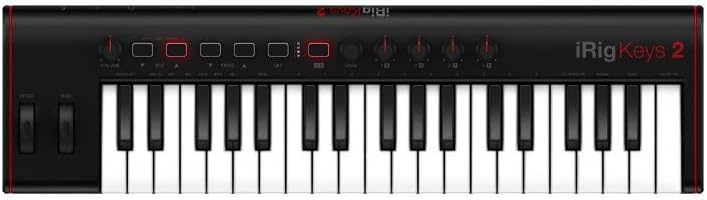
Foto 1: Top view of the IK Multimedia iRig Keys 2 MIDI Controller, showcasing its 37 mini-keys and control panel.
2. Atụmatụ igodo
- Ogo ụda kacha elu: Supports 16 or 24-bit D/A conversion at sampling rates of 44.1kHz, 48kHz, 88.2kHz, and 96kHz for high-fidelity audio.
- Enhanced Key Action: Equipped with 37 velocity-sensitive mini-keys, offering a responsive and expressive playing experience.
- Njikọta dị iche iche: Includes Micro-USB for device connection, MIDI input/output (2.5mm TRS jack), and a 1/8" TRS headphone stereo output.
- Expanded Control: Features assignable knobs, a push encoder, and dedicated octave and program up/down buttons for comprehensive real-time control.
- Mbugharị kacha elu: Lightweight at 30.7 oz (1.76 lbs) and compact (20.4" x 5.5" x 2.13"), USB bus-powered for convenient on-the-go music production.
3. Ihe ngwugwu
Your IK Multimedia iRig Keys 2 package should contain the following items:
- iRig Keys 2 MIDI Controller
- USB ka Micro-USB USB
- Micro-USB to Lightning cable (for iOS devices)
- Micro-USB to USB-C cable (for modern devices)
- 2.5mm TRS to MIDI DIN adapter cables (for MIDI In/Out)
- Quick Start Guide and Registration Information
- Access to included software bundle (details provided upon registration)

Figure 2: The iRig Keys 2 MIDI Controller as packaged in its retail box.
4. Nhazi
4.1. Ijikọ na ngwaọrụ gị
The iRig Keys 2 is USB bus-powered, meaning it draws power directly from the connected device. No external power supply is typically needed.
- Identify the correct cable for your device: Use the Micro-USB to Lightning cable for iOS devices, or the Micro-USB to USB-C/USB cable for Android, Mac, or PC.
- Connect the Micro-USB end of the cable to the iRig Keys 2.
- Connect the other end of the cable to your computer, tablet, or smartphone.
- Your device should recognize the iRig Keys 2 automatically. Install any necessary drivers or software as prompted by your operating system or music application.
4.2. Mmepụta ọdịyo
To monitor your audio, connect headphones to the 1/8" TRS headphone stereo output jack on the iRig Keys 2. This allows for direct monitoring of your sound without additional audio interfaces.

Figure 3: The iRig Keys 2 connected to a laptop via USB and headphones for audio monitoring.
5. Operating the iRig Keys 2
5.1. Keyboard Controls
- 37 Velocity-Sensitive Mini-Keys: Play notes with varying dynamics based on how hard you press the keys.
- Octave Up/Down Buttons: Shift the keyboard's octave range to access higher or lower notes.
- Program Up/Down Buttons: Navigate through presets or programs in your connected software.
- Pitch Bend and Modulation Wheels: Use these wheels for expressive control over pitch and other assignable parameters.
5.2. Assignable Knobs and Push Encoder
The iRig Keys 2 features several assignable knobs and a push encoder. These can be mapped to control various parameters within your music software, such as volume, filter cutoff, effects, and more. Refer to your software's documentation for specific MIDI mapping instructions.

Figure 4: Detail of the assignable knobs and push encoder for real-time control.

Figure 5: The pitch bend and modulation wheels provide expressive control during performance.
6. Connectivity Overview
The iRig Keys 2 offers a comprehensive set of connections for integration into any music setup:
- Ọdụ ụgbọ mmiri Micro-USB: Primary connection for power and MIDI data to your computer, tablet, or smartphone.
- MIDI Input (2.5mm TRS Jack): Connect external MIDI devices using the included TRS to MIDI DIN adapter.
- MIDI Output (2.5mm TRS Jack): Send MIDI data to external hardware synthesizers or sound modules using the included TRS to MIDI DIN adapter.
- Headphone Stereo Output (1/8" TRS Jack): For direct audio monitoring with headphones.

Figure 6: Rear panel showing Micro-USB, MIDI In/Out, and Headphone Output ports.
6.1. Official Product Video
Vidiyo 1: Ngwaahịa gọọmentị gafereview of the iRig Keys 2 by IK Multimedia, demonstrating its features and connectivity.
7. Nkọwapụta
| Njirimara | Nkọwa |
|---|---|
| Aha Nlereanya | Igodo 2 |
| Ọnụọgụ igodo | 37 |
| Ụdị igodo | Velocity-sensitive mini-keys, Synth-action |
| Teknụzụ Njikọta | USB |
| Ngwaọrụ Akụrụngwa | USB |
| Ngwa dakọtara | Desktop, Laptop, Tablet (with USB connectivity) |
| Ngwaike Platform | PC/Mac, iPhone, iPad, Android |
| Ntụgharị ọdịyo | 16 or 24-bit D/A at 44.1kHz, 48kHz, 88.2kHz, 96kHz |
| Njirimara Pụrụ Iche | Equipped with an audio output terminal (Headphone Out) |
| Ibu Ibu | 1.76 pound (30.7 oz) |
| Akụkụ ngwaahịa | 20.39 x 5.47 x 1.57 sentimita asatọ |
| Aha agba | Nwa |
| Ngwanrọ akwadoro | SampleTank 4 SE (included software bundle) |
8. Nlekọta
To ensure the longevity and optimal performance of your iRig Keys 2, follow these maintenance guidelines:
- Nhicha: Use a soft, dry cloth to clean the surface of the device. Avoid abrasive cleaners, solvents, or waxes. For stubborn dirt, a slightly damp enwere ike iji akwa mee ihe, na-esote akwa akọrọ.
- Nchekwa: Store the iRig Keys 2 in a cool, dry place away from direct sunlight, extreme temperatures, and high humidity. When transporting, use a protective case to prevent damage.
- Ijikwa: Avoid dropping the device or subjecting it to strong impacts. Do not place heavy objects on top of the keyboard.
- Mkpughe mmiri mmiri: Keep the device away from liquids. Liquid damage can void your warranty.
9. Nchọpụta nsogbu
9.1. Enweghị ụda ụda
- Ensure your headphones are properly connected to the iRig Keys 2 headphone output.
- Check the volume level on the iRig Keys 2 and within your connected music application.
- Verify that the correct audio output device is selected in your computer or mobile device's sound settings and within your music application.
9.2. Amataghị Ngwaọrụ ahụ
- Ensure the USB cable is securely connected to both the iRig Keys 2 and your device.
- Try using a different USB port on your computer or a different cable.
- Malitegharịa kọmputa gị ma ọ bụ ngwaọrụ mkpanaka gị.
- Lelee onye nrụpụta website for the latest drivers or firmware updates for the iRig Keys 2.
9.3. Keys or Controls Not Responding
- Verify that the iRig Keys 2 is powered on and properly connected.
- Ensure your music application is configured to receive MIDI input from the iRig Keys 2.
- Check if any octave or program shift buttons are engaged, which might alter the expected output.
10. Akwụkwọ ikike na nkwado
IK Multimedia products are covered by a limited warranty. For specific warranty terms and conditions, please refer to the warranty card included with your product or visit the official IK Multimedia website. For technical support, product registration, and additional resources, please visit the IK Multimedia support page online.
Debe ihe akaebe nke ịzụrụ ihe maka akwụkwọ ikike.


