1. Okwu mmalite na gafereview
Nke ViewSonic ELITE XG270 is a 27-inch gaming monitor engineered for eSports enthusiasts, delivering exceptional speed and visual clarity. This monitor features an IPS display with an ultra-fast 1ms (GtG) response time and a 240Hz refresh rate, ensuring smooth screen transitions and responsive gameplay. It offers accurate color reproduction and wide viewing angles, making it suitable for competitive gaming and general use. The panel supports Full HD (1920x1080) resolution with 99% sRGB color coverage and is NVIDIA G-SYNC Compatible, which helps eliminate screen tearing and stuttering for a seamless gaming experience. Advanced ergonomic features and ELITE Design Enhancements are integrated for user comfort and a premium setup.

Foto: ViewSonic ELITE XG270 highlighting key performance features.
2. Kedu ihe dị na Igbe ahụ
Upon unboxing your ViewSonic ELITE XG270 monitor, please ensure all the following items are present:
- LCD Monitor (ViewSonic ELITE XG270)
- ELITE Hood (Sight Shields)
- Igwe ọkụ ọkụ
- Ihe nkwụnye AC/DC
- USB DisplayPort
- USB USB 3.1
- Ntuziaka mmalite ngwa ngwa
Video: Unboxing the ViewSonic ELITE XG270 27" Gaming Monitor. This video demonstrates the contents of the product packaging and initial setup steps.
3. Ntọala & Mgbakọ
Nke ViewSonic ELITE XG270 monitor is designed for easy, tool-less assembly. The stand column is pre-mounted to the monitor head, requiring only the base to be attached.
- Gbakwunye ntọala nkwụsi ike: Carefully place the monitor face down on a soft, clean surface. Align the stand base with the bottom of the pre-attached stand column and secure it using the captive thumbscrew. Tighten until firm.
- Tinye ihe nlekota ahụ: Gently lift the assembled monitor and place it upright on your desk.
- Jikọọ eriri: Connect the DisplayPort cable from your computer to the monitor for optimal performance, especially for 240Hz refresh rate and G-SYNC. Connect the USB 3.1 cable from your computer to the monitor to enable the integrated USB hub. Finally, connect the AC/DC adapter and power cable to the monitor and a power outlet.
Ndozi ergonomic
The monitor's advanced ergonomic stand allows for various adjustments to optimize your viewnkasi obi:
- Ndozi elu: Gently push or pull the monitor up or down to achieve your desired viewelu elu.
- Swivel: Rotate the monitor left or right on its base to adjust the horizontal viewakụkụ n'akuku.
- Pivot: Tụgharịa ihe nlele ahụ ruo ogo 90 iji gbanwee n'etiti nhazi ala na eserese.
- Gbaa: Tilt the screen forwards or backwards to find the most comfortable vertical viewakụkụ n'akuku.

Image: Ergonomic adjustments of the ViewSonic ELITE XG270 monitor.
4. Njikọta
The XG270 offers flexible connectivity options to support various devices, including laptops, PCs, Macs, PlayStation, and Xbox consoles.
- DisplayPort: Recommended for achieving the full 240Hz refresh rate and enabling NVIDIA G-SYNC Compatible technology.
- HDMI: Supports high refresh rates, suitable for gaming consoles and other HDMI-enabled devices.
- USB 3.1: Connect the monitor to your computer via the USB 3.1 upstream cable to activate the integrated USB hub, allowing you to connect peripherals like keyboards and mice directly to the monitor.
- Apụọ ọdịyo: A 3.5mm audio jack is available for connecting headphones or external speakers.

Foto: N'azụ view of ViewSonic ELITE XG270 connectivity ports.
5. Atụmatụ igodo
Display & Performance
- 240Hz Refresh Rate & 1ms (GtG) Response Time: Experience ultra-smooth gameplay with minimal input lag, crucial for competitive eSports.
- NVIDIA G-SYNC Compatible: Synchronizes the monitor's refresh rate with your GPU's frame rate to eliminate screen tearing and stuttering.
- PureXP Blur Reduction: Tuned by Blur Busters, this technology utilizes backlight strobing to drastically improve motion image clarity in fast-moving scenes.
- IPS Panel with 99% sRGB: Enjoy vibrant colors and wide viewing angles without compromising on speed.
- Nkwado HDR10: Delivers enhanced contrast and color depth for a more immersive visual experience.

Image: Visual representation of 1ms (GtG) response time.
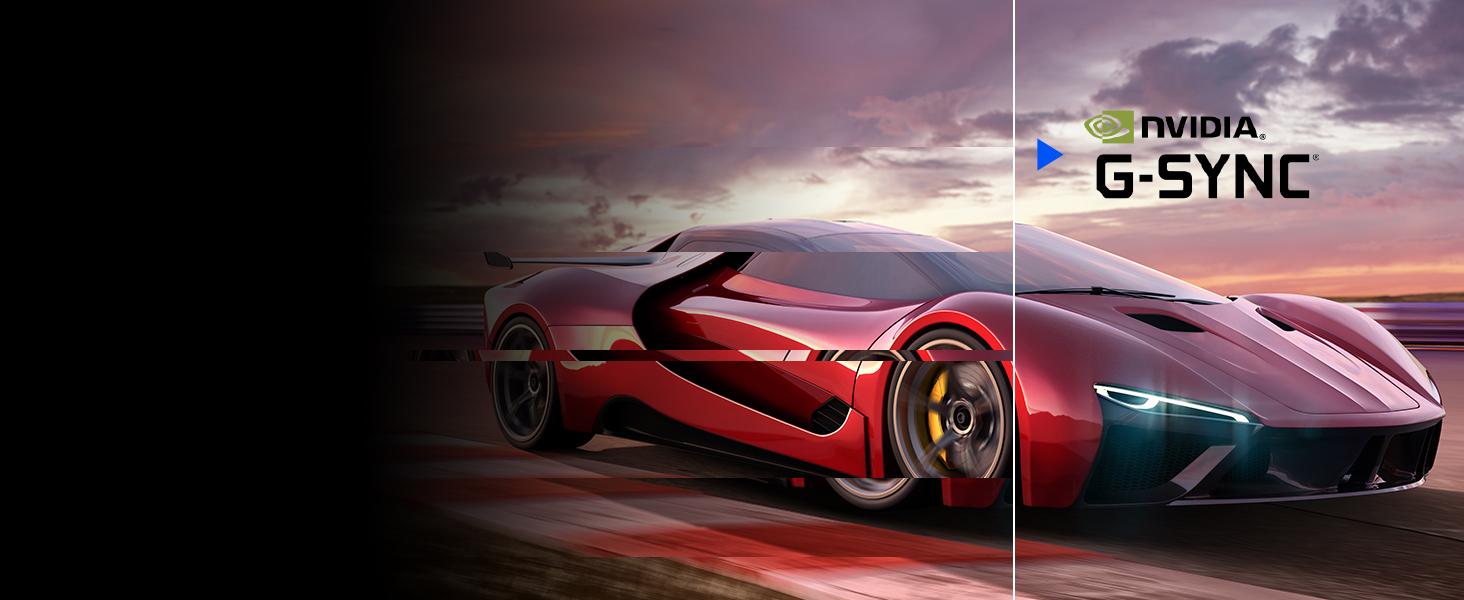
Image: Visual representation of NVIDIA G-SYNC Compatible technology.
ELITE Design Enhancements
- Built-in Mouse Bungee: Helps manage your mouse cable, preventing tangles and drag for unrestricted movement.
- Reinforced Headphone Hook: Conveniently store your gaming headset within easy reach.
- ELITE RGB Ambient Lighting: Customizable RGB lighting on the back of the monitor adds aesthetic flair to your gaming setup.
- Sight Shields (ELITE Hood): Attachable side panels reduce glare and distractions, enhancing focus during competitive play.

Foto: N'azụ view of the monitor with ELITE RGB Lighting System.

Image: Headphone hook and mouse bungee on the ViewSonic ELITE XG270.
Vidiyo: Ofeview nke ViewSonic ELITE XG270 G-Sync Monitor, highlighting its design and features.
6. Ntuziaka ọrụ
Gbanyụọ/ Gbanyụọ
To power on the monitor, press the power button located on the bottom right side of the monitor. To power off, press and hold the power button until the screen turns off.
Ngosipụta na ihuenyo (OSD) NchNhr
The OSD menu allows you to adjust various monitor settings. Use the joystick or buttons (depending on model variation) located on the back or bottom of the monitor to navigate the menu. Common settings include:
- Foto: Adjust brightness, contrast, color temperature, and gamma.
- Họrọ ntinye: Manually switch between DisplayPort and HDMI inputs.
- Audio: Gbanwee olu ma ọ bụ ogbi.
- Egwuregwu: Configure refresh rate, response time overdrive, G-SYNC settings, and other gaming-specific features like Black Stabilization.
- Nhazi menu: Access general settings like OSD language, OSD timeout, and factory reset.
7. Nlekọta
Ndozi nke ọma na-eme ka ogologo ndụ na arụmọrụ kacha mma nke nyocha gị.
- Na-ehicha ihuenyo: Jiri nwayọ hichaa ihuenyo ahụ na ákwà dị nro, nke na-enweghị ihe e ji ehicha ihe. Maka ihe ndị siri ike, jiri obere ihe hichaa ya.ampen the cloth with water or a specialized screen cleaner. Avoid using alcohol, ammonia, or abrasive cleaners.
- Na-ehicha Casing: Jiri ákwà dị nro ma kpọọ nkụ hichaa ihe nlele ahụasing.
- Igwe ikuku: Gbaa mbọ hụ na egbochighị oghere ikuku ikuku nke onye nleba anya ka ọ ghara ikpo oke ọkụ.
- Gbanyụọ mgbe anaghị eji ya: Gbanyụọ ihe nleba anya mgbe ọ naghị eji ya ogologo oge iji chekwaa ike yana ogologo ndụ ya.
8. Nchọpụta nsogbu
Ọ bụrụ na ị nwere nsogbu na ndụ gị ViewSonic ELITE XG270 monitor, try the following basic troubleshooting steps:
- Enweghị ike: Ensure the power cable and AC/DC adapter are securely connected to both the monitor and a working power outlet. Check if the power button is pressed.
- Enweghị akara ngosi/ihuenyo ojii: Verify that the DisplayPort or HDMI cable is securely connected to both the monitor and your computer/device. Ensure the correct input source is selected in the OSD menu.
- Image Issues (Blurry, Flickering, Incorrect Colors): Check the cable connections. Adjust picture settings in the OSD menu. Ensure your graphics card drivers are up to date. For G-SYNC related issues, confirm it's enabled in both the monitor OSD and NVIDIA Control Panel.
- Ọdụ ụgbọ mmiri USB anaghị arụ ọrụ: Ensure the USB 3.1 upstream cable is connected from the monitor to your computer.
For more detailed troubleshooting or persistent issues, please refer to the full user manual available on the ViewSonic websaịtị ma ọ bụ kọntaktị ViewSonic customer support.
9. Nkọwapụta
| Njirimara | Nkọwapụta |
|---|---|
| Nọmba nlereanya | XG270 |
| Nha ihuenyo | 27 sentimita asatọ |
| Ụdị panel | IPS |
| Mkpebi | 1920x1080 (HD zuru ezu) |
| Ọnụego ume ọhụrụ | 240Hz |
| Oge nzaghachi | 1ms (GtG) |
| Ndakọrịta G-SYNC | NVIDIA G-SYNC dakọtara |
| Agba Gamut | 99% sRGB |
| Nkwado HDR | HDR10 |
| Njikọta | HDMI, DisplayPort, USB 3.0 (4 ports) |
| Ergonomics | Height, Swivel, Pivot, Tilt Adjustable |
| Ibu | 17.38 pound |
| Akụkụ (LxWxH) | 18.06 x 24.2 x 2.7 sentimita asatọ |
10. Akwụkwọ ikike & Nkwado
Gị ViewSonic ELITE XG270 monitor comes with a manufacturer's warranty. For specific warranty terms and conditions, please refer to the warranty card included in your product packaging or visit the official ViewSonic websaịtị.
For technical support, driver downloads, or additional product information, please visit the ViewSonic support page or contact their customer service directly. Keep your product's serial number handy when seeking support.


