1. Okwu mmalite
This manual provides detailed instructions for the installation, operation, and maintenance of your Dynavin N7-VT7 PRO Radio Navigation System. This system is designed as a direct replacement for the factory radio in VW Touareg models from 2003 to 2009, integrating seamlessly with your vehicle's existing systems.
Atụmatụ gụnyere:
- 7-inch capacitive LCD touch screen display (1024 x 600 resolution)
- Integrated GPS navigation with maps for North America, Europe, or Australia
- Bluetooth maka oku na-enweghị aka na nkwanye ọdịyo
- Apple CarPlay and Android Auto compatibility via USB
- USB and Micro SD card media playback
- Ngwaọrụ redio AM/FM
- Backup camera readiness
- Integration with vehicle's DSP processor (if equipped)
2. Ozi nchekwa
Important Legal Disclaimer:
- Installation must be performed by a trained specialist.
- Ensure the vehicle is de-energized before beginning installation.
- In some cases, the vehicle battery may need to be disconnected. Consult your vehicle manufacturer's guidelines.
- Modifying vehicle electronics may affect manufacturer warranty.
Always prioritize safety during installation and operation. Avoid operating the system's complex functions while driving to prevent distractions.
3. Ntọala na nwụnye
The Dynavin N7-VT7 PRO is designed for plug-and-play installation, integrating with your vehicle's factory wiring and controls. Professional installation is highly recommended to ensure proper functionality and to avoid damage to the unit or vehicle.
Ihe ngwugwu 3.1
Chọpụta na akụrụngwa niile dị na ngwugwu:
- Dynavin N7-VT7 PRO Head Unit
- Antenna GPS
- eriri USB
- Wiring Harnesses (vehicle-specific)
- Akwụkwọ ntuziaka (akwụkwọ a)
- External Microphone (if included)
3.2 Nwụnye gafereview
The unit replaces the existing factory radio. Specific steps for removal of the old unit and installation of the new Dynavin system will vary slightly depending on your vehicle's trim. Refer to a qualified installer or vehicle-specific guides for detailed instructions.

Foto 3.1: The Dynavin N7-VT7 PRO unit seamlessly integrated into a Volkswagen Touareg dashboard, demonstrating its OEM-look design.
After physical installation, connect all wiring harnesses, the GPS antenna, and any external accessories like a backup camera or SiriusXM tuner (sold separately).
4. Ntuziaka ọrụ
The Dynavin N7-VT7 PRO features an intuitive touchscreen interface. Most functions are accessible via the main menu or dedicated physical buttons.
4.1 Main Interface Overview
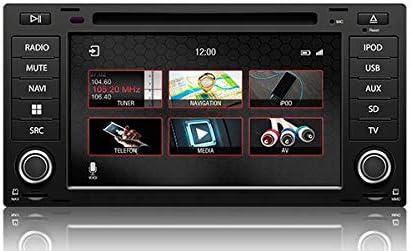
Foto 4.1: The main menu screen displaying various function icons such as Radio, Navigation, Telephone, Media, and AV input.
From the main screen, tap on the desired icon to access functions like Radio, Navigation, Bluetooth (Telefon), Media (USB/SD), and AV input.
4.2 Ọrụ redio
Tap the "Radio" icon from the main menu or press the physical "RADIO" button. You can tune to AM/FM stations, save presets, and access features like RDS (Radio Data System) where available.

Foto 4.2: The radio interface showing station presets and current frequency. Users can navigate between stations using the on-screen arrows or physical controls.
For SiriusXM compatibility, an SXV300 Tuner (sold separately) is required. Once installed, access SiriusXM through the dedicated icon or source selection.

Foto 4.3: The SiriusXM interface displaying channel information and presets, allowing access to satellite radio content.
Sistemụ Nsoroụzọ 4.3
Tap the "Navigation" icon to launch the integrated GPS navigation software. The system comes pre-loaded with maps for North America, Europe, or Australia, depending on your region.
- Ntinye Ebe A Na-aga: Enter addresses, points of interest, or coordinates.
- Ntuziaka ụzọ: Follow turn-by-turn voice prompts and on-screen directions.
- Maapụ View: Gbanwee n'etiti 2D na 3D views, adjust zoom levels.
4.4 Njikọ Bluetooth
Jikọọ ekwentị gị site na Bluetooth maka ịkpọ oku na-enweghị aka na nkwanye ọdịyo.
- Go to the "Telefon" (Bluetooth) menu.
- Kwado Bluetooth na ama gị wee chọọ ngwaọrụ dịnụ.
- Select "Dynavin" from the list on your phone and confirm the pairing code.
- Once paired, you can make/receive calls and stream music.
4.5 Apple CarPlay na gam akporo Auto
Connect your compatible smartphone via USB to use Apple CarPlay or Android Auto. This allows you to access select phone apps directly on the Dynavin display.

Foto 4.4: The Apple CarPlay interface displaying common applications like Phone, Music, Maps, and Messages, integrated with the Dynavin unit.
Ensure your phone's operating system is up to date for optimal performance with CarPlay or Android Auto.
4.6 Mgbasa mgbasa ozi (USB/SD)
Insert a USB drive or Micro SD card into the designated ports. The system supports various audio and video formats. Tap the "Media" icon to browse and play content.
4.7 Ntọala ụda
Access the sound settings to adjust audio output, equalizer, and balance/fader controls. The system integrates with your vehicle's DSP processor if equipped.

Foto 4.5: The sound settings interface, allowing users to adjust audio parameters such as balance, fader, and specific sound profiles within the vehicle cabin.
Additional sound options may include confirmation tones, PDC (Park Distance Control) and warning tones, and settings for factory ampndị na -enye ndụ.
4.8 Ntọala Sistemu
The system settings menu allows you to configure various aspects of the unit, including:
- Mpaghara: Set the geographical region for radio and navigation.
- Agba: Adjust display color schemes.
- Igwefoto: Configure backup camera settings.
- Icha ọkụ: Manually adjust screen brightness.
- Mpaghara Oge: Tọọ mpaghara oge ziri ezi.
- tụgharịa: Configure reverse camera and PDC integration.

Foto 4.6: The system settings interface, showing options for region, display color, camera settings, brightness adjustment, time zone, and reverse camera configuration.
5. Nlekọta
5.1 Na-ehicha ihe ngosi
Jiri akwa dị nro, nke na-enweghị lint, jiri nwayọ hichaa ihuenyo mmetụ ahụ. Maka isi ike smudges, ntakịrị dampen akwa na mmiri ma ọ bụ ihe na-echebe ihuenyo. Zere ihe na-emebi emebi ma ọ bụ kemịkalụ siri ike.
5.2 Mmelite firmware
Periodic firmware updates may be released to improve performance, add features, or address issues. Check the official Dynavin website or contact your distributor for information on available updates and instructions for installation.
6. Nchọpụta nsogbu
If you encounter issues with your Dynavin N7-VT7 PRO, refer to the following common solutions:
- Enweghị ike: Check all wiring connections and vehicle fuses. Ensure the vehicle battery is properly connected.
- Enweghị ụda: Lelee njikọ igwe okwu. Lelee ọkwa olu ma mechie ntọala. Hụ na ahọpụtara isi iyi ọdịyo ziri ezi.
- Mfu mgbaàmà GPS: Gbaa mbọ hụ na etinyere antenna GPS nke ọma ma nwee nke doro anya view nke elu-igwe.
- Okwu njikọta Bluetooth: Delete previous pairings from both the unit and your phone. Restart both devices and attempt pairing again.
- Ihuenyo mmetụ anaghị anabata: Perform a soft reset (refer to specific instructions from Dynavin support if available).
- Apple CarPlay/Android Auto Not Connecting: Ensure your phone is compatible and its operating system is updated. Try a different USB cable.
For persistent issues, contact Dynavin customer support or your authorized dealer for assistance.
7. Nkọwapụta
| Njirimara | Nkọwapụta |
|---|---|
| Nọmba nlereanya | N7-VWTG-PRO |
| Ngosipụta nha | 7 sentimita asatọ |
| Ngosipụta mkpebi | 1024 x600 |
| Ụdị ngosi | Capacitive LCD, Anti-glare Touchscreen |
| Sistemụ nrụọrụ | DynOS |
| Njikọta | USB, Bluetooth |
| Ụdị map | North America, Europe, or Australia (region-specific) |
| Servicedị Ọrụ hicgbọ | Car (VW Touareg 2003-2009) |
| Akụkụ ngwugwu | 13 x 11 x 9 sentimita asatọ |
8. Akwụkwọ ikike na nkwado
For warranty information, please refer to the documentation provided with your purchase or contact your authorized Dynavin dealer. J&T Distributing is the official distributor of Dynavin in North America and can provide support for products purchased through their channels.
For technical assistance, troubleshooting, or inquiries regarding firmware updates, please visit the official Dynavin websaịtị ma ọ bụ kpọtụrụ nkwado ndị ahịa ha.


