1. Okwu mmalite
This manual provides essential information for the safe and efficient operation of your Marantz NR1510 5.2 Channel 4K Ultra HD AV Receiver. The NR1510 is designed to deliver impressive surround sound and high-fidelity audio in a compact form factor, approximately half the height of traditional AV receivers. It supports the latest HDMI connections, high-resolution audio formats like Dolby TrueHD and DTS-HD Master Audio, and offers extensive music streaming capabilities via Bluetooth, AirPlay 2, and the HEOS app. Voice control via Amazon Alexa, Google Assistant, and Apple Siri is also supported.
Please read this manual thoroughly before using the unit and keep it for future reference.
2. Atụmatụ igodo
- 5.2 Ọwa gburugburu ụda: Supports Dolby TrueHD, DTS-HD Master Audio, and HDMI eARC for an immersive home theater experience.
- Nkwado vidiyo 4K Ultra HD: Compatible with Dolby Vision, BT-2020, HLG, and HDR10 for stunning 4K video quality.
- Njikọ dị elu: Features 6 HDMI inputs (including 1 front), Bluetooth, Wi-Fi (AirPlay 2), and Ethernet.
- HEOS E wuru n'ime: Enables multi-room audio streaming from popular services like Spotify, TIDAL, TuneIn, and Deezer.
- Ndakọrịta njikwa olu: Seamless integration with Amazon Alexa for hands-free operation.
- High-Current Power Ampndị na -ebuli elu: Nke pụrụ iche amplifiers on all 5 channels deliver 85W per channel for exceptional sound quality and speaker control.
- Nhazi kọmpat: Half the height of traditional AV receivers, allowing for flexible placement.
3. Ntuziaka Nhazi
3.1 Mwepu na ntinye
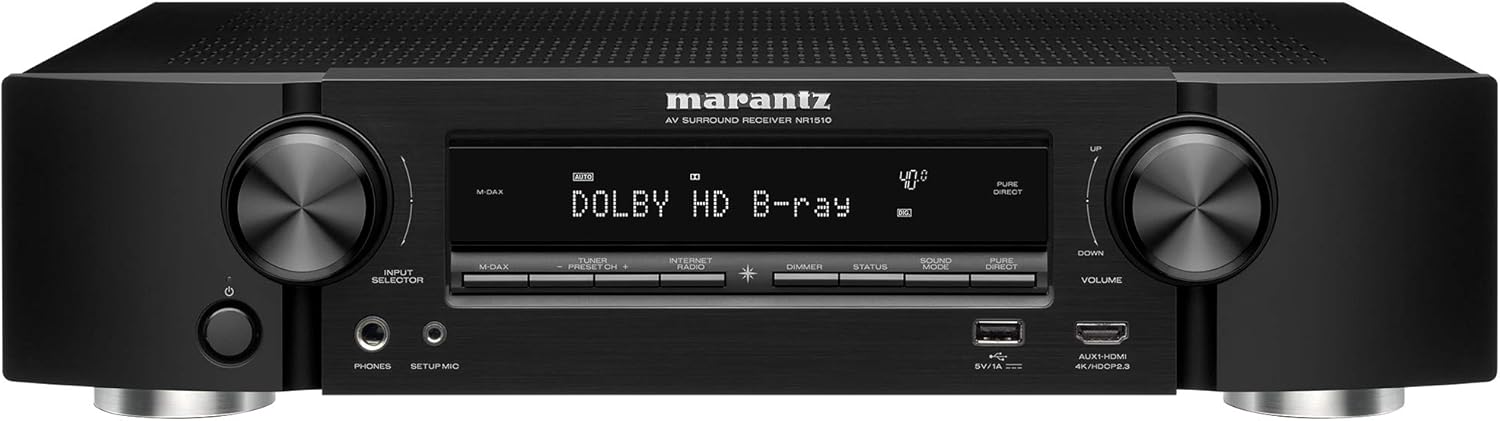
Carefully remove the NR1510 from its packaging. Place the receiver on a stable, flat surface with adequate ventilation. Ensure there is sufficient space around the unit for proper airflow to prevent overheating.

Foto 3.1: N'ihu view of the Marantz NR1510 AV Receiver.
3.2 Ijikọ ngwaọrụ gị
Before making any connections, ensure the NR1510 and all other devices are turned off and unplugged from the power outlet.
3.2.1 Njikọ Ọkà Okwu
Connect your speakers to the corresponding terminals on the rear panel. The NR1510 supports a 5.2 channel setup. Ensure correct polarity (+ to + and - to -) for optimal sound quality.

Ọgụgụ 3.2: Zuru ezu view of speaker connection terminals.
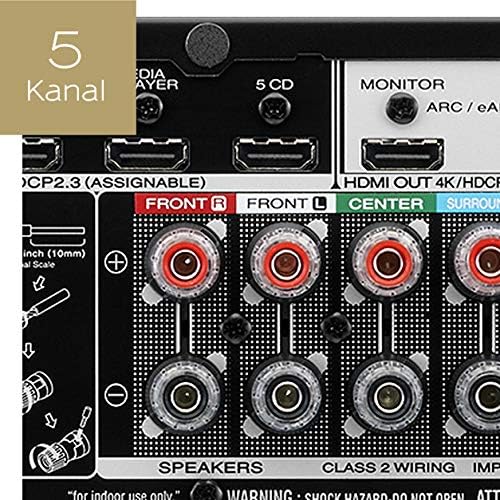
Figure 3.3: Illustration of a 5-channel speaker configuration.
3.2.2 HDMI Njikọ
Connect your video sources (e.g., Blu-ray player, game console, cable box) to the HDMI IN ports. Connect your TV or projector to the HDMI OUT (MONITOR) port. The NR1510 features 6 HDMI inputs, including one on the front panel for easy access.

Figure 3.4: Front panel HDMI input for convenient connections.
3.2.3 Njikọ netwọkụ
For network features and firmware updates, connect the NR1510 to your home network via an Ethernet cable to the NETWORK port or wirelessly via Wi-Fi. Ensure your Wi-Fi antenna is properly connected.
3.2.4 Njikọ ike
Once all audio and video connections are made, connect the power cord to the NR1510 and then to a wall outlet.
Nyocha 3.5: N'eluview of the Marantz NR1510 rear panel connections.
3.3 Ọkachamara Mbido Mbido
Upon first power-on, the NR1510 will guide you through an on-screen setup assistant. This wizard helps with speaker calibration (using the supplied microphone), network setup, and input configuration. Follow the on-screen prompts for an easy setup process.
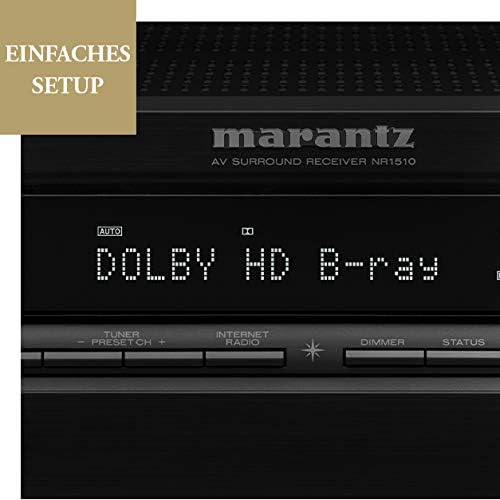
Figure 3.6: The NR1510 display indicating the easy setup process.
4. Ntuziaka ọrụ
4.1 Basic Arụmọrụ
- Gbanyụọ/ Gbanyụọ: Press the POWER button on the front panel or the remote control.
- Nhọrọ ntinye: Use the INPUT SELECTOR knob on the front panel or the dedicated input buttons on the remote control (e.g., CBL/SAT, GAME, CD, MEDIA PLAYER, etc.) to switch between connected devices.
- Njikwa olu: Adjust the VOLUME knob on the front panel or the VOLUME +/- buttons on the remote control.
4.2 Ọrụ njikwa anya
The supplied remote control provides full command over your NR1510 receiver and connected devices. Familiarize yourself with its layout for convenient operation.

Figure 4.1: The Marantz NR1510 remote control.
- Ike (Bọtịnụ Uhie): Gbanyụọ ma ọ bụ gbanyụọ unit ahụ.
- Bọtịnụ ntinye: Directly select specific inputs (e.g., CBL/SAT, GAME, CD, PHONO, USB).
- Mpịakọta +/-: Na-edozi ọkwa olu nna ukwu.
- Mechie: Na-ebelata ụda olu ahụ nwa oge.
- Mpempe igodo ụzọ: Used to navigate menus on the TV screen.
- Bọtịnụ Ụdị Ụda: Select various sound modes (e.g., MOVIE, MUSIC, GAME, PURE).
- Smart Select Buttons (1-4): Store and recall preferred settings for different activities.
4.3 Network na gụgharia atụmatụ
The NR1510 offers extensive network capabilities for music streaming and multi-room audio.
- HEOS E wuru n'ime: Access music from online streaming services (Spotify, Deezer, Tidal, etc.) and local network storage. Create a multi-room audio system with other HEOS-enabled devices.
- Egwuregwu ikuku 2: Gbasaa ọdịyo ozugbo site na ngwaọrụ Apple gị.
- Bluetooth: Connect your smartphone or tablet wirelessly to play music.

Figure 4.2: The HEOS Built-in feature allows integrated multi-room audio.

Figure 4.3: Wireless streaming capabilities of the NR1510.
4.4 Njikwa olu
The NR1510 is compatible with Amazon Alexa. Once configured, you can use voice commands to control functions like input switching, volume adjustment, and music playback through a compatible Alexa-enabled device.
5. Nlekọta
- Nhicha: Jiri akwa dị nro dị nro hichaa mpụta nke unit ahụ. Ejila ihe nchacha abrasive ma ọ bụ ihe mgbaze.
- Mmelite femụwe: Periodically check for firmware updates via the network connection. Updates can improve performance and add new features. Refer to the on-screen menu for update options.
- Igwe ikuku: Hụ na oghere ikuku dị na ngwaọrụ ahụ anaghị egbochi iji gbochie oke okpomọkụ.
6. Nchọpụta nsogbu
If you encounter issues with your Marantz NR1510, refer to the following common troubleshooting steps. For more detailed solutions, consult the comprehensive online manual available on the Marantz support websaịtị.
| Nsogbu | Ihe kpatara/ Ngwọta nwere ike ime |
|---|---|
| Enweghị ike | Check if the power cord is securely connected. Ensure the power outlet is functional. |
| Enweghị ụda | Check speaker connections. Verify input selection. Ensure volume is not muted or too low. Check audio settings on the source device. |
| Enweghị foto | Check HDMI cable connections. Verify input selection on the receiver and TV. Ensure the TV is set to the correct HDMI input. |
| Nsogbu njikọ netwọkụ | Check Ethernet cable connection or Wi-Fi settings. Restart your router/modem. Ensure correct network password for Wi-Fi. |
| Njikwa anya anaghị arụ ọrụ | Replace batteries. Ensure no obstructions between the remote and the receiver's IR sensor. |
7. Nkọwapụta
| Njirimara | Nkọwapụta |
|---|---|
| Ụdị | Marantz |
| Nọmba nlereanya | 90766127 (NR1510) |
| Agba | Nwa |
| Gburugburu ọwa ụda | 5.2 |
| Ntinye HDMI | 6 (gụnyere otu ihu) |
| HDMI mmepụta | 1 (eARC compatible) |
| Teknụzụ Njikọta | Bluetooth, Ethernet, Wireless (Wi-Fi, AirPlay 2), USB |
| Atụmatụ pụrụ iche | HEOS Multiroom, Spotify Connect, Voice Control (Alexa) |
| Ngwa dakọtara | Igwe onyonyo |
| Ọnọdụ mmepụta ọdịyo | Gburugburu |
| Ndekọ vidiyo | H.265 (HEVC) |
8. Akwụkwọ ikike na nkwado
Marantz products are built to the highest standards and undergo rigorous quality control. For information regarding your product's warranty, please refer to the warranty card included in the original packaging or visit the official Marantz websaịtị maka nkọwa kpọmkwem maka mpaghara gị.
For technical support, troubleshooting assistance beyond this manual, or service inquiries, please contact Marantz customer support. You can find contact information and additional resources, including a comprehensive online manual, on the official Marantz support websaịtị (www.marantz.com).
Please have your model number (NR1510) and serial number ready when contacting support.


