1. Okwu mmalite
This manual provides essential instructions for setting up, operating, and maintaining your Epson EcoTank L3156 Wi-Fi All-in-One Printer. This compact 3-in-1 device offers printing, scanning, and copying functionalities, along with Wi-Fi Direct connectivity for convenient mobile printing. The EcoTank system utilizes high-capacity ink tanks designed for efficient and mess-free refilling.
2. Ngwaahịa gafereview
The Epson EcoTank L3156 is designed for home and small office use, featuring an integrated ink tank system that eliminates the need for traditional cartridges. Its compact design and front-facing ink tanks allow for easy monitoring of ink levels and simplified refilling.
Akụkụ ndị bụ isi:
- Ọrụ 3-na-1: Print, Scan, and Copy.
- Wi-Fi and Wi-Fi Direct: Enables wireless printing from computers and mobile devices.
- Mbipụta na-enweghị katrij: Utilizes high-capacity ink tanks for reduced running costs.
- Enhanced Ink Filling System: Designed to minimize spills and ensure correct color filling.
- Borderless Photo Printing: Supports 10x15cm borderless photo prints.
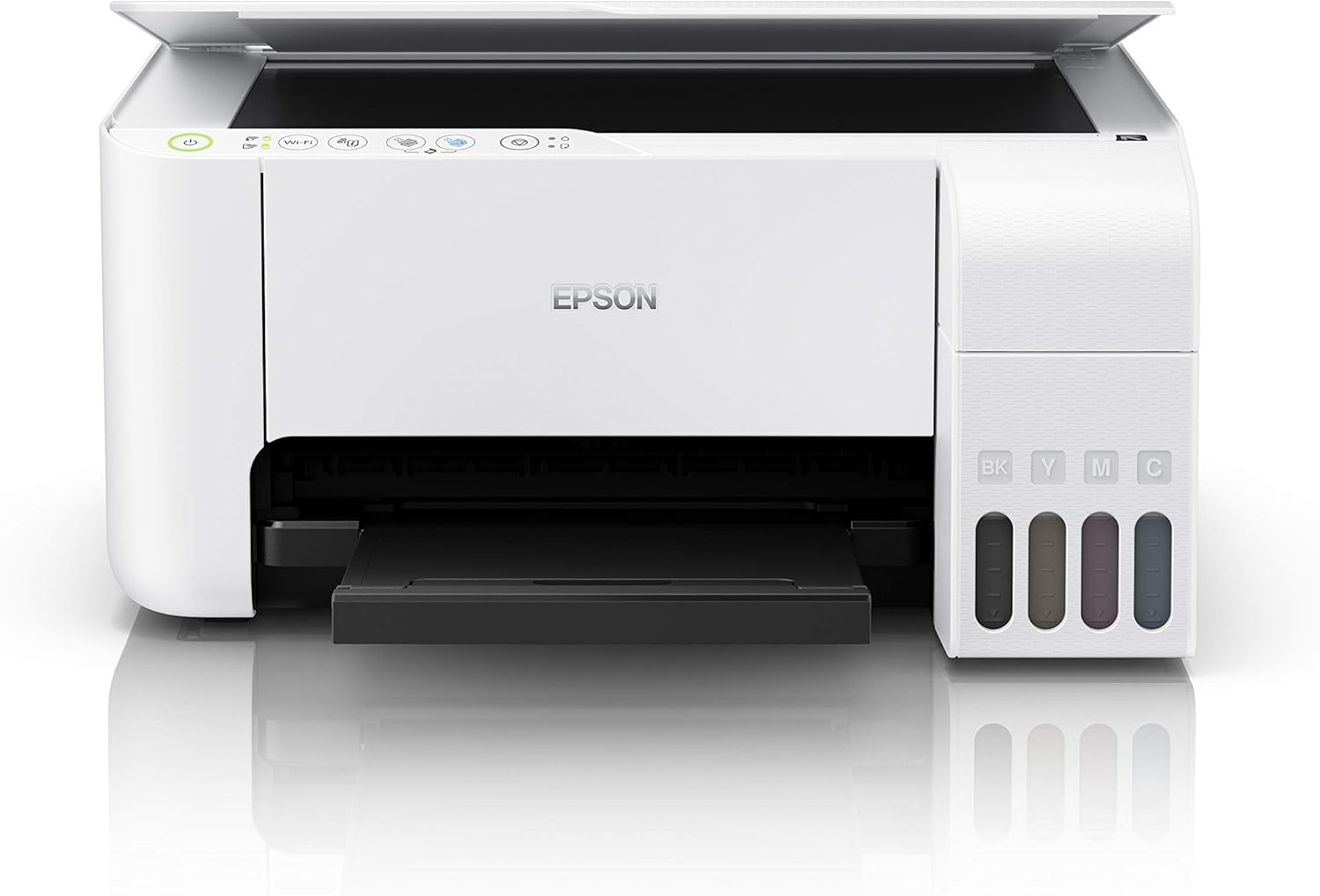
Foto 2.1: N'ihu view of the Epson EcoTank L3156 printer, showing the control panel and output tray.

Foto 2.2: N'akuku view of the printer, highlighting the paper input tray and ink tanks.
3. Nhazi ntuziaka
3.1 Nwepu ngwa nbipute
- Wepu ngwa nbipute na nkwakọ ngwaahịa ya.
- Wepu teepu nchebe na ihe nkwakọba ihe na mpụta na ime nke ngwa nbipute.
- Debe igwe nbipute ahụ n'elu ebe kwụsiri ike ma dị larịị.
3.2 Na-ejuputa tankị ink
The EcoTank L3156 features an innovative ink filling system designed to prevent incorrect color filling and spills.
- Mepee mkpuchi unit tank ink n'akụkụ nke ngwa nbipute.
- Open the cap for the black ink tank (BK).
- Uncap the black ink bottle and insert it into the filling port. The ink will automatically start filling. Do not squeeze the bottle.
- Ozugbo tank ahụ jupụtara, mmiri ink ga-akwụsị. Wepu karama ahụ ma megharịa tank ink.
- Repeat the process for the Cyan (C), Magenta (M), and Yellow (Y) ink tanks.
- Mechie mkpuchi unit tank ink.
3.3 Njikọ ike
- Jikọọ eriri ọkụ na ngwa nbipute wee banye na oghere eletrik.
- Pịa bọtịnụ ike ka ịgbanwuo ngwa nbipute.
3.4 Nwụnye ngwanrọ
- Insert the provided software CD into your computer's CD/DVD drive. If your computer does not have a CD/DVD drive, download the latest drivers and software from the official Epson support websaịtị.
- Soro ntuziaka dị na ihuenyo iji wụnye draịva ngwa nbipute na ngwanrọ ọrụ.
3.5 Ntọala Wi-Fi
The printer supports both Wi-Fi and Wi-Fi Direct connectivity.
3.5.1 Standard Wi-Fi Connection (via Router)
- Ensure your wireless router is turned on.
- On the printer's control panel, press and hold the Wi-Fi button until the Wi-Fi indicator starts flashing.
- Follow the instructions in the printer's software utility on your computer to connect the printer to your wireless network. You may need to enter your network password (SSID).
3.5.2 Wi-Fi Direct Connection (Direct to Device)
- On the printer's control panel, press the Wi-Fi Direct button. The Wi-Fi Direct indicator will light up.
- On your mobile device or computer, go to your Wi-Fi settings and select the printer's Wi-Fi Direct network (e.g., DIRECT-xx-EpsonL3156).
- Enter the password displayed on the printer's control panel or in the network status sheet.
4. Ntuziaka ọrụ
4.1 Mpempe akwụkwọ
- Mepee nkwado akwụkwọ ahụ wee wepụ ndọtị ahụ.
- Nyefee ntuziaka nsọtụ gaa n'ọkwa ha kacha elu.
- Load paper print-side up against the right edge guide.
- Slide the left edge guide against the paper, but not too tightly.
4.2 Printing from a Computer
- Mepee akwụkwọ ma ọ bụ onyonyo ịchọrọ ibipụta na kọmputa gị.
- Họrọ Bipụta site na menu ngwa (dịka ọmụmaatụ, File > Bipụta).
- Choose your Epson EcoTank L3156 printer.
- Adjust print settings such as paper size, type, orientation, and quality as needed.
- Pịa Bipụta.

Foto 4.1: The Epson EcoTank L3156 printer in operation, delivering a printed document.
4.3 Printing from a Mobile Device (Epson iPrint App)
- Download and install the Epson iPrint app from your device's app store.
- Ensure your mobile device is connected to the same Wi-Fi network as the printer, or directly to the printer via Wi-Fi Direct.
- Open the Epson iPrint app and select your printer.
- Choose the document or photo you want to print from within the app.
- Adjust settings and tap Bipụta.
4.4 Akwụkwọ nyocha
- Welite mkpuchi mkpuchi.
- Debe akwụkwọ ahụ ihu-ala na enyo nyocha, kwado ya na akara nkuku.
- Mechie mkpuchi nyocha nke ọma.
- On your computer, open the Epson Scan utility or use the Epson iPrint app on your mobile device.
- Select scan settings (e.g., document type, resolution, destination).
- Pịa Nyochaa.
4.5 Iṅomi akwụkwọ
- Debe akwụkwọ ahụ ihu ala na enyo nyocha.
- Mechie mkpuchi nyocha.
- On the printer's control panel, press the Black & White copy button for a monochrome copy, or the Color copy button for a color copy.
- Ka ịmee ọtụtụ nnomi, pịa bọtịnụ otu n'otu n'otu ọtụtụ oge maka ọnụọgụ nke achọrọ.
5. Nlekọta
5.1 Ink njuputa
When an ink tank level is low, refill it using genuine Epson ink bottles. Refer to section 3.2 for detailed ink filling instructions.
5.2 Bipụta isi nhicha
If print quality declines (e.g., missing lines, faded prints), perform a print head cleaning using the printer utility software on your computer. This process clears clogged nozzles.
5.3 Print Head Alignment
If prints appear blurry or misaligned, perform a print head alignment using the printer utility software. This adjusts the print head position for optimal quality.
5.4 Na-ehicha Glass Scanner
To ensure clear scans, regularly clean the scanner glass with a soft, lint-free cloth moistened with a mild glass cleaner. Avoid abrasive materials.
6. Nchọpụta nsogbu
6.1 ngwa nbipute anaghị azaghachi
- Lelee ma agbanyere ngwa nbipute ma jikọọ na kọmputa ma ọ bụ netwọk.
- Ensure there are no error messages on the printer's control panel.
- Malitegharịa ekwentị gị ma ngwa nbipute na kọmputa/ ngwaọrụ mkpanaaka gị.
- Hụ na ahọpụtara igwe nbipute ziri ezi na mkparịta ụka mbipụta nke ngwa gị.
6.2 Ogo Bipụta adịghị mma
- Lelee ọkwa ink ma mejupụta tankị dị ala ọ bụla.
- Perform a print head cleaning (refer to section 5.2).
- Perform a print head alignment (refer to section 5.3).
- Gbaa mbọ hụ na ị na-eji ntọala akwụkwọ kwesịrị ekwesị maka ọrụ mbipụta gị.
6.3 Okwu Njikọ Wi-Fi
- Ensure your router is functioning correctly and within range.
- Re-enter your Wi-Fi network password if prompted.
- Restart your router, printer, and connecting device.
- If using Wi-Fi Direct, ensure the printer's Wi-Fi Direct mode is active.
7. Nkọwapụta
| Njirimara | Nkọwapụta |
|---|---|
| Aha Nlereanya | L3156 |
| Ọrụ | Bipụta, nyocha, detuo |
| Teknụzụ obibi akwụkwọ | Inkjet (Micro Piezo printhead) |
| Njikọta | Wi-Fi, Wi-Fi Direct, USB 2.0 |
| Ogo mgbasa ozi kacha | 4 x 6 inch (Photo), A4 (Document) |
| Oke ntinye akwụkwọ ikike | Ibé akwụkwọ 200 |
| Ụdị nyocha | Akwa akwa |
| Mkpebi mbipụta Agba kacha | 600 x 600 dpi |
| Mbipụta nwere akụkụ abụọ | Akwụkwọ ntuziaka |
| Akụkụ ngwaahịa (W x D x H) | 34.7 x 34.7 x 17.9 cm |
| Ibu Ibu | 3.9 kilogram |
| Isi Iyi Ike | AC 100-240V, 50/60Hz |
8. Akwụkwọ ikike na nkwado
A one-year limited warranty is provided as standard with your Epson EcoTank L3156 printer. Promotional warranties may offer extended coverage; please refer to your purchase documentation or the official Epson website for the latest warranty offers and terms and conditions.
Maka nkwado teknụzụ, nbudata ọkwọ ụgbọ ala, yana akụrụngwa ndị ọzọ, biko gaa na nkwado Epson gọọmentị website or contact Epson customer service.


