1. Okwu mmalite
Thank you for choosing the EWEADN GX-50 USB Keyboard. This manual provides essential information for setting up, operating, and maintaining your new keyboard. Please read these instructions carefully to ensure optimal performance and longevity of your device.
2. Ihe ngwugwu
Biko lelee ngwungwu maka ihe ndị a:
- EWEADN GX-50 USB Keyboard
- Akwụkwọ ntuziaka (akwụkwọ a)
3. Ngwaahịa gafereview
The EWEADN GX-50 is a full-sized 104-key USB keyboard designed for PC and laptop use. It features a standard QWERTY layout and USB connectivity for reliable performance. The keyboard also includes customizable backlighting for enhanced visibility and aesthetics.

Foto 3.1: EWEADN GX-50 USB Keyboard. This image displays the full 104-key layout of the keyboard in its standard white color, viewed site n'akụkụ dị ntakịrị.
3.1 Atụmatụ
- Nhazi Nha zuru oke: 104 keys, including a numeric keypad.
- Njikọ USB: Plug-and-play functionality.
- Ọkụ azụ: Integrated backlighting with multiple color options.
- Nhazi na-adịgide adịgide: Constructed for everyday use.
4. Nhazi ntuziaka
Follow these steps to connect your EWEADN GX-50 USB Keyboard to your computer:
- Mepee ahụigodo: Jiri nlezianya wepụ ahụigodo ahụ na nkwakọ ngwaahịa ya.
- Locate a USB Port: Identify an available USB Type-A port on your PC or laptop.
- Jikọọ eriri USB: Insert the USB connector of the keyboard cable firmly into the USB port on your computer.
- Nwụnye ọkwọ ụgbọala: The operating system (e.g., Windows 10) will automatically detect and install the necessary drivers. This process may take a few moments.
- Nyochaa arụmọrụ: Once the drivers are installed, the keyboard is ready for use. Test by typing in a text editor or browser.
5. Ntuziaka ọrụ
5.1 Mpịnye isi
The EWEADN GX-50 keyboard functions like a standard 104-key keyboard. Simply press the desired keys to input text or commands into your computer.
5.2 Igodo Ọrụ (F1-F12)
The function keys (F1 through F12) perform various tasks depending on the application or operating system. Some common uses include:
- F1: Enyemaka
- F2: Rename (files/folders)
- F5: Refresh (web ibe)
- F11: Ụdị ihuenyo zuru oke
Njikwa ọkụ azụ 5.3
The GX-50 keyboard features integrated backlighting. Use the following key combinations to control the backlight:
- Mkpọchi Fn + Pịgharịa: Toggles backlight on/off or cycles through lighting modes.
- Fn + Home/End: Adjusts backlight brightness (if supported).
- Fn + Page Up/Page Down: Changes backlight color or effect (if supported).
Refer to the visual examples below for different backlight appearances:
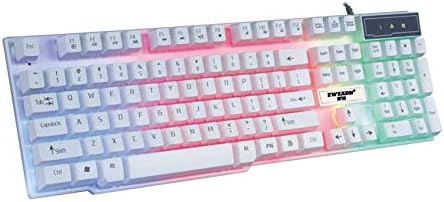
Foto 5.1: Keyboard with multi-color (RGB) backlighting activated. This image shows the keys illuminated with a spectrum of colors.
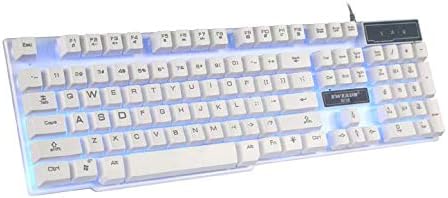
Foto 5.2: Keyboard with blue backlighting. The keys are illuminated with a solid blue color.

Foto 5.3: Keyboard with pink backlighting. The keys are illuminated with a solid pink color.
6. Nlekọta na nlekọta
To ensure the longevity and proper functioning of your EWEADN GX-50 keyboard, follow these maintenance guidelines:
- Nhicha:
- Kwụpụ kiiboodu na kọmputa gị tupu ihicha.
- Jiri akwa dị nro na-enweghị ntụpọ dampejiri mmiri tinye ma ọ bụ ihe ngwọta dị nro iji hichaa igodo igodo na elu.
- Zere iji kemịkalụ siri ike, ihe na-ehicha ihe, ma ọ bụ ihe mgbaze.
- Jiri ikuku abịakọrọ wepụ uzuzu na irighiri ihe n'etiti igodo.
- Nchekwa: Chekwaa ahụigodo ahụ n'ebe dị jụụ, kpọrọ nkụ pụọ na ìhè anyanwụ kpọmkwem na oke okpomọkụ.
- Zenarị Mwụfu: Debe mmiri mmiri na ahụigodo ka igbochi mmebi nke ihe ndị dị n'ime.
7. Nchọpụta nsogbu
If you encounter issues with your EWEADN GX-50 keyboard, refer to the following common troubleshooting steps:
| Nsogbu | Ngwọta enwere ike |
|---|---|
| Ahụigodo anaghị aza. |
|
| Certain keys are not working. |
|
| Backlighting is not working or behaving incorrectly. |
|
If the problem persists after trying these solutions, please contact EWEADN customer support for further assistance.
8. Nkọwapụta
| Njirimara | Nkọwa |
|---|---|
| Ụdị | Eweadn |
| Nọmba nlereanya | GX-50 |
| Njikọta | eriri USB |
| Ọnụọgụ igodo | 104 |
| Asụsụ ahụigodo | Bekee |
| Ngwa dakọtara | PC, Laptọọpụ |
| Ndakọrịta sistemụ arụmọrụ | Windows 10 (and generally compatible with other Windows versions, macOS, Linux) |
| Agba | Ọcha |
| Ọkwa Nguzogide mmiri | Ọ bụghị mmiri na-eguzogide |
9. Akwụkwọ ikike na nkwado
EWEADN products are designed for reliability and performance. For warranty information, please refer to the warranty card included with your purchase or visit the official EWEADN website. If you require technical support or have questions not covered in this manual, please contact EWEADN customer service through their official channels.
Debe nnata nzụta gị dị ka ihe akaebe nke ịzụrụ maka nkwupụta ikike.


