1. Okwu mmalite
This manual provides essential instructions for the safe and efficient use of your Vivibright F30 Projector. Please read this manual thoroughly before operating the device and retain it for future reference. The Vivibright F30 is a Full HD 1080p LED projector designed for home theater, education, and business presentations, offering 4200 lumens brightness and multiple connectivity options.
2. Ozi nchekwa
- Ịnye ọkụ: Jiri naanị ihe nkwụnye ike akọwapụtara. Hụ na vol ahụ dị.tage kwekọrọ na ihe onye na-egosi ihe ahụ chọrọ.
- Igwe ikuku: Ekpuchila oghere ikuku. Hụ na oghere zuru oke gburugburu ihe ngosi ahụ maka ikuku ikuku kwesịrị ekwesị iji gbochie oke okpomọkụ.
- Okpomọkụ: Onye na-eme ihe nkiri lamp generates heat. Avoid touching the lens or vents immediately after use.
- Nchedo anya: Elela anya ozugbo na oghere projector mgbe lamp is on. The bright light can cause eye strain or damage.
- Nkwanye: Debe ihe ngosi ahụ n'elu ebe kwụsiri ike ma dị larịị. Zere itinye ya n'ebe anwụ na-acha kpọmkwem, nso ebe okpomọkụ dị, ma ọ bụ n'ebe nwere oke iru mmiri ma ọ bụ uzuzu.
- Nhicha: Gbanyụọ ike ọkụ eletrik tupu ị sachaa ya. Jiri ákwà dị nro ma kpọọ nkụ. Ejila ihe nhicha mmiri ma ọ bụ ihe nhicha aerosol.
- Ije ozi: Do not attempt to service the projector yourself. Refer all servicing to qualified personnel.
3. Ihe ngwugwu
Chọpụta na ihe niile dị na ngwugwu:
- Vivibright F30 Projector
- Igwe ọkụ ọkụ
- Njikwa anya
- Akwụkwọ ntuziaka (akwụkwọ a)
- USB HDMI (nwere ike ịdị iche site na mpaghara/ngwugwu)
4. Ngwaahịa gafereview
Familiarize yourself with the projector's components and interfaces.
Foto 4.1: N'ihu view of the Vivibright F30 Projector, showing the lens and ventilation.

Foto 4.2: Akụkụ view of the Vivibright F30 Projector, highlighting the various input ports.
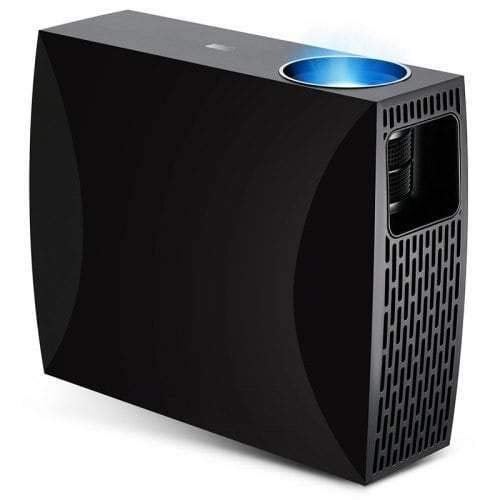
Foto 4.3: Top or rear view of the Vivibright F30 Projector, showing control buttons or additional vents.
4.1. Ọnụ ụzọ
- ọdụ ụgbọ mmiri HDMI: For connecting devices like laptops, gaming consoles, Blu-ray players, and media players.
- VGA ọdụ ụgbọ mmiri: For connecting older computers or other VGA-compatible devices.
- ọdụ ụgbọ mmiri USB: For connecting USB storage devices to play media directly.
- Apụọ ọdịyo: Maka ijikọ ndị na-ekwu okwu mpụga ma ọ bụ ekweisi.
- Ntinye ike: Maka ijikọ eriri ọkụ.
5. Nhazi
5.1. Ntinye
Position the projector on a stable surface or mount it appropriately. Ensure the projector is perpendicular to the projection screen for optimal image geometry. The projection distance can range from 1.2 to 6.8 meters, depending on the desired screen size.
5.2. Njikọ ike
- Jikọọ eriri ọkụ na ọdụ ụgbọ mmiri ntinye ike nke projector.
- Tinye nsọtụ nke ọzọ nke eriri ọkụ n'ime oghere eletrik gbadoro ụkwụ.
5.3. Ngwa Ntinye Ijikọ
Connect your desired source device (e.g., laptop, media player) to the projector using an appropriate cable (HDMI, VGA, USB). Ensure the cable is securely connected to both the projector and the source device.
5.4. Mgbanwe nke Isi Ihe na Ndozi
- Gbado anya: Gbanwee mgbanaka lekwasịrị anya na lenzi ihe onyonyo ahụ ruo mgbe onyonyo ahụ ga-apụta ìhè ma doo anya na ihuenyo ahụ.
- Nkume isi: If the projected image is trapezoidal (wider at the top or bottom), use the keystone correction feature (manual or digital, depending on model) to adjust the image to a rectangular shape.
6. Ntuziaka ọrụ
6.1. Ịgbanye / gbanyụọ
- Ike Na: Press the power button on the projector or the remote control. The indicator light will change, and the lamp ga-enwu enwu.
- Gbanyụọ: Press the power button again. Confirm shutdown if prompted. Allow the projector to cool down before unplugging it.
6.2. Nhọrọ Isi mmalite ntinye
Press the "Source" button on the remote control or the projector's control panel to cycle through available input sources (HDMI1, HDMI2, VGA, USB). Select the input corresponding to your connected device.
6.3. Ntugharị menu
Use the arrow buttons on the remote control or projector to navigate through the on-screen display (OSD) menu. Press "OK" or "Enter" to select an option and "Exit" or "Menu" to go back or close the menu.
6.4. Ntọala Foto na Ọdịyo
Adjust picture settings such as brightness, contrast, color, and aspect ratio via the OSD menu to optimize image quality. Adjust volume levels for the built-in speaker or connected external audio devices.
7. Nlekọta
7.1. Na-ehicha oghere
Gently wipe the projector lens with a soft, lint-free cloth specifically designed for optical surfaces. Do not use abrasive materials or harsh chemicals.
7.2. Ịsacha Ahụ Ihe Nlereanya
Use a soft, dry cloth to clean the exterior of the projector. For stubborn marks, a slightly damp cloth can be used, followed by a dry cloth. Ensure no liquid enters the ventilation openings.
7.3. Lamp Ndụ
The Vivibright F30 Projector utilizes an LED lamp with an estimated lifespan of up to 50,000 hours, requiring no regular replacement under normal usage conditions.
8. Nchọpụta nsogbu
| Nsogbu | Ihe nwere ike ime | Ngwọta |
|---|---|---|
| Ọnweghị onyonyo egosiri |
|
|
| Onyonyo na-agba agba |
|
|
| Image is trapezoidal (keystone effect) |
|
|
| Enweghị ụda |
|
|
| Ihe ngosiputa na-ekpo oke ọkụ ma ọ bụ gbanyụọ oke |
|
|
9. Nkọwapụta
| Njirimara | Nkọwa |
|---|---|
| Ụdị | Vivibright |
| Nlereanya | F30 |
| Mkpebi obodo | 1920 x 1080 (HD zuru ezu) |
| Mkpebi akwadoro | Ruo 4K |
| Icha ọkụ | 4200 Lumens (LED Luminous) |
| Ọnụọgụ ọdịiche | 2200:1 |
| Ngosipụta teknụzụ | LCD |
| Lamp Ụdị | Ikanam |
| Lamp Ndụ | Ruo awa iri abụọ |
| Ogologo amụma | 1.2 ruo 6.8 mita |
| Ọkwa mkpọtụ | 29 decibel |
| Njikọta | HDMI, VGA, USB |
| Atụmatụ pụrụ iche | Portable, Built-in Speaker |
| Ibu Ibu | 3 n'arọ |
| Ụdị nkwụnye | Ugwu okpokoro |
10. Akwụkwọ ikike na nkwado
10.1. Akwụkwọ ikike Ozi
The Vivibright F30 Projector comes with a Akwụkwọ ikike afọ 1 site na ụbọchị ịzụrụ. Akwụkwọ ikike a na-ekpuchi ntụpọ nrụpụta na adịghị arụ ọrụ n'okpuru ojiji nkịtị. Biko dowe ihe akaebe nke ịzụrụ ihe maka akwụkwọ ikike.
The warranty does not cover damage caused by misuse, accidents, unauthorized repairs, or normal wear and tear.
10.2. Nkwado ndị ahịa
For technical assistance, warranty claims, or further inquiries, please contact Vivibright customer support through their official website or the contact information provided with your purchase documentation. When contacting support, please have your product model (F30) and purchase details ready.


