Okwu mmalite
This manual provides instructions for the Phomemo White Self-Adhesive Thermal Paper, designed for use with Phomemo M02, M02 Pro, M02S, P2S, M03, and M04S mini sticker printers. This glossy, printable sticker paper is ideal for various applications, including DIY projects, journaling, study notes, and personalizing belongings.
Each roll measures 50mm in width and 3.5m in length, with a printable width of 50mm. The paper features a 2mm blank edge for easy peeling and cutting.
Ndị nbipute dakọtara
This thermal sticker paper is specifically designed to work with the following Phomemo mini sticker printer models:
- Phomemo M02
- Phomemo M02S
- Phomemo M02 Pro
- Phomemo P2S
- Phomemo M03
- Phomemo M03AS
- Phomemo M04S
- Phomemo M04AS

Figure 1: Compatible Phomemo Mini Printers
Setup: Loading the Thermal Paper
- Ensure your Phomemo mini printer is powered off.
- Open the printer's paper compartment. This is typically done by pressing a release button or sliding a latch.
- Remove any existing paper roll or core.
- Unwrap a new roll of Phomemo White Self-Adhesive Thermal Paper.
- Insert the paper roll into the compartment, ensuring the printable (glossy) side is facing upwards and the paper feeds smoothly from the bottom of the roll. The paper should feed out towards the printing slot.
- Close the paper compartment securely until it clicks into place.
- Gently pull a small length of paper out from the printing slot to ensure it is loaded correctly.

Figure 2: Phomemo Thermal Paper Rolls with Dimensions
For a visual guide on loading paper, refer to the video below:
Video 1: Phomemo M02 Multipurpose Pocket Printer - Demonstrates paper loading and basic printing with the M02 printer.
Ntuziaka ọrụ
1. Ijikọ na ngwa
To operate your Phomemo printer with this paper, download the official Phomemo app from your device's app store. Ensure Bluetooth is enabled on your mobile device and follow the app's instructions to pair with your printer.
2. Mbipụta
Once connected, you can select images, text, or templates within the Phomemo app to print. Adjust settings such as size and density as needed. The printer will automatically feed the paper and print your selection.

Figure 3: Clear Print for DIY Ideas
Watch this video for a demonstration of printing various designs:
Video 2: Phomemo M02S Pocket Thermal Printer - DIY Creation Print - Shows the printing process and creative uses.
3. Peeling and Cutting Stickers
The thermal paper features a 2mm blank edge, making it easy to peel the sticker from its backing. You can also cut the printed image or text to your desired shape using scissors.
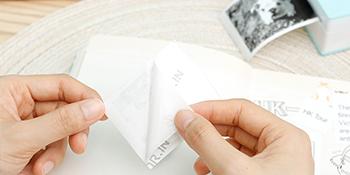
Figure 4: Easy Peeling of Stickers

Figure 5: Phomemo Sticker Paper Features: Clear Printing, Easier Tearing, Good Adhesive
Nlekọta
Nchekwa akwụkwọ
To ensure the longevity and quality of your thermal prints, store unused paper rolls in a cool, dry place away from direct sunlight, heat, and humidity. Avoid contact with chemicals or abrasive surfaces that could damage the thermal coating.
Printer Head Cleaning
Periodically clean the printer head to maintain optimal print quality. Use a soft, lint-free cloth lightly dampened with isopropyl alcohol. Gently wipe the thermal print head (the heated element that creates the image) to remove any dust or residue. Ensure the printer is off and completely dry before use.
Nchọpụta nsogbu
Poor Print Quality (Faint or Missing Lines)
- Lelee ntụzịaka akwụkwọ: Ensure the glossy, printable side of the thermal paper is facing the print head.
- Isi Mbipụta dị ọcha: A dirty print head can cause poor print quality. Refer to the Maintenance section for cleaning instructions.
- Ogo akwụkwọ: Ensure you are using genuine Phomemo thermal paper.
- Ọkwa batrị: A low battery can affect print quality. Charge your printer fully.
Paper Not Feeding or Jamming
- Correct Loading: Verify the paper roll is loaded correctly and seated properly in the compartment. Refer to the Setup section.
- Ihe mgbochi: Check for any foreign objects or paper scraps obstructing the paper path.
- Roll Condition: Ensure the paper roll is not damaged or excessively curled.
Printer Not Connecting via Bluetooth
- Printer On: Ensure the printer is powered on and has sufficient battery.
- Agbanyere Bluetooth: Confirm Bluetooth is active on your mobile device.
- Ngwakọta ngwa: Follow the pairing instructions within the Phomemo app. Try unpairing and re-pairing if issues persist.
- Device Proximity: Keep your device close to the printer during pairing and printing.
Nkọwapụta
| Njirimara | Nkọwa |
|---|---|
| Akụkụ ngwaahịa | 2.36 x 1.26 x 0.04 inches (Paper Roll) |
| Ibu Ibu | 0.176 ounces (per roll) / 5 Grams |
| Emecha akwụkwọ | kenkowaputa |
| Agba | White (Prints Black on White) |
| Obosara mpịakọta mpịakọta | 2.08" (53mm) |
| Obosara ebipụta | 1.97" (50mm) |
| Roll Ogologo | 11.48ft (3.5m) |
| Dayameta mpịakọta mpịakọta | 1.18" (30mm) |
| Image Retention Time | Up to 2 years (when stored properly) |
Akwụkwọ ikike na nkwado
For warranty information and customer support, please visit the official Phomemo store or contact their customer service directly. Keep your purchase receipt for any warranty claims.
Official Phomemo Store: Phomemo Store on Amazon


