1. Okwu mmalite
Thank you for choosing the EMPIRE GAMING Hellhounds Gaming Pack. This comprehensive kit includes a semi-mechanical gaming keyboard, a high-precision gaming mouse, and a durable mousepad, designed to enhance your gaming experience. This manual provides detailed instructions for setup, operation, maintenance, and troubleshooting to ensure optimal performance of your new gaming peripherals.

Figure 1: EMPIRE GAMING Hellhounds Gaming Mouse lineup.
2. Ihe ngwugwu
Biko hụ na ihe niile dị na ngwugwu gị:
- EMPIRE GAMING Hellhounds Semi-Mechanical Gaming Keyboard
- EMPIRE GAMING Hellhounds Gaming Mouse
- EMPIRE GAMING Hellhounds Mousepad
- Akwụkwọ ntuziaka (akwụkwọ a)
3. Ntuziaka Nhazi
3.1 Connecting the Keyboard and Mouse
- Chọta ọdụ ụgbọ mmiri USB dị na kọmputa gị.
- Plug the USB connector of the EMPIRE GAMING Hellhounds Keyboard into the USB port.
- Plug the USB connector of the EMPIRE GAMING Hellhounds Mouse into another available USB port.
- Sistemụ arụmọrụ gị kwesịrị ịchọpụta ma wụnye draịva dị mkpa na akpaghị aka.
3.2 Mouse Weight Adjustment
The Hellhounds Gaming Mouse features adjustable weights for personalized feel and control.
- Carefully open the weight compartment located on the underside of the mouse.
- Add or remove weights as desired to achieve your preferred mouse balance and feel.
- Close the weight compartment securely.

Figure 2: Hellhounds Gaming Mouse with adjustable weights.
3.3 Nwụnye ngwanrọ
To unlock the full customization potential of your Hellhounds Gaming Pack, including macro programming and advanced RGB lighting effects, download and install the dedicated software from the official EMPIRE GAMING websaịtị: www.empiregaming.eu.
- Gaa leta www.empiregaming.eu.
- Navigate to the 'Support' or 'Downloads' section.
- Locate the software for the Hellhounds Gaming Pack (Model OE-KB-88DE3).
- Download and run the installer, following the on-screen instructions.
- Malitegharịa ekwentị gị ma ọ bụrụ na kpaliri gị.

Figure 3: EMPIRE GAMING Macro Manager software interface.
4. Ntuziaka ọrụ
4.1 Atụmatụ ahụigodo
The Hellhounds Keyboard offers advanced features for gaming and productivity.
- Programmable Macros: The keyboard supports up to 33 configurable macros across three distinct profiles. Use the dedicated software to record and assign complex key sequences to the macro keys (M1, M2, M3, G1-G5).
- Ụzọ mkpirisi Multimedia: Access multimedia controls directly using function key combinations (e.g., Fn + F5-F11 for music settings).
- Mkpọchi igodo Windows: Prevent accidental interruptions during gaming by disabling the Windows key.
- Adjustable Wrist Rest: The integrated wrist rest and adjustable feet provide comfort during extended gaming sessions.
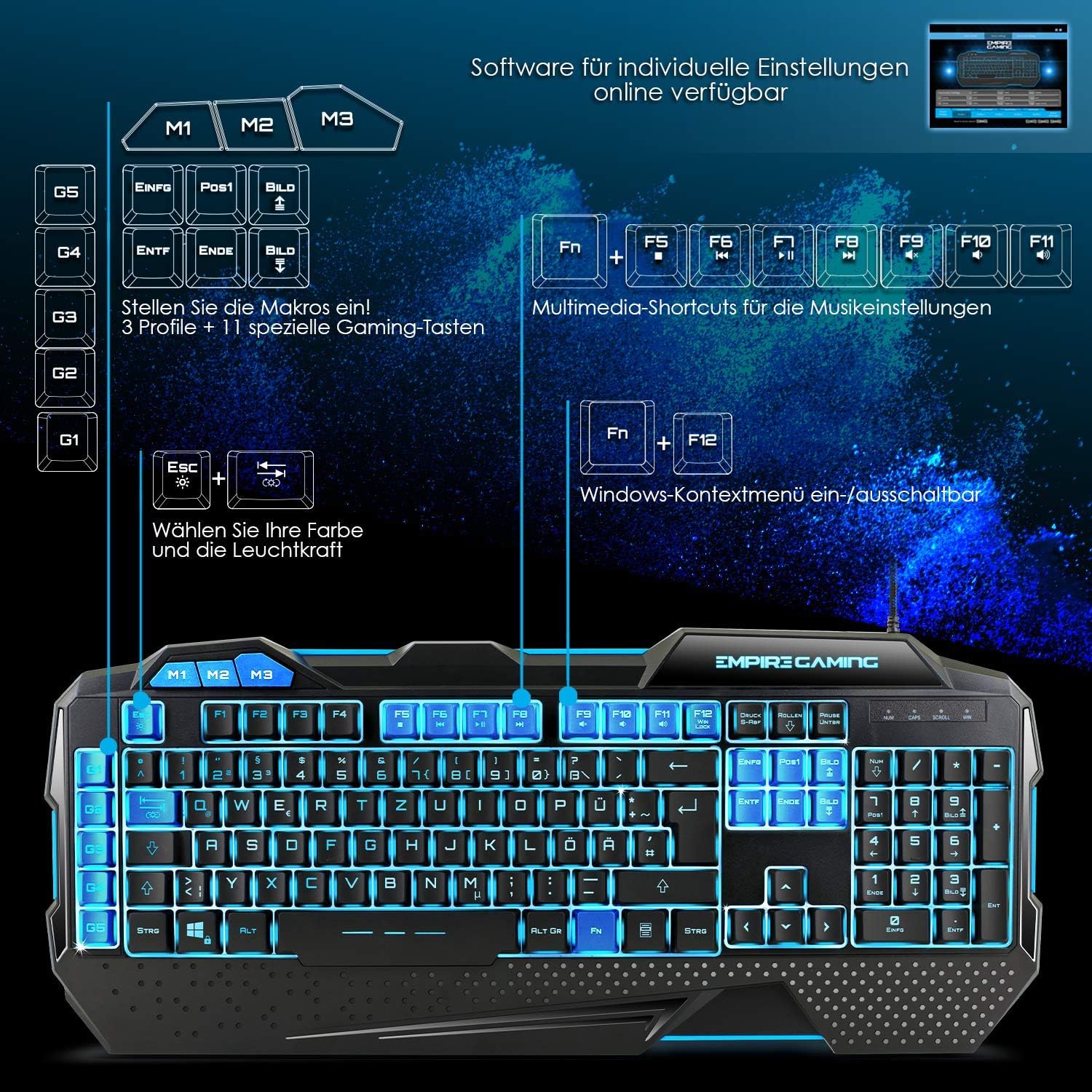
Figure 4: Hellhounds Keyboard layout highlighting macro and multimedia keys.
4.2 Atụmatụ òké
The Hellhounds Mouse is designed for precision and comfort.
- DPI nwere ike imeghari: Cycle through DPI settings up to 7200 DPI for precise cursor control. DPI levels can be adjusted via dedicated buttons on the mouse or through the software.
- Bọtịnụ enwere ike ime: The mouse features 7 programmable buttons. Utilize the software to assign custom functions, macros, or rapid-fire commands to these buttons.
- Nhazi Ergonomic: Ergonomic finger rests and adjustable weights contribute to comfortable handling during long gaming sessions.
4.3 RGB njikwa ọkụ
Both the keyboard and mouse feature customizable RGB LED backlighting.
- Ìhè azụ kiiboodu: The keyboard offers seven colors and various lighting effects. Adjustments can be made directly on the keyboard using function key combinations (e.g., Fn + Esc for brightness, Fn + PrtSc for mode) or through the dedicated software.
- Mouse Backlight: Customize the mouse's LED backlight colors and effects using the dedicated software.

Figure 5: Hellhounds Keyboard showcasing various RGB lighting options.

Figure 6: Software interface for assigning custom functions to keys.
5. Nlekọta
Proper maintenance ensures the longevity and performance of your gaming pack.
- Nhicha: Use a soft, dry cloth to wipe down the keyboard, mouse, and mousepad regularly. For deeper cleaning, a slightly damp A pụrụ iji ákwà nwere ncha dị nro mee ihe, na-eme ka mmiri ghara ịbanye na ngwaọrụ ndị ahụ.
- Mwepụ uzuzu: Use compressed air to remove dust and debris from between keyboard keys and mouse sensors.
- Zere Mmiri mmiri: Ewepụla ngwaọrụ ndị ahụ ka ọ bụrụ oke mmiri ma ọ bụ tinye ha na mmiri.
- Nchekwa: Debe ngwaọrụ ndị a n'ebe dị jụụ ma kpọọ nkụ, ebe anwụ na-anaghị apụta kpọmkwem, nakwa ebe okpomọkụ dị oke elu mgbe a naghị eji ha.
6. Nchọpụta nsogbu
If you encounter issues with your EMPIRE GAMING Hellhounds Pack, refer to the following common solutions:
- Amataghị ngwaọrụ:
- Ensure the USB cables are securely plugged into your computer's USB ports.
- Try plugging the devices into different USB ports.
- Malitegharịa ekwentị gị na kọmputa.
- Check your operating system's Device Manager to see if the devices are listed and drivers are installed correctly. - Igodo ahụigodo anaghị azaghachi:
- Check for any physical obstructions under the keys.
- Ensure the keyboard is not in a locked mode (e.g., gaming mode disabling certain keys).
- Reinstall the keyboard software. - Mouse Cursor Lag or Inaccuracy:
- Clean the mouse sensor with a soft cloth.
- Ensure the mousepad surface is clean and free of debris.
- Adjust the DPI settings of the mouse.
- Try the mouse on a different surface.
- Reinstall the mouse software. - Ọkụ RGB anaghị arụ ọrụ:
- Ensure the software is installed and running.
- Check the lighting settings within the software.
- For the keyboard, try cycling through lighting modes and brightness levels using the dedicated function key combinations. - Okwu ngwanrọ:
- Ensure you have downloaded the correct software version for your model (OE-KB-88DE3) from www.empiregaming.eu.
- Run the software as an administrator.
- Temporarily disable antivirus software during installation if issues persist.
7. Nkọwapụta
Technical specifications for the EMPIRE GAMING Hellhounds Gaming Pack:
| Njirimara | Nkọwapụta |
|---|---|
| Ụdị | Ịgba egwu EMPIRE |
| Nọmba nlereanya | OE-KB-88DE3 |
| Agba | Nwa |
| Teknụzụ Njikọta | USB |
| Ngwa dakọtara | PC, Laptọọpụ |
| Sistemụ nrụọrụ | Windows 10, Windows XP (and newer versions) |
| Ụdị ahụigodo | Semi-mechanical, Gaming |
| Nhazi ahụigodo | QWERTZ (German layout) |
| Keyboard Macros | 33 configurable macros across 3 profiles |
| Igwe DPI | Ruo 7200 DPI (nwere ike idozi) |
| bọtịnụ òké | 7 bọtịnụ mmemme |
| Ịkụ azụ azụ | RGB LED (7 colors, various effects) |
| Atụmatụ pụrụ iche | Ergonomic design, adjustable mouse weights, dedicated software |

Figure 7: Dimensions of the Hellhounds Keyboard and Mouse.
8. Akwụkwọ ikike na nkwado
For warranty information, technical support, and to download the latest software and drivers, please visit the official EMPIRE GAMING websaịtị:
EMPIRE GAMING is committed to providing high-quality products and customer satisfaction. If you have any questions or require further assistance, please do not hesitate to contact our support team through the websaịtị.


