Okwu mmalite
Welcome to the user manual for your Google Pixel 3 smartphone. This guide provides comprehensive instructions on setting up, operating, maintaining, and troubleshooting your device. The Google Pixel 3 is designed to offer a seamless and intelligent smartphone experience, featuring an advanced camera system, the Google Assistant, and an all-day battery.
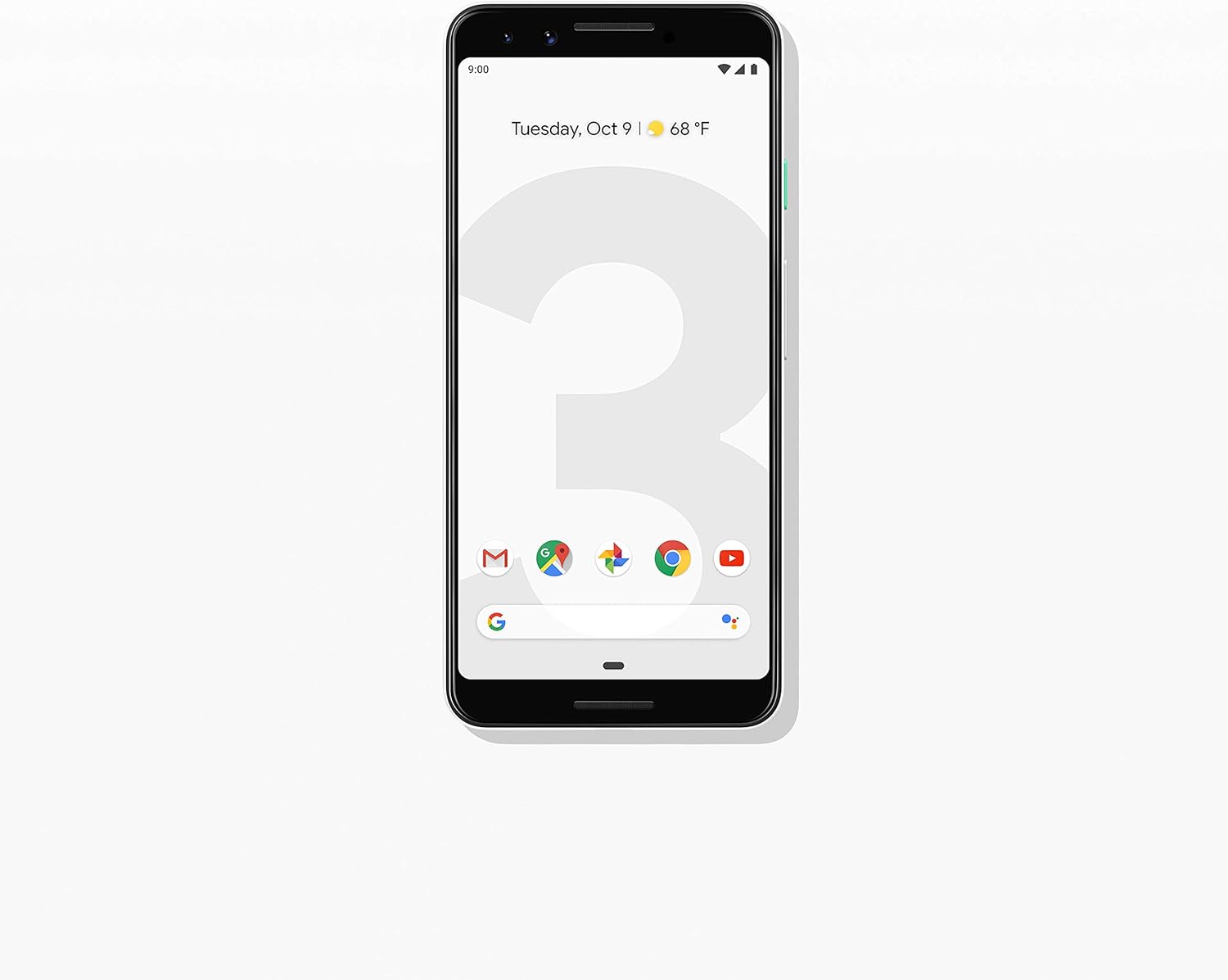
Foto: N'ihu view of the Google Pixel 3 smartphone, showcasing its display and sleek design in Clearly White.
Melite
1. Unboxing na mbido nyocha
Upon opening the package, ensure all components are present and in good condition. The standard package for your Google Pixel 3 includes:
- Google Pixel 3 Smartphone
- USB-C digital earbud
- USB-C ka eriri USB-C
- USB-C to 3.5mm headphone adapter
- Ihe ngbanwe ngwa ngwa (USB-A ka USB-C)
- Ngwa SIM
2. Ntinye kaadi SIM
To install your Nano-SIM card:
- Chọta tray kaadị SIM n'akụkụ aka ekpe nke ekwentị ahụ.
- Insert the SIM tool into the small hole on the tray to eject it.
- Tinye kaadị Nano-SIM gị n'ime traị ahụ nwere kọntaktị ọla edo chere ihu ala.
- Jiri nwayọọ tụgharịa traị ahụ azụ n'ime ekwentị ruo mgbe ọ pịrị n'ime ebe.

Foto: Akụkụ view of the Google Pixel 3, highlighting the location of the SIM card tray and volume/power buttons.
3. Ọkachamara Mmalite na Ntọlite
Press and hold the power button on the right side of the phone until the Google logo appears. Follow the on-screen instructions to complete the initial setup, including connecting to Wi-Fi, signing in with your Google account, and setting up security features.
4. Ịchaji ngwaọrụ
Connect the USB-C cable to the phone's charging port at the bottom and the other end to the power adapter. Plug the adapter into a wall outlet. The Pixel 3 supports fast charging and wireless charging. A full charge typically takes approximately 2 hours.
Ntuziaka ọrụ
1. Basic Navigation (Android 9 Pie)
The Google Pixel 3 runs on Android 9 Pie, offering intuitive gesture navigation.
- Ihuenyo ụlọ: Si na ala ihuenyo pịgharịa ka ị gaa na ihuenyo ụlọ.
- Drawer ngwa: Swipe up from the home screen to access all your applications.
- Ngwa ọhụrụ: Sụgharịa site na ala ma jide ya view ngwa ndị ejiri n'oge na-adịbeghị anya.
- Azu: Tap the back arrow icon or swipe from the left or right edge of the screen (if gesture navigation is enabled).
- Amamọkwa: Si n'elu ihuenyo gaa ala view ọkwa na ntọala ngwa ngwa.

Image: The Google Pixel 3 display showing the home screen with various app icons and the date/weather widget.
2. Akụkụ igwefoto
The Pixel 3 camera is equipped with advanced features to capture high-quality photos and videos.
- Group Selfies: Utilize the wide-angle front camera to fit more people into your selfies.
- Ọnọdụ Eserese: Create professional-looking photos with a blurred background (bokeh effect).
- Top Shot: Automatically recommends the best shot from a burst of photos, ensuring no blinks or missed moments.
- Anya abalị: Enhances low-light photography, capturing vibrant details in dark environments.
- Ndekọ vidiyo 4K: Record high-resolution videos at 30 frames per second.
3. Onye enyemaka Google
Access the Google Assistant by squeezing the sides of your phone or by saying "Hey Google" or "Ok Google." The Assistant can help with tasks such as setting alarms, getting directions, making calls, sending messages, and providing information.
4. Call Screening
The Call Screen feature allows the Google Assistant to answer calls from unknown numbers and provide a real-time transcription of the conversation, helping you avoid spam and nuisance calls.
5. Digital Wellbeing
Monitor and manage your screen time with Digital Wellbeing. Set app timers, enable Wind Down mode to grayscale your screen and mute notifications for better sleep, and focus on what matters.
6. Google Lens
Use Google Lens to search what you see. Point your camera at objects, text, or landmarks to get information, translate languages, or identify plants and animals.
Nlekọta
1. Nlekọta batrị
To maximize battery life (2915 mAh capacity):
- Zere oke okpomọkụ.
- Use the provided charger or a certified wireless charger.
- Enable Adaptive Battery in settings to limit battery usage for infrequently used apps.
- Consider using Battery Saver mode when battery is low.
2. Mmelite ngwanrọ
Keep your device's software up to date to ensure optimal performance, security, and access to new features. Navigate to Ntọala > Sistemụ > Elu > Mmelite sistemụ iji lelee ma wụnye mmelite.
3. Na-ehicha ngwaọrụ gị
Use a soft, lint-free cloth to clean the screen and body of your Pixel 3. Avoid abrasive materials or harsh chemicals. For stubborn smudges, slightly dampen akwa na mmiri.
4. Njikwa nchekwa
The Pixel 3 comes with 64GB of internal storage. To manage storage effectively:
- Regularly clear app caches.
- Hichapụ adịghị mkpa files, foto na vidiyo.
- Utilize cloud storage services like Google Photos (which offers free unlimited storage for Pixel users at original quality for photos and videos uploaded from the device).
Nchọpụta nsogbu
This section addresses common issues you might encounter with your Google Pixel 3.
| Nsogbu | Ngwọta |
|---|---|
| Ekwentị anaghị agbanye | Ensure the battery is charged. Connect to a charger for at least 15 minutes. If unresponsive, press and hold the power button for 30 seconds. |
| Ndụ batrị adịghị mma | Check battery usage in settings to identify draining apps. Reduce screen brightness, disable unnecessary features (Bluetooth, GPS when not in use), and enable Adaptive Battery. |
| Ngwa na-akụda ma ọ bụ na-ajụ oyi | Hichapụ ebe nchekwa na data nke ngwa ahụ (Settings > Apps & notifications > App info > [App Name] > Storage & cache). Update the app or reinstall it. Ensure system software is up to date. |
| Connectivity issues (Wi-Fi/Bluetooth) | Toggle Wi-Fi/Bluetooth off and on. Restart the phone. Forget and reconnect to the network/device. Reset network settings (Settings > System > Advanced > Reset options > Reset Wi-Fi, mobile & Bluetooth). |
| Phone is slow or unresponsive | Restart the phone. Clear cached data. Uninstall unused apps. Check for system updates. As a last resort, consider a factory reset (back up data first). |
Ntọgharị ụlọ nrụpụta
A factory reset will erase all data from your phone's internal storage. Kwadobe data niile dị mkpa tupu ị gaa n'ihu.
- Gaa na Settings > System > Advanced > Reset options.
- Kpatụ Hichapụ data niile (ntọgharị ụlọ ọrụ).
- Kwenye mkpebi gị ma tinye PIN/ụkpụrụ/paswọọdụ gị ma ọ bụrụ na achọrọ ya.
- Kpatụ Hichapụ data niile.
Nkọwapụta
Key technical specifications for the Google Pixel 3 (Model: G013A):
| Njirimara | Nkọwa |
|---|---|
| Akụkụ ngwaahịa | 5.73 x 2.69 x 0.31 sentimita asatọ |
| Ibu Ibu | 12.8 ounces |
| Sistemụ nrụọrụ | Android 9.0 Pie |
| RAM | 4 GB |
| Ike Nchekwa ebe nchekwa | 64 GB |
| Nha ihuenyo | 5.5 sentimita asatọ |
| Mkpebi | 2560 x1440 |
| Ike batrị | 2915 ndeamp Oge awa |
| Oge Nchaji | Oge awa 2 (ihe dị ka) |
| Teknụzụ Njikọta | Bluetooth, 4G Cellular |
| Atụmatụ pụrụ iche | 4K Video Recording, GPS |
| Agba | Clearly White |
Akwụkwọ ikike na nkwado
Your Google Pixel 3 is covered by a limited warranty provided by Google LLC. For detailed warranty terms and conditions, please refer to the warranty information included with your device packaging or visit the official Google support websaịtị.
Nkwado kọntaktị
For technical assistance, troubleshooting beyond this manual, or warranty claims, please contact Google Support:
- Nkwado n'ịntanetị: Gaa leta support.google.com/pixelphone
- Nzukọ ogbe: Engage with other Pixel users and experts on Google's official forums.
When contacting support, please have your device's model number (G013A) and serial number ready.


