Okwu mmalite
The Trust Dona Wireless Bluetooth Headphones offer a versatile audio experience with both Bluetooth connectivity and an integrated MicroSD MP3 player. Designed for comfort and portability, these headphones feature a foldable design, comfortable ear cushions, and an adjustable headband. This manual provides detailed instructions for setup, operation, and maintenance to ensure optimal performance.

Image: Trust Dona Wireless Bluetooth Headphones, blue color, showcasing the overall design with 'Up to 7 hours playtime', 'Play from Micro-SD', and 'Built-in Microphone' icons.
Ihe ngwugwu
Biko lelee ngwungwu maka ihe ndị a:
- Trust Dona Wireless Bluetooth Headphones
- 3.5mm eriri inyeaka
- Igwe nchaji USB
- Ntuziaka onye ọrụ
Ngwaahịa gafereview
Familiarize yourself with the main components and controls of your Trust Dona headphones.

Foto: Akụkụ view of the blue Trust Dona headphones, highlighting the control buttons (power, volume, track control) and ports (USB charging, 3.5mm audio jack, MicroSD slot) located on the right earcup.
The headphones feature an intuitive control panel on one earcup, allowing easy access to power, volume adjustment, track navigation, and call management. A built-in microphone is integrated for hands-free communication.
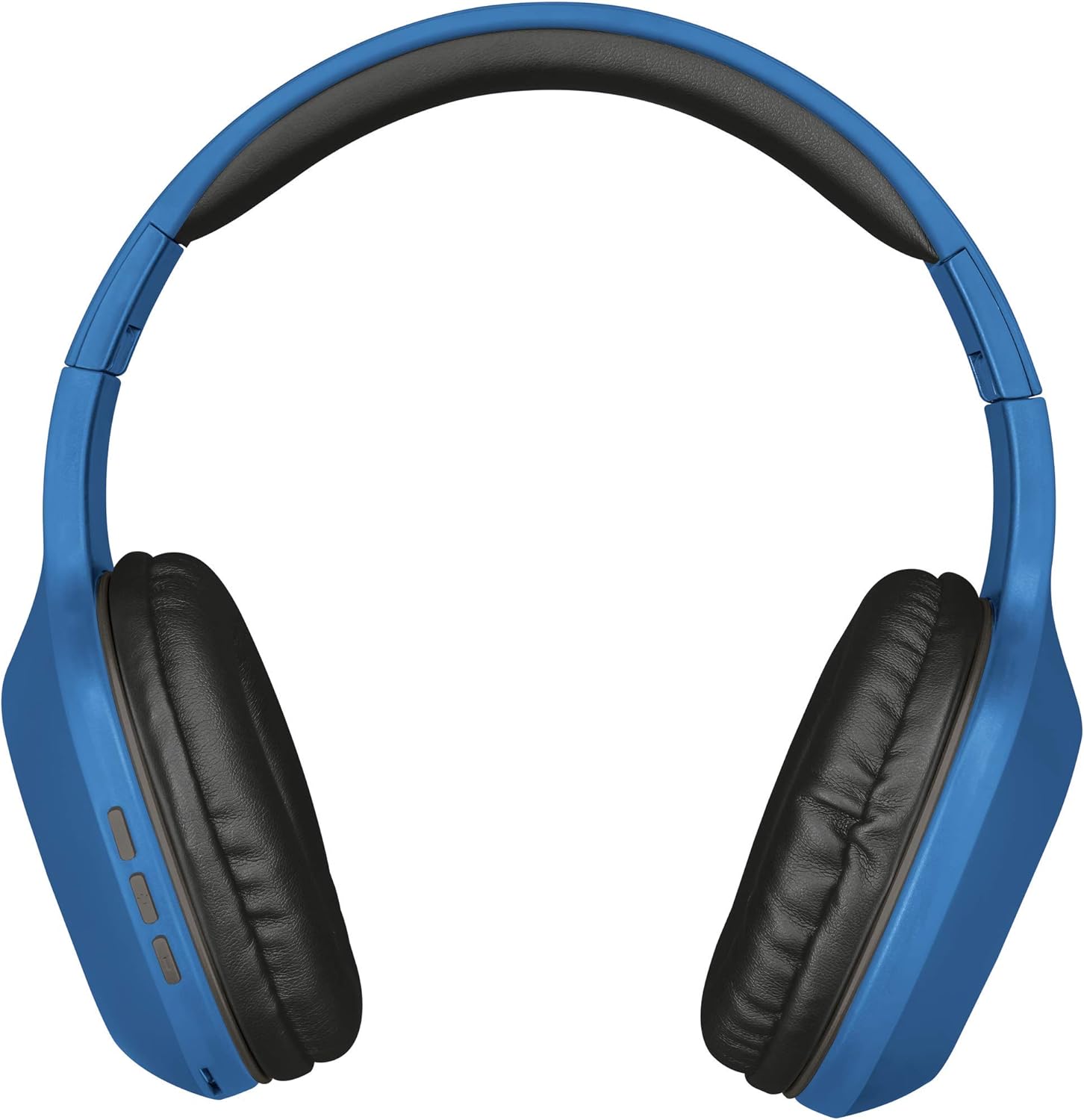
Image: Trust Dona headphones shown in their folded configuration, demonstrating the compact design for storage and travel.
The foldable design allows for convenient storage and portability, making them ideal for travel.
Melite
1. Ịchaji ekweisi
- Connect the supplied USB charging cable to the charging port on the headphones.
- Tinye eriri USB n'akụkụ nke ọzọ n'ime isi iyi ike USB dakọtara (dịka, ọdụ ụgbọ USB kọmputa, nkwụnye mgbidi USB).
- The LED indicator will illuminate during charging and turn off or change color once fully charged.
- Ụgwọ zuru ezu na-enye ihe ruru awa 7 nke oge egwuregwu.
2. Njikọ Bluetooth
- Gbaa mbọ hụ na ebubo ekweisi.
- Pịa ma jide bọtịnụ ike ruo mgbe akara ọkụ ọkụ na-acha anụnụ anụnụ na ọbara ọbara, na-egosi ọnọdụ njikọ.
- Na ngwaọrụ gị (smartphone, tabletị, kọmpụta), mee ka Bluetooth nwee ike wee chọọ ngwaọrụ dị.
- Select "Trust Dona" from the list of found devices.
- Once paired, the LED indicator will flash blue slowly or remain solid blue.
3. MicroSD kaadị ntinye
- Locate the MicroSD card slot on the headphones.
- Gently insert a MicroSD card (pre-loaded with MP3 audio files) banye n'ime oghere ahụ ruo mgbe ọ pịa n'ime ebe ahụ.
- The headphones will automatically switch to MP3 playback mode if a card is detected.
Ntuziaka ọrụ
1. Gbanyụọ / gbanyụọ
- Ike Na: Pịa ma jide bọtịnụ ike maka ihe dịka sekọn 3 ruo mgbe ihe ngosi LED na-enwu.
- Gbanyụọ: Pịa ma jide bọtịnụ ike maka ihe dịka sekọnd 3 ruo mgbe ihe ngosi LED gbanyụrụ.
2. Ọnọdụ Bluetooth
- Gwuo/kwụsịtụ: Press the Multi-function button (usually the Power button when not in pairing mode).
- Elu elu/ala: Press the Volume + / - buttons.
- Next / Gara aga Track: Press and hold the Volume + / - buttons.
- Azịza/Kwụsị Oku: Pịa bọtịnụ Multi-function.
- Jụ oku: Pịa ma jide bọtịnụ ọtụtụ ọrụ.
- Nọmba Ikpeazụ emegharịgharịrị: Pịa bọtịnụ Multi-function ugboro abụọ.
3. MicroSD MP3 Mode
- When a MicroSD card is inserted, the headphones will automatically switch to MP3 playback.
- Gwuo/kwụsịtụ: Pịa bọtịnụ Multi-function.
- Elu elu/ala: Press the Volume + / - buttons.
- Next / Gara aga Track: Press and hold the Volume + / - buttons.
4. Wired Mode (3.5mm Auxiliary)
- Connect the supplied 3.5mm auxiliary cable to the audio input port on the headphones and to your audio source.
- In wired mode, the headphone's battery is not used, and controls on the headphones may be limited (volume and track control will typically be managed by the connected device).
Nlekọta
- Nhicha: Jiri akwa dị nro dị nro hichaa ekweisi. Ejila ihe nchacha abrasive ma ọ bụ ihe mgbaze.
- Nchekwa: When not in use, store the headphones in a cool, dry place. Utilize the foldable design for compact storage.
- Nlekọta batrị: Iji mee ka batrị dị ogologo, zere iwepụ ekweisi gị kpamkpam mgbe niile. Chaji ha mgbe niile, ọbụlagodi na ejibeghị ha ruo ogologo oge.
- Zere Oke Ọnọdụ: Ekwela ka ekweisi gị nọrọ n'ọnọdụ okpomọkụ dị oke elu, iru mmiri dị elu, ma ọ bụ anwụ kpọmkwem.
Nchọpụta nsogbu
| Nsogbu | Ngwọta |
|---|---|
| Igwe ekweisi anaghị agba ọkụ. | Ensure the headphones are fully charged. Connect to a power source using the USB cable. |
| Enweghị ụda sitere na ekweisi. | Check volume levels on both the headphones and the connected device. Ensure the headphones are properly paired via Bluetooth or the 3.5mm cable is securely connected. |
| Enweghị ike ijikọ site na Bluetooth. | Ensure headphones are in pairing mode (flashing blue/red LED). Turn off and on Bluetooth on your device. Move closer to the headphones (within 10 meters). |
| MicroSD card not playing. | Ensure the MicroSD card is inserted correctly and contains compatible MP3 audio files. Try re-inserting the card. |
| Ogo ọdịyo adịghị mma. | Ensure there are no obstructions between the headphones and the Bluetooth device. Try moving closer to the device. Check the audio source quality. |
Nkọwapụta
| Aha Nlereanya | Dona |
| Nọmba nlereanya | 22890 |
| Teknụzụ Njikọta | Ikuku (Bluetooth) |
| Teknụzụ nzikọrịta ozi ikuku | Bluetooth |
| Jack ekweisi | USB (for charging), 3.5mm (auxiliary audio) |
| Ụdị Ihe | Na-ntị |
| Agba | Acha anụnụ anụnụ |
| Ibu Ibu | 185 grams |
| Atụmatụ pụrụ iche | Foldable, Integrated MicroSD MP3 Player, Built-in Microphone |
| Ngwakọta batrị | Lithium-ion polymer |
| Batrị enwere ike ịchaji | Yes (1 included) |
| Oge egwuregwu | Ruo awa iri abụọ |
| Ụdị njikwa | Njikwa Mgbasa ozi |
| Ihe onwunwe | Plastic |
Akwụkwọ ikike na nkwado
For warranty information and technical support, please refer to the documentation provided with your purchase or visit the official Trust Gaming websaịtị. Debe ihe akaebe nke ịzụrụ ihe maka akwụkwọ ikike ọ bụla.
If you encounter issues not covered in this manual, please contact Trust customer support for assistance.


