1. Okwu mmalite
The SocketScan S700 is a 1D barcode scanner featuring Bluetooth wireless technology, designed for efficient and reliable barcode scanning. It comes with a dedicated Charging Dock for convenient power management and storage. This device is engineered for scanning 1D barcodes from both paper and digital screens, making it versatile for various applications such as retail point-of-sale (POS), field service, inventory management, and asset tracking.
Its lightweight and ergonomic design, coupled with a long-lasting battery, ensures sustained operation throughout typical workdays. The scanner includes intuitive indicator lights for battery status, Bluetooth connectivity, and scanning notifications, providing clear operational feedback.
2. Ihe ngwugwu
- SocketScan S700 Linear Barcode Scanner
- Nchaji Dock
- Batrị 2 AA (gụnyere)
3. Ntọala na Nchaji
Before initial use, ensure the SocketScan S700 scanner is fully charged. The included Charging Dock provides a convenient way to power the device and keep it ready for use.

Figure 3.1: SocketScan S700 in Charging Dock. The scanner fits securely into the dock for charging and storage, ensuring it is always ready for operation.
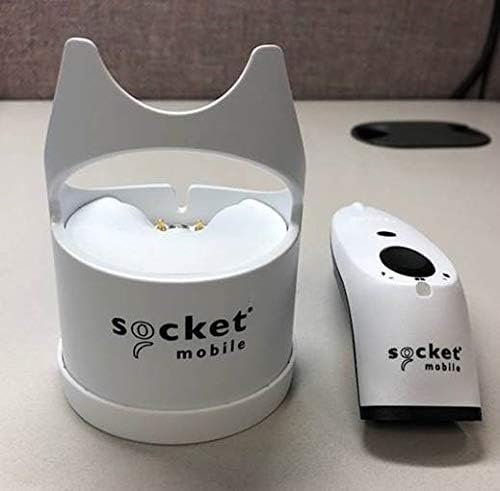
Figure 3.2: SocketScan S700 and Charging Dock separated. This image shows the scanner and its dock as individual components, highlighting their compact design.
3.1 Ịchaji ihe nyocha ahụ
- Connect the Charging Dock to a power source using the provided cable (if applicable, or assume standard USB connection).
- Place the SocketScan S700 scanner into the Charging Dock. Ensure it is seated correctly.
- The battery indicator light on the scanner will illuminate to show charging status. A full charge typically takes a few hours.
3.2 Njikọ Bluetooth
The SocketScan S700 utilizes Bluetooth wireless technology for connectivity with host devices. It is compatible with a wide range of Bluetooth-enabled smartphones, tablets, notebooks, and desktop computers, including iOS, Android, and Windows devices.
- Ensure the scanner is powered on.
- Put the scanner into pairing mode. (Refer to the quick start guide for specific button presses, typically holding the power button or a dedicated pairing button until the Bluetooth indicator flashes).
- On your host device (smartphone, tablet, computer), navigate to the Bluetooth settings.
- Chọọ maka available devices and select "SocketScan S700" from the list.
- Confirm the pairing. The Bluetooth indicator light on the scanner will turn solid when successfully connected.
For applications with integrated Capture SDK, the scanner offers native compatibility. For other applications, it operates in HID (keyboard emulation) mode, allowing it to function as a standard keyboard input device.
4. Na-arụ ọrụ nyocha
The SocketScan S700 is designed for straightforward 1D barcode scanning. Once paired with your host device, it is ready for operation.

Figure 4.1: Scanning 1D Barcodes and Compatibility. This image illustrates the scanner's ability to read 1D barcodes and its broad compatibility with popular POS and mobile operating systems.
4.1 Usoro nyocha nke barcodes
- Point the scanner's optical window at the 1D barcode you wish to scan.
- Press the scan button (typically the large button on the top of the scanner).
- A successful scan will be indicated by an audible beep and/or a visual confirmation from the scanner's indicator lights. The scanned data will be transmitted to your connected host device.
The scanner reads all common 1D/linear and stacked barcodes. For example, it can read barcodes like 0510933300004.
4.2 Ihe ngosi ọkụ
- Ihe ngosi batrị: Na-egosi ọkwa batrị dị ugbu a yana ọkwa nchaji.
- Ihe ngosi Bluetooth: Indicates Bluetooth connection status (pairing mode, connected, disconnected).
- Scanning Indicator: Provides feedback on scan success or failure.
5. Nlekọta
Proper maintenance ensures the longevity and optimal performance of your SocketScan S700 scanner and Charging Dock.
5.1 Nhicha
- Jiri akwa dị nro na-enweghị ntụpọ dampened with water or a mild cleaning solution to wipe the exterior of the scanner and dock.
- Avoid using abrasive cleaners, solvents, or harsh chemicals, as these can damage the device's surface.
- Do not immerse the scanner or dock in any liquid.
- Keep the optical scanning window clean to ensure accurate barcode reading. Use a lens cleaning cloth if necessary.
5.2 Nlekọta batrị
The S700 is equipped with a long-lasting battery. To maximize battery life:
- Regularly charge the scanner using the Charging Dock.
- Zere igbapu batrị kpamkpam ugboro ugboro.
- Store the scanner in a cool, dry place when not in use for extended periods.
6. Nchọpụta nsogbu
If you encounter issues with your SocketScan S700, refer to the following common troubleshooting steps:
6.1 Okwu Njikọta Bluetooth
- Scanner not pairing: Ensure the scanner is in pairing mode (Bluetooth indicator flashing). Check that Bluetooth is enabled on your host device. Try forgetting the device on your host device and re-pairing.
- Ịkwụsị njikọ ugboro ugboro: Ensure the scanner is within the effective range of your host device. Check for interference from other wireless devices. Ensure the scanner's battery is sufficiently charged.
- Scanner not recognized: Restart both the scanner and your host device.
6.2 Scanning Problems
- Scanner not reading barcodes: Ensure the barcode is a 1D/linear type. Check if the barcode is damaged or poorly printed. Clean the scanner's optical window. Ensure adequate lighting.
- No data transmitted: Verify that the scanner is successfully paired with your host device. Check the application on your host device to ensure it is ready to receive input.
6.3 Okwu ike
- Scanner not turning on: Ensure the batteries are correctly inserted and charged. Place the scanner in the Charging Dock to confirm charging.
- Batrị na-apụ ngwa ngwa: Ensure the scanner is fully charged before use. Reduce unnecessary scanning or keep the scanner in the dock when not actively in use.
7. Nkọwapụta
| Njirimara | Nkọwa |
|---|---|
| Akụkụ ngwaahịa | 5.2 x 1.5 x 1.6 sentimita asatọ |
| Ibu Ibu | 0.6 ounces |
| Nọmba nlereanya | CX3483-1978 |
| ASIN | B07MC61DT7 |
| Batrị | 2 batrị AA (gụnyere) |
| Teknụzụ Njikọta | Bluetooth |
| Ngwa dakọtara | Smartphone, Mbadamba ụrọ |
| Onye nrụpụta | Ọnụ ego nke Socket Mobile, Inc. |
| Ndakọrịta barcode | Reads all common 1D / linear and stacked barcodes |
8. Akwụkwọ ikike na nkwado
For detailed warranty information and technical support, please refer to the official Socket Mobile websaịtị ma ọ bụ kpọtụrụ ndị ahịa ha ọrụ. Debe nnata nzụta gị dị ka ihe akaebe nke ịzụrụ maka nkwupụta ikike.
For the most up-to-date support resources, including FAQs, drivers, and contact information, visit the manufacturer's official support page.


