1. Okwu mmalite
The Modecom Oberon Pro Midi Tower is a computer case designed for users seeking a functional and spacious interior with a modern aesthetic. This manual provides essential information for the proper installation, operation, and maintenance of your computer case, ensuring optimal performance and longevity of your components.
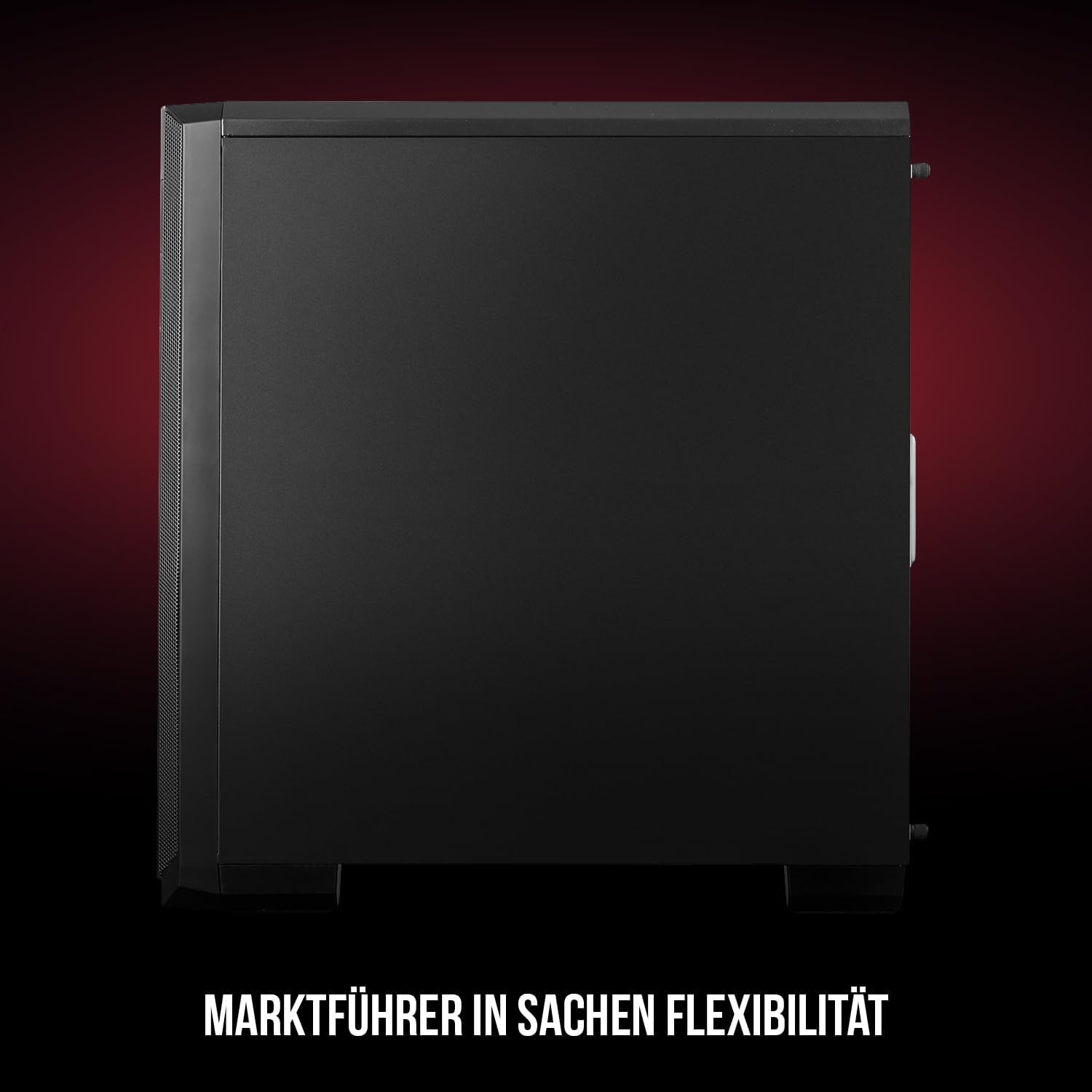
Foto 1: N'ihu na akụkụ view of the Modecom Oberon Pro Midi Tower computer case.
2. Ozi nchekwa
- Kwụpụ mgbe ọ bụla ọkụ na-esi na mgbidi mgbidi tupu ịwụnye ma ọ bụ wepụ ihe ọ bụla.
- Handle components with care to avoid electrostatic discharge. Consider using an anti-static wrist strap.
- Debe obere akụkụ na ngwa n'ebe ụmụaka nọ.
- Ensure proper ventilation around the case to prevent overheating.
- Do not attempt to modify the case structure, as this may void your warranty and pose safety risks.
3. Ihe ngwugwu
Verify that all the following items are present in your package:
- Modecom Oberon Pro Midi Tower Computer Case
- Accessory box (screws, standoffs, cable ties)
- Akwụkwọ ntuziaka (akwụkwọ a)
4. Atụmatụ igodo
- Ime ụlọ sara mbara: Designed to accommodate high-end components and facilitate good airflow.
- Ịjụ oyi nke ọma: Includes two pre-mounted 120mm fans (front and rear) to prevent component overheating.
- Nwụnye na-enweghị ngwaọrụ: Supports tool-free mounting for SSD/HDD drives and expansion cards.
- Nzacha Uzuzu: Features easily dismountable magnetic filters on the top, front, and bottom (under the power supply unit) to keep the interior clean.
- Optimized Cable Management: Provides a system for convenient wiring organization.
- Long PSU Tunnel: Offers a 240mm space for power supplies, simplifying installation and cable arrangement.
5. Ntọala na nwụnye
5.1. Ịkwadebe Okwu ahụ
Before installation, remove the side panels of the case. The Oberon Pro features sound-dampening mats on the side panels to reduce noise.

Ọgụgụ 2: Ime view showing sound-dampening mats on the side panel.
5.2. Nwụnye motherboard
Install the necessary standoffs for your motherboard form factor (ATX, Micro ATX, ITX). Carefully place your motherboard into the case, aligning it with the standoffs, and secure it with screws.

Figure 3: Interior layout with pre-installed rear fan and motherboard tray.
5.3. Drive Installation (SSD/HDD)
The Oberon Pro supports tool-free installation for three 2.5" SSDs and two 3.5" HDDs. The 3.5" HDD bays are located in the power supply tunnel at the bottom of the case. 2.5" SSDs can be mounted on both sides of the motherboard tray.

Figure 4: Dedicated bays for HDD and SSD storage devices.
5.4. Nwụnye ọkụ ọkụ
The case features a long PSU tunnel (240mm) at the bottom. Install your power supply unit into this tunnel and secure it. This design aids in cable management and airflow.
5.5. Expansion Card Installation (PCI/PCIe)
Install your graphics card or other expansion cards into the PCI/PCIe slots. The case supports tool-free mounting for these cards, allowing for easy installation and removal.
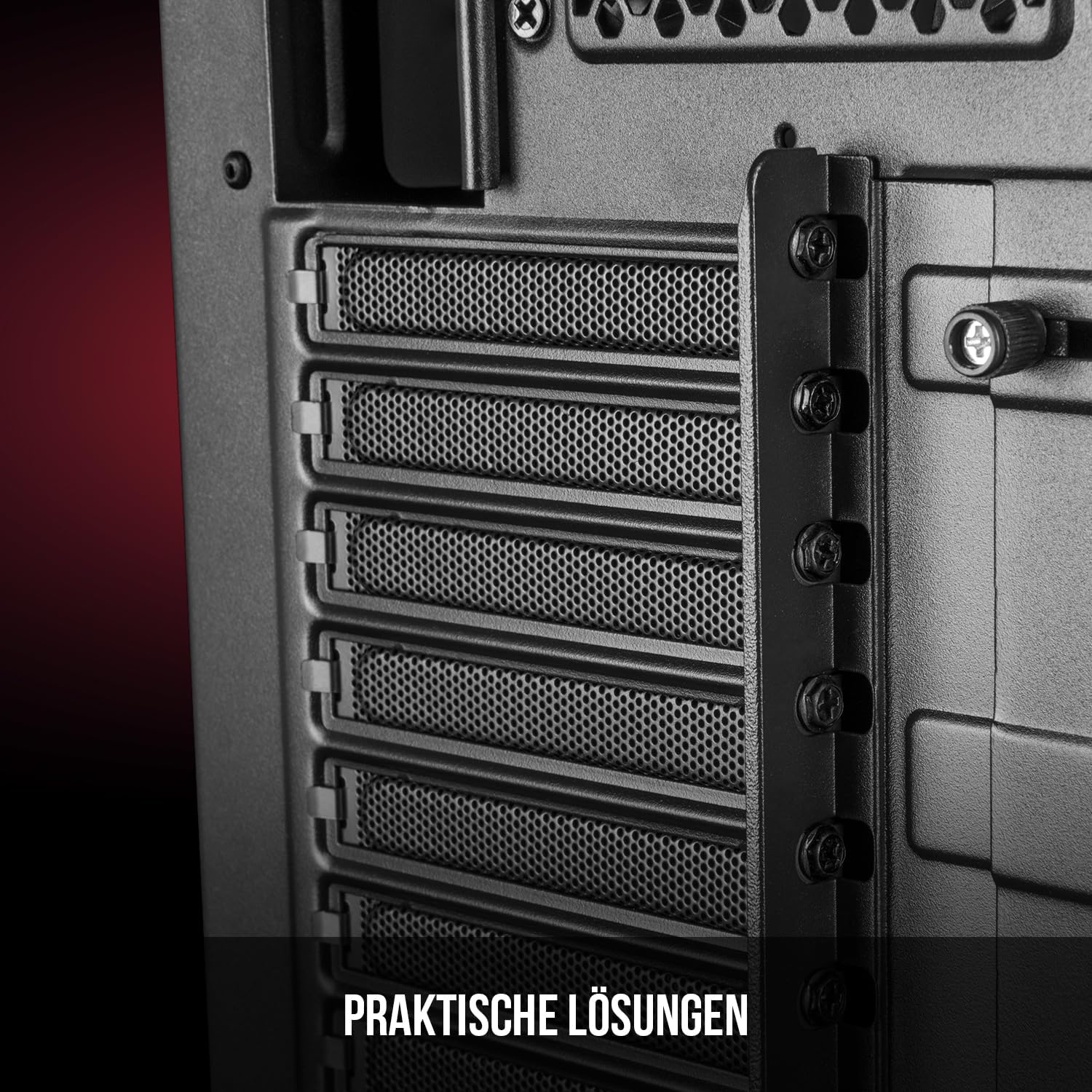
Ọgụgụ 5: Ime ime view highlighting the expansion card slots.
5.6. Njikwa USB
Utilize the provided cable routing options and tie-down points behind the motherboard tray to organize cables. This improves airflow and maintains a tidy interior.
6. Sistemụ jụrụ oyi
The Oberon Pro comes with two pre-installed 120mm fans, one at the front and one at the rear, to ensure adequate airflow. The maximum height for a CPU cooler is 163mm, and the maximum length for a video card is 395mm, allowing for compatibility with a wide range of components.
7. Nlekọta
To maintain optimal performance and prevent dust buildup, regularly clean the dust filters. The magnetic filters on the top, front, and bottom of the case are easily dismountable for cleaning. Use compressed air or a soft brush to remove accumulated dust.
8. Nchọpụta nsogbu
- Enweghị ike: Ensure all power cables are securely connected to the motherboard, power supply, and wall outlet. Check the power button connection to the motherboard.
- ekpo oke ọkụ: Verify that all fans are spinning correctly and that dust filters are clean. Ensure proper cable management to avoid obstructing airflow.
- Ọdụ ụgbọ mmiri ihu n'ihu anaghị arụ ọrụ: Check that the front panel connectors (USB, audio) are correctly plugged into the motherboard headers.
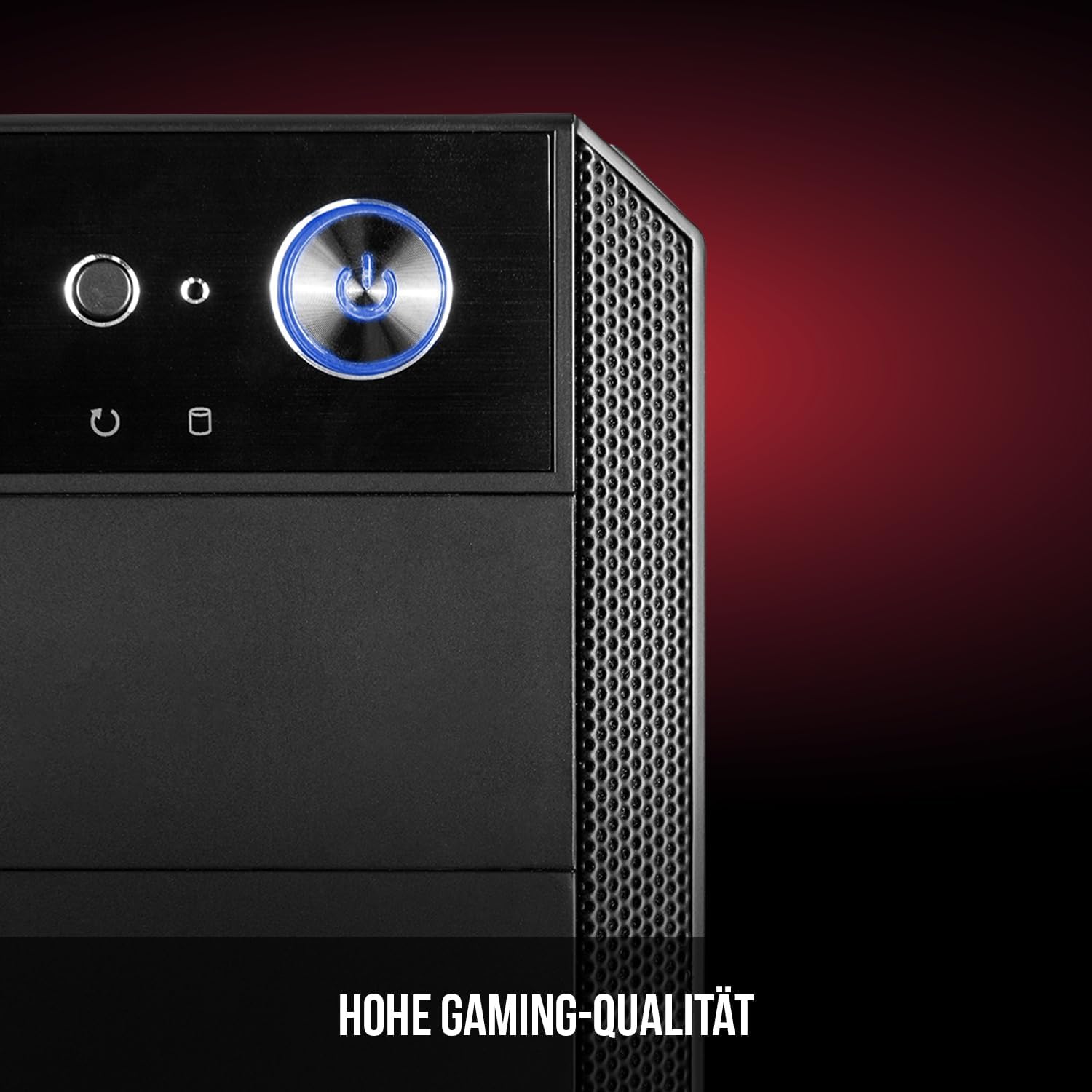
Figure 6: Front panel I/O ports for connectivity.
9. Nkọwapụta
| Njirimara | Nkọwapụta |
|---|---|
| Ụdị | Modecom |
| Aha Nlereanya | Oberon Pro |
| Nọmba nlereanya | AT-OBERON-PS-10-000000-0002 |
| Agba | Nwa |
| Ụdị ikpe | Ụlọ elu Midi |
| Ndakọrịta Motherboard | ATX, Micro ATX, ITX |
| Ihe onwunwe | Alloy Steel |
| Usoro jụrụ oyi | Ikuku |
| Ndị Fans etinyegoro mbụ | 2 x 120mm (Front, Rear) |
| Max CPU cooler elu | 163 mm |
| Ogologo ogologo GPU | 395 mm |
| Ụgbọ okporo ígwè | 3 x 2.5" SSD, 2 x 3.5" HDD |
| Mgbakọta ọdụ ụgbọ mmiri USB | 4 |
| Atụmatụ pụrụ iche | Reset Button, Dust Filter, LED Indicators, Side Window |
| Ibu Ibu | 5270 grams |

Figure 7: Rear exterior view of the computer case.
10. Akwụkwọ ikike na nkwado
For warranty information and technical support, please refer to the official Modecom webma ọ bụ kpọtụrụ onye na-ere ahịa gị. Debe ihe akaebe nke ịzụrụ ihe gị maka akwụkwọ ikike ọ bụla.


