1. Okwu mmalite
Thank you for choosing the Rapoo M300G Multi-Device Wireless Mouse. This manual provides detailed instructions on how to set up, operate, maintain, and troubleshoot your new mouse. Please read this manual carefully before use to ensure optimal performance and longevity of your device.
2. Ngwaahịa gafereview
Akụkụ ndị bụ isi:
- Multi-Mode Connectivity: Supports Bluetooth 3.0, Bluetooth 4.0, and 2.4GHz wireless connections, allowing connection to up to three devices simultaneously.
- Pịa nkịtị: Designed with 90% noise reduction for quiet operation.
- DPI nwere ike imeghari: Four adjustable DPI levels (600/1000/1300/1600) for precise control.
- Nhazi Ergonomic: Comfortable design for right-hand users, suitable for extended use.
- Ogologo ndụ batrị: Built-in 1 AA battery provides up to 9 months of battery life under normal conditions.
- High Precision Optical Engine: Works reliably on various surfaces without a mouse pad.
Ọdịnaya ngwugwu:
- Rapoo M300G Multi-Device Wireless Mouse
- Ihe nnata USB (echekwara n'ime òké)
- 1 AA Alkaline Battery (pre-installed or included)
- Ntuziaka mmalite ngwa ngwa (akwụkwọ ntuziaka a)
Ihe ndị mejupụtara òké:

Figure 2.1: Labeled diagram of the Rapoo M300G mouse showing the scroll wheel, DPI switch button, multi-device conversion indicator, right click button, left click button, forward button, and backward button.
- Bọtịnụ Pịa aka ekpe: Standard isi pịa ọrụ.
- Pịa aka nri bọtịnụ: Ọkọlọtọ nke abụọ pịa ọrụ.
- Mpempe akwụkwọ mpịakọta: Maka mpịakọta kwụ ọtọ na ọrụ pịa etiti.
- Bọtịnụ Mgbanwe DPI: Cycles through DPI settings (600/1000/1300/1600).
- Multi-device Conversion Indicator: Shows current connection mode (Bluetooth A, Bluetooth B, or 2.4GHz).
- Bọtịnụ mbugharị: Na-aga n'ihu web ihe nchọgharị ma ọ bụ file ndị na-eme nchọpụta.
- Bọtịnụ azụ: Na-agagharị azụ n'ime web ihe nchọgharị ma ọ bụ file ndị na-eme nchọpụta.
3. Nhazi
3.1 Ntinye batrị:
The Rapoo M300G mouse uses one AA battery. The battery is typically pre-installed. If not, open the battery compartment on the bottom of the mouse, insert the AA battery with the correct polarity, and close the compartment.

Onyonyo 3.1: N'okpuru view of the Rapoo M300G mouse, illustrating the battery compartment, power switch, and Bluetooth pairing button.
3.2 Mgbanwu/ Gbanyụọ:
Locate the power switch on the bottom of the mouse. Slide it to the 'ON' position to power on the mouse. Slide it to 'OFF' when not in use to conserve battery life.
3.3 Connecting to Devices:
The M300G mouse supports three connection modes: 2.4GHz wireless via USB receiver, Bluetooth 3.0, and Bluetooth 4.0. You can switch between connected devices using the mode switch button on the bottom of the mouse.
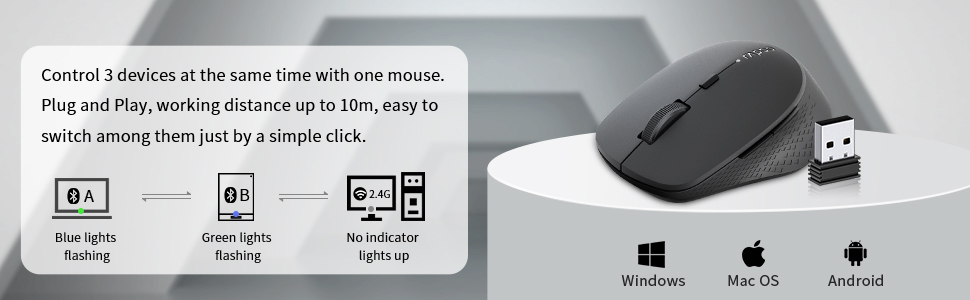
Figure 3.2: The Rapoo M300G mouse can control three devices, with easy switching. It is compatible with Windows, Mac OS, and Android operating systems.
Njikọ ikuku 2.4GHz:
- Take out the USB receiver from the battery compartment of the mouse.
- Tinye eriri USB n'ọdụ ụgbọ mmiri dị na kọmputa gị.
- Turn on the mouse. The mouse will automatically connect to the receiver. No indicator light will illuminate for 2.4GHz mode.
Bluetooth Connection (Device A & B):
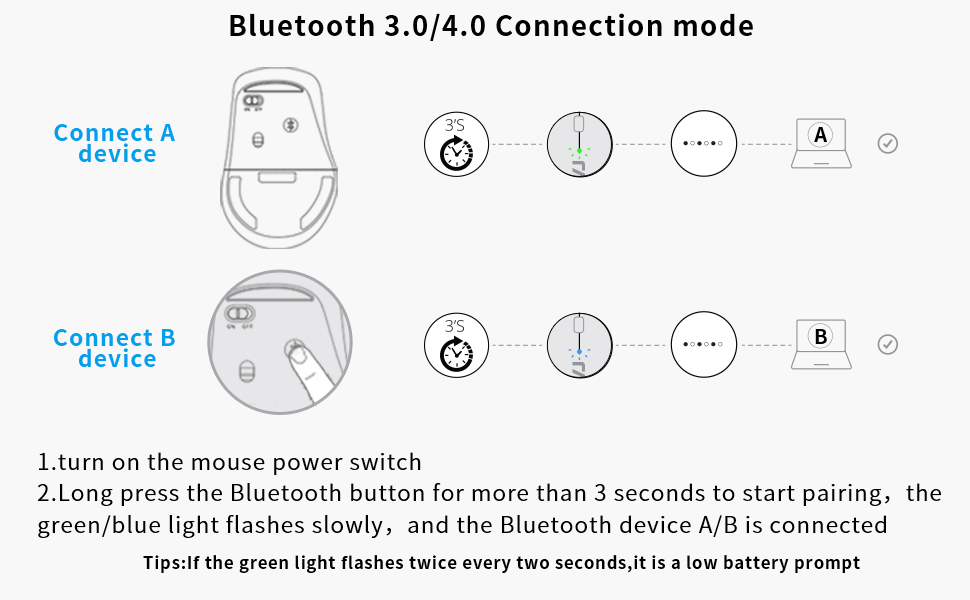
Figure 3.3: Detailed steps for connecting the mouse via Bluetooth 3.0/4.0 to Device A and Device B.
- Gbanwuo ọkụ ọkụ òké.
- Press the Bluetooth button on the bottom of the mouse to switch to Bluetooth Channel A (blue light flashing) or Bluetooth Channel B (green light flashing).
- Long press the Bluetooth button for more than 3 seconds until the blue or green light flashes slowly. This indicates the mouse is in pairing mode.
- Na ngwaọrụ gị (kọmputa, laptọọpụ, mbadamba), gaa na ntọala Bluetooth wee chọọ ngwaọrụ ọhụrụ.
- Select 'Rapoo BT3.0 Mouse' or 'Rapoo BT4.0 Mouse' from the list of found devices to complete the pairing.
- Once connected, the corresponding indicator light will stop flashing and remain solid for a few seconds before turning off.
Ndụmọdụ: If the green light flashes twice every two seconds, it indicates a low battery.
3.4 Switching Between Devices:
Briefly press the Bluetooth button on the bottom of the mouse to cycle through the connected devices (Bluetooth A, Bluetooth B, 2.4GHz). The indicator light will briefly show the active channel.
4. Ntuziaka ọrụ
4.1 DPI Adjustment:
Press the DPI switch button located behind the scroll wheel to cycle through the four DPI settings: 600, 1000, 1300, and 1600 DPI. Adjust the DPI to match your preference for cursor speed and precision.
4.2 Basic Mouse Functions:
- Pịa aka ekpe: Use for selecting items, opening files, na ịrụ ọrụ ọrụ.
- Pịa aka nri: Use for accessing context menus and additional options.
- Mpempe akwụkwọ mpịakọta: Rotate to scroll vertically through documents and web pages. Press down for middle-click functionality (e.g., opening links in new tabs).
- Bọtịnụ n'ihu/Azu: N'akụkụ òké ahụ, bọtịnụ ndị a na-enye ohere maka ịnyagharịa ngwa ngwa na web ihe nchọgharị na file ndị na-eme nchọpụta.
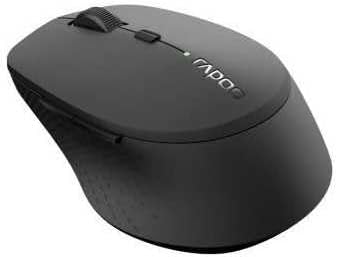
Ọgụgụ 4.1: N'akuku view of the Rapoo M300G mouse, highlighting its ergonomic shape and button placement.
5. Nlekọta
5.1 Nhicha:
Iji hichaa òké gị, jiri nwayọ hichaa elu ahụ na ihe dị nro, damp cloth. Do not use harsh chemicals or abrasive cleaners. Ensure no liquid enters the mouse's internal components.
5.2 nnọchi batrị:
When the low battery indicator flashes, it's time to replace the AA battery. Open the battery compartment on the bottom of the mouse, remove the old battery, insert a new AA battery with the correct polarity, and close the compartment.
5.3 Nchekwa:
When not in use for an extended period, turn off the mouse to conserve battery life. Store the USB receiver inside the mouse's dedicated slot to prevent loss. Keep the mouse in a dry, cool place away from direct sunlight and extreme temperatures.
6. Nchọpụta nsogbu
If you encounter issues with your Rapoo M300G mouse, please refer to the following common problems and solutions:
| Nsogbu | Ihe nwere ike ime | Ngwọta |
|---|---|---|
| Òké anaghị aza | Low battery; Mouse is off; Incorrect connection mode; USB receiver not plugged in (for 2.4GHz); Bluetooth not paired. | Replace battery; Turn on mouse; Switch to correct connection mode (2.4G, BT A, BT B); Plug in USB receiver; Re-pair Bluetooth. |
| Cursor na-adịghị agbanwe agbanwe ma ọ bụ na ọ dịghị ire ụtọ | Ihe mmetụta anya ruru unyi; Elu na-adịghị mma; Batrị dị ala. | Ihe mmetụta anya dị ọcha; Jiri n'elu larịị, nke na-adịghị atụgharị uche; Dochie batrị. |
| Enweghị ike ijikọ site na Bluetooth | Mouse not in pairing mode; Device Bluetooth is off; Interference. | Long press Bluetooth button to enter pairing mode; Ensure device Bluetooth is on; Move closer to device; Try re-pairing. |
| bọtịnụ akụkụ anaghị arụ ọrụ | Application does not support forward/backward functions; Driver issue. | Test in a different application (e.g., web browser); Check for updated drivers for your operating system. |
7. Nkọwapụta
| Njirimara | Nkọwapụta |
|---|---|
| Nọmba nlereanya | 18048 |
| Teknụzụ Njikọta | Bluetooth 3.0, Bluetooth 4.0, 2.4GHz Wireless |
| Teknụzụ nchọpụta ngagharị | Ngwa anya |
| Ọkwa DPI | 600, 1000, 1300, 1600 |
| Bọtịnụ | 6 (aka ekpe, aka nri, pịgharịa n'ụkwụ, DPI mgbanwe, gawa n'ihu, azu) |
| Ụdị batrị | 1 x AA batrị |
| Ndụ batrị echere | Ruo ọnwa isii |
| Akụkụ ngwaahịa | 4.09 x 2.6 x 0.04 sentimita asatọ |
| Ibu Ibu | 2.08 ounces |
| Agba | OJI |
| Ụbọchị mbụ dị | Nọvemba 30, 2018 |
8. Akwụkwọ ikike na nkwado
8.1 Ozi Akwụkwọ ikike:
The Rapoo M300G Multi-Device Wireless Mouse comes with a Akwụkwọ ikike nke otu afọ site na ụbọchị ịzụrụ. Ọzọkwa, a 30 Days Return and Refund or Replacement policy is offered. This warranty covers manufacturing defects and issues arising from normal use.
8.2 Nkwado ndị ahịa:
For technical support, warranty claims, or any questions regarding your Rapoo M300G mouse, please contact Rapoo customer service. Refer to the official Rapoo websaịtị ma ọ bụ nkwakọ ngwaahịa gị maka ozi kọntaktị kachasị ugbu a.
Nkwado n'ịntanetị: Gaa na Rapoo gọọmentị websaịtị maka FAQs, nbudata ndị ọkwọ ụgbọala, na akụrụngwa nkwado.
Nkwado email: [Refer to Rapoo's official website for email contact]
Nkwado ekwentị: [Refer to Rapoo's official website for phone contact]


