Okwu mmalite
The Logitech C920S HD Pro Webcam is designed to deliver high-quality video and audio for professional video calls, streaming, and recording. It features Full HD 1080p resolution, clear stereo audio, automatic light correction, and a convenient privacy shutter for enhanced security.
Kedu ihe dị na Igbe ahụ
- Logitech C920S HD Pro Webcam
- Ihe Nzuzo
- Akwụkwọ onye ọrụ

Image: The Logitech C920S HD Pro Webcam, its detachable privacy shutter, and the integrated 1.5-meter USB cable. This image illustrates the complete package contents.
Melite
1. Connecting the Webcam
The C920S webcam features an integrated USB-A cable for easy connection. Simply plug the USB-A connector into an available USB port on your computer (PC, Mac, or laptop).
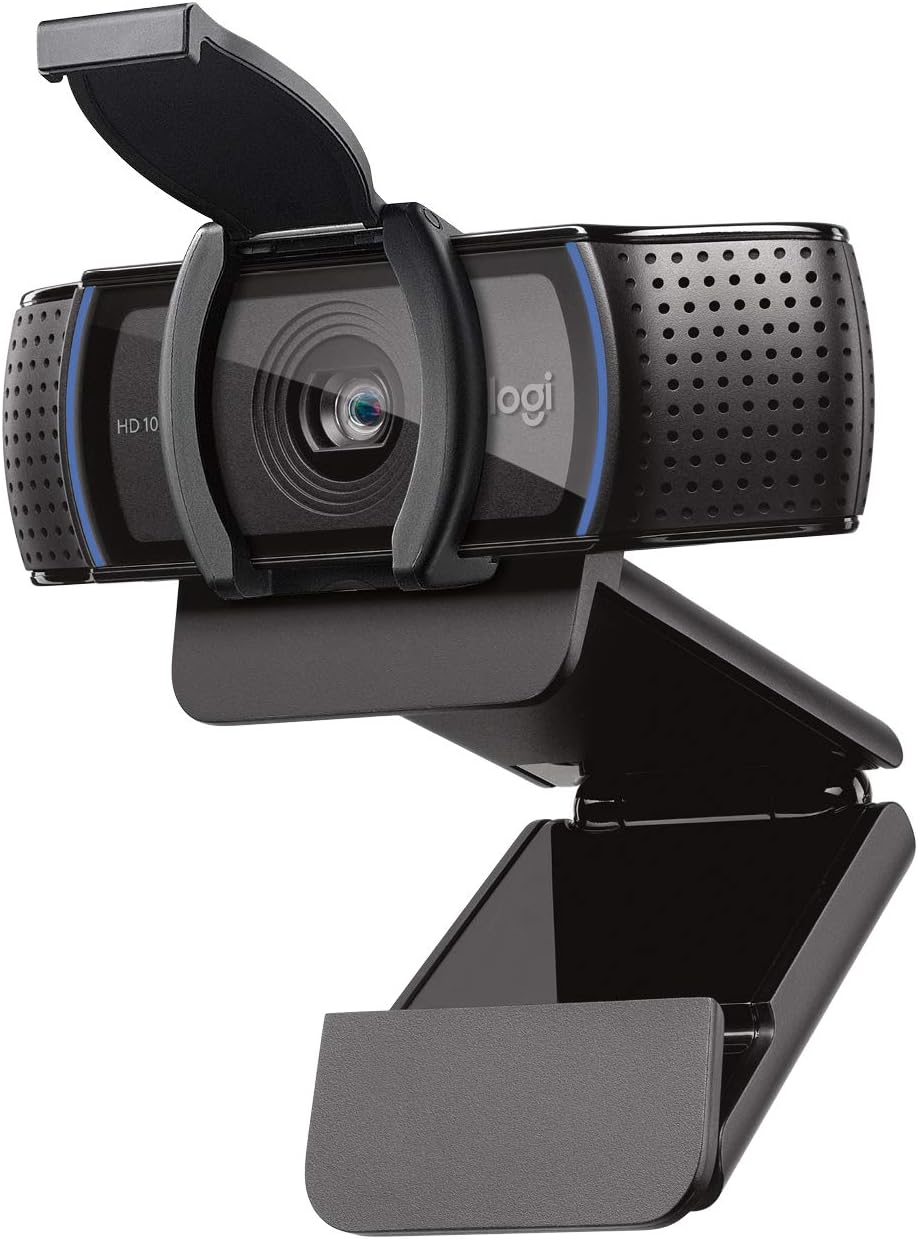
Image: The Logitech C920S HD Pro Webcam shown with its privacy shutter in the open position, ready for use. The webcam features a flexible clip for secure mounting on monitors or laptops.
2. Mounting the Webcam
Nke webcam comes with a versatile mounting clip that allows it to be securely placed on a computer monitor, laptop screen, or even a tripod. Adjust the clip to fit your display thickness and ensure the webcam is stable.
3. Nwụnye ngwanrọ (Nhọrọ)
The C920S is a plug-and-play device and typically does not require additional drivers for basic functionality on Windows, macOS, and Chrome OS. For advanced features and customization, such as pan, tilt, zoom, and image adjustments, you can download the Logitech Capture software from the official Logitech websaịtị.

Image: A MacBook displaying the Logitech Capture App interface, which provides controls for webcam settings like frame rate, exposure, pan, tilt, and zoom, allowing users to customize their video output.
4. Using the Privacy Shutter
The C920S includes a physical privacy shutter. To cover the lens and ensure privacy when the webcam is not in use, simply slide the shutter over the lens. To use the webcam, slide the shutter back to expose the lens.

Image: The Logitech C920S HD Pro Webcam with its integrated privacy shutter fully closed, covering the lens. This feature provides a physical barrier for privacy and lens protection.
Na-arụ ọrụ Webcam
Video Calls and Streaming
The C920S is optimized for Full HD 1080p video calls and streaming at 30 frames per second. It is compatible with popular video conferencing applications such as Skype, Zoom, FaceTime, and Google Hangouts.

Image: A close-up of the Logitech C920S HD Pro Webcam, highlighting its 1080p Full HD video capability, suitable for clear and detailed video calls.
HD Autofocus and Light Correction
Nke webcam features HD autofocus to ensure sharp images even when moving. Automatic light correction adjusts to various lighting conditions, producing bright and well-exposed video, even in dim environments.

Image: The Logitech C920S HD Pro Webcam mounted on a laptop, with the screen showing a clear video call. This demonstrates the webcam's HD autofocus and automatic light correction features, which optimize video quality in various lighting conditions.
Stereo Audio with Dual Microphones
Equipped with two integrated microphones, one on each side of the lens, the C920S captures natural stereo audio. This ensures your voice is clear and distinct during calls and recordings.

Image: The Logitech C920S HD Pro Webcam with graphic elements illustrating sound waves emanating from both sides, representing its dual integrated microphones for clear stereo audio capture.
Nlekọta
To ensure optimal performance and longevity of your Logitech C920S HD Pro Webcam, soro ntuziaka mmezi ndị a:
- Na-ehicha oghere: Jiri nwayọọ hichaa ya webcam lens with a soft, lint-free cloth. Avoid using abrasive materials or harsh chemical cleaners, which can scratch or damage the lens.
- Na-ehicha ahụ: Jiri nwayọọ, damp akwa iji hichaa mputa nke webcam. Do not submerge the webcam in water or allow liquids to enter the device.
- Nchekwa: When not in use, especially during transport, engage the privacy shutter to protect the lens from dust and scratches. Store the webcam in a cool, dry place.
- Nlekọta USB: Avoid sharp bends or kinks in the USB cable. Do not pull the cable forcefully when disconnecting the webcam.
Nchọpụta nsogbu
| Nsogbu | Ngwọta enwere ike |
|---|---|
| Webkọmputa ahụghị cam ahụ. |
|
| No video or black screen in application. |
|
| Poor video quality (blurry, dark, grainy). |
|
| Enweghị ụda ma ọ bụ ụda olu adịghị mma. |
|
Nkọwapụta
| Njirimara | Nkọwa |
|---|---|
| Nọmba nlereanya | 960-001257 |
| Oke. Mkpebi vidiyo | 1080p Full HD at 30fps |
| Ụdị elekwasị anya | Nchekwa onwe |
| oghere | Igwe oghere |
| Igwe igwe arụrụ arụrụ | Stereo, Dual omnidirectional mics |
| Ihe Nzuzo | Ejikọtara |
| Njikọta | USB 2.0 (USB-A) |
| Ogologo eriri USB | 1.5 mita |
| Akụkụ (LxWxH) | 5.4 x 3.1 x 5.4 sentimita asatọ |
| Ibu | 5.8 ounces |
| Sistemu eji arụ ọrụ akwadoro | Windows, macOS, Chrome OS, Xbox |
Ndakọrịta
The Logitech C920S HD Pro Webcam is designed for broad compatibility with various operating systems and communication platforms:
- Sistemu eji arụ ọrụ: Windows, macOS, Chrome OS.
- Platform: Works with popular video calling and streaming applications including Skype, Zoom, FaceTime, Google Hangouts, and Xbox.

Image: The Logitech C920S HD Pro Webcam displayed alongside icons representing its compatibility with various operating systems (Windows, Mac) and communication platforms (Xbox, Skype, Zoom, FaceTime, Hangouts).
Akwụkwọ ikike na nkwado
Logitech products typically come with a limited hardware warranty. For specific warranty details, duration, and terms, please refer to the warranty information included in your product packaging or visit the official Logitech support websaịtị.
For technical support, driver downloads, FAQs, and troubleshooting guides, please visit the Logitech Support websaịtị. Ị nwekwara ike ịchọta ozi kọntaktị maka ọrụ ndị ahịa ebe ahụ.
Official Logitech Support: nkwado.logi.com


