1. Okwu mmalite
This manual provides essential information for the safe and efficient operation of your Xerox VersaLink C8000/DT Color Printer. It covers setup, daily use, maintenance, and troubleshooting. Please read this manual thoroughly before using the printer and retain it for future reference.
2. Kedu ihe dị na Igbe ahụ
Verify that all items are present in the packaging.
- Xerox VersaLink C8000/DT Color Printer
- Ụdọ ọkụ
- Documentation (this manual, safety information)
- Initial Toner Cartridges (Black, Cyan, Magenta, Yellow)
3. Nhazi
3.1 Nwepu
- Jiri nlezianya wepụ ihe nbipute na nkwakọ ngwaahịa ya.
- Remove all protective tapes and packing materials from the exterior and interior of the printer. Refer to the quick setup guide for specific locations.
3.2 Ntinye anụ ahụ
Place the printer on a sturdy, level surface capable of supporting its weight (approximately 178 pounds). Ensure adequate ventilation around the printer.

Foto 3.2.1: N'ihu view of the Xerox VersaLink C8000/DT Color Printer, showing its overall design and paper trays.
3.3 Njikọ ike
- Connect the power cord to the printer's power inlet.
- Tinye nsọtụ nke ọzọ nke eriri ọkụ n'ime oghere eletrik gbadoro ụkwụ.
- Pịa bọtịnụ ike ka ịgbanwuo ngwa nbipute.
3.4 Initial Configuration and Network Setup
Upon first power-on, the printer's user interface will guide you through initial setup steps, including language selection, date/time, and network configuration. The printer supports Ethernet connectivity.

Foto 3.4.1: Close-up of the printer's control panel, displaying the touch screen interface with various application icons.
For network connection, connect an Ethernet cable from your network router or switch to the Ethernet port on the printer. Follow the on-screen prompts to complete network settings.
4. Ntuziaka ọrụ
4.1 Mbipụta bụ isi
- Hụ na igwe nbipute ahụ agbanyere ma jikọọ na netwọk gị.
- Load paper into the paper trays. The printer supports standard paper sizes up to 8.5 x 14 inches.
- From your computer or mobile device, select the Xerox VersaLink C8000/DT as your printer.
- Adjust print settings (e.g., color, duplex, paper type) as needed.
- Bido ọrụ mbipụta.
4.2 Mobile and Cloud Connectivity
The VersaLink C8000/DT offers instant connectivity to cloud services and mobile devices directly from its user interface. Access pre-loaded, cloud-hosted services to manage documents and print from various platforms. Compatible with smartphones and controlled via an app.
4.3 Mbipụta Duplex
The printer supports automatic dual-sided (duplex) printing. This feature can be enabled through the print settings on your computer or directly from the printer's control panel for supported functions.
5. Nlekọta
5.1 Ndochi Katrij Toner
When a toner cartridge is low or empty, the printer's control panel will display a notification.
- Mepee mkpuchi ihu nke ngwa nbipute.
- Locate the toner cartridge that needs replacement (Black, Cyan, Magenta, or Yellow).
- Grasp the handle of the cartridge and pull it straight out.
- Unpack the new toner cartridge and shake it gently to distribute the toner.
- Tinye katrij ọhụrụ ahụ n'ime oghere kwekọrọ ruo mgbe ọ pịa ebe ọ dị.
- Mechie mkpuchi ihu.
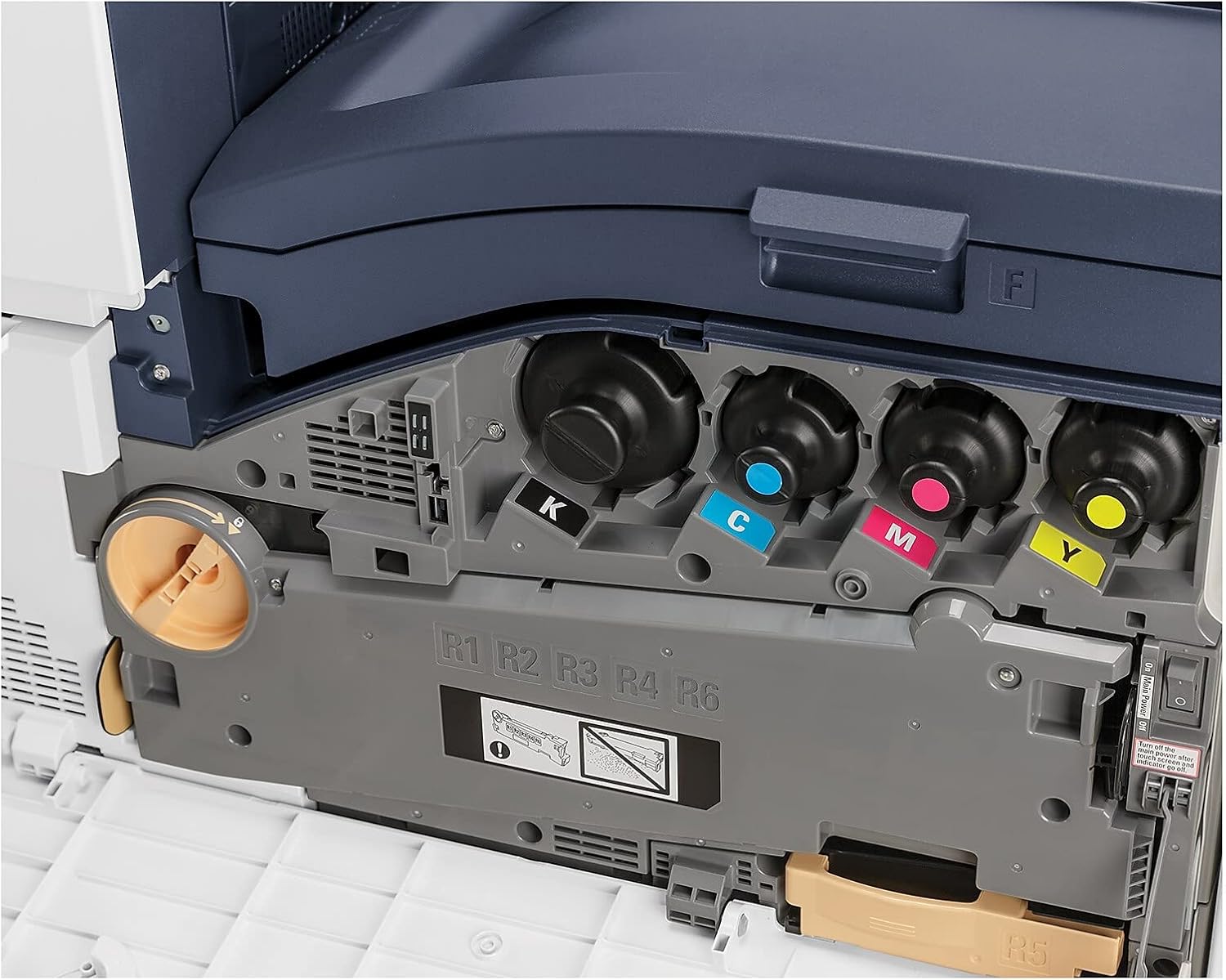
Foto 5.1.1: View of the toner cartridge compartment, showing the slots for Black (K), Cyan (C), Magenta (M), and Yellow (Y) toner.
5.2 Nhicha
Regularly clean the exterior of the printer with a soft, lint-free cloth. Do not use abrasive cleaners or solvents. Refer to the printer's internal cleaning procedures via the control panel for specific instructions on cleaning internal components.
6. Nchọpụta nsogbu
This section provides solutions to common issues. For more complex problems, refer to the online support resources or contact Xerox customer service.
- Ihe nbipute anaghị aza: Check power connection, network cable, and ensure the printer is powered on. Restart the printer and the connected device.
- Esemokwu dị mma bipụta: Check toner levels. Perform a print quality calibration from the printer's control panel. Ensure correct paper type settings.
- Mpempe akwụkwọ: Follow the on-screen instructions or refer to the printer's internal guides for clearing paper jams from specific areas.
- Nsogbu Njikọta netwọkụ: Verify Ethernet cable connection. Check network settings on the printer and your computer. Restart network devices.
7. Nkọwapụta
| Njirimara | Nkọwa |
|---|---|
| Ụdị | Xerox |
| Nọmba nlereanya | C8000/DT |
| Teknụzụ obibi akwụkwọ | Laser |
| Mmepụta ngwa nbipute | Agba |
| Ọsọ mbipụta kacha (Agba) | 42 ppm |
| Ọsọ mbipụta kacha (Monochrome) | 42 ppm |
| Mkpebi mbipụta Agba kacha | 1200 x 2400 dpi |
| Mkpebi mbipụta ojii na ọcha kacha | 1200 x 2400 dpi |
| Duplex Printing | Akpaaka |
| Teknụzụ Njikọta | Ethernet |
| Ngwaọrụ Akụrụngwa | Ethernet |
| Ngwa dakọtara | Smartphones |
| Usoro njikwa | Ngwa |
| Ogo mgbasa ozi kacha | 8.5 x14 inch |
| Ụdị Mgbasa Ozi Mbipụta | Envelopu, Akwụkwọ (dị larịị) |
| Oke ntinye akwụkwọ ikike | 45 |
| Ọnụọgụ nke traịlị | 2 |
| Ibu Ibu | 178 pound |
| Akụkụ ngwaahịa | 28.5 x 24.4 x 31.9 sentimita asatọ |
| Ike Nchekwa ebe nchekwa | 4096 MB |
| Wattage | 2300 watt |
| Ụdị nyocha | Akwa akwa |
| Ọrụ ndị nbipute ndị ọzọ | Ha niile n'otu |
8. Akwụkwọ ikike na nkwado
8.1 Akwụkwọ ikike ngwaahịa
The Xerox VersaLink C8000/DT Color Printer comes with a standard one-year warranty. For detailed terms and conditions, please refer to the warranty documentation included with your product or visit the official Xerox support websaịtị.
8.2 Nkwado ndị ahịa
For technical assistance, troubleshooting, or service requests, please contact Xerox customer support. Support contact information can typically be found on the Xerox website or in the documentation provided with your printer.