1. Okwu mmalite
The KING KS1000 Swift Range Extender and WiFiMax Router system is designed to enhance your Wi-Fi experience, particularly in mobile environments like RVs. This system combines a high-gain, omnidirectional roof-mounted antenna (KING Swift) with a powerful Wi-Fi router (KING WiFiMax) to provide reliable and secure internet access.
Atụmatụ gụnyere:
- Fully automatic, omnidirectional Wi-Fi antenna for extended range.
- Provides fast, reliable, and secure long-range signal acquisition.
- Simple setup using the free KING Wi-Fi app (Android and iOS).
- Effortless connection for multiple mobile devices.
- Antenna extends 2.4GHz for optimal range, while the router provides 5GHz for faster speeds.
2. Kedu ihe dị na Igbe ahụ
Chọpụta na akụrụngwa niile dị na ngwugwu gị:
- KING Swift Omnidirectional Antenna
- KING WiFiMax Router
- Antenna mgbakwasa bracket
- 9V ike ọkọnọ
- 11' Coax Cable

Image: The KING Swift omnidirectional antenna and the KING WiFiMax router, shown together as a complete system.

Image: Close-up of the KING Swift omnidirectional antenna with its mounting bracket and cable.
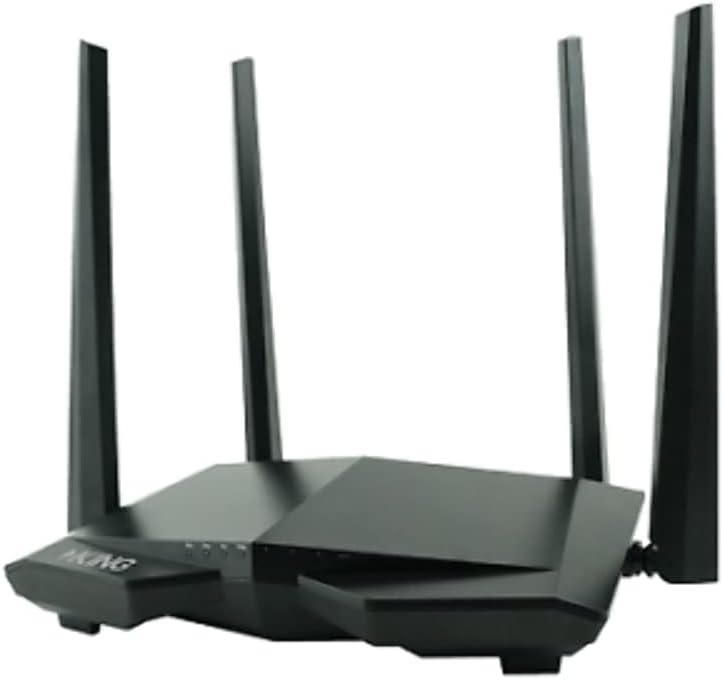
Image: The KING WiFiMax router, a black device with multiple external antennas.
3. Nhazi ntuziaka
Follow these steps to set up your KING KS1000 system:
- Mount the KING Swift Antenna: Install the KING Swift omnidirectional antenna on the roof of your RV or desired location using the provided mounting bracket. Ensure a clear line of sight for optimal signal reception. Route the 11' coax cable from the antenna to the interior of your vehicle where the WiFiMax router will be placed.
- Connect the WiFiMax Router: Connect the coax cable from the KING Swift antenna to the designated antenna input on the KING WiFiMax router. Plug the 9V power supply into the WiFiMax router and then into a power outlet.
- Download the KING Wi-Fi App: Download the free KING Wi-Fi app from the Apple App Store (for iOS devices) or Google Play Store (for Android devices).
- Initial Configuration via App:
- Open the KING Wi-Fi app on your smartphone or tablet.
- Follow the on-screen instructions to connect to the KING WiFiMax's default Wi-Fi network.
- The app will guide you through scanning for available Wi-Fi networks, selecting your desired network (e.g., campground Wi-Fi), and entering any necessary passwords.
- You will then configure your personal Wi-Fi network name (SSID) and password for the KING WiFiMax router. This is the network your devices will connect to.
- Jikọọ ngwaọrụ gị: Once the setup is complete, connect your phones, tablets, laptops, smart TVs, and other Wi-Fi-enabled devices to the new Wi-Fi network broadcast by your KING WiFiMax router using the SSID and password you created.
Mara: A Wi-Fi source is required for the system to function. The KING Swift antenna cannot be used as a standalone Wi-Fi hotspot.
4. Ntuziaka ọrụ
Once the KING KS1000 system is set up, operating it is straightforward:
- Automatic Network Acquisition: The KING Swift antenna automatically seeks and acquires available Wi-Fi signals.
- Connecting to a New Wi-Fi Source: If you move to a new location with a different Wi-Fi network, open the KING Wi-Fi app. The app will allow you to scan for new networks and connect to them, extending that signal through your WiFiMax router. Your personal devices will remain connected to your WiFiMax network without needing to re-enter credentials.
- Ọrụ abụọ-Band arụ ọrụ: The system utilizes the 2.4 GHz frequency band for extended range and the 5 GHz frequency band (via the WiFiMax router) for faster data speeds, optimizing performance based on your needs and environment.
- Nchekwa: The WiFiMax router creates a secure, private Wi-Fi network within your RV, protecting your devices from unsecured public networks.
5. Nlekọta
To ensure the longevity and optimal performance of your KING KS1000 system, consider the following maintenance tips:
- Nhicha: Periodically clean the exterior of the KING Swift antenna and WiFiMax router with a soft, damp akwa . Zere iji kemịkalụ siri ike ma ọ bụ ihe nchacha.
- Nyocha USB: Regularly inspect the coax cable for any signs of wear, damage, or loose connections. Ensure all connections are secure.
- Mmelite femụwe: Check the KING website or the KING Wi-Fi app periodically for any available firmware updates for the WiFiMax router. Keeping the firmware updated can improve performance and security.
- Nchekwa gburugburu: While the KING Swift antenna is designed for outdoor use, ensure the WiFiMax router is kept in a dry, protected environment, away from extreme temperatures and direct sunlight.
6. Nchọpụta nsogbu
If you encounter issues with your KING KS1000 system, try the following troubleshooting steps:
- No Power to WiFiMax Router:
- Ensure the 9V power supply is securely plugged into the router and a working power outlet.
- Check the power indicator lights on the router.
- Cannot Connect to External Wi-Fi:
- Verify that the external Wi-Fi source (e.g., campground Wi-Fi) is active and accessible.
- Ensure the KING Swift antenna is properly connected to the WiFiMax router via the coax cable.
- Use the KING Wi-Fi app to rescan for networks and re-enter credentials if necessary.
- Confirm that the external Wi-Fi signal strength is adequate for the antenna to acquire.
- Devices Cannot Connect to WiFiMax Network:
- Ensure the WiFiMax router is powered on and broadcasting its network.
- Verify that you are entering the correct Wi-Fi network name (SSID) and password for your WiFiMax router.
- Restart the WiFiMax router by unplugging and replugging the power supply.
- Ọsọ Ịntanetị Dị Nwayọọ:
- The overall speed is dependent on the external Wi-Fi source. If the source signal is weak or slow, the extended network will also be slow.
- Ensure the KING Swift antenna has a clear line of sight to the external Wi-Fi source.
- Reduce interference by moving other electronic devices away from the router if possible.
- Okwu ngwa:
- Ensure your smartphone or tablet is connected to the WiFiMax router's network.
- Try restarting the app or reinstalling it.
If these steps do not resolve the issue, please refer to the support section.
7. Nkọwapụta
| Njirimara | Nkọwa |
|---|---|
| Ụdị | EZE |
| Aha Nlereanya | KS1000 |
| Akụkụ ngwaahịa | 7 x 11 x 8.7 sentimita asatọ |
| Ibu Ibu | 4 ounces |
| Teknụzụ Njikọta | Wi-Fi |
| Klaasị ugboro ugboro | Dual-band (2.4 GHz, 5 GHz) |
| Ikuku Communication Standard | Ugboro redio 2.4 GHz, ugboro redio 5 GHz |
| Voltage | 9 volts |
| Njirimara Pụrụ Iche | WPS (Mbido Wi-Fi echekwara) |
| Ngwa dakọtara | Phones, tablets, laptops, smart TVs, appliances, Wi-Fi-enabled speakers, and more |
| Eji akwadoro | Campnke, RV |
8. Akwụkwọ ikike na nkwado
For specific warranty information regarding your KING KS1000 Swift Range Extender and WiFiMax Router, please refer to the documentation included with your product or visit the official KING website. KING provides customer support for product assistance, technical inquiries, and warranty claims.
Onye nrụpụta: EZE
Websaịtị: www.kingconnect.com
Please have your model number (KS1000) and purchase date available when contacting support.


