Okwu mmalite
This manual provides essential information for setting up, operating, maintaining, and troubleshooting your Lenovo ThinkCentre M720q Tiny Desktop Computer. Please read these instructions carefully before using your device.

Figure 1: Lenovo ThinkCentre M720q Tiny Desktop Computer - Front View
Ntuziaka nhazi
1. Iwepu ngwongwo
Carefully remove the computer and all accessories from the packaging. Ensure the following items are present:
- Kọmputa Desktop Lenovo ThinkCentre M720q dị obere
- Ihe nkwụnye ọkụ
- Akwụkwọ (akwụkwọ ntuziaka a, ozi akwụkwọ ikike)
2. Njikọ Peripherals
Connect your monitor, keyboard, and mouse to the appropriate ports on the computer.
- Ngosipụta: Connect your monitor using a DisplayPort or HDMI cable. The system supports resolutions up to 3840x2160.
- Ahụigodo na òké: Connect USB keyboard and mouse to any available USB ports. The device features multiple USB 3.0 ports.
- Netwọk: For wired network access, connect an Ethernet cable to the RJ-45 port. For wireless, ensure your Wi-Fi network is available.
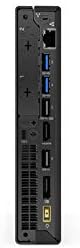
Figure 2: Rear ports of the ThinkCentre M720q, including display outputs and USB ports.

Figure 3: Front ports of the ThinkCentre M720q, including USB and audio jacks.
3. Njikọ ike
Connect the power adapter to the computer's power input, then plug the power cord into a wall outlet.
4. Mbido Mmalite na Ntọala Sistemụ Ọrụ
Press the power button located on the front of the computer. The system will boot into Windows 10 Pro. Follow the on-screen instructions to complete the initial setup, including language selection, network connection, and user account creation.
Ntuziaka ọrụ
Gbanyụọ/ Gbanyụọ
- Iji gbanye: Pịa bọtịnụ ike dị n'ihu panel.
- Iji mechie: Pịa bọtịnụ Malite na Windows, wee họrọ Ike> Mechie.
- Ka Malitegharịa ekwentị: Pịa bọtịnụ Malite na Windows, wee họrọ Ike> Malitegharịa ekwentị.
Njikọ netwọkụ
- Netwọk ikuku: If an Ethernet cable is connected, the system should automatically detect the network.
- Netwọk ikuku (Wi-Fi): The ThinkCentre M720q supports 802.11ac wireless. To connect, click the Wi-Fi icon in the system tray, select your network, and enter the password if prompted.
Iji ngwaọrụ USB
The computer is equipped with multiple USB 3.0 ports. Simply plug your USB devices (e.g., external hard drives, flash drives, printers) into any available USB port. Windows will typically install necessary drivers automatically.
Nhazi nhazi
The ThinkCentre M720q supports multiple displays. You can configure display settings (resolution, orientation, extended/duplicated desktop) through the Windows Display Settings. Right-click on the desktop and select "Display settings".
Nlekọta
Cleaning the Computer
- Always power off the computer and disconnect it from the power outlet before cleaning.
- Jiri akwa dị nro na-enweghị ntụpọ dampejiri mmiri mee ihe ma ọ bụ ihe ngwọta dị nro iji hichaa ihe dị n'èzí.
- Ejila kemịkalụ siri ike, ihe nhicha ihe na-eme ka ihe dị nro, ma ọ bụ ihe mgbaze.
- Jiri ikuku a kpọchiri akpọchi wepụ uzuzu dị nro site na oghere ikuku na ọdụ ụgbọ mmiri.
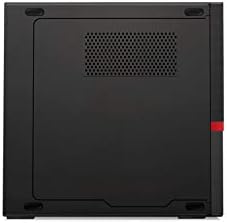
Foto 4: Top view of the ThinkCentre M720q, highlighting ventilation areas.
Mmelite ngwanrọ
Regularly update your Windows operating system and drivers to ensure optimal performance and security. Windows Update can be accessed via Settings > Update & Security > Windows Update.
Nchọpụta nsogbu
If you encounter issues with your ThinkCentre M720q, refer to the following common solutions:
- Enweghị ike: Ensure the power adapter is securely connected to both the computer and a working electrical outlet. Try a different outlet.
- Enweghị Ngosipụta: Verify that the monitor is powered on and correctly connected to the computer. Check the input source on your monitor.
- Mbelata Sistemụ: Close unnecessary applications. Check for background processes using Task Manager. Ensure sufficient free space on the SSD.
- Achọpụtaghị ihe dị n'akụkụ: Try connecting the peripheral to a different USB port. Ensure drivers are installed (if required).
- Okwu Njikọta netwọkụ: For wired connections, check the Ethernet cable. For Wi-Fi, ensure the network is available and you have the correct password. Restart your router if necessary.
For more complex issues, consult the Lenovo support websaịtị ma ọ bụ kpọtụrụ ndị ahịa ha ọrụ.
Nkọwapụta
| Njirimara | Nkọwa |
|---|---|
| Ụdị | Lenovo |
| Usoro | ThinkCentre M720q |
| Nọmba Nlereanya ihe | ThinkCentre M720q |
| Sistemụ nrụọrụ | Windows 10 Pro |
| Nhazi | Intel Core i5 (1.7 GHz) |
| RAM | 8 GB DDR3 (2666 MHz Memory Speed) |
| Draịvụ ike | 256 GB SSD (Serial ATA-300 Interface) |
| Ihe eserese eserese | Intel Turbo Boost Technology 2 |
| Nkọwa kaadị eserese | Ejikọtara |
| Mkpebi ihuenyo kacha | 3840x2160 |
| Ụdị ikuku | 802.11 ac |
| Ọnụọgụ nke ọdụ ụgbọ mmiri USB 3.0 | 3 |
| Ibu Ibu | 3 pound |
| Akụkụ ngwaahịa (LxWxH) | 7 x 1.4 x 7.2 sentimita asatọ |
| Agba | Nwa |
Ozi akwụkwọ ikike
For detailed warranty terms and conditions, please refer to the official Lenovo warranty documentation included with your product or visit the official Lenovo support webEbe a na-edebe akwụkwọ ikike. Mkpuchi akwụkwọ ikike na-agụnyekarị ntụpọ n'ihe na ọrụ aka maka oge akọwapụtara site na ụbọchị azụrụ ya.
Nkwado ndị ahịa
If you require technical assistance, have questions about your product, or need to report an issue, please contact Lenovo customer support through their official channels. You can find contact information and online resources on the official Lenovo websaịtị.
Lenovo Official Websaịtị: www.lenovo.com


