1. Okwu mmalite
This manual provides essential information for setting up, operating, and maintaining your Amazon Echo Dot (3rd Generation) smart speaker. The Echo Dot is a voice-controlled smart speaker with Alexa, designed to integrate seamlessly into your daily life, offering assistance with tasks, entertainment, and smart home control.
Please read this manual thoroughly to ensure proper use and to maximize your device's capabilities.
2. Ngwaahịa gafereview
The Echo Dot (3rd Generation) is a compact smart speaker featuring a fabric design and improved sound quality. It connects to the Alexa voice service to play music, answer questions, make calls, send messages, provide information, news, sports scores, weather, and more.
2.1 Ngwa ngwaọrụ
- Bọtịnụ ihe omume: Activates Alexa without using the wake word.
- Bọtịnụ Gbanyụọ Igwe Okwu: Disables the microphones for privacy. The light ring will turn red when microphones are off.
- Mpịakọta Mpịakọta / Ala: Na-edozi olu okwu.
- Light Ring: Provides visual feedback on device status (e.g., blue for listening, red for mic off, orange for setup).
- Ike Port: Connects the device to a power outlet using the included adapter.
- Mmepụta ọdịyo 3.5mm: Allows connection to external speakers.

Foto 1: N'ihu view of the Echo Dot (3rd Generation) showing its compact design and fabric finish.

Figure 2: The Echo Dot (3rd Generation) highlighting its various functionalities such as music playback, setting timers, smart home control, providing information, intercom features, and news updates.

Figure 3: The top view of the Echo Dot (3rd Generation) showing the microphone off button. Pressing this button disconnects the microphones, indicated by a red light ring, ensuring privacy.
3. Nhazi
3.1 Kedu ihe dị na igbe ahụ
- Amazon Echo Dot (Ọgbọ nke atọ)
- Ihe nkwụnye ọkụ (15W)
- Ntuziaka mmalite ngwa ngwa
3.2 Ntọala mbụ
- Tinye ntụpọ Echo gị: Connect the included power adapter to your Echo Dot and then to a power outlet. The light ring will turn blue, then orange, indicating it's ready for setup.
- Budata ngwa Alexa: On your smartphone or tablet, download the Amazon Alexa app from your device's app store (iOS App Store or Google Play Store).
- Set Up Your Echo Dot:
- Open the Alexa app and sign in with your Amazon account.
- Tap the 'Devices' icon in the bottom right corner.
- Tap the '+' icon in the top right corner, then select 'Add Device'.
- Choose 'Amazon Echo', then 'Echo Dot', and select '3rd Generation'.
- Follow the on-screen instructions to connect your Echo Dot to your Wi-Fi network. The Echo Dot supports dual-band Wi-Fi (2.4 GHz and 5 GHz).
- Hazie ntọala: Once connected, you can customize settings such as device name, location, and preferred music services within the Alexa app.
4. Ntuziaka ọrụ
The Echo Dot is primarily controlled by voice commands using the wake word "Alexa."
4.1 Basic Voice Commands
To activate Alexa, simply say "Alexa," followed by your command. The light ring will turn blue when Alexa is listening.
- "Alexa, kedu ihu igwe?"
- "Alexa, setịpụ oge maka nkeji iri na ise."
- "Alexa, gwa m ihe ọchị."
- "Alexa, gịnị bụ akụkọ a?"
4.2 Egwu na Ọdịyo
You can stream music from various services or connect via Bluetooth.
- Ọrụ gụgharia: "Alexa, play music by [artist] on Amazon Music/Spotify/Apple Music."
- Bluetooth: "Alexa, pair Bluetooth." Then connect from your device's Bluetooth settings. "Alexa, connect to my phone."
- Ndị na-ekwu okwu na mpụga: Connect your Echo Dot to external speakers using a 3.5mm audio cable for enhanced sound.
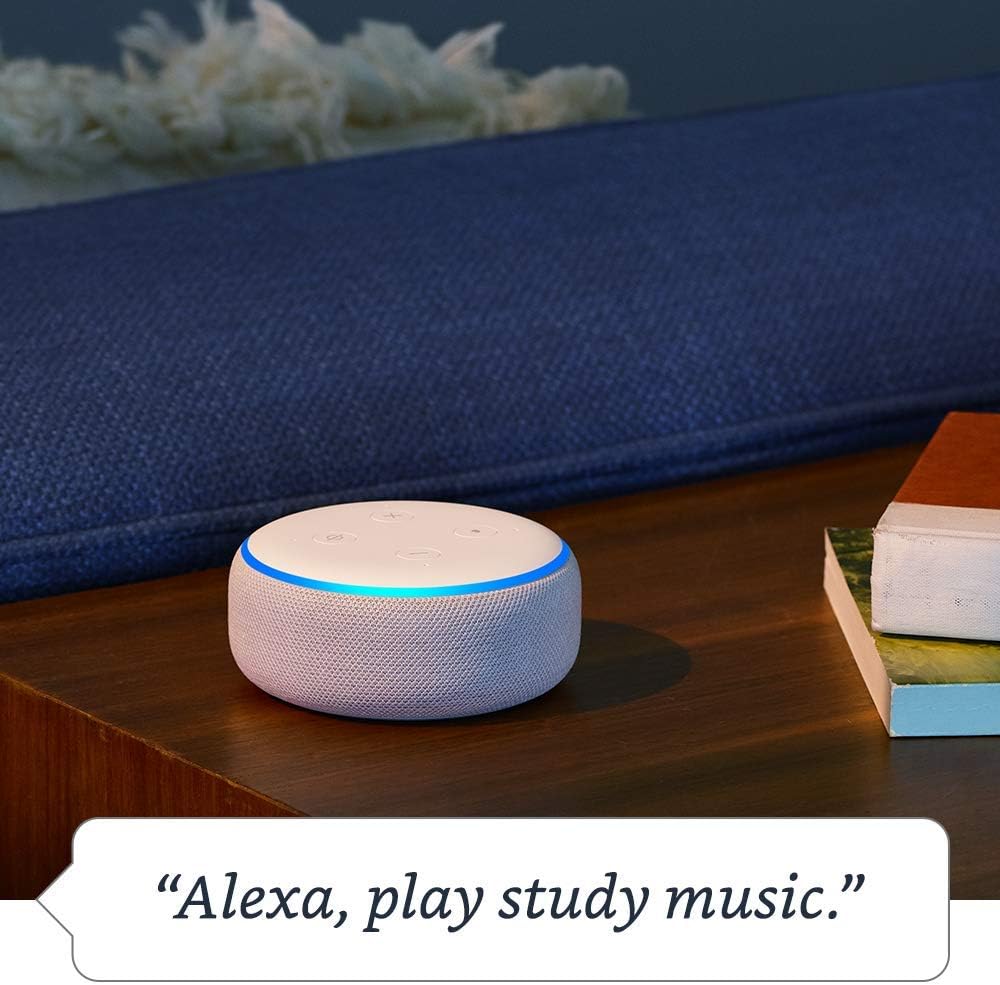
Figure 4: The Echo Dot (3rd Generation) responding to a voice command to play music, demonstrating its audio playback capabilities.
4.3 Njikwa Ụlọ Amamihe
Control compatible smart home devices with your voice.
- "Alexa, turn on the living room lights."
- "Alexa, setịpụ thermostat na ogo 72."
- "Alexa, show me the front door camera." (Requires compatible Echo device with screen)

Figure 5: The Echo Dot (3rd Generation) demonstrating smart home integration by controlling a lamp with a voice command.
4.4 Nkwukọrịta
Use your Echo Dot to connect with others.
- Na-akpọ: "Alexa, call Mom." (Requires contacts synced in Alexa app)
- Drop In: "Alexa, drop in on the kitchen Echo." (Allows instant two-way communication with other Echo devices)
- Ọkwa: "Alexa, announce dinner's ready." (Broadcasts a message to all Echo devices in your home)

Figure 6: The Echo Dot (3rd Generation) being used for household announcements, simplifying communication within the home.
4.5 Privacy Controls
Amazon Echo devices are designed with multiple layers of privacy protection.
- Bọtịnụ Gbanyụọ Igwe Okwu: Press the microphone off button on top of the device to electronically disconnect the microphones. The light ring will turn red.
- Akụkọ Olu: Ị nwere ike review and delete your voice recordings in the Alexa app or at amazon.com/alexaprivacy.
4.6 Atụmatụ nnweta
The Echo Dot includes various accessibility features configurable through the Alexa app (Settings → Accessibility).
- Ntị Na-agbanwe Agbanwe: Provides more time to speak before Alexa responds.
- Ọnụego okwu a kacha amasị: Adjust Alexa's speaking speed (e.g., "Alexa, speak slower").
- Rịọ Ụda: Plays an audible tone when Alexa starts listening.
- Gụọ Kindle n'olu dara ụda: Alexa nwere ike ịgụ akwụkwọ Kindle gị nke ọma.
4.7 Amazon Sidewalk
Amazon Sidewalk is a shared network that helps compatible devices work better at home and beyond. It uses a small portion of your internet bandwidth to provide benefits to you and your neighbors via Sidewalk Bridges (participating Echo and Ring devices). Sidewalk is turned on by default but can be turned off at any time in the Alexa app settings.
5. Nlekọta
5.1 Nhicha
To clean your Echo Dot, unplug the device and wipe it with a soft, lint-free cloth. Do not use abrasive cleaners or sprays. Keep the device dry and away from liquids.
5.2 Mmelite ngwanrọ
Echo Dot gị na-enweta mmelite ngwanrọ na akpaghị aka site na Wi-Fi. Hụ na ejikọrọ ngwaọrụ gị na ịntanetị iji nweta atụmatụ kachasị ọhụrụ na nkwalite nchekwa.
6. Nchọpụta nsogbu
- Echo Dot is not responding:
- Ensure the microphone is not muted (red light ring).
- Check if the device is plugged in and has power.
- Verify Wi-Fi connectivity in the Alexa app.
- Try restarting the device by unplugging it for 30 seconds and plugging it back in.
- Enweghị ike ijikọ na Wi-Fi:
- Hụ na paswọọdụ Wi-Fi gị ziri ezi.
- Bugharịa Echo Dot nso na rawụta Wi-Fi gị.
- Malitegharịa ekwentị gị na modem gị.
- Confirm your network is 802.11 a/b/g/n/ac (2.4 or 5 GHz) and not an ad-hoc network.
- Poor audio quality or no sound:
- Adjust the volume using the buttons on the device or via voice command.
- If connected to external speakers, ensure they are powered on and connected correctly.
- If using Bluetooth, ensure the Bluetooth device is connected and within range.
For more detailed troubleshooting, refer to the help section within the Amazon Alexa app or visit Amazon's support websaịtị.
7. Nkọwapụta
| Njirimara | Nkọwa |
|---|---|
| Nha | 3.9" x 3.9" x 1.7" (99 mm x 99 mm x 43 mm) |
| Ibu | 10.6 oz. (gram 300) |
| Njikọ Wi-Fi | Dual-band Wi-Fi supports 802.11 a/b/g/n/ac (2.4 and 5 GHz) networks. Does not support ad-hoc (peer-to-peer) networks. |
| Njikọ Bluetooth | Advanced Distribution Audio Profile (A2DP) for audio streaming. Audio/Video Remote Control Profile (AVRCP) for voice control of connected mobile devices. Bluetooth speakers requiring PIN codes are not supported. |
| Smart Home Device Compatibility | WiFi, Bluetooth Low Energy Mesh, and Matter. |
| Mmelite Nchekwa Software | Automatic updates provided. |
| Atụmatụ nnweta | Adaptive Listening, Preferred Speaking Rate, Request Sound, Kindle Read Aloud, Notify When Nearby, and other settings for vision, hearing, mobility, and speech. |
| Ụzọ ụzọ Amazon | Shared network for compatible devices, uses a small portion of internet bandwidth. User-configurable. |
8. Akwụkwọ ikike na nkwado
8.1 Akwụkwọ ikike ngwaahịa
Information regarding the limited warranty for your Amazon Echo Dot (3rd Generation) can be found in the original product packaging or on the Amazon websaịtị. Biko dowe ihe akaebe nke ịzụrụ ihe maka akwụkwọ ikike.
8.2 Nkwado ndị ahịa
For further assistance, technical support, or warranty inquiries, please contact Amazon Customer Service through the Alexa app or by visiting the Amazon support websaịtị (amazon.com/devicesupport).


