Okwu mmalite
The GameSir M2 MFi Wireless Gamepad is an Apple MFi certified gaming controller designed for an enhanced gaming experience across various Apple devices. This controller is compatible with Apple TV, iPhone, iPad, iPod touch, and Mac, requiring iOS 7 or later, or Mac OS 10.6 or later. It offers a professional gaming experience for various game genres including shooting, fighting, action, and sports. The M2 controller features Bluetooth 4.0 connectivity for lag-free performance and pressure-sensitive buttons for precise control.
This manual provides detailed instructions for setting up, operating, maintaining, and troubleshooting your GameSir M2 gamepad.

Melite
Kedu ihe dị na Igbe ahụ
- GameSir M2 MFi Wireless Gamepad
Please note that a charging cable is not included in the box. The controller uses a Lightning cable for charging.
Ịchaji njikwa
Before initial use, ensure the GameSir M2 controller is fully charged. The controller is powered by a Lithium Polymer battery (included).
- Locate the Apple Lightning charging port on the controller.
- Connect a standard Apple Lightning cable (not included) to the controller's charging port and a power source.
- The LED indicator on the controller will show charging status. Refer to the LED indicator section for details.

Ijikọ na Ngwaọrụ gị
The GameSir M2 uses Bluetooth 4.0 for wireless connectivity. Follow these steps to pair it with your Apple device:
- Ensure your Apple device (iPhone, iPad, Apple TV, Mac) has Bluetooth enabled.
- Turn on the GameSir M2 controller.
- On your Apple device, navigate to the Bluetooth settings.
- Select the GameSir M2 from the list of available devices to pair.
- Once paired, the controller's indicator light will confirm the connection.

Na-arụ ọrụ njikwa
Controller Layout and Functions
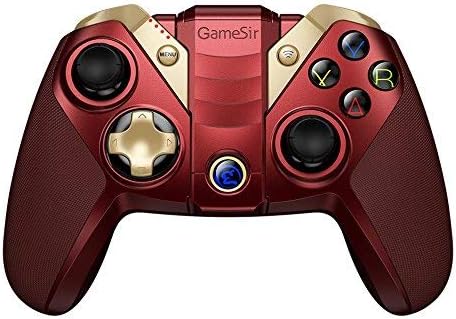
The GameSir M2 features a standard gamepad layout with dual analog sticks, a D-pad, action buttons (A, B, X, Y), and shoulder buttons (L1, L2, R1, R2). The controller also includes an overmolding LED crystal logo button.

Using the Built-in Smartphone Holder
The GameSir M2 includes a built-in adjustable bracket to securely hold your smartphone, allowing for portable gaming.
- Gently extend the adjustable bracket located on the top of the controller.
- Carefully place your smartphone into the bracket, ensuring it is securely held without obstructing the screen or buttons.
- Gbanwee akụkụ maka kacha mma viewing during gameplay.

Ndakọrịta egwuregwu
The GameSir M2 is compatible with games that are MFi (Made for iPhone/iPad/iPod) gamepad-supported and certified by Apple. It fully supports games like Fortnite. However, it does not support games such as PUBG.
The controller also supports Tello Drones, enhancing the control experience for drone operation.

Vidiyo ngwaahịa ngwaahịa
Watch the official product video for a visual guide on the GameSir M2 controller's features and usage.
Nlekọta
To ensure the longevity and optimal performance of your GameSir M2 controller, follow these maintenance guidelines:
- Nhicha: Use a soft, dry cloth to clean the controller. Avoid using harsh chemicals or abrasive materials that could damage the surface.
- Nchekwa: Chekwaa onye njikwa ahụ n'ebe dị jụụ, kpọrọ nkụ na-adịghị na ìhè anyanwụ kpọmkwem na oke okpomọkụ.
- Nlekọta batrị: For extended storage, charge the battery to approximately 50% to prevent deep discharge. Avoid fully discharging the battery frequently.
- Ijikwa: Zere ịtụfu ihe njikwa ahụ ma ọ bụ mee ka ọ nwee mmetụta siri ike, n'ihi na nke a nwere ike imebi ihe dị n'ime.
Nchọpụta nsogbu
If you encounter issues with your GameSir M2 controller, refer to the following common troubleshooting steps:
- Njikwa Anaghị ejikọta:
- Gbaa mbọ hụ na ebubo onye njikwa ahụ.
- Verify Bluetooth is enabled on your Apple device.
- Try unpairing and re-pairing the controller in your device's Bluetooth settings.
- Restart both the controller and your Apple device.
- Buttons Unresponsive or Laggy:
- Ensure the controller is within range of your device and there are no significant obstructions.
- Check for any firmware updates for the controller (refer to GameSir's official website for information).
- Confirm the game you are playing supports MFi controllers.
- Shoulder Buttons (L1/R1, L2/R2) Issues:
- Some users report that shoulder buttons may require pressing closer to the bottom edge to register input. Adjust your grip if necessary.
- Analog Stick Drift/Incorrect Input:
- If an analog stick consistently registers input in one direction (e.g., down-left), this may indicate stick drift. Try recalibrating the controller if an option is available through GameSir software, or contact support if the issue persists.
- No Vibration Feedback:
- The GameSir M2 controller does not feature vibration feedback. This is a design characteristic, not a malfunction.
Nkọwapụta
| Ụdị | GameSir |
| Usoro | M2-RD |
| Nọmba nlereanya | M2-RD |
| Ngwaike Platform | Mac |
| Ndakọrịta sistemụ arụmọrụ | iOS 7 or later, Mac OS 10.6 or later |
| Ibu Ibu | 0.528 ounces |
| Akụkụ ngwaahịa (LxWxH) | 0.31 x 0.2 x 0.51 sentimita asatọ |
| Agba | M2 controller (Red) |
| Isi Iyi Ike | Akwanyere batrị |
| Batrị | 1 batrị lithium polymer (gụnyere) |
| Teknụzụ Njikọta | Bluetooth |
| Ngwa dakọtara | Smartphone, TV, Tablet (Apple devices) |
Akwụkwọ ikike na nkwado
For warranty information, product registration, or technical support, please visit the official GameSir websaịtị ma ọ bụ kpọtụrụ ndị ahịa ha ọrụ. Debe nnata nzụta gị dị ka ihe akaebe nke ịzụrụ ihe maka akwụkwọ ikike ọ bụla.
GameSir Official Websaịtị: www.gamesir.hk


