Okwu mmalite
This manual provides instructions for the setup, operation, and maintenance of your ENHANCE Infiltrate Membrane Gaming Keyboard. This keyboard is designed for gaming, featuring quiet hybrid mechanical switches, customizable RGB lighting, and a spill-resistant design.

Foto: Angle view of the ENHANCE Infiltrate Membrane Gaming Keyboard, showcasing its full layout and active RGB backlighting.
Melite
- Iwepu: Jiri nlezianya wepụ ahụigodo ahụ n'ime ngwugwu ya. Hụ na ihe niile dị na ya dị.
- Njikọ: Connect the keyboard's USB cable to an available USB port on your computer.
- Nwụnye ọkwọ ụgbọala: Ahụigodo ahụ bụ nkwụnye na-egwu, ọ naghị achọkwa ndị ọkwọ ụgbọala ọzọ. Sistemu eji arụ ọrụ gị kwesịrị ịchọpụta na wụnye ndị ọkwọ ụgbọala dị mkpa.
- Nkwanye: Position the keyboard comfortably on your desk. The integrated kickstands at the rear can be used to adjust the typing angle.
Ntuziaka ọrụ
Mmetụta ọkụ
The Infiltrate keyboard features customizable RGB backlighting with 7 static colors and 9 dynamic lighting effects. The transparent letters and symbols on each key ensure clear visibility in low-light conditions.
- Mmetụta ọkụ na-agbanwe: Pịa FN igodo + 1 site na 9 keys to cycle through the 9 dynamic lighting effects.
- Changing Static Colors: Pịa FN igodo + ~ (tilde) key to cycle through the 7 static color options.
- Na-edozi ihie: Pịa FN igodo + Ibe elu or Ibe ala keys to increase or decrease the backlight brightness.
- Sound Response Mode: One of the dynamic effects is a Sound Response mode, where the keyboard's lighting pulses and changes color in response to audio input (music, in-game sounds).

Image: Close-up of the keyboard illustrating the FN key combinations for toggling LED effects, colors, and brightness.

Image: The keyboard positioned with external speakers, visually representing the sound response lighting feature where lights react to audio.
Multimedia and Gaming Features
- Igodo mgbasa ozi: The keyboard includes 12 quick-access multimedia keys (F1-F12 functions when combined with FN key) for controlling audio, video, and other system functions.
- Anti-Ghosting and 19-Key Rollover: Designed for precise input, the keyboard supports 19-key rollover and anti-ghosting, ensuring that multiple simultaneous key presses are registered accurately during intense gaming sessions.
- Hybrid Mechanical Switches: The keyboard utilizes hybrid mechanical switches, providing a tactile keystroke experience similar to mechanical keyboards but with reduced noise, suitable for environments where quiet operation is preferred.

Image: A graphic overlay on the keyboard highlighting its advanced features, including multiple color modes, lighting effects, anti-ghosting, and 19-key rollover.

Foto: A na-ebuli elu view of a keycap removed, revealing the hybrid mechanical switch mechanism underneath, designed for tactile yet quiet keystrokes.
Nlekọta
Spill and Dust Resistance
The ENHANCE Infiltrate keyboard features a special raised switch design and rear drainage ports, providing water and dust resistance. This design helps protect the internal components from accidental spills and dust accumulation.
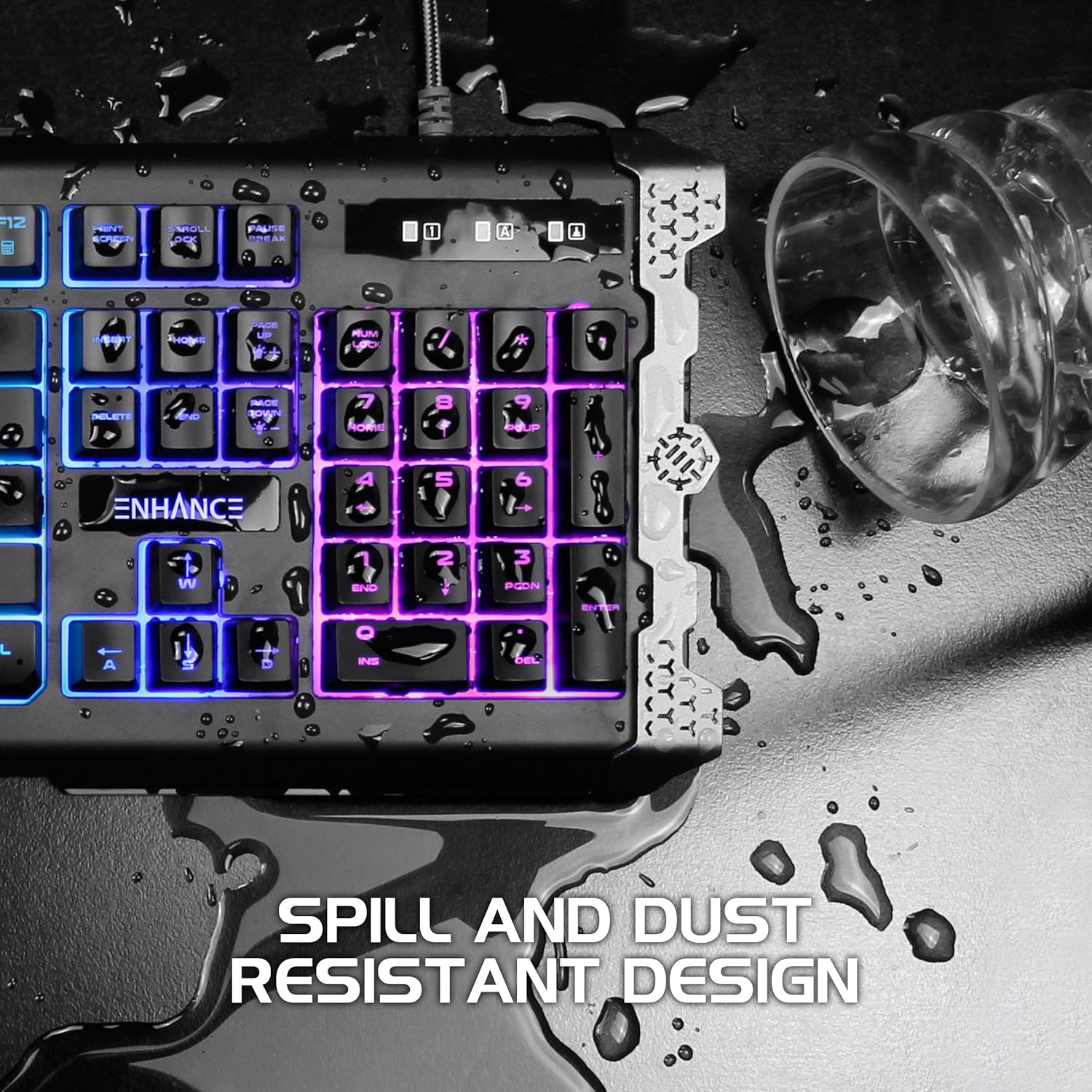
Image: The keyboard with water droplets on its surface, illustrating its spill-resistant design and drainage capabilities.
Ntuziaka nhicha
- Nchacha izugbe: Use a soft, dry cloth to wipe down the keyboard surface regularly.
- Mwepụ uzuzu: Jiri ikuku abịakọrọ wepụ uzuzu na irighiri ihe n'etiti igodo.
- Spill Cleanup: In case of a liquid spill, immediately disconnect the keyboard from your computer. Gently wipe away the liquid with a clean cloth. Allow the keyboard to air dry completely before reconnecting. Do not use harsh chemicals or abrasive materials.
Nchọpụta nsogbu
- Ahụigodo Anaghị aza:
- Gbaa mbọ hụ na ejikọrọ eriri USB na nchekwa na ma ahụigodo ma kọmputa.
- Gbalịa ijikọ ahụigodo na ọdụ ụgbọ USB dị iche.
- Malitegharịa ekwentị gị na kọmputa.
- Test the keyboard on another computer to determine if the issue is with the keyboard or the computer's port/drivers.
- Backlighting Not Working or Inconsistent:
- Ensure the backlight brightness is not set to the lowest level (use FN + Page Up).
- Cycle through different lighting effects and colors (FN + 1-9, FN + ~) to see if the issue persists across all modes.
- If specific keys or sections of the lighting are consistently out, this may indicate a hardware issue.
- Igodo anaghị edebanye aha:
- Check for any physical obstructions under the keycap.
- Clean the keyboard as per the maintenance instructions.
- If only specific keys are affected, it might be a hardware malfunction.
Nkọwapụta
| Njirimara | Nkọwa |
|---|---|
| Ụdị | kwalite |
| Nọmba nlereanya | ENINKNL100BKUS |
| Ngwaike Platform | PC |
| Teknụzụ Njikọta | USB |
| Nkọwa ahụigodo | Ịgba egwu |
| Njirimara Pụrụ Iche | Ngosipụta mwụfu |
| Ahụigodo azụ azụ | RGB (7 colors, 9 dynamic effects) |
| igodo Rollover | 19-Igodo Rollover |
| Mgbochi mmụọ | Ee |
| Ngbanwe Ụdị | Hybrid Mechanical Membrane |
| Ihe onwunwe | Metal Accents |
| Ibu Ibu | 1.84 pound |
| Akụkụ ngwaahịa (LxWxH) | 18.75 x 6.75 x 2 sentimita asatọ |
Akwụkwọ ikike
The ENHANCE Infiltrate Membrane Gaming Keyboard comes with a Akwụkwọ ikike nke onye nrụpụta afọ 3. Akwụkwọ ikike a na-ekpuchi ntụpọ dị na ngwa na arụ ọrụ n'okpuru ojiji nkịtị. Biko dowe ihe akaebe nke ịzụrụ ihe maka akwụkwọ ikike.
For detailed warranty terms and conditions, please refer to the official ENHANCE websaịtị ma ọ bụ kpọtụrụ nkwado ndị ahịa.
Nkwado
If you encounter any issues not covered in this manual or require further assistance, please contact ENHANCE customer support.
- Akụrụngwa dị n'ịntanetị: Visit the official ENHANCE website for FAQs, updated manuals, and support articles.
- Ozi mkpọtụrụ: Refer to the product packaging or the ENHANCE website for the most current customer service contact details (phone, email, or support portal).
Ozi Mgbakwunye
Ngwaahịa a sitere n'aka obere ụlọ ọrụ azụmaahịa. A na-ekele gị maka nkwado gị.


