Okwu mmalite
This manual provides essential information for the safe and efficient use of your AOC 22P1D 21.5-inch Full HD LED Monitor. Please read these instructions carefully before operating the device and retain them for future reference.
Ozi nchekwa
Always observe the following safety precautions to prevent damage to the monitor and ensure personal safety:
- Etinyela ihe nlele ahụ n'ime mmiri ozuzo ma ọ bụ mmiri iji zere ọkụ ma ọ bụ ihe egwu mberede.
- Emeghela ihe nlele ahụ casing. Enweghị akụkụ ọrụ ọ bụla dị n'ime ya. Nye ndị ọrụ ruru eru ọrụ niile.
- Debe ihe nlele ahụ n'elu ebe kwụsiri ike ma dị larịị iji gbochie ya ịda.
- Hụ na ikuku dị mma gburugburu ihe nlele ahụ. Ekpuchila oghere ikuku.
- Jiri naanị eriri ike na ihe nkwụnye ọkụ enyere na ihe nlele ahụ.
- Kwụpụ ihe nlele ahụ na ebe ọkụ eletrik dị n'oge oké ifufe ma ọ bụ mgbe ejiri ya ruo ogologo oge.
Ihe ngwugwu
Chọpụta na ihe niile dị na ngwugwu:
- AOC 22P1D Monitor
- Nyochaa Stand (Base and Olu)
- Igwe ọkụ ọkụ
- HDMI USB
- USB VGA
- USB USB (3.5mm)
- User Manual (on CD, if applicable)
Ntuziaka nhazi
1. Ịchịkọta nkwụsi ike
Carefully remove the monitor and stand components from the packaging. Attach the stand neck to the monitor panel, then secure the base to the neck. Ensure all connections are firm.

Foto: N'azụ view of the AOC 22P1D monitor, showing the stand assembly point.
2. Ijikọ Monitor
Connect the necessary cables to the monitor and your computer. The AOC 22P1D supports HDMI and VGA inputs.
- Njikọ ike: Jikọọ eriri ọkụ eletrik ahụ na ntinye ike nke ihe nlele ahụ wee jikọọ na oghere mgbidi.
- Njikọ vidiyo (HDMI): Connect one end of the HDMI cable to the HDMI port on the monitor and the other end to the HDMI port on your computer.
- Njikọ vidiyo (VGA): Alternatively, connect one end of the VGA cable to the VGA port on the monitor and the other end to the VGA port on your computer.
- Njikọ Audio: If using VGA or a source without audio over HDMI, connect the 3.5mm audio cable from your computer's audio output to the monitor's audio input for sound through the monitor's built-in speakers.
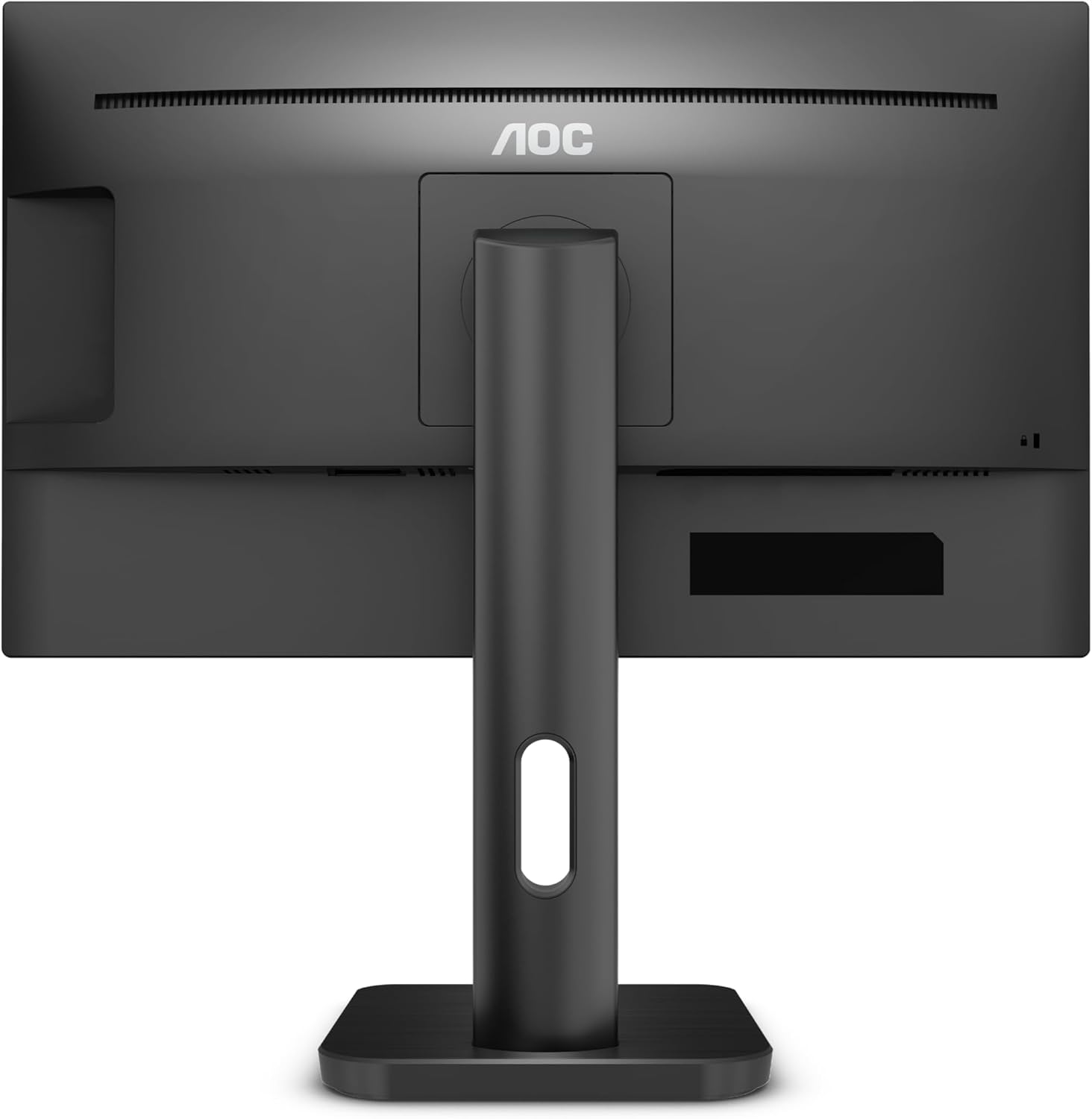
Foto: N'azụ view of the AOC 22P1D monitor, highlighting the various input ports for connectivity.
3. Ike izizi
After connecting all cables, press the power button on the monitor to turn it on. The monitor will automatically detect the active input signal. If no signal is detected, ensure your computer is powered on and the correct input source is selected on the monitor.
Ntuziaka ọrụ
1. Gbanyụọ / gbanyụọ
Press the power button located on the bottom right bezel of the monitor to turn it on or off.

Foto: N'ihu view of the AOC 22P1D monitor, showing the power button location and key features.
2. Ngosipụta n'ihuenyo (OSD) Ntugharị menu
The OSD menu allows you to adjust various monitor settings. Use the control buttons on the bottom right bezel to navigate the menu.
- Pịa NchNhr bọtịnụ iji mepee OSD.
- Jiri ihe Elu/ala bọtịnụ iji lelee nhọrọ menu.
- Pịa Họrọ pịa bọtịnụ iji tinye obere menu ma ọ bụ kwado ntọala.
- Pịa Ụzọ ọpụpụ button to go back or close the OSD.
3. Ntọala foto
Adjust the display quality to your preference:
- Icha ọkụ: Na-achịkwa ìhè n'ozuzu nke ihuenyo ahụ.
- Ntughari: Na-edozi ọdịiche dị n'etiti ìhè na ebe gbara ọchịchịrị.
- Okpomọkụ agba: Selects preset color modes (e.g., Warm, Cool, Normal) or custom RGB settings.
- Low Blue Mode: Reduces blue light emission for eye comfort.
- Flicker-enweghị: Technology to reduce screen flickering.
4. Nhọrọ Ntinye
If you have multiple devices connected, use the OSD menu or a dedicated input button to switch between HDMI and VGA inputs.
5. Ntọala ọdịyo
If using the monitor's built-in speakers, adjust the volume through the OSD menu. Ensure your computer's audio output is directed to the monitor.
Nlekọta
Nhicha Nyochaa
Iji nọgide na-arụ ọrụ nke ọma ma nwee ọdịdị dị mma, soro ntuziaka nhicha ndị a:
- Wepụ ihe nleba anya mgbe niile na oghere ọkụ tupu ihicha ya.
- Jiri akwa dị nro na-enweghị ntụpọ dampejiri mmiri mee ya ma ọ bụ ihe dị nro, ihe nhicha ihuenyo anaghị emebi emebi.
- Afesakwala ihe nhicha ozugbo na ihuenyo. Buru ụzọ tinye ya na akwa ahụ.
- Avoid using benzene, thinner, ammonia-based cleaners, or abrasive cleaning agents, as these can damage the screen or casing.
- Jiri nwayọọ hichaa ihuenyo ahụ iji wepụ uzuzu na ihe ndị na-adịghị mma.
Nchọpụta nsogbu
Ọ bụrụ na ịnwee nsogbu na ihe nleba anya gị, rụtụ aka na nsogbu na azịza ndị a na-ahụkarị:
| Nsogbu | Ihe nwere ike ime | Ngwọta |
|---|---|---|
| Enweghị ike | Ejikọghị eriri ọkụ; Ọkụ ọkụ anaghị arụ ọrụ. | Ensure power cable is securely connected to both monitor and outlet. Test outlet with another device. |
| Enweghị akara ngosi | Ejikọghị eriri vidiyo; Ahọpụtaghị isi mmalite ntinye na-ezighi ezi; Agwaghị kọmputa. | Check video cable connections (HDMI/VGA). Select the correct input source via the OSD menu. Ensure computer is on and outputting video. |
| Ogo onyonyo adịghị mma | Incorrect resolution; Brightness/Contrast settings incorrect; Dirty screen. | Set display resolution to 1920x1080. Adjust brightness and contrast via OSD. Clean the screen as per maintenance instructions. |
| Enweghị ụda | Audio cable not connected (for VGA); Monitor volume too low; Computer audio output incorrect. | If using VGA, connect the 3.5mm audio cable. Increase monitor volume via OSD. Check computer's audio settings to ensure output is to the monitor. |
Nkọwapụta
Technical specifications for the AOC 22P1D monitor:
| Njirimara | Nkọwapụta |
|---|---|
| Nọmba nlereanya | 22P1D |
| Nha ihuenyo | 21.5 sentimita asatọ |
| Ngosipụta teknụzụ | Ikanam |
| Mkpebi | 1920 x 1080 (HD zuru ezu) |
| Akụkụ akụkụ | 16:9 |
| Ọnụego ume ọhụrụ | 60 Hz |
| Oge nzaghachi | 2 nkeji |
| Ọnụọgụ ọdịiche | 1000:1 |
| Ntinye ọdụ ụgbọ mmiri | 1 x HDMI, 1 x VGA |
| Ndị na-ekwu okwu arụrụ arụ | Ee |
| Agba | Nwa |
| Akụkụ ngwaahịa | 50.6 x 19.8 x 50.4 cm |
| Ibu Ibu | 4.2 kilogram |
| Oriri ike | 22 Watts (nke a na-ahụkarị) |

Foto: N'ihu view of the AOC 22P1D monitor with approximate dimensions shown.
Ozi akwụkwọ ikike
Your AOC 22P1D monitor comes with a standard manufacturer's warranty. Please refer to the warranty card included in your product packaging or visit the official AOC websaịtị maka nkọwa zuru ezu usoro na ọnọdụ gbasara mkpuchi mkpuchi, ogologo oge na usoro ọrụ.
Nkwado ndị ahịa
For further assistance, technical support, or service inquiries, please contact AOC customer support. You can find contact information and additional resources on the official AOC websaịtị:
Please have your monitor's model number (22P1D) and serial number ready when contacting support.


