Okwu mmalite
This manual provides comprehensive instructions for the Vivitar IPC113-WHT Wide Angle 1080p HD Wi-Fi Smart Home Camera. It covers setup, operation, maintenance, and troubleshooting to ensure optimal performance and security for your home or office. The camera features 1080p HD video, a wide-angle lens, motion detection, night vision, two-way audio, and compatibility with iOS and Android devices, as well as Amazon Alexa and Google Assistant.
Kedu ihe dị na Igbe ahụ
Mgbe imepechara ngwugwu ahụ, chọpụta na akụrụngwa niile dị:
- High Definition Capture Cam (Vivitar IPC113-WHT)
- Ihe nkwụnye ọkụ (AC/DC)
- eriri USB
- Mounting Accessories (e.g., screws, wall anchors, magnetic base)
- Akwụkwọ ntuziaka onye ọrụ
Ngwaahịa gafereview
Familiarize yourself with the various parts of your Vivitar IPC113-WHT camera.
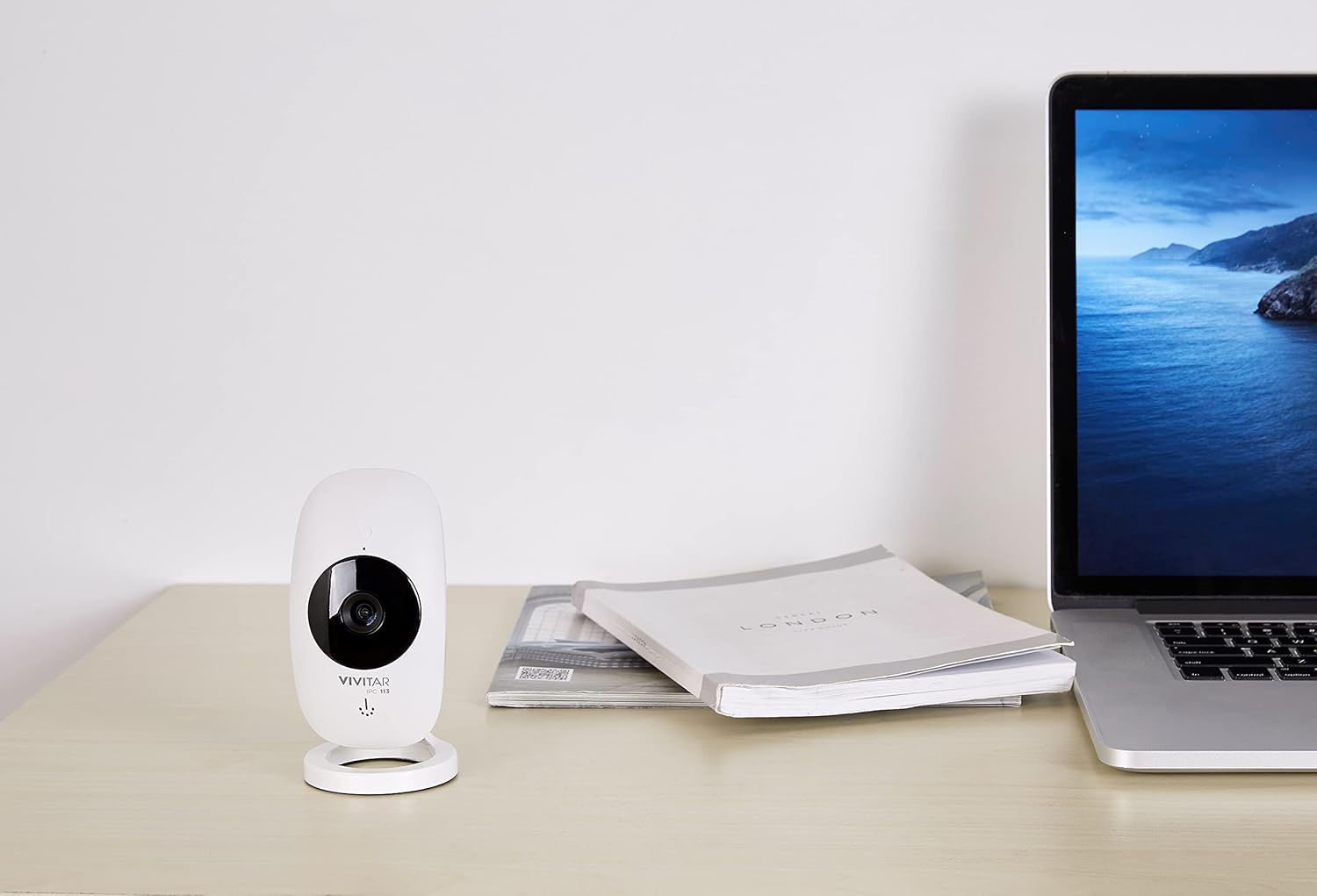
Foto 1: The Vivitar IPC113-WHT camera positioned on a desk, illustrating its compact design for discreet placement.
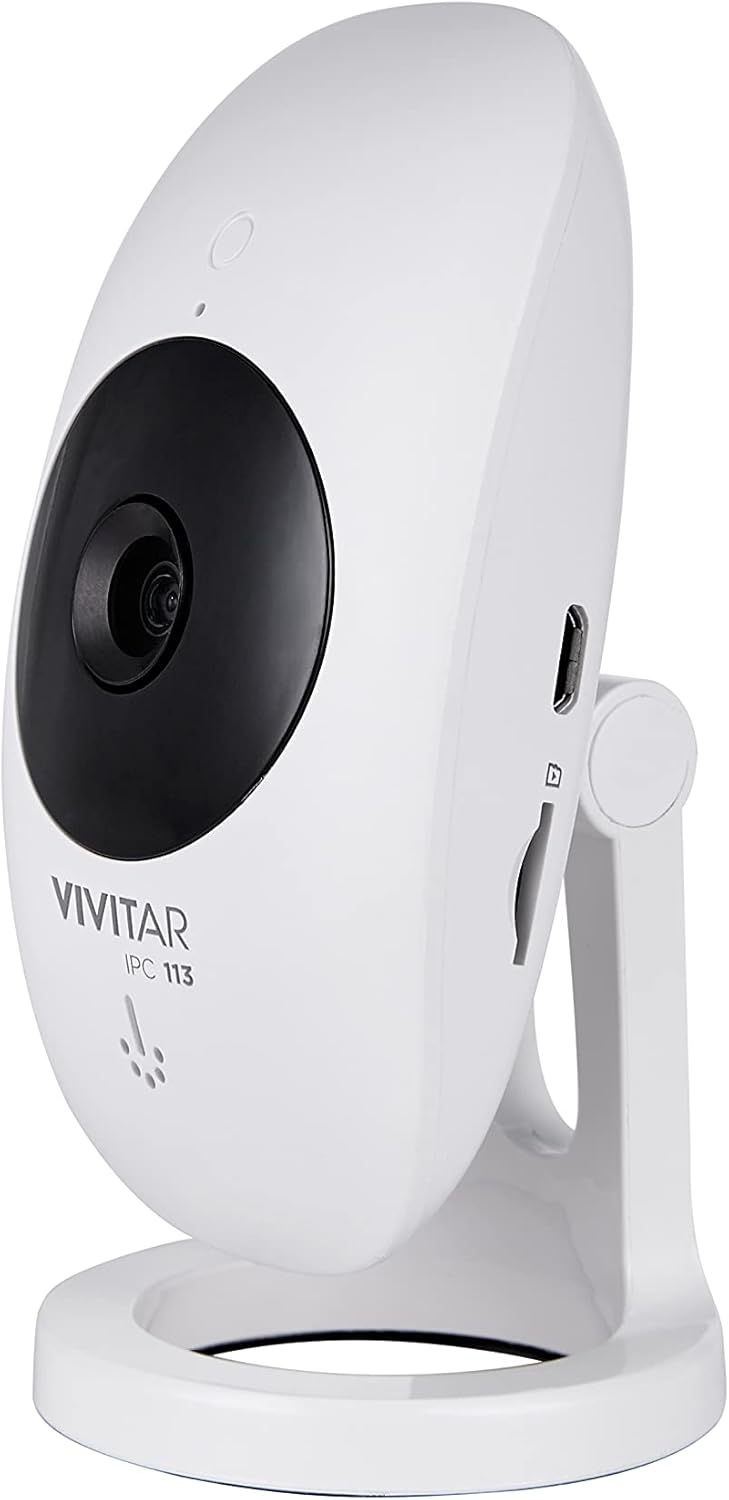
Foto 2: Akụkụ profile of the camera, highlighting the micro USB power input and the microSD card slot for local storage.

Foto 3: N'azụ view of the camera, detailing the reset button and ventilation for optimal performance.

Foto 4: Labeled diagram of the camera's front, identifying the motion detector, night vision light, high definition lens, microphone, speakerphone, and adjustable stand.
Ntuziaka nhazi
- Ike Na: Connect the camera to a power source using the provided USB cable and AC/DC adapter. The camera will power on automatically.
- Budata ngwa: Download the "Vivitar Home" app from the Apple App Store (for iOS devices) or Google Play Store (for Android devices).
- Mepụta akaụntụ: Open the Vivitar Home app and follow the on-screen instructions to create a new user account or log in if you already have one.
- Tinye ngwaọrụ: In the app, select the option to add a new device. Choose the Vivitar IPC113-WHT camera from the list.
- Jikọọ na Wi-Fi: Follow the app's prompts to connect the camera to your home Wi-Fi network. Ensure your Wi-Fi network is 2.4GHz, as 5GHz networks are not supported.
- Nkwanye: Position the camera in your desired location. The magnetic base allows for flexible mounting on metallic surfaces, or use the included mounting accessories for wall or ceiling installation.
- Optional: MicroSD Card Installation: For local video storage, insert a compatible microSD card (not included) into the designated slot on the camera.
Ntuziaka ọrụ
- Dị ndụ View: Open the Vivitar Home app and select your camera to view the live 1080p HD video feed.
- Digital Pan, Tilt, Zoom: Use the app interface to digitally adjust the camera's view, pan, tilt, or zoom in on specific areas within the wide-angle lens's field of view.
- Audio Ụzọ Abụọ: Utilize the microphone and speakerphone features within the app to communicate with individuals near the camera.
- Nchọpụta ngagharị: The camera is equipped with motion detection. When activity is detected, you will receive push notifications on your smartphone. Sensitivity settings can be adjusted in the app.
- Ọhụụ abalị: The camera automatically switches to night vision mode in low-light conditions, providing clear monitoring around the clock.
- Ndekọ na Nchekwa:
- Nchekwa mpaghara: Videos can be recorded and stored on an installed microSD card.
- Nchekwa igwe ojii: A free cloud service is available for reviewing and sharing footage, allowing access to your camera's recordings from any location.
- Njikwa olu: Integrate your camera with Amazon Alexa or Google Assistant for convenient voice control commands. Refer to the respective voice assistant app for integration steps.

Foto 5: The Vivitar Home app on a smartphone, demonstrating the live video feed and user interface for camera control.
Nlekọta
- Nhicha: Gently wipe the camera lens and body with a soft, dry cloth. Avoid using liquid cleaners or abrasive materials.
- Mmelite ngwanrọ: Periodically check the Vivitar Home app for firmware updates for your camera. Keeping the firmware updated ensures optimal performance and security.
- Njikwa kaadi MicroSD: If using a microSD card, regularly back up important footage and format the card periodically to maintain recording efficiency.
- Ọnọdụ gburugburu: Ensure the camera is used indoors and within recommended temperature and humidity ranges to prevent damage.
Nchọpụta nsogbu
- Igwefoto anaghị ejikọta na Wi-Fi:
- Ensure your Wi-Fi network is 2.4GHz. The camera does not support 5GHz networks.
- Hụ na paswọọdụ Wi-Fi etinyere na ngwa ahụ ziri ezi.
- Bugharịa igwefoto nso na rawụta Wi-Fi gị iji kwalite ike mgbaama.
- Malitegharịa ekwentị gị na igwefoto.
- No video feed in the app:
- Check if the camera is powered on and connected to Wi-Fi.
- Gbaa mbọ hụ na ekwentị gị nwere njikọ ịntanetị kwụsiri ike.
- Close and reopen the Vivitar Home app.
- Motion detection alerts not received:
- Verify that push notifications are enabled for the Vivitar Home app in your phone's settings.
- Check the motion detection sensitivity settings within the app.
- Ensure the camera is positioned correctly to detect motion in the desired area.
- Audio ụzọ abụọ anaghị arụ ọrụ:
- Ensure your phone's microphone is enabled for the Vivitar Home app.
- Check the volume settings on both your phone and within the app.
- Confirm there are no obstructions blocking the camera's microphone or speaker.
Nkọwapụta
| Aha Nlereanya | IPC113-WHT |
| Ụdị | Ndụ |
| Mkpebi ịse vidiyo | 1080p HD |
| Teknụzụ Njikọta | Ikuku (Wi-Fi) |
| Teknụzụ nzikọrịta ozi ikuku | Wi-Fi (naanị 2.4GHz) |
| Atụmatụ pụrụ iche | Motion Sensor, Night Vision, Two-Way Audio |
| Ngwa dakọtara | Smartphone (iOS, Android), Amazon Alexa, Google Assistant |
| Isi Iyi Ike | AC/DC |
| Ojiji ime ime/n'èzí | Ime ụlọ |
| Ụdị nkwụnye | Wall Mount (with magnetic base) |
| Akụkụ (L x W x H) | 5.25 x 2.5 x 8 sentimita asatọ |
| Ibu Ibu | 8.4 ounces |
| Agba | Ọcha |
| Onye nrụpụta | Sakar International, Inc. |
Akwụkwọ ikike na nkwado
For warranty information and technical support, please refer to the documentation included with your product or visit the official Vivitar website. You may also contact Sakar International, Inc., the manufacturer, for assistance. Keep your purchase receipt as proof of purchase for warranty claims.
Onye nrụpụta: Sakar International, Inc.


