1. Okwu mmalite
This manual provides essential information for the safe and efficient operation of your InFocus IN112XV Presentation Projector. The IN112XV is designed for business presentations and educational use, offering a long lamp life, high brightness, and clear image quality.
- Agbatịrị Lamp Ndụ: Enjoy over 15,000 hours of viewing.
- Icha ọkụ dị elu: 3800 lumens for clear images in various lighting conditions.
- Ọdịiche dị iche: 26000:1 for distinct whites and blacks.
- Na-agbanwe agbanwe Viewing: Projects images from 28 inches to 300 inches diagonally.
- Njikọta: Features HDMI input and SVGA (800 x 600) resolution.
2. Ihe ngwugwu
Nyochaa na etinyere ihe niile edepụtara n'okpuru na ngwugwu gị:
- InFocus IN112XV Projector
- Ụdọ ọkụ
- Njikwa anya
- USB VGA
- Akwụkwọ (akwụkwọ ntuziaka a na ntuziaka ndị ọzọ)
3. Ngwaahịa gafereview
Familiarize yourself with the components and controls of your InFocus IN112XV projector.
3.1 N'ihu View
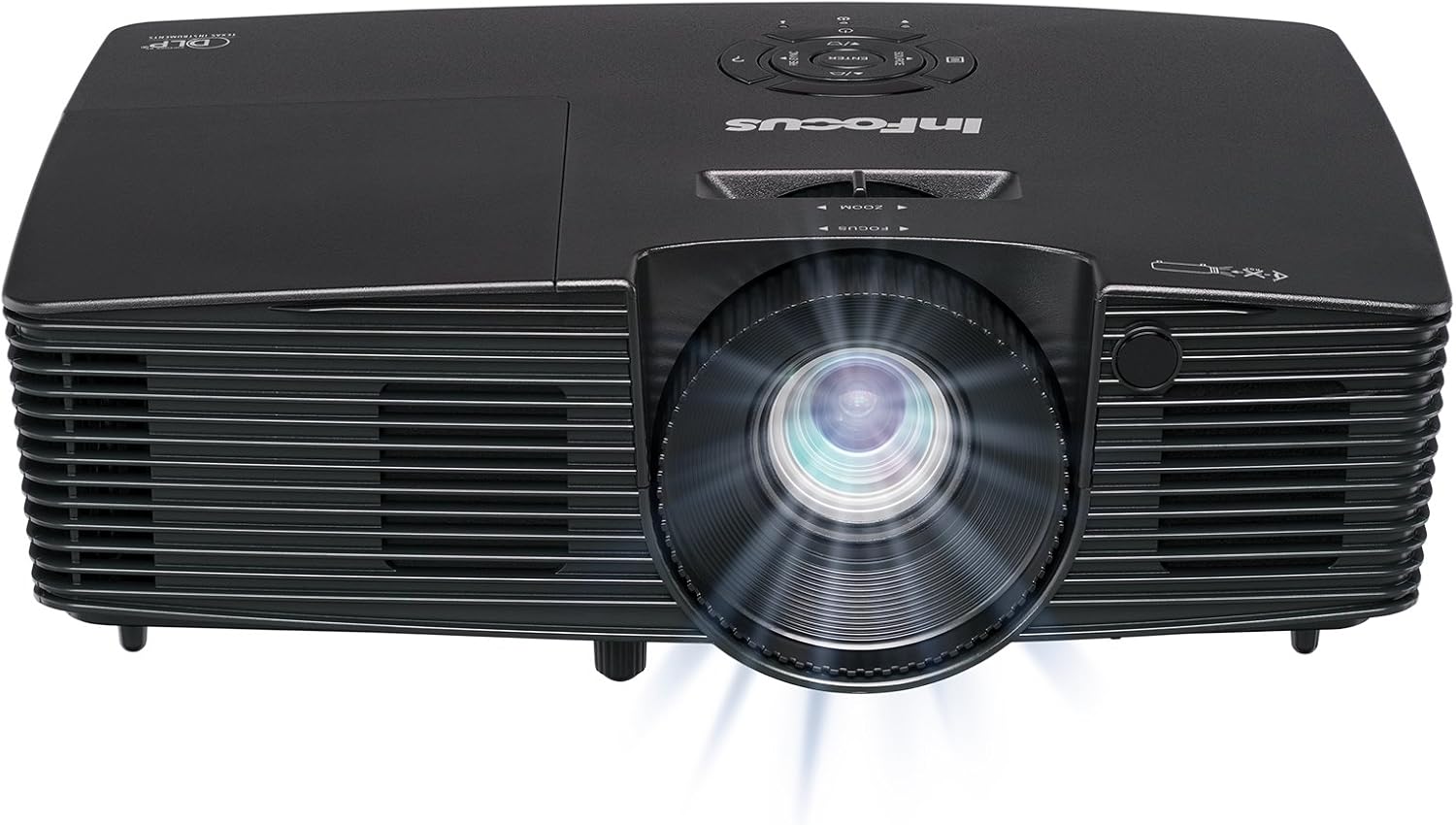
Foto nke 3.1: N'ihu view of the InFocus IN112XV projector. This image highlights the main projection lens and the front ventilation grilles.
3.2 kacha View na Ogwe njikwa

Foto nke 3.2: N'elu view of the InFocus IN112XV projector. The control panel is visible on the right, featuring buttons for power, source selection, menu navigation, keystone adjustment, and volume. The focus and zoom adjustment rings are located around the lens.
The control panel on the top of the projector allows for basic operation without the remote. Key buttons include:
- Ike: Gbanyụọ ma ọ bụ gbanyụọ projector.
- Isi mmalite: Na-eme okirikiri site na isi mmalite ntinye dị.
- NchNhr: Na-abanye na menu ngosi ihuenyo (OSD).
- Banye: Na-akwado nhọrọ dị na menu OSD.
- Igodo ụta: Navigate menu options and adjust settings.
- Re-Sync: Synchronizes the image.
3.3 N'azụ View na Njikọ Ports

Foto nke 3.3: N'azụ view of the InFocus IN112XV projector. This image displays the available connection ports, including Video In, S-Video In, Computer In (VGA), HDMI, and the power input.
The rear panel provides various ports for connecting external devices:
- Vidiyo Na: For composite video sources.
- S-Video In: For S-Video sources.
- Computer In (VGA): For connecting to computers via VGA cable.
- HDMI: For digital video and audio sources.
- Ọrụ: For service and maintenance purposes.
- Ntinye ike: Connects the power cord to an electrical outlet.
3.4 Ime Remote

Foto nke 3.4: Remote control for the InFocus IN112XV projector. The remote provides full control over the projector's functions, including power, source selection, menu navigation, keystone correction, and volume.
The remote control offers convenient access to all projector functions. Ensure batteries are correctly installed.
4. Nhazi
4.1 Ntinye
Position the projector on a stable, flat surface or mount it securely. Ensure there is adequate space around the projector for ventilation.
4.2 Njikọ ike
- Jikọọ eriri ike na ọdụ ụgbọ mmiri ntinye ike nke projector.
- Tinye nsọtụ nke ọzọ nke eriri ọkụ n'ime oghere eletrik gbadoro ụkwụ.
4.3 Isi mmalite ntinye eji ejikọta
The projector supports various input sources. Choose the appropriate cable for your device:
- HDMI: Connect an HDMI cable from your source device (e.g., laptop, media player) to the projector's HDMI port.
- VGA (Kọmputa dị na ya): Connect a VGA cable from your computer to the projector's Computer In port. This is a plug-and-play connection.
- Video In / S-Video In: Use composite video or S-Video cables for older video sources.
- Ngwa mkpanaaka: To connect an iPad or smartphone, a LightCast Key (sold separately) is required.
5. Ntuziaka ọrụ
5.1 Gbanyụọ/ gbanyụọ
- Iji gbanye: Pịa Ike button on the projector's control panel or the remote control. The power indicator light will change.
- Iji gbanyụọ: Pịa Ike button again. A confirmation message may appear. Press again to confirm shutdown. Allow the projector to cool down before unplugging.
5.2 Ịhọrọ Isi Iyi Ntinye
After connecting your source device, select the correct input:
- Pịa Isi mmalite button on the projector's control panel or the remote control to cycle through available inputs (HDMI, VGA, Video, S-Video).
- Alternatively, use the dedicated input buttons (HDMI, VGA, Video) on the remote control.
5.3 Adjusting Focus and Zoom
For a clear and appropriately sized image, adjust the lens rings:

Foto nke 5.1: Manual Focus Adjustment. This image illustrates the effect of adjusting the focus ring, transforming a blurry projection into a clear and sharp image.
- Gbado anya: Tugharia ihe Lekwasị anya ring on the projector lens until the image appears sharp and clear.
- Bugharịa: Tugharia ihe Bugharịa ring on the projector lens to adjust the size of the projected image.
5.4 Ndozi isi okwu
If the projected image appears trapezoidal (wider at the top or bottom), use keystone correction to square it:
- Pịa Isi okwu + or Keystone- buttons on the remote control to adjust the image geometry.
5.5 Nsorouzọ NchNhr
Access the On-Screen Display (OSD) menu for advanced settings:
- Pịa NchNhr button on the remote or control panel.
- Use the arrow keys to navigate through menu options.
- Pịa Banye ka ịhọrọ nhọrọ ma ọ bụ kwado ntọala.
- Pịa NchNhr again to exit the OSD.
6. Nlekọta
6.1 Lamp Ndụ
Onye na-eme ihe nkiri lamp has an estimated life of over 15,000 hours. When the lamp reaches the end of its life, the projector may display a warning message or the image brightness may significantly decrease. Refer to the full service manual for lamp replacement procedures if necessary.
6.2 Nhicha
- Ihe ngosiputa Casing: Use a soft, dry cloth to wipe the exterior of the projector. Do not use abrasive cleaners or solvents.
- oghere: Gently clean the lens with a lens cleaning cloth and specialized lens cleaning solution. Avoid touching the lens surface with your fingers.
- Mmeghe ikuku: Periodically check and clean the ventilation openings to ensure proper airflow and prevent overheating. Use a soft brush or compressed air to remove dust.
7. Nchọpụta nsogbu
Akụkụ a na-eleba anya n'okwu ndị a na-ahụkarị ị nwere ike izute na projector gị.
| Nsogbu | Ihe nwere ike ime | Ngwọta |
|---|---|---|
| Ọnweghị onyonyo egosiri |
|
|
| Onyonyo na-agba agba |
|
|
| Foto a bụ trapezoidal |
|
|
| Projector runs hot or smells of burning plastic |
|
|
| Enweghị ọdịyo |
|
|
Ihe ndetu dị mkpa: This projector is not recommended for high-definition movie viewing. While it can accept a 1080p input signal, it projects at its native SVGA (800 x 600) resolution.
8. Nkọwapụta
| Njirimara | Nkọwa |
|---|---|
| Nọmba nlereanya | IN112XV |
| Ngosipụta teknụzụ | DLP |
| Mkpebi obodo | SVGA (800 x 600) |
| Icha ọkụ | 3800 Lumen |
| Ọnụọgụ ọdịiche | 26000:1 |
| Lamp Ndụ | Ruo awa iri abụọ |
| Njikọta | HDMI, VGA (Computer In), Video In, S-Video In |
| Njirimara Pụrụ Iche | 3D-Njikere |
| Eji akwadoro | Azụmaahịa, Agụmakwụkwọ |
| Akụkụ ngwaahịa | 8.8 x 12.4 x 4 sentimita asatọ |
| Ibu Ibu | 5.5 pound |
9. Akwụkwọ ikike na nkwado
9.1 Ozi akwụkwọ ikike
The InFocus IN112XV projector is backed by a 2-afọ akwụkwọ ikike. Akwụkwọ ikike a na-ekpuchi ntụpọ dị na ngwa na arụ ọrụ n'okpuru ojiji nkịtị. Biko dowe ihe akaebe nke ịzụrụ ihe maka akwụkwọ ikike.
9.2 Nkwado ndị ahịa
For technical assistance, troubleshooting beyond this manual, or warranty service, please contact InFocus customer support. Contact information can typically be found on the official InFocus websaịtị ma ọ bụ na akwụkwọ agụnyere na ngwaahịa gị.


