1. Okwu mmalite
This manual provides essential information for setting up, operating, maintaining, and troubleshooting your Fossil Gen 3 Explorist Smart Watch, model FTW4002. Please read these instructions carefully to ensure proper use and longevity of your device.
Nkọwa vidiyo: Nfefeview of the Fossil Explorist FTW4002 Smart Watch, showcasing its design, touchscreen interface, and key features such as notifications, Google Maps, and activity tracking. The watch features a rose gold polished case and a blue leather strap.
2. Nhazi
2.1 Unboxing na ụgwọ mbụ
Upon unboxing your Fossil Gen 3 Explorist Smart Watch, it is recommended to fully charge the device before first use. The watch comes with a magnetic charger. Connect the charger to a power source and place the watch onto the magnetic charging pad. Ensure the watch is securely seated for proper charging. A full charge may take approximately 4-5 hours.
2.2 Ijikọ na ama gị
To utilize the full functionality of your smartwatch, it must be paired with a compatible smartphone (Android OS or iOS). Ensure Bluetooth is enabled on your phone.
- Download the Wear OS by Google app from your phone's app store.
- Open the Wear OS app and follow the on-screen instructions to begin the pairing process.
- On your watch, select your preferred language and follow the prompts to connect to your phone.
- Kwado koodu mmekọ egosiri na ma elekere gị na ekwentị gị.
2.3 Installing Wear OS App
The Wear OS by Google app is crucial for managing your watch settings, notifications, and installing additional applications. Ensure the app is always updated to the latest version for optimal performance.
3. Na-arụ ọrụ Smartwatch gị
3.1 Nsoro ụzọ
Your Fossil Gen 3 Explorist features a responsive touchscreen and physical buttons for navigation.
- Ihuenyo mmetụ aka: Mịgharịa elu, ala, aka ekpe, ma ọ bụ aka nri iji lelee menu na ọkwa. Pịa iji họrọ ihe.
- Bọtịnụ Okpueze: Press the main crown button to return to the watch face or access the app drawer. Rotate the crown to scroll through lists.
- Bọtịnụ enwere ike ịhazi ya: The two additional buttons can be customized to quickly launch your favorite apps or functions.

Nkọwa onyonyo: A side profile of the Fossil Gen 3 Explorist Smart Watch, highlighting the rose gold case, the main rotating crown, and the two customizable push-buttons on the right side of the watch face.
3.2 Iwu olu
The watch supports voice-activated Google Assistant. Simply say "Hey Google" or press and hold the main crown button to activate the assistant. You can ask questions, set reminders, or control smart home devices using your voice.
3.3 Amamọkwa
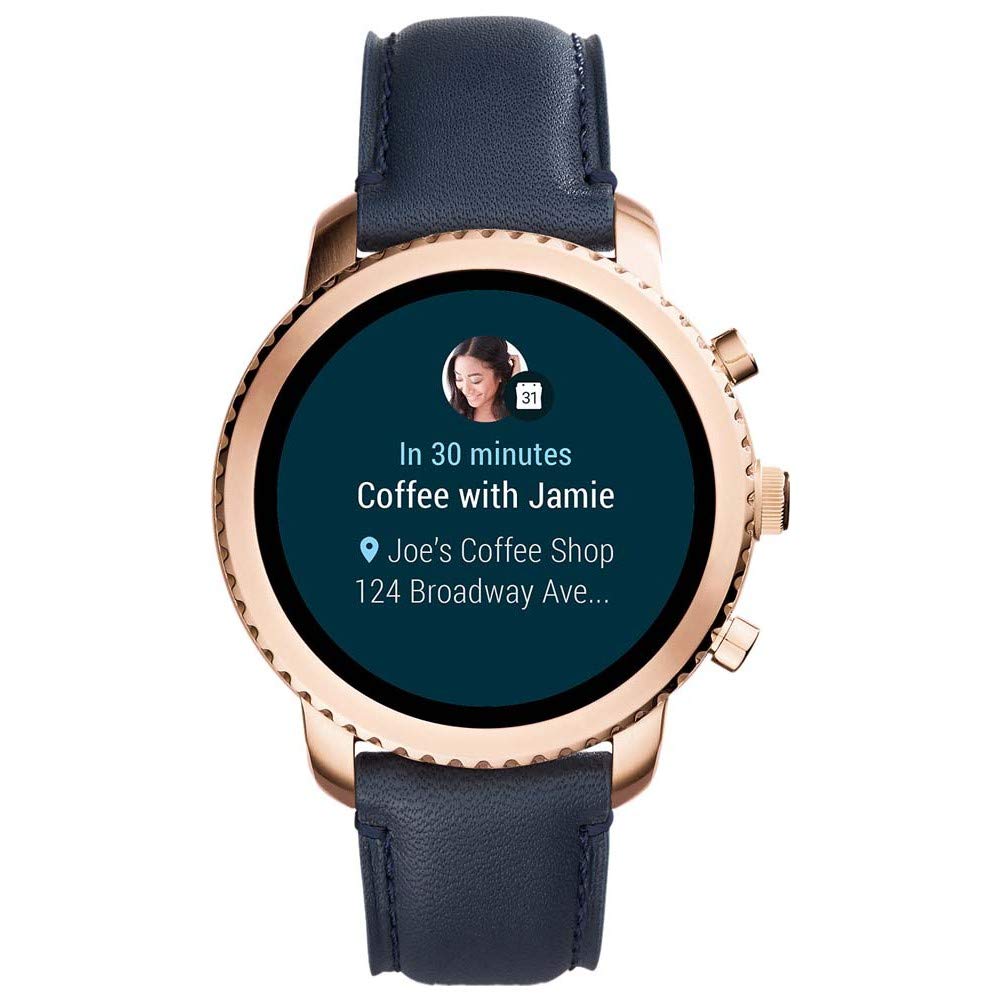
Receive social media alerts, text messages, emails, and app notifications directly on your watch. You can view and often respond to these notifications from your wrist.

Nkọwa onyonyo: The watch face showing a notification for an upcoming event: "In 30 minutes Coffee with Jamie" at "Joe's Coffee Shop".

Nkọwa onyonyo: The watch face indicating an incoming call from "Jamie calling phone" with options to accept or decline.

Nkọwa onyonyo: The watch face showing a message notification from "Jamie" stating "Just leaving. Meet you there!".
3.4 Ndepụta ihe omume
The watch includes an activity tracker to monitor your daily steps and other fitness metrics. Use the pre-installed Google Fit app or other compatible fitness applications to track your progress.
3.5 Google Maps Navigation
Utilize Google Maps for turn-by-turn navigation directly on your wrist. This feature is particularly useful when walking or cycling, providing directions without needing to check your phone.
Nkọwa onyonyo: The watch face showing Google Maps navigation, indicating "20 min to Home" and "Light traffic on US-101 North".
3.6 Njikwa egwu
Control music playback on your paired smartphone directly from your watch. You can play, pause, skip tracks, and adjust media volume.

Nkọwa onyonyo: The watch face displaying music playback controls, showing the artist "Fitz and the Tantrums" and song "More Than Just a Dream", with play/pause, skip, and volume icons.
3.7 Njikwa ike
- Gbanyụọ/ Gbanyụọ: Press and hold the main crown button to power the watch on or off.
- Restart/Reset: Access these options through the watch settings or by pressing and holding the main crown button for an extended period (typically 10-15 seconds for a forced restart).
4. Nlekọta na nlekọta
4.1 Nhicha
To clean your watch, wipe the case and strap with a soft, damp cloth. Avoid using harsh chemicals or abrasive materials, as these can damage the finish. Ensure the watch is dry before charging.
4.2 Ntuziaka Mgbochi Mmiri
The Fossil Gen 3 Explorist is water resistant. This means it can withstand splashes, rain, or brief immersion in shallow water. However, it is ọ bụghị suitable for swimming, diving, or high-pressure water activities. Avoid exposing the watch to hot water or steam.
4.3 Nlekọta batrị
To maximize battery life, avoid extreme temperatures. Charge the watch regularly and avoid letting the battery completely drain for extended periods. While charging, ensure the watch is placed on a stable, flat surface.

Nkọwa onyonyo: The underside of the Fossil Gen 3 Explorist Smart Watch, displaying the charging contacts, the Fossil logo, and the blue leather strap with a rose gold buckle.
5. Nchọpụta nsogbu
5.1 Okwu nkịtị
- Mgbapu batrị ngwa ngwa: This can be caused by frequent use of demanding apps, always-on display, or poor connectivity. Try reducing screen brightness, disabling unnecessary notifications, or turning off Wi-Fi when not needed.
- Nsogbu Njikọta: Ensure Bluetooth is active on both your watch and phone. Restart both devices and try re-pairing if issues persist. Check that the Wear OS app is running in the background on your phone.
- Ịrụ ngwa ngwa: If the watch feels sluggish, try restarting it. Close unused apps and ensure the Wear OS app on your phone is up to date.
5.2 Boot Loop Resolution
Some users may experience a boot loop issue where the watch continuously restarts. If this occurs:
- Press and hold the main crown button for approximately 10-15 seconds to force a restart.
- If the issue persists, try deactivating Google Assistant temporarily through the Wear OS app on your phone, then restart the watch.
- Ensure your watch's software is updated to the latest version.
- If all else fails, a factory reset may be necessary. Note that this will erase all data on your watch.
6. Nkọwapụta
| Njirimara | Nkọwa |
|---|---|
| Ụdị | Fossil |
| Nlereanya | FTW4002 |
| Aha Nlereanya | Fossil Explorist |
| Akụkụ ngwaahịa | 8.6 x 11.6 x 11.6 cm |
| Ibu Ibu | 100 g |
| Sistemụ nrụọrụ | Android OS, iOS |
| Ngwa dakọtara | Ekwentị mkpanaaka |
| Ngosipụta teknụzụ | LCD |
| Ngosipụta ihuenyo guzoro ọtọ | 44 Millimita |
| Ụdị ngosi | Analog-Dijitalụ |
| Ngwakọta cell batrị | Lithium polymer |
| Ụdị ikuku | Bluetooth |
| Ụdị njikọ | Bluetooth, WiFi |
| Njikọ ngwaọrụ - Nke mbụ | Bọtịnụ |
| Ihe onwunwe | Igwe anaghị agba nchara |
| Mmiri Nguzogide | Yes (Splashes, rain, brief immersion) |
7. Akwụkwọ ikike Ozi
Your Fossil Gen 3 Explorist Smart Watch comes with a 2-afọ emeputa akwụkwọ ikike from the date of purchase. This warranty covers manufacturing defects under normal use. Please retain your proof of purchase for warranty claims. For detailed terms and conditions, refer to the warranty card included with your product or visit the official Fossil websaịtị.
8. Nkwado na Ọrụ
For further assistance, technical support, or service inquiries, please visit the official Fossil support website or contact their customer service. You can find contact details and FAQs on the Fossil brand store page or in the documentation provided with your watch.


