1. Okwu mmalite
This manual provides detailed instructions for the setup, operation, and maintenance of your Xerox VersaLink C505/X Color Laser Multifunction Printer. The C505/X is designed for efficient performance in fast-paced work environments, offering print, copy, scan, and fax functionalities.
Key features include a customizable 7-inch color touchscreen for intuitive control, mobile and cloud connectivity, and robust security measures.
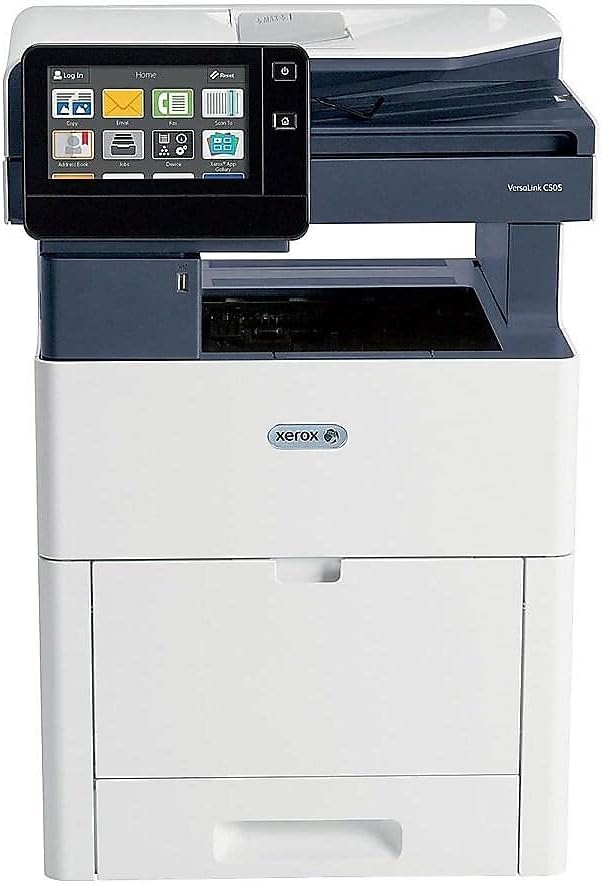
Foto 1: N'ihu view of the Xerox VersaLink C505/X Multifunction Printer.
2. Nhazi
2.1 Mwepu na nyocha izizi
Carefully remove the printer from its packaging. Verify that all components listed below are present and undamaged:
- Xerox VersaLink C505 Color MFP
- Starter capacity toner cartridges (one each of cyan, magenta, yellow: 2,400 capacity; black: 5,000 capacity)
- Software na akwụkwọ CD
- Ntuziaka nwụnye
- Quick User Guides
- Ụdọ ọkụ
2.2 Njikọ ike
- Place the printer on a stable, level surface.
- Connect the provided power cord to the printer's power input and then to a grounded electrical outlet.
- Do not power on the device until all other connections are made.
2.3 Ntinye Katrij Toner
Install the starter toner cartridges into their respective slots. Refer to the Quick User Guides for specific instructions on opening the toner access panel and inserting cartridges.

Figure 2: Toner cartridge access panel open, showing toner installation.
2.4 Network and USB Connection
The printer supports both Ethernet and USB connectivity.
- Ethernet: Jikọọ eriri Ethernet site na ọdụ ụgbọ mmiri Ethernet nke ngwa nbipute na rawụta netwọk gị ma ọ bụ gbanwee.
- USB: Connect a USB cable from the printer's USB port to your computer.
2.5 Nwụnye ngwanrọ
Insert the provided software and documentation CD into your computer's CD/DVD drive. Follow the on-screen instructions to install the necessary drivers and utilities. Alternatively, visit the official Xerox support websaịtị maka ndị ọkwọ ụgbọala kacha ọhụrụ.
3. Na-arụ ọrụ na ngwa nbipute
3.1 Ihuenyo mmetụ
The 7-inch color touchscreen provides access to all printer functions. Navigate through menus by tapping and swiping, similar to a smartphone. The home screen displays icons for various functions such as Print, Copy, Scan, and Fax.

Figure 3: Close-up of the 7-inch color touchscreen control panel.
3.2 Mbipụta
Iji bipụta akwụkwọ:
- Gbaa mbọ hụ na ejikọrọ ngwa nbipute na kọmputa gị ma ọ bụ netwọkụ gị.
- Open the document on your computer and select the print option.
- Choose the Xerox VersaLink C505/X from the list of available printers.
- Adjust print settings (e.g., color/monochrome, duplex printing, paper size) as needed. The printer supports up to 43 ppm color and 45 ppm monochrome, with automatic duplexing.
- Confirm the print job.
3.3 Iṅomi
Iji mepụta mbipụta:
- Place the original document on the scanner glass or in the automatic document feeder (ADF).
- On the touchscreen, tap the "Copy" icon.
- Select desired settings such as number of copies, color/black and white, and two-sided copying. The maximum copy speed is 45 ppm (black & white) with resolutions up to 1200 x 2400 dpi.
- Pịa bọtịnụ "Malite".
3.4 Nyochaa
To scan documents:
- Tinye akwụkwọ ahụ na iko nyocha ma ọ bụ na ADF.
- On the touchscreen, tap the "Scan" icon.
- Choose the scan destination (e.g., email, network folder, USB drive) and adjust scan settings.
- Pịa bọtịnụ "Malite".
3.5 Fax
To send a fax:
- Tinye akwụkwọ ahụ na iko nyocha ma ọ bụ na ADF.
- On the touchscreen, tap the "Fax" icon.
- Tinye nọmba faksị nke nnata.
- Hazie ntọala fax ọ bụla dị mkpa.
- Pịa bọtịnụ "Malite".
3.6 Mobile and Cloud Connectivity
The VersaLink C505/X offers out-of-the-box connectivity to cloud services like Google Drive, Microsoft OneDrive, and DropBox. Additional options are available through the Xerox App Gallery, allowing for flexible workflow integration.
4. Nlekọta
4.1 Ndochi Katrij Toner
When a toner cartridge is low or empty, the printer's display will indicate which cartridge needs replacement. Always use genuine Xerox toner cartridges for optimal performance and print quality.
- Open the front access panel of the printer.
- Carefully remove the empty toner cartridge by pulling it straight out.
- Wepụ katrij toner ọhụrụ ahụ ma jiri nwayọ fegharịa ya ka o wee kesaa toner ahụ.
- Tinye katrij ọhụrụ ahụ n'ime oghere kwekọrọ ruo mgbe ọ pịa ebe ọ dị.
- Close the front access panel.
4.2 Nhicha
Nhicha mgbe niile na-enyere aka ịnọgide na-enwe ogo mbipụta ma gbatịa ndụ nke ngwa nbipute gị.
- Mputa: Jiri nwayọ hichaa elu mpụta, damp, akwa akwa na-enweghị lint.
- Igwe nyocha: Use a soft cloth moistened with glass cleaner to clean the scanner glass. Ensure no residue remains.
- Ngwa ime: Refer to the detailed user manual on the software and documentation CD for instructions on cleaning internal components, such as the print heads or rollers, if necessary.
5. Nchọpụta nsogbu
This section addresses common issues you might encounter with your Xerox VersaLink C505/X. For more complex problems, consult the full user manual or contact support.
5.1 Mpempe akwụkwọ
If a paper jam occurs, the touchscreen will display an error message indicating the location of the jam. Follow the on-screen instructions to clear the jammed paper. Always pull paper in the direction of the paper path to avoid tearing.
5.2 Bipụta Ogo Okwu
If printouts show streaks, faded areas, or incorrect colors:
- Lelee ọkwa toner ma dochie katrij ọ bụla dị ala.
- Jide n'aka na ị na-eji akwụkwọ kwesịrị ekwesị maka ọrụ mbipụta gị.
- Mee nchọpụta àgwà mbipụta site na panel njikwa nke ngwa nbipute.
- Clean the print heads or other internal components as instructed in the detailed manual.
5.3 Nsogbu Njikọta
If the printer is not communicating with your computer or network:
- Verify that all cables (power, USB, Ethernet) are securely connected.
- Malitegharịa ekwentị gị na ngwa nbipute na kọmputa / rawụta gị.
- Check network settings on the printer's touchscreen.
- Ensure the correct printer drivers are installed on your computer.
6. Nkọwapụta
| Njirimara | Nkọwa |
|---|---|
| Aha Nlereanya | Xerox C505/X VersaLink |
| Ọrụ | Bipụta, Detuo, Nyochaa, Faksị |
| Teknụzụ obibi akwụkwọ | Laser agba |
| Ọsọ mbipụta kacha (Monochrome) | 45 ppm |
| Ọsọ mbipụta kacha (Agba) | 43 ppm |
| Mkpebi Mbipụta kacha (B&W) | 2400 dpi |
| Mkpebi Mbipụta kacha (Agba) | 1200 x 2400 dpi |
| Duplex Printing | Akpaaka |
| Ụdị nyocha | Akwụkwọ |
| Oke oyiri ọsọ (B&W) | 45 ppm |
| Mkpebi Ndepụta Kachasị Elu (Agba) | Ruo 1200 x 2400 dpi |
| Usoro njikwa | App, Touch (7-inch display) |
| Njikọta | USB, eriri |
| Oke ntinye akwụkwọ ikike | Ibé akwụkwọ 3250 |
| Trays ọkọlọtọ | 2 (550 Sheet Tray, 150 Sheet Multi Purpose Tray) |
| Nha mgbasa ozi akwadoro | Letter (8.5 x 11 inches), Legal (8.5 x 14 inches) |
| Ụdị Ink | Toner (Black, Cyan, Magenta, Yellow) |
| Ike Nchekwa ebe nchekwa | 4096 MB |
| Akụkụ ngwaahịa | 26"D x 23"W x 31"H |
| Ibu Ibu | 77.2 pound |
| Wattage | 600 watt |
7. Akwụkwọ ikike na nkwado
7.1 Akwụkwọ ikike ngwaahịa
The Xerox VersaLink C505/X Color Laser MFP comes with a standard one-year full warranty from the date of purchase. This warranty covers defects in materials and workmanship under normal use. For detailed terms and conditions, please refer to the warranty documentation included with your product or visit the official Xerox websaịtị.
7.2 Nkwado ndị ahịa
For technical assistance, troubleshooting, or service requests, please contact Xerox customer support. Support contact information can be found on the Xerox website or in the documentation provided with your printer.
Akụrụngwa dị n'ịntanetị: Visit the official Xerox support website for FAQs, driver downloads, and additional user guides.


