Okwu mmalite
The Plantronics Voyager 8200 UC is a Bluetooth dual-ear (stereo) headset designed for professionals who require focus and high-quality audio for both communication and music. It is compatible with PC/Mac via USB-A and mobile phones, and works seamlessly with leading collaboration platforms like Microsoft Teams and Zoom.
Key features include dual-mode Active Noise Cancellation (ANC) for blocking background noise, and a boomless four-mic system for dynamic noise reduction during calls. Enjoy extended usage with up to 20 hours of talk time and 24 hours of listen time, and roam freely up to 98 feet (30 meters).
Kedu ihe dị na Igbe ahụ
- Plantronics Voyager 8200 UC Bluetooth Headset
- Ihe nkwụnye Bluetooth USB-A (BT600)
- 3.5 mm Audio USB
- USB Charging Cable (Micro USB)
- Akpa njem

Image: The Plantronics Voyager 8200 UC headset shown with its accompanying USB adapter.
Ntọlite na ojiji mbụ
1. Charging Your Headset
Before first use, fully charge your headset. Connect the micro USB charging cable to the headset's charging port and the other end to a USB power source. The headset has a talk time of up to 20 hours and a listen time of up to 24 hours on a full charge.

Foto: Akụkụ view of the headset, highlighting the charging port and controls.
2. Ijikọta na ngwaọrụ
Pairing with PC/Mac (USB-A Adapter)
- Insert the BT600 USB-A adapter into an available USB port on your computer.
- Slide the power button on your headset to the "on" position.
- To initiate pairing, slide and hold the power button towards the Bluetooth icon for 3-5 seconds until the LED on the headset flashes blue and red.
- The adapter's LED will also flash blue and red. Once paired, the headset LED will turn off, and the adapter's blue light will turn solid.
Vidiyo: Efereview of the Plantronics Voyager headset, demonstrating its features and connectivity options. This video is provided by the vendor.
Pairing with Mobile Phone (Bluetooth)
- Slide the power button on your headset to the "on" position.
- To initiate pairing, slide and hold the power button towards the Bluetooth icon for 3-5 seconds until the LED on the headset flashes blue and red.
- On your mobile device, go to Bluetooth settings and select "PLT V8200 Series" or "Plantronics Voyager 8200 UC" from the list of available devices.
- Once connected, the headset LED will stop flashing and remain solid blue.
Na-arụ ọrụ ekweisi gị
Njikwa na Ọrụ
The Voyager 8200 UC features intuitive controls located on the earcups for easy management of calls and media.
- Bọtịnụ ike: Located on the earcup, slides to turn the headset on/off and initiate Bluetooth pairing.
- Njikwa olu: Adjust audio volume for calls and music.
- Bọtịnụ Kwụsị/Kwụsị: Jikwaa ọkpụkpọ mgbasa ozi.
- Bọtịnụ oku: Zaa ma ọ bụ kwụsị oku.
- Oghere bọtịnụ: Quickly mute/unmute your microphone during calls.
- Active Noise Cancellation (ANC) Switch: Toggle between different ANC levels (e.g., High, Low, Off) to manage ambient noise.

Image: Close-up of the headset earcup, detailing the various control buttons.
Arụmọrụ ọdịyo
The headset features dual-mode Active Noise Cancellation (ANC) to effectively block out distracting background noise, allowing you to concentrate on your tasks or conversations. The boomless four-mic performance ensures dynamic noise reduction, providing clear voice pickup even in noisy environments.
Talk Time and Roaming Range
Enjoy extended use with up to 20 hours of talk time and 24 hours of listen time. The headset offers a roaming range of up to 98 feet (30 meters), providing flexibility to move around while staying connected.
Nlekọta
To ensure the longevity and optimal performance of your Plantronics Voyager 8200 UC headset, regular maintenance is recommended.
- Nhicha: Gently wipe the earcups and headband with a soft, damp akwa . Zere iji kemịkalụ siri ike ma ọ bụ ihe na-emebi emebi.
- Ndochi Earcup: Over time, the earcup cushions may show wear. Replacement earcups are available to maintain comfort and sound quality. Refer to the official Poly websaịtị ma ọ bụ ndị na-ere ahịa ikike maka ezigbo akụkụ nnọchi.
- Nchekwa: When not in use, store the headset in its provided travel pouch to protect it from dust and damage.
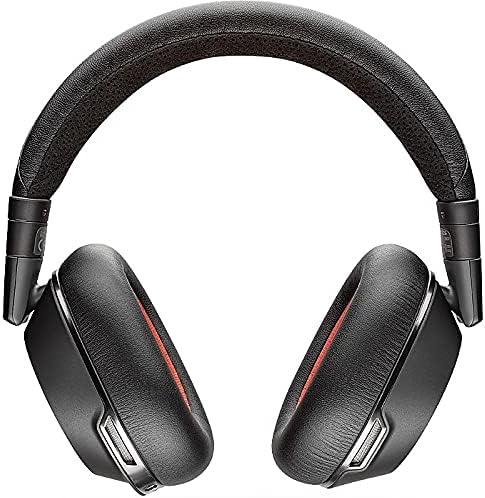
Image: The headset neatly folded and stored in its soft travel pouch.
Nchọpụta nsogbu
| Okwu | Ngwọta enwere ike |
|---|---|
| Headset not connecting to PC/Mac. | Ensure the BT600 USB adapter is properly inserted and its LED is solid blue. Re-initiate pairing mode on the headset and adapter if necessary. Check your computer's Bluetooth settings. |
| Difficulty switching between PC and phone. | Sometimes restarting the headset can resolve this. Ensure only one device is actively trying to connect at a time if experiencing conflicts. |
| Poor microphone quality / background noise on calls. | Ensure the headset is positioned correctly. Verify ANC is enabled to reduce ambient noise. Check microphone settings on your computer or mobile device. |
| Batrị na-agbapụ ngwa ngwa. | Ensure the headset is fully charged before use. If ANC is constantly on, it may consume more power. Turn off the headset when not in use. |
Nkọwapụta
| Njirimara | Nkọwa |
|---|---|
| Aha Nlereanya | Plantronics Voyager 8200 UC Stereo Bluetooth Headset With Active Noise Canc |
| Teknụzụ Njikọta | Ikuku (Bluetooth) |
| Jack ekweisi | 3.5mm ọkpụrụkpụ |
| Ngwa gụnyere | Bluetooth headset, Boomless Microphones, Travel Pouch |
| Oge Okwu | Ruo awa iri abụọ |
| Oge Ntị | Ruo awa iri abụọ |
| Roaming Range | Ruo 98 ụkwụ (mita 30) |
| Njikwa mkpọtụ | Active Noise Cancellation (Dual Mode) |
| Igwe okwu | Boomless four-mic performance |
| Ụdị ejiji | Over the head, two ear headset |
| Ibu Ibu | 10.2 ounces |
| Akụkụ ngwaahịa | 6.69 x 2.76 x 6.3 sentimita asatọ |
| Onye nrụpụta | Poly |
| Agba | Nwa |
| Ihe onwunwe | Plastic |
| UPC | 017229158221 |
Akwụkwọ ikike na nkwado
The Plantronics Voyager 8200 UC headset comes with a Akwụkwọ ikike nke afọ 2 zuru ụwa ọnụ.
For further support, troubleshooting, or to access the latest software and firmware updates, please visit the official Poly support websaịtị ma ọ bụ kpọtụrụ ndị ahịa ha ọrụ.
Ị nwekwara ike ịga na POLY Store on Amazon maka ozi ngwaahịa na ngwa mgbakwunye.


